

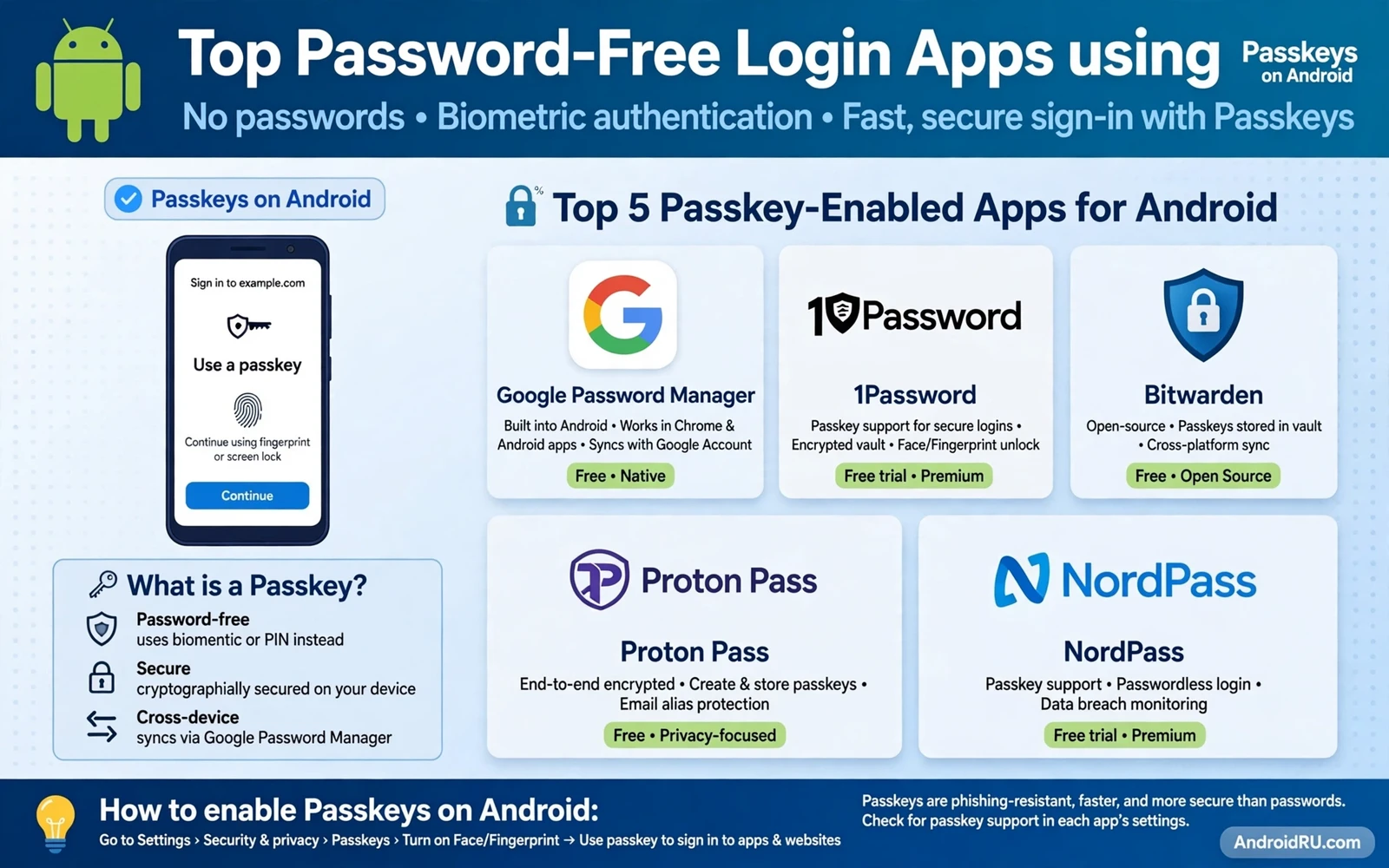
Passwords are hard to remember and easy to steal. A passkey offers a different path. It uses your phone to prove who you are. It uses a fingerprint or a face check or a PIN. It never asks you to type a secret that a stranger can copy. That shift makes daily sign in faster and safer.
A passkey has two linked parts. One part stays private on your phone. One part stays public with the service that you use. The private part never leaves your device during sign in. The service checks a proof made by the private part. A leaked database cannot reveal your private part. A fake login page cannot trick you into typing it.
Passkeys feel simple once you try them. You open an app or a site. You choose sign in with a passkey. You confirm with your fingerprint or face. You are in within seconds. No password to recall. No password to reset. No password to reuse across sites. That simplicity is the main reason passkeys spread fast.
How Passkeys Differ From Passwords
A password is a shared secret. You know it and the service stores a scrambled copy of it. A breach can expose that copy. A phishing page can capture the typed secret. A passkey removes that shared secret from the flow. The private part stays locked on your device. The sign in proof works only for the real service.
Reuse is a major password risk. Many people reuse one password across many sites. One breach then opens many doors. Passkeys are unique per service by design. A passkey for one service does not work for another service. That uniqueness removes the reuse problem without extra effort from you.
Typing is another password risk. Shoulder surfing can catch a typed password. Keylogging can capture typed secrets. Passkeys need no typing. A biometric check or a device PIN unlocks the proof. That check happens on your phone. It does not travel as a typed secret.
Recovery works differently too. A lost password can be reset by email. A lost phone needs a recovery path that you set up in advance. Sync across your own devices helps here. A passkey stored in a trusted manager can move to a new phone with you. Set up that sync before you lose a device. Recovery after loss is harder than setup before loss.
Choosing A Passkey Approach
Some passkey tools live inside a password manager. Some live inside a browser. Some live inside the system account on your phone. Each path has trade offs. A manager gives you one place for passkeys across devices. A browser path feels simple for web sign in. A system path feels seamless on one phone. Pick the path that matches how you switch devices.
Sync scope matters. A passkey that syncs only within one brand of device can trap you later. A passkey that syncs through a manager that you control travels more freely. Check export and sync options before you commit to one tool. Check how the tool handles a new phone. Check how it handles a lost phone. Those answers matter more than a slick setup screen.
App support matters as well. Not every app offers passkey sign in yet. Many major apps do. Many smaller apps still use passwords only. A good approach mixes passkeys where available and strong unique passwords where needed. A password manager can hold both types in one vault. That mix keeps you safe while passkey support grows.
The wider password manager landscape helps you compare that mix. Managers differ in sync and in vault design and in recovery options. A clear comparison of manager types can guide your choice. You can start that comparison with password manager apps for Android to keep credentials safe and then check which of those managers handle passkeys in the way that you prefer.
Setting Up Passkeys Step By Step
Start with one important account. Open the security settings of that account. Look for a passkey option or a password free option. Create a passkey on your phone. Confirm with your fingerprint or face. Test sign in with the new passkey right away. Keep the old password active until the test succeeds.
Next add a second device or a recovery method. A second phone or a trusted manager gives you a backup path. Test recovery before you need it. Sign out on a test basis if the service allows it. Sign back in with the passkey. That rehearsal builds confidence. It also reveals gaps while you still have access.
Then move account by account. Start with email because email unlocks many resets. Move to banking and shopping next. Move to social apps after that. A slow rollout avoids a day full of lockouts. Keep a simple list of which accounts now use passkeys. Update that list as you migrate each account.
Device lock strength matters for passkeys. A weak PIN weakens every passkey on the phone. Use a strong device PIN. Use biometrics as a convenience layer on top of that PIN. Keep your phone updated. Keep your screen lock on. A passkey is only as strong as the lock that guards it.
Passkeys And Broader Security Habits
Passkeys do not replace all security habits. You still need care with app permissions. You still need care with public networks. You still need care with device sharing. A passkey protects sign in. It does not protect a phone that you hand to a stranger unlocked. Lock your phone. Review permissions. Stay alert to fake prompts.
Two factor habits still help where passkeys are not available. A second factor can block a password attack even when a password leaks. The relationship between passkeys and older password tools is worth a closer look. A balanced view of both approaches appears in password managers versus passkeys and what is safer on Android where strengths and limits of each path are set side by side.
Second factor setup itself deserves a careful pass. Many accounts let you add an authenticator or a security key as a backup. Add at least one backup method for key accounts. Store backup codes in a safe place offline. Test one backup method before you rely on it. A backup that you never tested may fail when you need it most.
App locking adds another layer for sensitive tools. A manager or a banking app can ask for a fresh biometric check each time it opens. That check stops a casual snooper who picks up your unlocked phone. You can learn more about that layer through how to enable two factor authentication across apps and through the app lock settings on your own device.
Common Problems And Fixes
A passkey that fails on one device may work on another. Check whether the passkey synced to that device. Check whether biometrics are set up on that device. Check whether the browser or app supports passkeys on that platform. A missing sync step explains many failures. A fresh sync often fixes them.
A new phone can feel like a fresh start. Restore from your trusted manager or account backup. Do not create duplicate passkeys for the same account unless you need them. Remove old passkeys for phones that you no longer own. A clean list of active passkeys reduces confusion later.
A service that offers passkeys only on the web may not offer them in its app yet. Use the web path where it exists. Keep a strong password for the app path until the app catches up. Check the service settings after each app update. Passkey support often arrives quietly in an update.
Shared devices need extra care. A passkey on a shared tablet belongs to whoever can unlock that tablet. Do not create personal passkeys on a device that others unlock freely. Use a personal device for passkeys. Use a separate profile or a separate device for shared use.
Password free login is a real improvement for daily Android use. It removes typing. It removes reuse. It removes many phishing paths. It still needs a strong device lock and a tested recovery plan. Set up passkeys slowly. Test each one. Keep a backup path. That careful rollout gives you speed and safety together.
A Slow Migration Plan
Migrate accounts in order of importance and ease. Start with a low risk account to learn the flow. Move to email next because email guards many resets. Move to shopping and social accounts after email. Move to banking last when you feel confident. A graded migration builds skill without risking key access.
Keep a migration note for yourself. List each account that now uses a passkey. List the recovery method for each one. List the devices that hold each passkey. Store that note in a safe place separate from your phone. A clear note prevents confusion when you switch phones later.
Test sign in from a second device early. A passkey that works on one phone should work where it synced. If it does not sync then fix sync before you migrate more accounts. A sync gap discovered early is easy to fix. A sync gap discovered after losing a phone is a crisis.
Watch for services that add passkey support over time. Check security settings after major app updates. A service that lacked passkeys last year may offer them now. A periodic check keeps your migration current. It also lets you replace weak passwords as support grows.
Teach family members the basics of passkeys. Show them the fingerprint check. Show them the recovery step. Show them what a passkey prompt looks like. Family awareness reduces support calls later. It also reduces the chance that a relative approves a fake prompt by mistake.
Remember that passkeys complement device security rather than replacing it. Keep the phone locked. Keep the system updated. Keep app permissions reviewed. A strong device foundation makes passkeys strong. A weak device foundation undermines every login method.
Passkeys For Families And Teams
Family accounts need a shared recovery plan. Decide who can help recover an account. Decide where backup codes live. Decide how a new device gets added. A family plan written down avoids panic during a real loss. A plan kept only in memory fails when memory fades.
Work accounts may follow company rules for passkeys. Some companies require a specific manager. Some companies forbid personal device passkeys for work data. Follow work policy even when a personal tool feels easier. Policy exists to protect company data as well as your access.
Children accounts need guardian control. A guardian should hold recovery for a child account. A child should learn passkey basics early. A fingerprint check feels natural to young users. Early good habits protect accounts for years ahead.
Keep learning as passkey support spreads. New services add passkeys each year. New devices improve biometric checks each year. A yearly review of your passkey list keeps your setup modern. A setup reviewed yearly stays strong while technology moves forward.

