

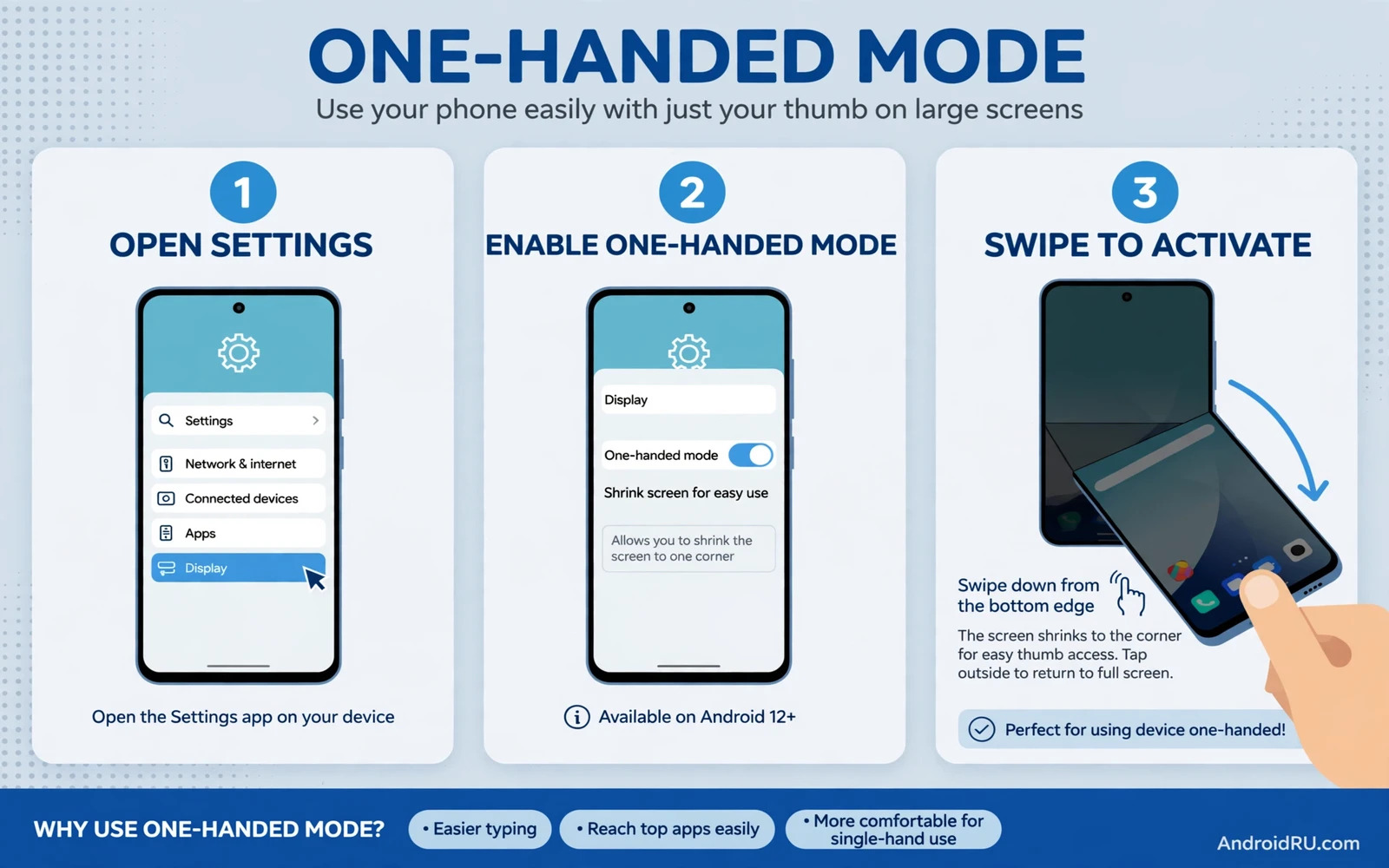
Why Large Phones Need One-Handed Help
Modern phones are tall and wide and a single thumb cannot reach the top corner without shifting your grip. That shift can make the phone feel unstable and it can lead to a dropped device on a busy street. One-handed mode shrinks the whole screen toward the bottom corner so every button falls within thumb reach. The feature is built into many Android phones and it costs nothing to try. A few taps can turn a large phone from a two-hand device into a comfortable one-hand tool.
One-handed mode is not only for small hands and it helps anyone who carries a bag or holds a rail or walks with a child. It helps on a tablet when you hold it in one hand and tap with the same hand. It helps when you need to reply quickly without putting down a coffee cup. The mode is temporary by design and you can exit it with a single gesture when you want the full screen again. Think of it as a reach extender and not as a permanent smaller screen.
Find One-Handed Mode On Your Phone
Open Settings and use the search box at the top to search for one-handed mode. Different brands place the setting in different menus and the search box is the fastest way to find it on any phone. Samsung places it under advanced features while Pixel places it under system gestures and other brands place it under accessibility or display settings. Tap the result that matches one-handed mode exactly and open its dedicated page. If search finds nothing then your phone model may use a different name for the same feature.
Some phones call the feature one-handed mode and others call it mini screen view or small screen mode. The idea is the same even when the name differs. A mini screen view shrinks the display to a smaller window in a corner. A reachability gesture pulls the top of the screen down without shrinking its width. Check your phone manual or support page if the search box finds no match. A third-party launcher can also offer a similar shrink feature as a fallback.
Enable One-Handed Mode Step By Step
Open the one-handed mode page and turn on the main switch at the top of the page. Choose the gesture that will trigger the mode on your phone. Common triggers include a swipe down on the bottom bar or a double tap on the home button area or a swipe across the navigation bar. Choose the trigger that feels natural and that you will not activate by accident during normal scrolling. Test the trigger right away and watch the screen shrink toward the chosen corner.
Choose the screen size for the shrunken view if your phone offers a size slider. A smaller view reaches further but shows less content at once. A larger view keeps text readable while still bringing the top edge closer. Choose the corner that matches your dominant hand because a left corner suits a left thumb and a right corner suits a right thumb. Some phones let you switch corners with a single tap on an arrow outside the shrunken view. Test both corners and keep the one that feels balanced in your hand.
Common path
Settings > Search one-handed mode > Switch on > Choose gesture > Test shrink
Use One-Handed Mode In Daily Life
Activate the mode before you open a messaging app when you need to type with one thumb. The keyboard will sit inside the shrunken view and your thumb will reach every key without stretching. Activate the mode before you open a map app when you walk and need to check a route quickly. The map will be smaller but the controls will be reachable and the phone will stay secure in your grip. Exit the mode when you sit down and can use both hands comfortably again.
One-handed mode also helps when you reach for a top notification or a settings toggle. Pull the screen down with the trigger gesture and tap the item that was out of reach. Return to full screen with the exit gesture or by tapping the empty area outside the shrunken view. Practice the entry and exit gestures at home so they feel automatic on the street. A practiced gesture is safer than a stretched grip in a crowd.
Adjust Display And Gesture Settings Together
Pair one-handed mode with a larger font size if small text strains your eyes in the shrunken view. Open display settings and increase font size by one step and test the shrunken view again. A slightly larger font keeps the shrunken screen readable without losing much reach benefit. Also check navigation gesture settings because a conflicting swipe can block the one-handed trigger. Choose gestures that do not overlap and test each one after a change.
Display comfort is a wider topic and the personalisation steps in How to Enable and Customize Dark Mode Across System Apps show how one calm visual change can help daily use. A dark theme can reduce glare in the shrunken view at night. A consistent theme across apps keeps the smaller window easy to read. Combine display comfort with reach comfort for a phone that feels made for your hand.
One-Handed Mode On Foldables And Tablets
Foldable phones benefit greatly from one-handed mode when the device is unfolded. An unfolded inner screen is wide and a shrunken view brings far controls into thumb reach. Open one-handed mode on the inner screen and choose a corner that matches how you hold the unfolded device. Test the mode with the device folded and unfolded because the trigger may behave differently in each state. A foldable that feels huge unfolded can feel friendly with a shrunken view.
Tablets use a similar idea through split screen and floating windows rather than a single shrink mode on every model. Check accessibility settings on a tablet for a one-handed or small screen option. If the tablet has no such option then use a floating window for the app that you need most. A floating window can be dragged to a reachable corner and resized to a comfortable size. A tablet held in one hand still needs reachable controls and a floating window delivers them.
Fix One-Handed Mode That Will Not Stay On
If one-handed mode turns off by itself then check whether a battery saver or a restart reset the setting. Some phones turn off extra features after a system update and you may need to enable the mode again. Open the setting page and confirm that the main switch is still on. Test the trigger gesture again after you re-enable it. A setting that resets after an update is annoying but it is not a hardware fault.
When a touch area stops responding in the shrunken view the touch fixes in How to Fix Touch Screen Unresponsiveness on Android Phones help you check whether the screen or the mode is at fault. Clean the screen and remove a thick protector that may dull touch near the edges. Test touch in full screen mode and in one-handed mode to compare. A fault that appears only in one mode points to software while a fault in both modes points to the screen.
Launcher And Accessibility Alternatives
A custom launcher can offer a one-handed layout with a lower dock and larger touch targets near the bottom. Install a launcher only from a trusted store and check its permission requests before you set it as default. A launcher that asks for excessive access should be avoided. Test the launcher layout for a day and keep it only if it truly improves reach. A good launcher respects your data while it improves your grip.
Home screen layout changes pair well with reach features and the launcher steps in How to Change Default Launcher on Android Step-by-Step explain how to switch safely and return to the stock launcher. Move your most used apps to the bottom rows of the home screen. Place widgets that you tap often near the bottom edge. A home screen built for your thumb reduces the need to trigger one-handed mode for simple tasks.
Final Checklist For Comfortable One-Hand Use
Confirm that the trigger gesture works every time and that the exit gesture is easy to remember. Confirm that the chosen corner matches your dominant hand and that the size keeps text readable. Confirm that font size and theme settings work well inside the shrunken view. Confirm that foldable and tablet behaviour matches your daily hold. A short checklist turns a hidden setting into a daily comfort tool.
Practice One-Handed Gestures Safely
Practice the entry gesture at home while you sit down so a mistake cannot cause a drop. Repeat the gesture ten times until it feels natural and until you can exit the mode without looking at the screen. A practiced gesture becomes a reflex on a crowded train. An unpracticed gesture can cause fumbling at the worst moment.
Adjust your grip before you activate the mode and rest the phone against your palm for stability. A secure palm grip gives the thumb a stable base to reach across the shrunken screen. Avoid holding the phone only by its edges during one-handed use. A palm grip feels safer and it reduces strain on the fingers over a long day.
Use voice input for long messages when one-handed typing feels slow or tiring. Voice input lets you keep a secure grip while the phone converts speech to text. Check the converted text before you send it because voice input can mishear a name or a number. A short check prevents an embarrassing message error.
Review your most used apps and move their key buttons closer to the bottom where possible. Many apps let you move a toolbar or a navigation bar to a lower position. A lower toolbar reduces the need for one-handed mode in daily use. A phone layout built around your thumb feels effortless after a week.
Try one-handed mode in different daily situations and note where it helps most. A train ride and a shopping trip and a walk with a child each place different demands on your grip. A note of the best situations helps you build a habit around the mode. A habit built on real use lasts longer than a setting that you enable once and forget.
Share the one-handed setup with a friend who struggles with a large phone and show them the trigger gesture in person. A short live demo teaches the gesture faster than any written guide. A friend who learns the mode may use a large phone comfortably for the first time. A shared tip turns a hidden setting into a daily comfort for more people.
Practice the mode for a week and notice when you use it most. You may find that mornings on a crowded train are the main use case. You may find that evening reading benefits from a smaller reachable window. Keep the mode enabled and use it only when it helps. A large phone should adapt to your hand and not force your hand to adapt to it.

