

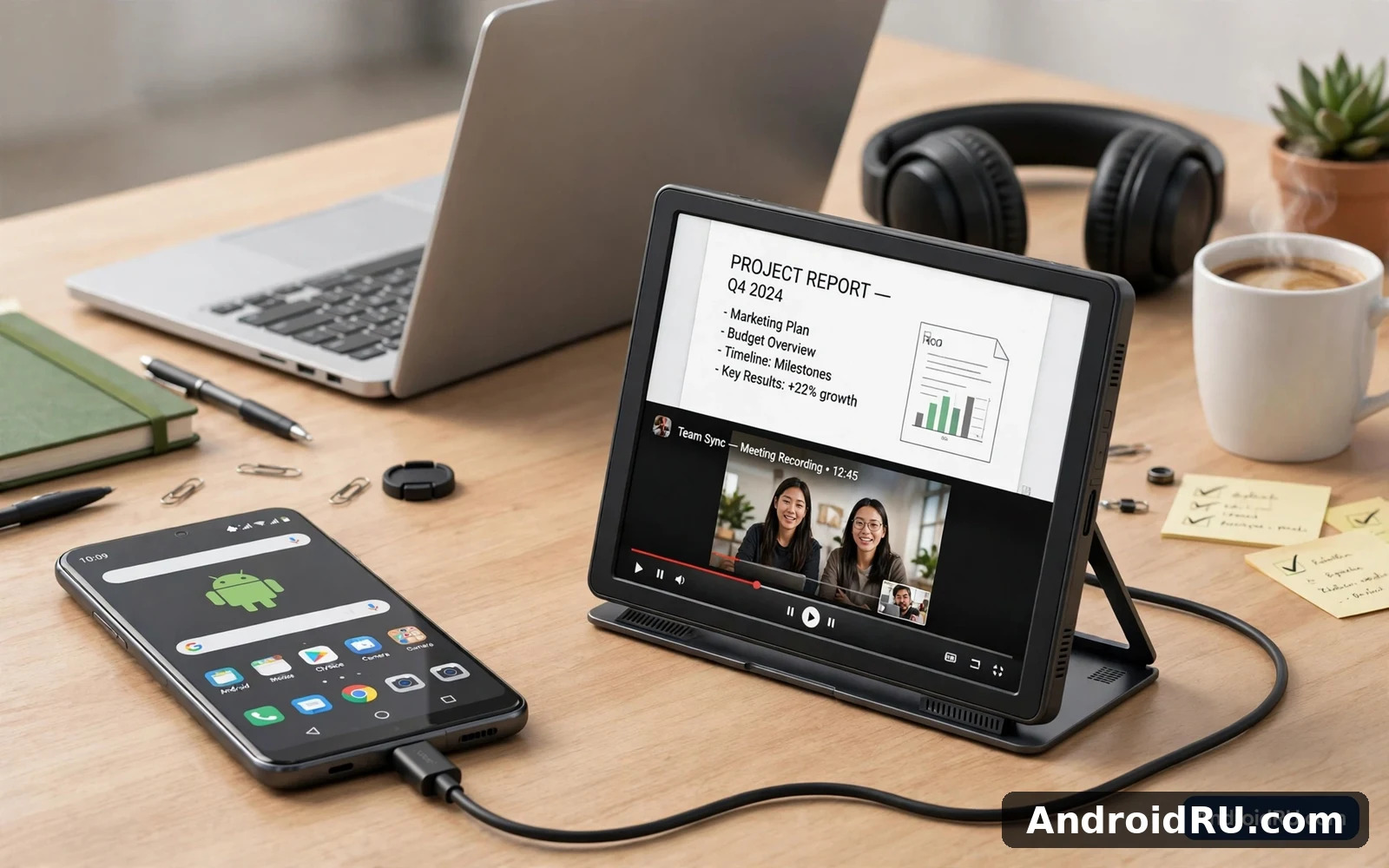
Top Secondary Display Accessories for Android Phones
My phone became my main computer by accident. I was travelling with a light bag, my laptop stayed home, and I had a deadline, a video call and a document to edit. A borrowed portable monitor saved that trip: one cable, a bigger screen, and suddenly my phone felt like a desk. I have tested second screens in hotel rooms, cafes, classrooms and living rooms since then, and the lesson has stayed the same. The right extra screen does not just make things bigger. It changes what your phone can do.
A second screen for an Android phone can be a portable monitor, a lapdock, a pair of AR glasses, a TV box, or a desktop dock. Each one solves a different problem, and each one fails in a different way if you buy the wrong type. This guide names eight options worth considering, explains how each one connects, who it suits, and what to check before you spend money. It also covers cables, power, desktop modes and size, so you can build a setup that works on the first try, not after three returns.
Before you buy anything, check one thing: does your phone output video over USB-C, and does it offer a desktop mode? Samsung DeX, Motorola Ready For and similar modes turn a phone into a windowed desktop on a large screen. Without video output, many of these accessories will not work at all, no matter how good they look. Check your exact model, not only the brand, because support varies inside the same family.
What counts as a second screen for an Android phone
A second screen is any display beyond the phone itself that shows your phone content, extends it, or mirrors it for work, play or presenting. It can be wired over USB-C, wireless over Miracast or Chromecast, or built into a lapdock shell that adds a keyboard and trackpad. The connection decides the delay, the sharpness and the hassle. Wired USB-C is usually sharpest and fastest, wireless is tidiest for a living room, and a lapdock is best when you need to type for hours.
Think about your three most common tasks before you shop. Editing documents needs a sharp, bright screen and a keyboard. Watching films needs good colour and speakers or a headphone jack. Presenting needs a reliable connection and a screen the audience can read from a distance. Drawing needs touch and stylus support with low delay. A screen that is perfect for films can be a poor choice for drawing, and a lapdock that is great for typing can be a poor choice for a film night.
USB-C video output, DisplayPort Alt Mode and desktop mode support
Most wired second screens use DisplayPort Alt Mode over USB-C, which carries video through the same cable that can also carry power. Your phone needs a USB-C port that supports video output, which is common on flagships and some mid-range phones, and rare on budget phones. USB-C video output is the first spec to confirm, before size, resolution or price.
Desktop mode is the second check. Samsung DeX, Motorola Ready For and the newer Android desktop mode reshape apps into resizable windows with a taskbar, which makes a large screen feel like a computer. Without a desktop mode, the phone usually mirrors its portrait screen, which looks stretched and wastes space on a wide monitor. If your phone has no desktop mode, a lapdock or a portable monitor still works for video and presenting, but it will not feel like a laptop.
How to check video output on your exact phone model
Search for your model plus USB-C video output or DisplayPort Alt Mode, and check the maker page for DeX or desktop mode support. If you can, borrow a USB-C to HDMI adapter and a TV: if the phone shows its screen on the TV, video output works. If nothing appears, or only charging starts, the port may not carry video. Test before you order a monitor, because a monitor cannot add a feature the phone lacks.
The best second screens for Android phones: eight options compared
The eight options below cover the main ways to add a screen to an Android phone. Each one has its own heading, with what it does, who it suits, its strengths, its weaknesses, and a short verdict. Prices change often, so treat the ranges here as a guide and check the current price before you buy.
1. ASUS ZenScreen MB16ACV portable monitor
The ASUS ZenScreen MB16ACV is a 15.6-inch Full HD portable monitor that connects with a single USB-C cable and draws power from the phone or a laptop. It weighs under a kilogram, folds into a smart cover that doubles as a stand, and works as a second screen for documents, video calls and media. I used one on a train table and a hotel desk, and its slim shape was the reason it came out of the bag at all.
It suits travellers, students and office workers who need a bigger screen for a few hours a day without carrying a laptop. The IPS panel gives decent viewing angles and readable text, and the single-cable setup means no separate power brick in most cases. Pros: light and slim, one-cable USB-C connection, affordable for a portable monitor, and a useful cover stand. Cons: Full HD only, brightness is modest outdoors, speakers are weak, and it draws power from the phone when no charger is attached. Verdict: a solid first portable monitor for work on the move, especially if your phone supports video output and you pack a charger for long sessions.
2. Lenovo ThinkVision M14t portable touch monitor
The Lenovo ThinkVision M14t is a 14-inch Full HD touch monitor with a stylus pen, built for people who tap, scroll and annotate on the larger screen. It connects over USB-C, supports ten-point touch, and includes a pen for notes and sketches. The touch layer is what sets it apart: instead of reaching for the phone to tap a button, you tap the big screen directly.
It suits note-takers, teachers, designers and anyone who marks up documents. Touch feels natural for scrolling and zooming, and the pen is handy for signatures and quick diagrams. Pros: responsive touch, included stylus, bright enough for indoor work, and a slim metal body. Cons: costs more than a non-touch monitor, the pen is basic rather than pressure-sensitive like a drawing tablet, and touch needs a compatible phone and app to feel useful. Verdict: the best portable monitor here for hands-on work, and worth the premium if you annotate daily. For a closer look at how size affects drawing and note-taking, read How to Choose the Right Android Tablet Screen Size before you pick between 14 and 16 inches.
3. NexDock 360 lapdock
The NexDock 360 is a lapdock: a laptop-shaped shell with a 13.3-inch touch screen, keyboard, trackpad, battery and speakers, but no processor of its own. Your phone supplies the computing power over USB-C, and the NexDock supplies the laptop experience. Flip the screen around and it becomes a tablet shape for presenting or watching video.
It suits writers, students and remote workers who want to type for hours with phone apps and phone mobile data. The built-in battery charges the phone while you work, which solves the drain problem that portable monitors often create. Pros: full keyboard and trackpad, long built-in battery, touch screen that flips 360 degrees, and a true laptop feel. Cons: heavier than a portable monitor, the keyboard is compact, performance depends entirely on your phone, and some apps do not scale well in desktop mode. Verdict: the closest thing to turning a phone into a laptop, and the right pick if typing is your main task.
4. UPERFECT 15.6-inch 2K portable monitor
The UPERFECT 15.6-inch 2K portable monitor offers a sharper 2560 by 1440 panel at a price that often undercuts big brands. It connects over USB-C or mini HDMI, includes a cover stand, and works with phones, laptops and consoles. The extra pixels show in small text and photo editing, where Full HD can look soft at this size.
It suits photo editors, video watchers and anyone who reads small text for hours. The 2K panel is the main draw, and the mini HDMI port adds flexibility for devices without USB-C video. Pros: sharp 2K resolution, good value, two input types, and a slim design. Cons: colour accuracy varies between units, brightness is average, speakers are thin, and build quality feels less premium than ASUS or Lenovo. Verdict: a strong value pick for sharpness on a budget, best bought from a seller with a clear return policy so you can check the panel you receive.
5. XREAL Air 2 Pro AR glasses
The XREAL Air 2 Pro are AR glasses that project a large virtual screen in front of your eyes, fed by your phone over USB-C. Instead of carrying a monitor, you wear the screen. On a plane, a train or a sofa, they give you a private display that nobody else can see, which is a different kind of second screen altogether.
They suit frequent travellers, film watchers and people who work in shared spaces and want privacy. The virtual screen feels much larger than a 15-inch monitor, and the glasses weigh far less than a lapdock. Pros: huge virtual screen, very portable, private viewing, and good for films and reading. Cons: not ideal for long typing sessions, some people find glasses tiring after an hour, compatibility depends on your phone and the Nebula app, and they cost more than a basic portable monitor. Verdict: the most portable option here and the best for private viewing, but try them first if you can, because comfort is personal.
6. Samsung DeX Station and DeX Pad desktop dock
The Samsung DeX Station and DeX Pad are docks that connect a Samsung phone to a monitor, keyboard and mouse, and launch DeX, Samsung desktop mode. The Station stands the phone upright and adds HDMI, USB ports, Ethernet and charging, while the Pad lies flat and turns the phone screen into a trackpad. Both turn a desk monitor into a phone-powered desktop.
They suit Samsung phone owners who already have a monitor at a desk and want a proper workstation without buying a computer. DeX gives resizable windows, a taskbar and desktop-style apps, which makes a large screen far more useful than simple mirroring. Pros: true desktop mode with windows, wired Ethernet and extra USB ports, charges the phone while you work, and a clean desk setup. Cons: only for Samsung phones with DeX, needs a separate monitor, keyboard and mouse, and the Pad trackpad takes practice. Verdict: the best desk dock for Samsung owners, and the cheapest route to a desktop if you already own a monitor. For drawing and note work on a larger touch surface, the comparison in Best Android Tablets for Digital Artists and Note-Takers helps you judge whether a tablet might suit you better than a dock.
7. AOC 16T2 portable touch monitor
The AOC 16T2 is a 15.6-inch Full HD touch monitor with a built-in battery, which sets it apart from monitors that drain the phone. It connects over USB-C, supports ten-point touch, and can run for hours on its own battery. That battery changes how you use it: you can set it up on a table with no charger nearby and still get a full work session.
It suits presenters, field workers and anyone who works away from a socket. The touch screen is handy for demos, where tapping the big screen feels more natural than fumbling with the phone. Pros: built-in battery, touch support, decent brightness, and a smart cover. Cons: heavier than monitors without a battery, Full HD only, charging the monitor itself takes time, and the touch layer adds cost. Verdict: the best portable monitor here for working away from power, especially for presentations and client demos.
8. Espresso Display 17 Pro portable monitor
The Espresso Display 17 Pro is a premium 17.3-inch 4K touch monitor with a slim aluminium body and a magnetic stand. It is the largest and sharpest option in this list, aimed at people who want a second screen that feels like a proper desktop monitor, not a travel compromise. It connects over USB-C and supports touch and stylus input.
It suits designers, video editors and professionals who need colour accuracy and screen space, and who carry a bag that fits a 17-inch panel. The 4K resolution makes small text crisp, and the touch layer suits direct manipulation of timelines and images. Pros: sharp 4K touch panel, premium build, good colour, and a clever magnetic stand. Cons: expensive, large and heavy for travel, drains power quickly at full brightness, and needs a powerful phone or laptop to drive 4K well. Verdict: the best screen quality here, and worth it for professional visual work, but overkill for email and video calls. If you also watch films on a big screen at home, the guide to Best Android TV Streaming Boxes for 4K Playback is a useful companion read for the living-room side of the same setup.
Summary table: which second screen fits which task
Use this table to narrow the list to two finalists, then read their full sections again before you buy. Price ranges are approximate and vary by region and sale.
| Accessory | Size and type | Best for | Power | Price range |
|---|---|---|---|---|
| ASUS ZenScreen MB16ACV | 15.6-inch Full HD monitor | Travel work and video calls | Draws from phone or USB-C | Budget to mid-range |
| Lenovo ThinkVision M14t | 14-inch Full HD touch monitor | Notes, annotation and teaching | Draws from phone or USB-C | Mid-range |
| NexDock 360 | 13.3-inch touch lapdock | Typing and laptop-style work | Built-in battery, charges phone | Mid-range |
| UPERFECT 15.6-inch 2K | 15.6-inch 2K monitor | Sharp text and photo review | Draws from phone or USB-C | Budget to mid-range |
| XREAL Air 2 Pro | AR glasses, virtual screen | Private viewing and travel films | Draws from phone | Mid-range to premium |
| Samsung DeX Station and Pad | Desk dock for DeX | Desk workstation for Samsung phones | Mains powered, charges phone | Budget dock, plus monitor |
| AOC 16T2 | 15.6-inch Full HD touch monitor | Presentations away from power | Built-in battery | Mid-range |
| Espresso Display 17 Pro | 17.3-inch 4K touch monitor | Design and video editing | Draws from phone or USB-C | Premium |
If you need one answer, here it is: travellers should start with the ASUS ZenScreen, typists should start with the NexDock 360, and presenters should start with the AOC 16T2. Those three cover the most common jobs at the lowest risk, and each one is easy to resell if your needs change.
Cables, hubs and power delivery for a clean second-screen setup
A tidy setup uses one cable where possible. A USB-C cable that carries video, data and power gives the cleanest desk, but not every cable does all three. Look for a cable rated for video and for the power level you need, and test it with your monitor before a trip. A cheap cable that only charges will waste an evening and a return window.
Hubs add ports for a keyboard, mouse, wired network and external storage. A good hub also passes power through to the phone, so the monitor and the phone charge from one charger. Power delivery matters here: a hub that passes only 15 watts will not keep a phone and a monitor happy during a long session, while a 45-watt or 65-watt charger usually will. Check the hub power rating, not only the number of ports.
Pack a charger that can feed phone and display together, and test the whole chain at home before travel. Connect the monitor, the hub, the keyboard and the charger, open your three main apps, and leave it running for an hour. If the phone battery falls during that hour, your charger is too weak or the monitor is drawing too much. Fix that at home, not in a hotel room.
Which cable and hub combination to buy first
Start with a short USB-C cable rated for video and 60 watts or more, plus a compact hub with HDMI, two USB-A ports and pass-through charging. That combination covers a portable monitor, a lapdock, a keyboard and a mouse. Add a longer cable only if your desk layout needs it, because long cables are more likely to drop the video signal. Keep a spare cable in your bag: cables fail more often than monitors do.
Power delivery watts explained for phone and monitor together
A phone may draw 15 to 25 watts while working hard on a large screen, and a portable monitor may draw 7 to 15 watts. A 45-watt charger covers both with room to spare in most cases. A 65-watt charger adds headroom for a hub and a fast charge after the session. Do not trust a charger that only lists its total watts: check the watts per port, because a two-port charger may split its power in ways that leave the phone short.
Desktop modes and multitasking on a large screen
Desktop modes are what turn a big screen from a mirror into a workspace. In DeX or a similar mode, apps open in resizable windows, you can place two or three side by side, and a taskbar shows what is running. That layout suits writing with a reference document open, answering email while watching a video call, and editing a spreadsheet with a calculator beside it.
Not every app behaves well in a window. Some apps force a phone-shaped layout, some refuse to resize, and some restart when you rotate the screen. Test your three main apps in desktop mode before you rely on them for work. A browser, a notes app and a video call app usually work well. A banking app or a game may not, and that is normal: those apps were built for a phone screen, not a desktop.
Keyboard shortcuts help more than most people expect. Learn the shortcuts for switching windows, copying and pasting, and taking a screenshot in your desktop mode. A mouse with a scroll wheel and a right-click button also helps, because tapping a small button on a large screen with a finger is slower than clicking it. The goal is not to copy a laptop exactly, but to make the phone comfortable for an hour or more.
Samsung DeX, Motorola Ready For and Android desktop mode compared
Samsung DeX is the most mature option, with windows, a taskbar and good app support on recent Galaxy phones. Motorola Ready For offers a similar desktop with a clean layout and good video call features. The newer Android desktop mode, rolling out on recent Pixel and other phones, brings windowed apps to more devices, but app support is still catching up. If desktop mode is your main reason to buy, choose the phone first and the screen second, because the mode lives in the phone, not the monitor.
Choosing size, resolution, weight and brightness
Size is a trade-off between reading comfort and carrying comfort. A 14-inch screen fits most bags and is easy to hold, a 15.6-inch screen is the common middle ground, and a 17-inch screen is a desk screen that happens to travel. Resolution should match what your phone can drive: a 4K monitor wastes money if your phone outputs 1080p, while a Full HD monitor is a good match for most phones.
Brightness matters outdoors and in bright rooms. A monitor rated at 250 nits is fine indoors, 300 nits is better near a window, and 400 nits or more is worth paying for if you work outside. Colour accuracy matters for photo work: look for a panel that covers close to 100 percent of sRGB, and check reviews that measure colour rather than trusting the box. Weight matters every day you carry it: a monitor under 800 grams feels light, over a kilogram feels like a second laptop.
A portable monitor is only useful if you carry it, so be honest about your bag and your shoulders. I stopped carrying a heavy monitor after a month, not because it was bad, but because I left it at home. The lighter monitor that travels with you beats the better monitor that stays on a shelf. For ideas on how accessories can extend a phone in other ways, read How Modular Smartphone Accessories Extend Device Features and think about which add-ons you would actually use every week.
A short checklist before you decide
Confirm video output and desktop mode for your exact phone model. Test the full cable and hub combination at home. Check whether the display needs its own power or draws from the phone. Choose a size and weight you will actually carry every day. Test touch and stylus delay if you plan drawing work. Pack a charger that can feed phone and display together. If any answer is no or unclear, pause and check again before you pay.
Common buying mistakes to avoid
The most common mistake is buying a monitor before checking video output, which leaves a screen that cannot connect. The second is buying the largest screen and then never carrying it. The third is buying a cheap cable that cannot carry video, then blaming the monitor. The fourth is ignoring power: a monitor that drains the phone in an hour is a monitor you will stop using. Avoid those four, and most second-screen setups work well.
Frequently asked questions about second screens for Android phones
Can any Android phone connect to a portable monitor?
No. The phone needs USB-C video output, usually DisplayPort Alt Mode, and many budget phones lack it. Flagships and upper mid-range phones are more likely to support it. Check your exact model before you buy, and test with a USB-C to HDMI adapter and a TV if you can borrow one.
Do I need a desktop mode to use a second screen?
Not for watching video or presenting, because mirroring works without it. You do need a desktop mode for comfortable multitasking, with windows side by side and a taskbar. Without it, the phone mirrors its portrait layout, which wastes space on a wide monitor and feels awkward for typing.
Will a portable monitor drain my phone battery quickly?
Yes, if it draws power from the phone with no charger attached. A portable monitor can drain a phone in one to two hours of bright use. Use a hub with pass-through charging, a monitor with its own battery like the AOC 16T2, or a lapdock with a built-in battery, and pack a 45-watt or stronger charger for long sessions.
Are AR glasses a good replacement for a portable monitor?
They are a good replacement for private viewing and travel, where a large virtual screen and light weight matter most. They are a poor replacement for typing, drawing or sharing a screen with a room, because you cannot easily show others what you see and long sessions can tire your eyes. Many travellers own both: glasses for films on a plane, and a monitor for work at a desk.
Final verdict: pick the second screen that matches your routine
The best second screen is the one that fits the job you repeat most. Travellers should pick a light portable monitor with one cable. Typists should pick a lapdock with a keyboard and battery. Presenters should pick a touch monitor with its own battery. Film watchers should consider AR glasses for privacy. Samsung owners with a desk monitor should start with a DeX dock, because it costs least and uses the screen they already own.
Your next step is simple and takes an evening. Check video output and desktop mode for your phone, borrow or buy a cable you can return, and test your main apps on a TV or a borrowed monitor. If the test feels comfortable for an hour, buy the screen that matches that test. If it feels awkward, change the cable, the mode or the app before you change the screen, because the cheapest fix is usually the connection, not the display.

