

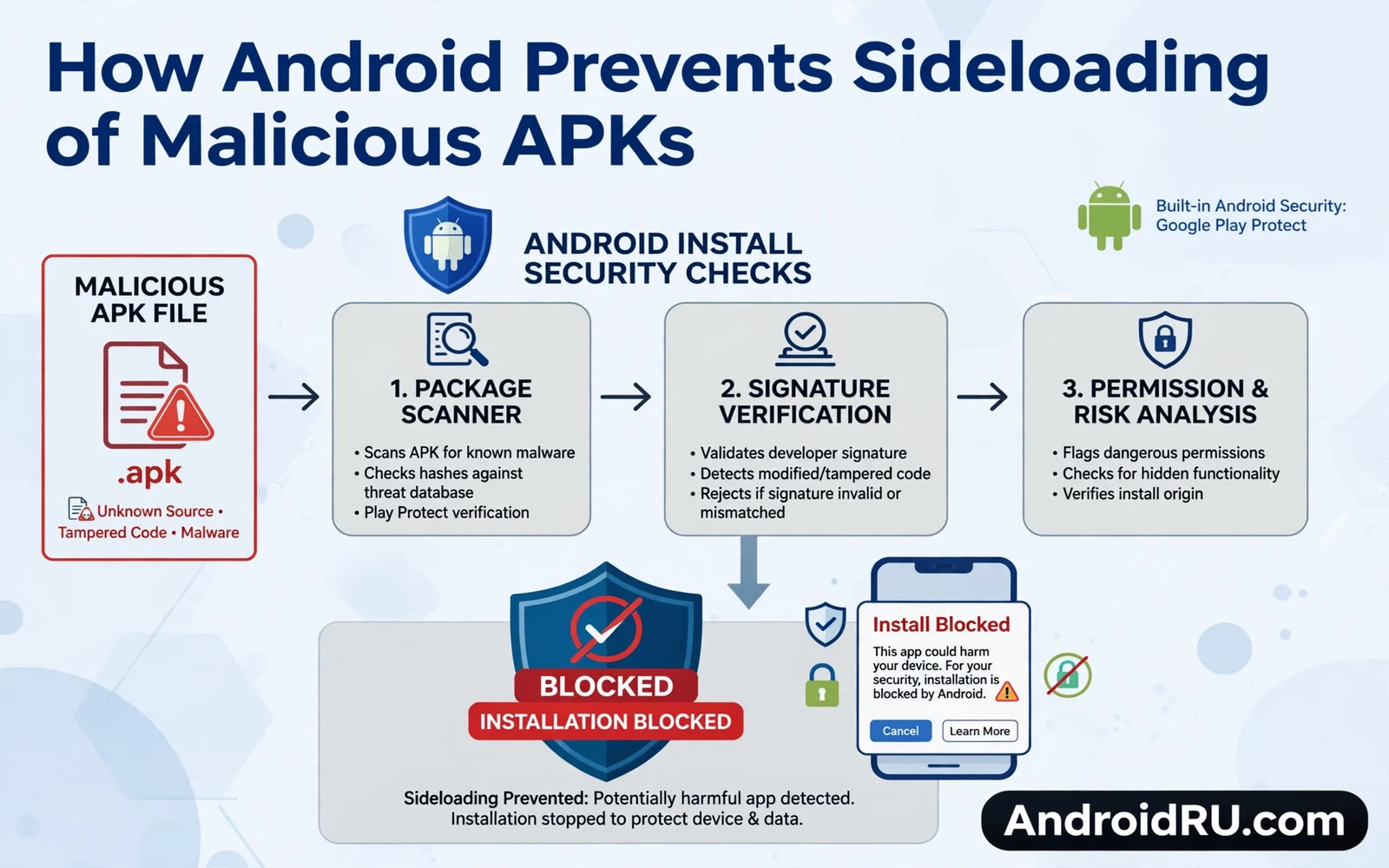
How Android Prevents Sideloading of Malicious APKs
Sideloading means installing an app from outside the official store, using a downloaded package file. Android allows it for developers testing their own builds, for users who need apps that are not distributed through the store, and for organisations that distribute internal tools. That freedom also creates a path for malicious packages that mimic trusted apps. I have seen friends install a “free premium” game from a random link and spend the next week cleaning up after it. This guide explains how Android defends against that, layer by layer, and where the defences still depend on you.
No single check blocks every trick. The layered design means that one missed check rarely gives an attacker full control — but it also means the system only works when every layer is switched on and the person holding the phone reads the warnings instead of tapping through them. Below you will find how each layer works, why some malicious apps still slip through, and a step-by-step checklist for sideloading safely when you genuinely need to.
What Sideloading Is, and Why Android Allows It
A malicious package often arrives through a deceptive message, a fake download button, or a cloned app site. The package may claim to offer a popular game or a premium feature for free. It may request broad permissions during install that a genuine app would never need. It may hide code that runs after install and steals data quietly. Android defences target each stage of that attack chain, from the moment the file arrives to the moment the app runs.
Security patch cadence shapes how strong those layers stay over time. Readers who track fixes can follow the Android security patch breakdown to see which install and runtime flaws get repaired each month. A patched phone closes known bypass routes that attackers actively exploit. An unpatched phone leaves those routes open even when install settings look strict, so owners should treat patch level as part of sideloading safety rather than as a separate topic.
The Attack Chain Android Is Built to Break
Think of a malicious install as a chain with four links: delivery, permission, install, and execution. Android places a check at every link. The delivery link is guarded by browser and messaging warnings. The permission link is guarded by the per-source install rule. The install link is guarded by signature checks and Play Protect scans. The execution link is guarded by sandboxing and runtime permissions. Breaking one link is not enough for an attacker — they must break all of them, and most fail at the first or second.
The First Gate: Per-Source Install Permission
Modern Android blocks unknown app installs by default for every app that could start an install. A browser, a file manager, or a messaging app needs explicit permission before it can install a package. That per-source rule stops a random app from silently installing another app in the background, which was a common trick on older Android versions where one toggle opened the door for everything.
When you first try to install from a new source, Android shows a warning screen in plain language before the toggle becomes active. Grant that permission only to a chosen installer app, only when you actually need it, and revoke it after a trusted install finishes. The setting lives under Settings, then Apps, then Special app access, then Install unknown apps. I revoke it after every single sideload, because a permission you forget about is a permission an attacker can use later.
Reading the Installer Screen Before You Tap Install
The package installer screen shows the app name, developer details, and requested permissions before install completes. Read that screen rather than tapping through it quickly. A package that requests SMS access, accessibility access, and device admin rights at once deserves suspicion, and a simple utility app rarely needs that combination. Cancel installs where permission requests clash with the stated app purpose. A cancelled install costs nothing, while a bad install can cost data and money.
How to Grant and Revoke Install Permission Safely
Open Settings, go to Apps, then Special app access, then Install unknown apps. Pick the single app you will install from, such as your file manager, and switch it on. Install the package you verified, then return to the same screen and switch it off again. This two-minute habit closes the door behind you and keeps every other app on the phone from ever starting an install on its own.
Package Verification: Signatures and Tamper Checks
Android verifies package signatures during install to confirm that updates come from the same signer as the original app. A mismatched signature blocks an update that tries to replace a trusted app with a fake build. Signature verification also catches packages that suffered tampering after signing: a tampered package fails verification and the install stops. If you ever see a signature error, never force the install through another route. That error often signals a package someone altered after the developer signed it, and forcing it past the check removes the one protection that caught the tampering.
Signature checks work because of how Android ties an app to its signing key. When a developer first publishes an app, Android records the signing certificate. Every later update must carry the same certificate, or the system refuses it. Attackers can build a fake app with the same package name, but they cannot forge the original developer’s signing key, so the fake cannot silently replace the real app on your phone.
Version Checks and Downgrade Protection
Android also refuses to install an older version over a newer one, which blocks a class of attacks where an attacker tries to roll your phone back to a version with a known vulnerability. This downgrade protection works quietly in the background, and it is one more reason to keep your apps updated: the newer the installed version, the fewer old flaws an attacker can reach for.
Google Play Protect: Scanning Outside the Store
Play Protect scans sideloaded apps for known harmful behaviour even when the app comes from outside the store. It checks package code against known malware patterns and behavioural signals, and a harmful verdict can block install or remove the app after install. Play Protect scanning runs on the device and draws on Google’s cloud intelligence about apps seen across billions of devices, which means a brand-new malicious package may be unknown on day one but flagged within days as reports come in.
Play Protect cannot catch every new threat on first sight. New malware variants sometimes pass initial scans before detection improves, which is why you should still avoid unknown sources even when Play Protect stays silent. Keep Play Protect switched on under Settings, then Security, then Google Play Protect, and check its scan status there after any sideload. A clean scan is reassuring, but it is not a guarantee — it is one layer, not the whole wall.
What Happens When Play Protect Flags an App
When Play Protect finds a harmful app, it can disable it, warn you, or remove it entirely depending on the severity. If it flags an app you installed deliberately, do not dismiss the warning without investigation: check the app’s source, its permissions, and whether other users have reported the same package. A false positive is possible, but a false dismissal is far more common and far more costly.
Runtime Protections After Install
App sandboxing limits what an installed app can reach even after a bad install slips through. Each app runs in its own sandbox with its own private storage area, and an app cannot read another app’s private data without a granted permission or an exploit. Permission prompts for camera, microphone, and location add further gates at runtime. An app that asks for camera access while offering a calculator function reveals its intent through that prompt, and owners who deny mismatched prompts contain much of the damage.
Private Space gives owners a stronger container for sensitive apps and documents on supported phones. Readers who want that isolation layer can study the Android Private Space complete setup guide before handling sensitive files. Private Space hides chosen apps behind an extra lock and separates their data from the main profile, which helps when a main profile app turns out to be untrustworthy. Isolation never replaces careful install habits. It adds a second wall behind the first wall.
Permissions Are the Last Gate, Not the First
Runtime permissions work best when you treat every prompt as a question, not a formality. Ask yourself whether the feature you are using needs the permission right now. A torch app does not need your contacts. A photo editor does not need your SMS history. Android lets you grant permissions only while the app is in use, and that option is the right default for almost everything. Review granted permissions twice a year under Settings, then Privacy, then Permission manager.
Background Services That Support Verification
Play services behaviour shapes many install and safety flows on Android phones. The guide on how Google Play Services controls your Android device explains how background services support verification and updates. Play services help deliver Play Protect intelligence and account safety signals, and they receive updates through the store even when full system updates are slow. Those services cannot substitute for owner judgement at install time. They work best when owners pair them with strict source choices.
Why Malicious Apps Still Get Through
Social engineering remains the strongest bypass, because it convinces the owner to approve each warning. An attacker who poses as support staff can talk an owner through every permission grant. An attacker who clones a trusted brand can make a fake package look genuine. Android warnings help only when owners pause and read them, and owners under time pressure often approve prompts without reading. Attackers design messages to create exactly that pressure, with fake urgency and fake account threats.
Outdated phones face higher risk because known bypass flaws stay open without patches. A flaw in the installer or in the permission system can let a package skip a check entirely. Patching closes those flaws before attackers can use them widely, and owners who delay updates for months give attackers a larger window. Google Play services updates also deliver some protections outside full system updates, so keep both system updates and Play services updates current.
The Pressure Trick: Urgency Is the Tell
Almost every successful sideload attack I have read about used urgency: your account will be closed in 24 hours, this offer expires tonight, your phone is infected and you must act now. Legitimate developers almost never use fear tactics to drive installs. When a message makes you feel rushed, that feeling itself is the warning. Stop, verify through a separate channel, and only then decide.
Safe Sideloading Habits: A Step-by-Step Checklist
Use this checklist every time you sideload, without exception. It takes five minutes and it closes the gaps that attackers count on.
- Download packages only from the developer’s official site, never from an aggregator that promises premium apps for free.
- Check the file hash or signature details the developer publishes, and confirm the package name matches the official app exactly.
- Grant install permission to one trusted app at a time, under Settings, then Apps, then Special app access, then Install unknown apps.
- Read every permission on the installer screen, and cancel the install if the requests clash with the app’s stated purpose.
- Let Play Protect scan the app, and check the scan result before opening the app for the first time.
- Revoke the install permission immediately after the install finishes, so no app can install anything else later.
- Keep Play Protect on, keep system patches current, and review the app’s runtime permissions after the first week.
Developers, Testers, and Enterprises
Developers use sideloading legitimately to test app builds before store release, installing a test build directly onto a device to observe real behaviour. That workflow speeds debugging compared with store review cycles, but test builds still deserve permission review, because test code can contain logging that production code lacks. Beta testers should verify developer identity through official channels before installing any beta package, and check package name and signer details against developer statements — a mismatch should stop the install immediately.
Enterprise sideloading follows stricter rules because organisations distribute internal apps outside public stores. IT teams should sign internal apps with organisation keys and distribute through managed channels, and employees should install internal apps only through IT-approved routes. An internal app from an email attachment deserves the same suspicion as any unknown package, because managed distribution reduces risk while preserving legitimate internal use.
Children and Shared Family Devices
Children face higher sideloading risk because curiosity and trust make deceptive installs tempting: a game mod promising free items can lure a child into installing malware. Parents should disable unknown app installs on child devices entirely, and review installed apps with children regularly. Those reviews teach children to question free offers and urgent messages, and family conversations about install safety protect children better than silent restrictions alone. Schools that issue Android tablets should lock sideloading through managed device policies and teach students why the block exists, because understanding builds cooperation while unexplained blocks invite circumvention attempts.
Recognising Fake Stores, Links, and QR Codes
Fake app stores mimic official store design with similar colours and layouts, and they promise premium apps for free to lure downloads. Check domain names carefully, because a single letter change can signal a clone. Prefer developer official sites over aggregator sites for sideloaded packages, and distrust any site that pressures you with countdown timers or fake virus warnings. Legitimate developers rarely use fear tactics to drive installs.
Messaging links present a subtler threat because they arrive from known contacts whose accounts suffered compromise. A friend account that suddenly sends an app link with urgent language may belong to an attacker. Verify such links through a separate channel before tapping: a quick message asking whether the friend really sent the link can prevent infection, and that verification step costs seconds and saves hours of cleanup. Social trust should never bypass install caution.
QR Codes in Public Places
QR codes in public places can hide sideloading links behind a convenient scan. A sticker placed over a genuine QR code can redirect scans to a malicious package, so preview QR destinations before following them where the scanner allows it, and avoid scanning QR codes that promise free premium apps in public spaces. Physical tampering turns a helpful tool into a delivery method for malware, and caution with QR codes belongs in every sideloading safety habit.
Frequently Asked Questions
Is sideloading legal on Android?
Yes. Android is designed to allow installing apps from outside the official store, and developers, testers, and enterprises rely on that ability every day. Legality is not the issue; source trust is. A legal install from a malicious source is still a malicious install, so the question to ask is always where the package came from and whether you verified it.
Can Play Protect remove an app I sideloaded?
Yes. Play Protect can disable or remove a sideloaded app if it later classifies it as harmful, and it can also block the install in the first place. If Play Protect flags an app you installed, do not dismiss the warning without checking the app’s source and permissions, because the warning may be the first sign that the package was not what it claimed to be.
What should I do if I already installed a suspicious APK?
Disconnect from Wi-Fi and mobile data to cut off any exfiltration, then uninstall the app immediately. Run a Play Protect scan, change the passwords of accounts you used on the phone, and check your bank and email for unusual activity. If the app requested device admin rights, revoke them first under Settings, then Security, then Device admin apps, because an admin app can resist uninstallation.
How do I sideload safely on a phone without Play Protect?
Some devices ship without Google services, so Play Protect is unavailable. On those phones, the other layers matter even more: install only from the developer’s official site, verify the package signature and hash, keep the system patched, and use a reputable third-party scanner before installing. The absence of one layer means the remaining layers must be stricter, not looser.
What to Do Today
Open Settings, go to Apps, then Special app access, then Install unknown apps, and check which apps currently hold install permission. Revoke every one you do not actively need. Then check your security patch level under Settings, then About phone, then Android version, and install any pending update. Those two checks take five minutes and they close the two most common paths attackers use: a forgotten install permission and an unpatched phone. Sideloading safety rests on layered checks and on owner discipline in equal measure, and the owner side of that equation is entirely in your hands.

