

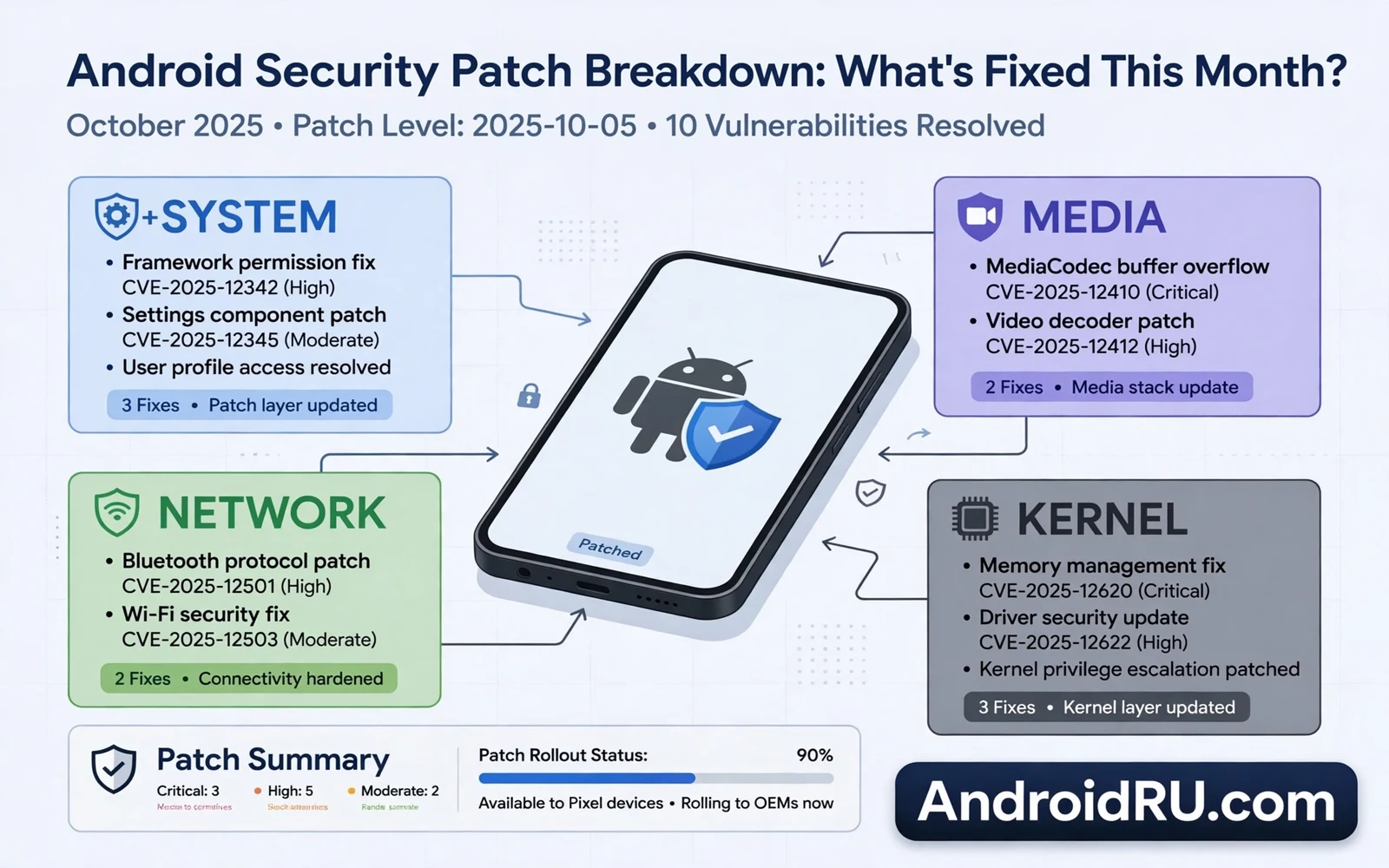
A monthly Android security patch is a focused repair for weaknesses that could put your phone at risk. It does not always add visible features. It does not always change the look of your phone. Its main job is to close gaps before harmful software can use them. A phone that misses patches for a long time keeps those gaps open. A phone that installs patches on time closes them in a steady rhythm.
Security patches arrive on a schedule that depends on your phone maker and your model. Some phones receive a patch every month. Some phones receive a patch every few months. Some older phones stop receiving patches when support ends. The patch level shown in settings tells you how recent your protection is. A newer patch level means that more known gaps have been closed. An older patch level means that you should check for an update soon.
This guide explains a security patch breakdown in plain language. It explains the kinds of fixes that a patch usually contains. It explains why some fixes matter more than others. It explains how to read update notes without technical training. It also explains safe habits that support the patch itself. A patch is only one part of phone safety. Your habits decide how much protection that patch can give you.
What A Monthly Patch Usually Fixes
A patch often fixes problems in the core system that controls memory and permissions. A memory problem can let an app read data that belongs to another app. A permission problem can let an app gain access that you never granted. A patch changes the system code so that the unsafe path no longer works. The fix is usually small and precise. The effect is large because it blocks a whole class of attacks.
A patch also fixes problems in media handling and network code. Media files can hide harmful instructions inside images and videos and audio files. Network code can be tricked by a fake access point or a crafted message. A patch hardens the code that opens media files. A patch hardens the code that handles network traffic. These fixes protect you even when you do nothing wrong.
Some fixes target the modem and the Bluetooth stack and the Wi-Fi driver. These parts run close to the hardware and they handle data before apps see it. A flaw in this layer can be serious because it may not need any action from you. A patch for this layer often comes from the chip maker through your phone maker. Installation matters because the flaw may be reachable over the air. Do not delay a patch that mentions modem or wireless fixes.
Other fixes target the kernel which sits at the heart of the system. The kernel controls hardware access and process separation. A kernel flaw can break the separation between apps. A kernel flaw can also break the separation between normal apps and system services. Kernel fixes are a strong reason to restart after an update. A restart lets the new kernel load cleanly. A restart also clears old code from memory.
Why Some Fixes Matter More Than Others
Not every fix carries the same risk. A fix for a flaw that needs physical access matters less for most users than a fix for a flaw that works over the network. A fix for a flaw that needs you to install a harmful app matters less than a fix for a flaw that works with no tap at all. Update notes often describe the attack path in short terms. Read that path and judge how it fits your daily use.
Severity labels help you judge urgency. A critical flaw can give an attacker broad control. A high severity flaw can still cause serious harm in a narrow area. A moderate flaw may need several other conditions before it can be used. A low severity flaw may only leak a small detail. Install every patch when you can. Treat a critical network flaw as a reason to update on the same day.
Exploitation status also matters. Some flaws are only theoretical when the patch arrives. Some flaws are already used in real attacks when the patch arrives. A flaw that is already exploited deserves fast action. A flaw that is theoretical still deserves action because public patch details can teach attackers how to use it. Delay gives attackers time to build a working attack from the patch description.
Patch notes rarely name every detail of a flaw. Full details could help attackers before users update. Short notes still give you enough to act. Look for words that describe remote access and privilege gain and data exposure. Look for parts of the phone that the fix touches. Use those clues to decide if you should update now or at the next calm moment in your day.
How To Read Patch Notes Without Confusion
Patch notes use short labels for system parts. A label may name the framework or the media code or the kernel or a hardware driver. You do not need to know every part by heart. You only need to know that a framework fix affects app behavior. You only need to know that a kernel fix affects core separation. You only need to know that a driver fix affects hardware handling.
The patch level date is the clearest signal in settings. It shows the month and year of the newest included fixes. Compare that date with the current month. A gap of one month may be normal for some models. A gap of several months means that support may be slow or ended. A gap of a year means that you should plan for a newer phone or a different support path.
Update size can mislead you. A small patch can fix a critical flaw. A large patch can contain many minor fixes and no critical flaw. Do not judge importance by download size. Judge importance by the patch level date and by any warning from your phone maker. A short update note can still carry a vital fix.
When patch notes mention a specific app or service then update that app too. System patches and app updates often work together. A system fix may need a matching app fix to close the gap fully. Open your app store after a system update. Install pending app updates before you return to normal use.
Before You Install A Security Patch
Back up important photos and messages before a system update. A backup protects you if an update fails or if a restart causes a problem. A backup also protects you if you must reset the phone after a failed install. Check that the backup finished before you start the update. A backup that did not finish is not protection.
Charge the phone to a comfortable level before you start. A system update needs stable power through download and install and restart. A phone that shuts down during install can need extra repair steps. Connect to stable Wi-Fi for the download when you can. Mobile data can work but it may cost more and it may drop during a large download.
Close apps that you do not need during install. Save open work in other apps before you restart. Note any app that you must test after the update. Your list may include messaging and banking and maps and work apps. Test each app after the restart finishes. A quick test catches a broken app while the problem is still fresh.
Do not install a patch from an unofficial file. Unofficial files can hide harmful code inside a real looking update. Unofficial files can also break future official updates. Use the system updater on your phone. Use the official support channel for your model when the updater shows no update. Patience is safer than a risky manual file.
After The Patch Installs
Restart behavior after a patch is normal. The phone may take longer to start the first time. The phone may optimize apps in the background. The phone may feel warm for a short time. Let that process finish before you judge speed or battery life. Judge normal use after a full day of regular tasks.
Check the patch level date after install. The date should move to the new month shown in the update note. If the date did not change then the update may not have applied fully. Check for updates again. Restart once more if the updater asks you to restart. Contact official support if the date stays old after a second attempt.
Test core apps after every patch. Open your messaging app and check that messages load. Open your banking app and check that sign in works. Open your maps app and check that location works. Open your work app and check that data syncs. A patch should not break these apps. A broken app after a patch may need an app update from its developer.
Review permissions after a patch when you have time. A patch can change how a permission works. A patch can also reset a permission in rare cases. Open the permission manager and check camera and microphone and location access. Remove access from any app that does not need it for a clear task. A short review keeps the patch benefit intact.
Patches And Daily Safety Habits
A patch cannot protect a phone that installs harmful apps. Install apps from a trusted store when possible. Check the developer name before you install. Check recent reviews for complaints about strange behavior. Check the permissions that an app requests at install. A simple tool app should not ask for contacts and location and microphone access at once.
Lock screen safety supports patch safety. Use a strong PIN or password. Use fingerprint or face unlock as a convenience layer on top of that PIN. Turn on remote find and lock tools before you lose the phone. A patch protects software. A strong lock protects the phone itself when it leaves your hand.
Public Wi-Fi needs extra care even on a patched phone. A patch closes known network flaws. A patch does not make every open network safe. Avoid signing in to sensitive accounts on an open network that you do not trust. Use a trusted VPN when you must work on an open network. Disconnect from an open network when you finish your task.
Phishing messages bypass patches because they target you rather than system code. A patch cannot stop you from tapping a fake link. A patch cannot stop you from entering a password on a fake page. Pause before you tap a link in a message. Check the sender and the request before you act. A calm pause blocks many attacks that no patch can block.
When Patches Stop Arriving
Every phone has a support window. The window depends on the maker and the model and the region. When the window ends the phone stops receiving new patches. The phone keeps working but known flaws stay open. Risk grows over time as new flaws are found and no fix arrives. Plan ahead before the window ends.
Check support status in official settings or official support pages for your model. Note the final patch date if one is published. Set a personal deadline to move to a supported phone before that date. A supported phone does not need to be expensive. A supported phone only needs a patch window that still has time left.
If you must keep an old phone for a while then reduce its exposure. Remove banking apps from the old phone when you can. Remove work apps that hold sensitive data. Use the old phone only for low risk tasks. Keep it off open networks. These steps lower risk but they do not replace patches. Treat them as a bridge to a supported device.
A modern release frames privacy and control around monthly fixes in new Android 15 features for your phone. That framing helps you judge whether a newer supported phone is worth the move. A modern release is not a substitute for a patch. A modern release on a supported phone gives patches a stronger base to build on.
A custom path changes how patches reach your phone and stock Android versus custom ROM performance shows that trade in daily terms. A custom ROM may deliver patches faster for an old model. A custom ROM may also lag behind on driver fixes. Judge any custom path by its patch history before you trust it with daily use.
Patch delivery itself is changing in a quiet way because how Project Mainline is changing Android updates lets core parts update through system modules without a full maker release. That model can bring security fixes faster for some parts. It does not replace the full monthly patch. It adds another path for fixes that used to wait for a large update.
Quick Checklist
- Back up photos and messages before the update starts
- Charge the phone and use stable Wi-Fi for the download
- Install the patch through the official system updater only
- Check the patch level date after the restart finishes
- Test messaging banking maps and work apps after install
- Review camera microphone and location permissions
- Update apps that need a new version after the patch
- Plan a move to a supported phone before patches end

