

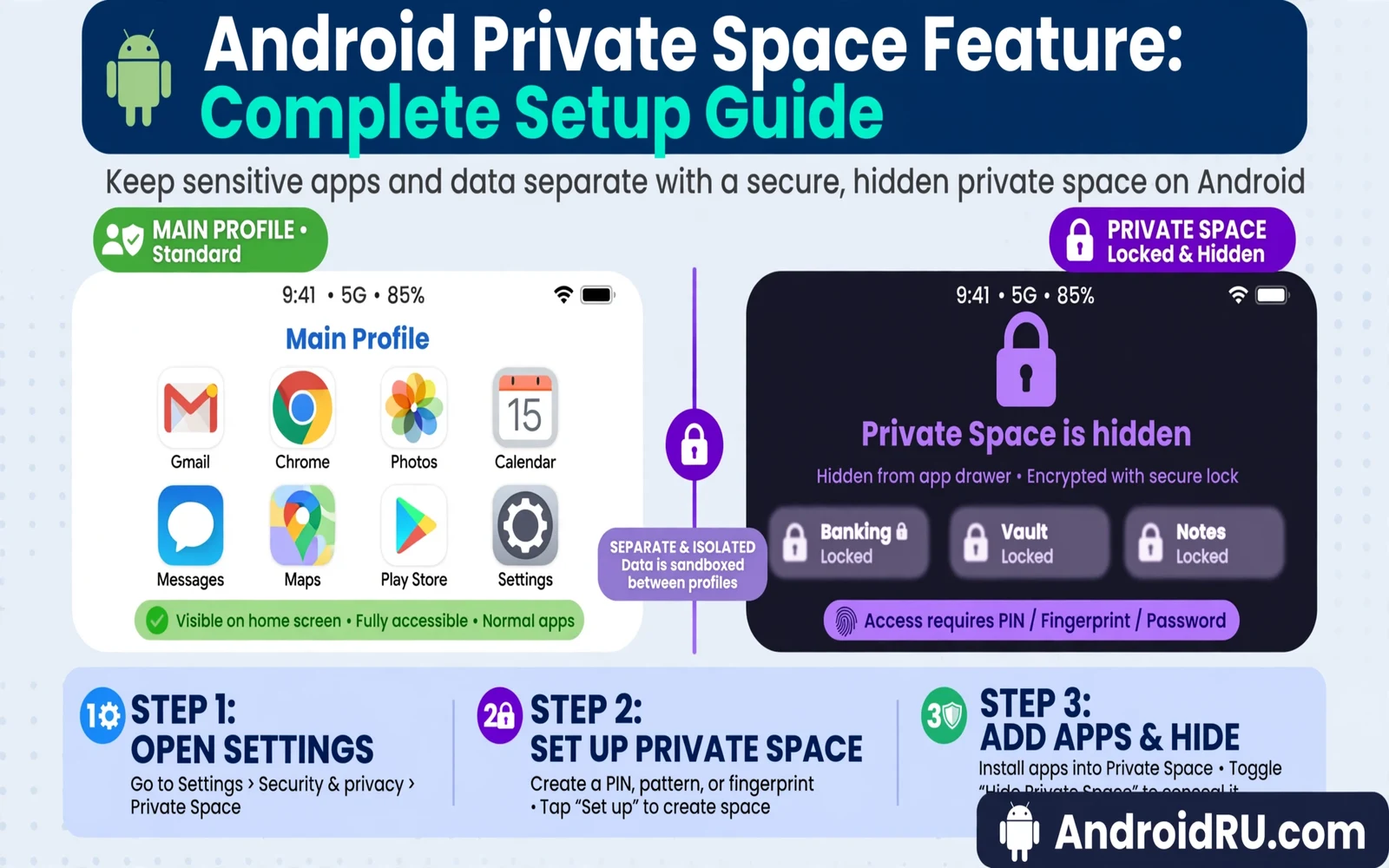
What Private Space Is and What It Is Not
Private Space is a separate area on supported Android phones where you can install apps that stay hidden from the main home screen. The area has its own lock and its own app list and it keeps its data apart from your daily apps. When the space is locked its apps stop running and their notifications stay hidden. When you unlock the space its apps appear in a separate container that looks like a second app drawer.
Private Space is not a vault that hides files from every part of the phone. It is not a second phone and it is not a guarantee that a skilled person with full access to an unlocked phone cannot find traces of use. It is a practical tool for separation. It helps when you share a phone briefly or when you want work apps and personal apps apart or when you want sensitive apps out of daily view. Treat it as one layer of privacy rather than as total secrecy.
Check Support Before You Start
Private Space needs a phone that ships the feature in its system build. Not every Android phone has it even when the phone runs a recent Android version. Some makers replace it with their own secure folder tool and some makers hide it behind a different name. Open Settings and search for the words Private Space to see whether your phone offers it. If search finds nothing then your phone may use a maker tool instead and this guide will not map to your menus.
Check that you have a screen lock set before you start. Private Space builds on the phone lock and it may ask for a separate lock for the space itself. A strong PIN or a biometric lock gives the space real meaning. A weak lock or no lock makes the separation easy to bypass. Set the phone lock first and test it once before you move apps into the space.
Daily settings shape how well a hidden area works in practice and essential system settings you should change on new Android phones covers lock and notification and permission choices that pair well with a private area.
Set Up Private Space Step by Step
Open Settings and open Security and privacy and then open Private Space. The phone will explain the feature and it will ask you to confirm a lock choice. You can reuse the phone lock or you can set a separate lock for the space. A separate lock is stronger when you hand the phone to another person for a short time. Write the lock down in a safe place that only you control because a forgotten private lock can block access to apps inside the space.
After setup the phone creates a container that appears at the bottom of the app drawer when unlocked. You can install apps into the space from the store or you can move an existing app into the space when the phone offers that action. An app inside the space is a separate install from the same app outside the space. That means accounts and data inside the space stay apart from accounts and data outside the space. Sign in inside the space only when you accept that separation.
Choose Which Apps Belong Inside
Good candidates for Private Space include banking apps and health apps and private messaging apps and work apps that hold sensitive files. Apps that need constant alerts may be poor candidates because alerts stay hidden while the space is locked. A messaging app that must alert you at once may serve you better outside the space. A banking app that you open a few times each week fits the space well because its alerts matter less than its privacy.
Avoid moving apps that the system needs for daily function. Avoid moving the phone app and the main messaging app when you rely on them for urgent calls. Avoid moving apps that share data with apps outside the space when that sharing is central to your workflow. Test one app inside the space for a few days before you move a whole set. A short test reveals lock friction and notification gaps before they become daily annoyance.
System services can affect what a hidden app can do in the background and how Google Play Services controls your Android device explains the shared layer that still runs beneath separate profiles and app containers.
Locking and Hiding the Space Itself
Lock the space whenever you hand the phone to another person. Locking stops its apps and hides its notifications and hides its container from the app drawer. Some phones also let you hide the container even when unlocked so the space leaves no visible trace in the drawer. That extra hiding helps in casual sharing but it does not hide the space from settings search or from a person who knows where to look.
Choose a lock that you can enter fast but that another person cannot guess. Avoid a PIN that matches your birth year or your phone lock when you want real separation. Avoid fingerprints for the space when you want to deny access while you are present because a fingerprint can be used without your consent in some settings. A separate PIN gives you a clear way to refuse access without explaining the reason. Test locking and unlocking three times before you rely on the space for sensitive apps.
Notifications and Daily Use Habits
While the space is locked its apps cannot show notifications on the lock screen or in the notification shade. That silence is a privacy feature but it can cause missed messages when you forget to unlock. Build a habit of unlocking the space at set times each day to check for new items. Do not leave the space unlocked all day because that habit removes the benefit that setup created.
Files that you download inside the space may stay inside the space depending on the app and the phone build. Files that you share out of the space may leave a copy outside the space. Check where a file lands after you save it or share it. A private photo that you share to a main app is no longer private in practice. Keep sensitive files inside the space and avoid casual sharing paths that cross the boundary.
Updates also shape privacy because a new system build can change where hidden apps appear and how Android system updates work behind the scenes shows why staged delivery and safety checks matter before you trust a new build with a private area.
When to Remove or Reset Private Space
Remove the space when you sell the phone or when you hand the phone to a new owner for good. Deleting the space removes its apps and its data from the phone. Back up anything inside the space that you still need before you delete it because deletion is hard to undo. Check that no work app inside the space holds the only copy of an important file.
Reset the space when the lock is forgotten and no recovery path works. A reset will erase the apps inside the space. That cost is the price of a lock with no back door. Keep a list of which apps live inside the space in a safe note outside the phone so a reset does not become a mystery. A simple list saves time and it prevents a forgotten banking app from going unnoticed for months.
Work devices add another layer of rules and Android Enterprise Recommended what it means for devices explains how managed phones can limit or shape private areas through admin policy.
How Private Space Handles Accounts and Data
An app inside Private Space signs in separately from the same app outside the space. That separation means a messaging account inside the space holds its own chats and its own media. A banking app inside the space holds its own session and its own saved payees when the app stores them locally. Users who move an app into the space should expect to sign in again and to set up notifications and permissions again inside the space. That extra setup is the price of separation and it is also the proof that separation is real.
Data sharing across the boundary needs care. A file saved inside the space may not appear in the main gallery. A contact saved inside the space may not appear in the main contacts app. That behaviour protects privacy but it can confuse users who expect one shared store. Test sharing with a harmless file before you move sensitive files. A short test shows where files land and which apps can see them on each side of the boundary.
Private Space on Shared and Family Phones
Shared phones benefit most from Private Space because one device serves several people in turn. A parent can keep banking and work apps inside the space while children use games outside it. A worker can keep a second messaging account inside the space for a side project. Locking the space before handing the phone over takes one tap and it removes the temptation to browse hidden apps. The habit matters more than the feature itself because an unlocked space offers no protection at all.
Family use also needs clear rules about recovery. Children should not hold the only copy of a school file inside a locked space that a parent cannot open. Workers should not hold the only copy of a work file inside a personal space that an admin cannot reach. Keep shared files in a shared location and keep truly private files in the space. That split avoids a lockout crisis when a phone changes hands or when a lock is forgotten.
How to Audit What Lives Inside Private Space
A regular audit keeps Private Space useful rather than forgotten. Once a month open the space and list its apps and check whether each app still needs separation. An app that you now open daily may serve you better outside the space where its alerts work normally. An app that you rarely open may still belong inside because its data is sensitive even when use is rare. Move apps between sides based on current use rather than based on the choice you made on setup day. Habits change and the space layout should change with them.
Audit data inside the space as well as apps. Check downloads and saved files and shared items that crossed the boundary during the month. Delete files that no longer need protection and move shared files back to a normal location when they no longer need hiding. A space that accumulates forgotten files becomes a liability because a future reset will erase files that you forgot were there. A monthly audit takes five minutes and it keeps the space honest about what it protects.
- Confirm Private Space support on your exact phone model
- Set a strong phone lock before you set up the space
- Use a separate lock for the space when sharing matters
- Move one app first and test locks and alerts for days
- Lock the space before handing the phone to another person
- Back up space data before deleting or resetting the space
Warning: Private Space does not protect data when the phone itself is unlocked and handed over with the space unlocked. It does not replace a backup and it does not hide activity from a maker admin on a managed phone. Never store the only copy of vital files inside the space and never use the space to hide activity that breaks work policy or the law. If you forget the private lock then expect data loss on reset.

