

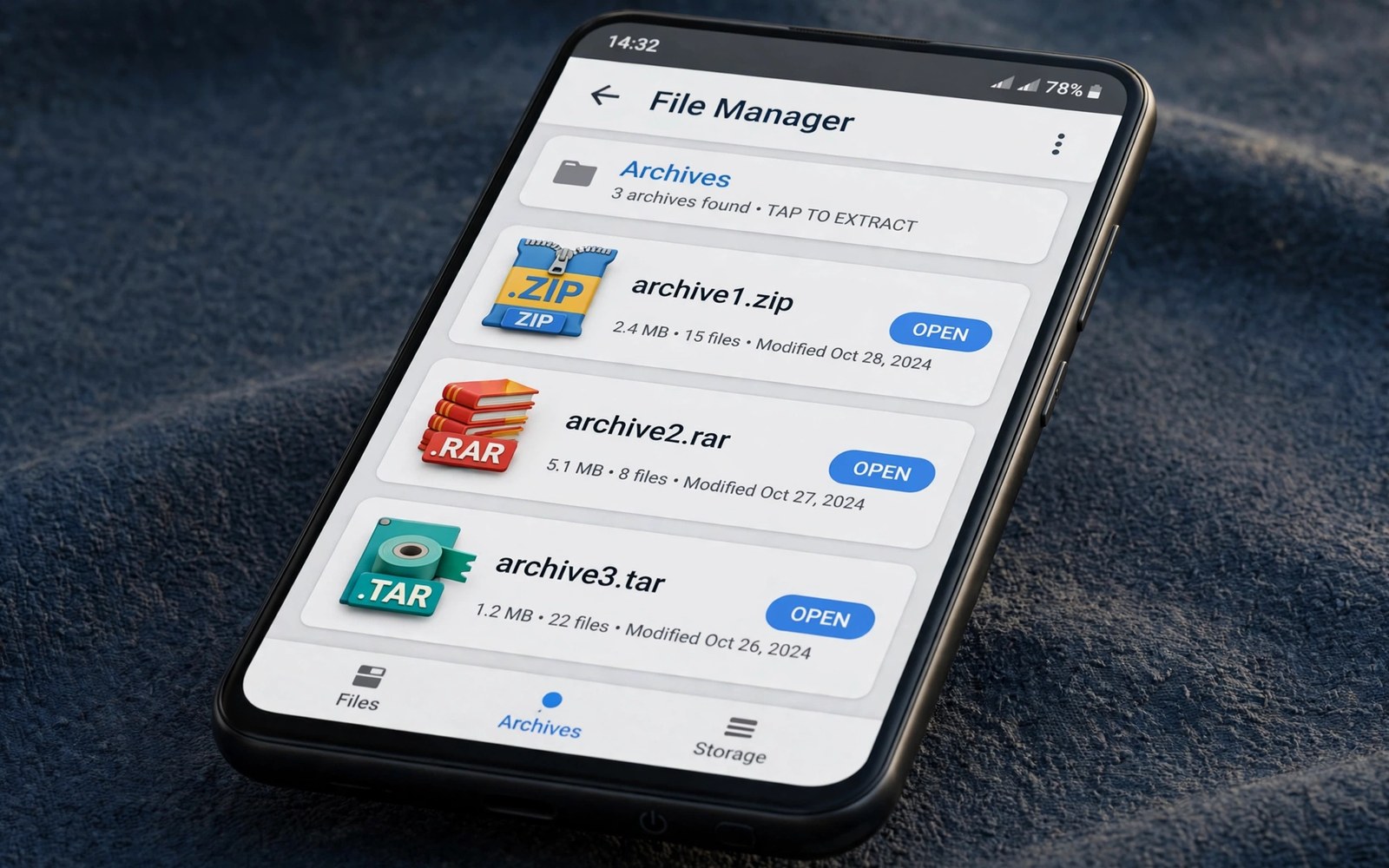
Archive files arrive on Android more often than many owners expect. A work project arrives as a ZIP file and a game mod arrives as a RAR file and a backup arrives as a TAR file. The built in tools on many phones handle only the simplest ZIP case. An open source file manager fills that gap with broader archive support and a clearer permission model. Open code also lets a community check what the tool actually does with your files.
Start by listing the archive types that you actually receive. ZIP support is common and it covers most shared folders. RAR support matters when you receive files from desktop users who favour that format. TAR support matters for backups and for developer packages that bundle many files without compression. A manager that handles all three types saves you from installing a separate extractor for each format. Owners who juggle many file types may also value fast ways to organise thousands of phone files alongside archive tools.
Check how the manager handles extraction destinations. A good tool asks where to place extracted files and it shows the folder tree before it starts. It should warn you when an archive contains a path that tries to escape the chosen folder. It should also show progress for large archives rather than freezing silently. Those details matter more than a long feature list because they prevent messy extractions.
Compare archive handling in practice
Test extraction with a small ZIP file that holds a text file and a nested folder. Watch whether folder structure survives the extraction. Test a password protected archive only when you know the password and the source is trusted. Note whether the tool supports viewing inside an archive without extracting everything. Viewing first saves space when you need only one file from a large package.
Test compression as well as extraction. Create a ZIP file from a folder of photos and check the resulting size. Check whether the tool lets you choose a compression level. Check whether it can create a TAR file for a backup that you plan to move to a computer. A manager that only extracts is useful but a manager that also creates archives covers more daily work. The same test mindset helps when you shrink large photos and videos without losing quality before you archive them.
Judge privacy and upkeep before you commit
Read the permission list before you install any file manager. A file manager needs storage access by nature. It does not need contacts access or location access or phone access for archive work. A short permission list is a good sign. A long list of unrelated permissions is a reason to choose another tool.
Check the update history and the issue tracker when the project publishes them. Recent fixes show that the project is alive. Clear release notes show that the developers care about explaining changes. A project with no updates for years may still work but it may miss fixes for new Android storage rules. Choose a tool that keeps pace with the system that you actually use.
Inspect an archive safely with a short script
import zipfile
path = "sample.zip"
with zipfile.ZipFile(path) as archive:
    for info in archive.infolist():
        print(info.filename, info.file_size)
The snippet above follows a standard pattern for listing files inside a ZIP archive without extracting them. It only prints names and sizes and it writes nothing. You can adapt the file name for a test archive on your own computer.
A listing preview helps you spot a messy archive before you extract it. Look for files at the top level that would clutter your destination folder. Look for nested folders that would create a deep path. Create a dedicated extraction folder when the listing looks messy. A dedicated folder keeps a bad extraction contained.
Test archive tools with real world files
A store description cannot tell you how a file manager handles a messy archive. A real world test reveals problems that a description hides. Create a test archive with nested folders and a long file name and a large image. Extract it with the manager and check whether the structure survives. A manager that flattens nested folders creates a mess that takes time to fix. A manager that preserves structure saves that time.
Test an archive that contains a file with a name in another language. Some tools mishandle character encoding and produce garbled names. A garbled name makes the file hard to find later. Test an archive that contains a very large file as well. A large file test reveals whether progress reporting works or whether the app freezes silently. A manager that reports progress honestly is easier to trust with a large job.
Test extraction to a memory card when you use one for archives. A card extraction can be slower than internal extraction. A slow extraction is acceptable when progress remains visible. An extraction that stalls without a message is not acceptable. Note the extraction time for a standard test archive so you can compare managers fairly.
Manage archive passwords and sharing safely
Password protected archives need a password habit that does not defeat the protection. Do not store the password in the archive file name. Do not store the password in a text file beside the archive. Share the password through a separate channel from the archive itself. A separate channel means that a single intercepted message does not unlock the files.
Check archive integrity after a share by opening the archive on the receiving device. A corrupted archive may open partially and hide missing files. Compare the file count on the receiving device with the file count on the sending device. A matching count gives confidence that the transfer succeeded. A mismatch means you should resend the archive rather than trust a partial extraction.
Delete temporary extracted files after you finish using them. An extracted folder can take far more space than the archive that created it. Keep the archive as the compact master copy. Delete the extracted working copy when the work is done. That habit keeps storage lean while preserving the source material.
Advanced archive workflows for projects
Project archives need a workflow that preserves both files and folder structure. A project folder may contain documents and images and spreadsheets that relate to each other. A flat archive that loses folder structure breaks those relationships. A manager that preserves nested folders keeps a project usable after extraction. Test structure preservation with a real project folder before you archive an important job.
Split a very large project into several archives by subfolder rather than creating one giant archive. A giant archive is hard to share and hard to extract on a small phone. Smaller archives by subfolder are easier to move and easier to verify. A subfolder archive also lets you share only the part that a colleague needs. A partial share protects unrelated project files from unnecessary exposure.
Verify archive contents after creation by listing files and comparing counts. A listing comparison catches a missing file before you delete the source folder. A count match alone does not prove that file contents are correct. Open a few key files from the archive to confirm that they extract cleanly. A clean extraction test on key files gives confidence for the whole archive.
Store archives with a naming convention that includes project name and date and version. A name such as Project Atlas March Version Two tells you what the archive holds without opening it. A name such as Archive One tells you nothing and it forces an open to identify contents. A clear naming convention saves time across many projects. A convention also prevents overwriting an older version with a newer one by accident.
Keep a master archive copy on a computer drive in addition to a phone copy. A phone copy suits quick sharing and quick access. A computer copy suits long term preservation and large project storage. Two copies in different locations protect against a single device failure. A two location habit is simple and it covers most realistic loss scenarios.
A practical archive checklist for sharing
Sharing an archive needs a checklist that covers contents and naming and verification. List the archive contents before you share it and confirm that no private file slipped in. A private file in a shared archive can expose personal data unintentionally. A contents list takes a minute and it prevents an embarrassing share. A list also helps the recipient know what to expect inside the archive.
Name a shared archive with the project and the date so the recipient can file it correctly. A clear name also helps you find the archive later when the recipient asks a question. A vague name forces both sides to open the archive to identify it. A clear name is a courtesy that also helps your own future searches. Naming is a small step with a lasting benefit.
Verify a shared archive by extracting it on a second device before you send it. A second device extraction proves that the archive is not corrupted. A corrupted archive sent to a colleague wastes their time and delays work. A verified archive arrives ready to use. Verification is especially important for large archives that travelled through several transfers.
Keep a copy of every shared archive until the recipient confirms receipt. A recipient confirmation closes the sharing loop. A copy kept until confirmation lets you resend quickly when a transfer fails. A copy deleted too early forces a rebuild from source files. A short retention habit protects shared work without permanent clutter.
Common mistakes
One common mistake is extracting an archive directly into the downloads folder. The extracted files then mix with installers and other downloads. A second mistake is opening an archive from an unknown sender without checking its contents. A third mistake is installing several file managers that all request broad access. One trusted manager with the right archive support is better than three overlapping tools.
Another mistake is assuming that every archive tool handles RAR creation. Many tools can extract RAR files but cannot create them because of format licensing. Check creation support separately when you need to share RAR files. Use ZIP for sharing when the recipient does not need a specific format.
Frequently asked questions
Can an open source manager open password protected archives?
Many open source managers can open password protected ZIP files when you enter the correct password. Support varies by format and by project. Test with a small archive that you created yourself. Keep passwords in a safe place rather than inside the archive name.
Why does a RAR file fail on some phones?
RAR support depends on the libraries that the manager includes. Some managers include extraction only and some include no RAR support at all. Check the feature list for the exact format before you rely on a tool. A desktop extraction may be needed for a rare RAR variant.
Should I keep extracted files after archiving them?
Keep extracted files only when you use them often. Archive the original folder and delete the working copy when space matters. Verify that the archive opens before you delete the source. A verified archive is a safe replacement for a scattered folder.
Conclusion
Open source file managers earn their place through broad archive support and honest permissions. ZIP and RAR and TAR handling should be tested with real files rather than trusted from a store description. Extraction destinations and progress displays matter as much as format lists. A living project with recent fixes is the safest long term choice.
Your concrete next step is to pick one open source manager today and test it with a small ZIP file in a dedicated folder. Check that folder structure survives and that only one file is needed for the job. Readers who manage card storage can then read how to format memory cards properly without losing data as a related storage skill.

