

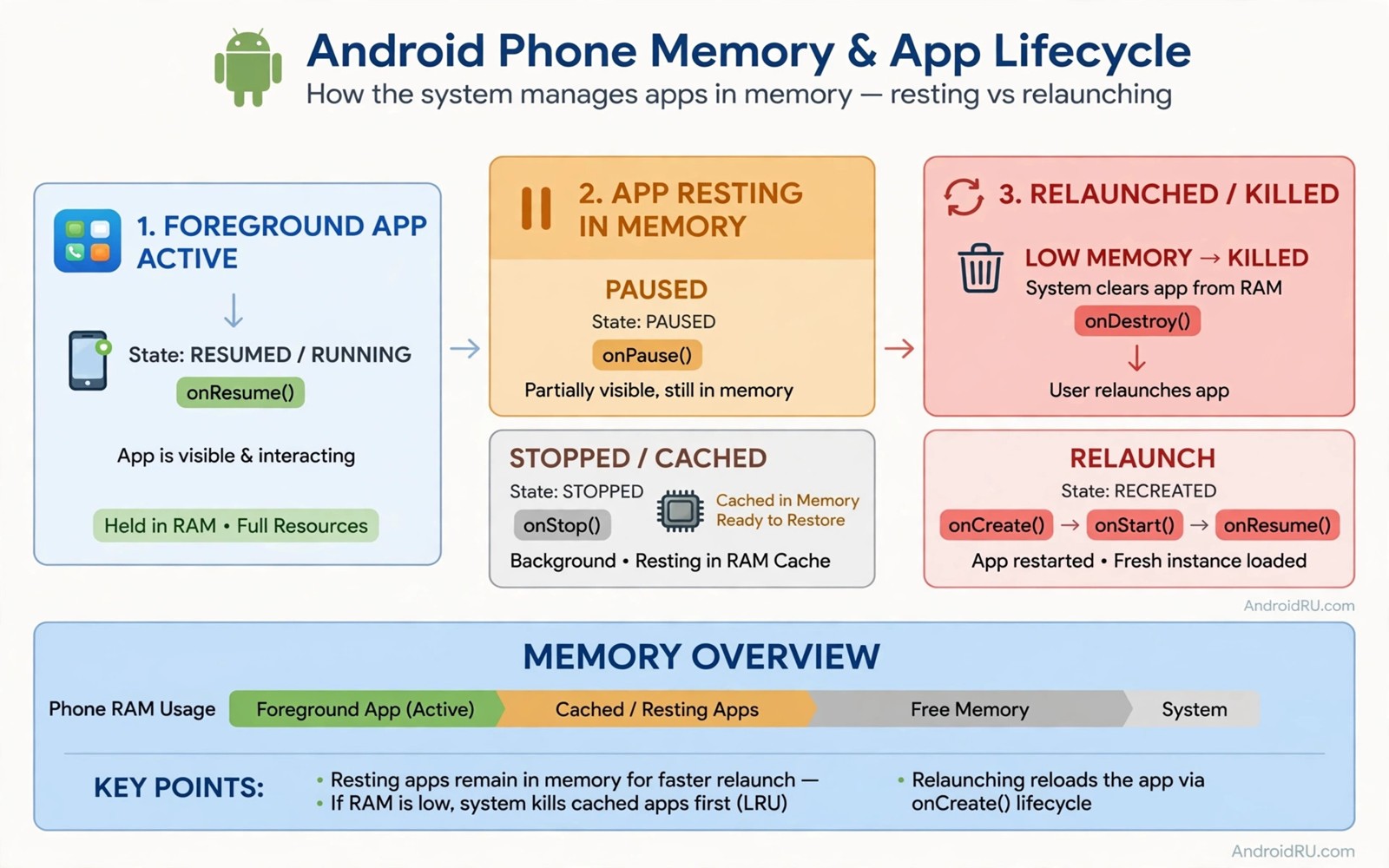
Almost every Android owner has done it. You open the recent apps screen and swipe every card away. The screen looks clean and the phone feels tidy. That tidy feeling is misleading. Swiping apps away often makes the phone slower and hungrier for battery. Android memory does not work like a desk that needs clearing.
Android keeps recently used apps in memory on purpose. A parked app uses very little power while it waits. Reopening a parked app is fast because much of its state is ready. Killing that app forces a cold start next time. A cold start uses more processor power and more battery. It also takes longer and feels less smooth.
This habit became popular in the early days of phones with tiny memory. Modern Android manages memory far better than those old systems. The system itself frees memory when a new app needs it. Your manual clearing rarely helps that process. In most cases it only adds extra work for the processor.
How Android memory actually works
Android treats unused memory as wasted memory. It fills free memory with apps you used recently. Those apps sit in a low power state. They do not run full code in the background by default. They wait for you to return. The system can evict them instantly when memory is needed elsewhere.
Think of parked apps like books left open on a table. The books take space but they cost no effort to keep open. Closing every book and putting it back on a shelf takes effort. Opening it again takes effort too. Android prefers to leave recent books open. It clears the table itself when a new book arrives.
Background limits add another layer of control. Android restricts background work for apps you rarely use. It can pause network access and location use. It can delay background jobs until charging. These limits protect battery without your help. Manual swiping adds little on top of that system.
When force closing actually hurts
Force closing hurts most for apps you open many times a day. Messaging and browser and maps apps suffer the most. Each cold start reloads data and images and login state. That reload uses mobile data as well as battery. Over a week the waste adds up to a clear loss. Your phone feels slower even though you tried to speed it up.
Some apps restart their background services after you kill them. A killed app may relaunch itself to finish a task. That relaunch uses more power than leaving it parked. You swipe it away again and the cycle repeats. The phone works harder because of the cleaning habit. A parked app would have stayed quiet.
Force closing also breaks useful continuity. A half written message may lose its draft state. A map route may need to reload from scratch. A music app may lose its queue position. These small losses add friction to daily use. Leaving apps parked preserves that continuity for free.
System care works better when you understand these trade offs. Readers who want a faster phone often explore developer options that instantly speed up a phone instead of swiping apps away. Animation settings change perceived speed without cold starts. Background limits there also help in a targeted way.
When closing an app is the right move
Closing an app is right when it misbehaves. A frozen app needs a force stop to recover. An app that drains battery in the background needs attention. An app that shows wrong data after an update may need a fresh start. These cases are exceptions. They are not a daily cleaning routine.
Check battery use before blaming a single app. Open Settings and then Battery to see usage by app. A normal parked app should not appear near the top. A rogue app will stand out clearly. Force stop that one app and watch behaviour for a day. If drain returns then clear its cache or reinstall it.
Restart your phone once a week instead of swiping apps hourly. A restart clears stuck processes in a controlled way. It also applies pending system maintenance. Weekly restarts help more than constant manual closing. They also take less effort and cause less cold start waste.
Fix a misbehaving app properly
Start with a simple force stop for the single problem app. Open App info and tap Force stop. Reopen the app and test the exact fault. If the fault remains then clear cache next. Cache clearing removes temporary files without deleting logins. It often fixes stale data problems fast.
Clear storage only as a last resort for one app. Storage clearing deletes logins and saved settings. Back up any important data inside the app first. Reinstall the app if storage clearing fails. A fresh install removes corrupted files completely. Report a persistent fault to the app developer after reinstalling.
Check permissions for apps that wake too often. Location and background activity cause most drain. Set location to While using the app for social apps. Turn off unrestricted background use for apps you rarely open. These targeted limits beat blanket swiping. They fix the cause instead of the symptom.
Settings > Battery > Battery usage > Check app drain
Settings > Apps > Choose app > Force stop
Settings > Apps > Choose app > Storage > Clear cache
Settings > Apps > Choose app > Battery > Restricted
This snippet shows a standard Android settings path pattern for app care. It lists battery checks before any force stop. It then shows cache and restriction steps in a safe order. Use it for one problem app at a time. Menu names can differ slightly by phone brand.
After fixing one app leave the rest of your recent apps alone. Test the phone for a full day of normal use. Note speed and battery at bedtime. Compare that day with a day of constant swiping. Most people find the calm day feels faster. The numbers usually support that feeling too.
Memory myths often hide real battery problems. Learning about battery saving toggles hidden deep in settings helps you target true drain sources. Adaptive battery learns your habits over days. It limits rare apps without touching your daily apps. That system approach beats manual clearing every time.
Measure the cost of constant swiping
A personal experiment proves the swiping cost better than any article. Stop swiping for three days and record results. Note battery level at bedtime each night. Note how often apps feel slow to open. Compare those notes with three days of constant swiping. Most users see a clear difference in both measures. The experiment costs nothing and takes little effort.
Cold starts also use mobile data for reloading content. A news app reloads images on every cold start. A social app reloads feeds and videos again. A maps app reloads map tiles for a route. Those reloads add up over a month. Parked apps reuse much of that content without new downloads. Data savings are a bonus on top of battery savings.
Notifications behave differently after force closing. A force stopped app may miss notifications until reopened. Messaging apps are especially sensitive to this effect. A missed message can cause real problems at work. Leaving apps parked preserves notification delivery. That reliability matters more than a tidy recent list.
Alarms and reminders can also suffer from aggressive killing. A task killer that stops a reminder app breaks its purpose. A calendar app that is killed may delay alerts. Android system apps usually survive killing attempts. Third party reminder apps may not. Protect reminder and alarm apps from any killer tool.
Storage cleanup is a better maintenance habit than app swiping. Clear cache for a single misbehaving app when needed. Delete unused apps that consume storage and background resources. Restart the phone weekly for general maintenance. Those habits improve performance without cold start waste. They target real problems rather than imagined clutter.
Storage health often hides behind memory myths. Learning about storage hacks that instantly free up gigabytes helps you free real space. Free space improves app installs and updates. It also helps the system manage memory better. Combine storage cleanup with leaving apps parked for best results.
- Run a three day no swiping experiment and log battery nightly.
- Watch mobile data use during cold start heavy days.
- Protect messaging and reminder apps from task killers.
- Restart weekly instead of swiping hourly.
- Clear cache only for a single problem app.
Common mistakes
- Swiping away every app after each use out of habit.
- Using a task killer app that restarts apps in a loop.
- Force stopping system apps that the phone needs to run.
- Clearing storage for every app instead of cache for one app.
- Blaming memory for a battery fault caused by one rogue app.
- Closing a music app and losing a long playlist queue.
FAQ
Does leaving apps open drain battery?
Parked apps use very little power on modern Android. The system restricts their background work. Active use and screen time drain far more power. A parked app is not the same as a running app.
Should I ever clear recent apps?
Clear recent apps only for a frozen or rogue app. A weekly phone restart handles general maintenance. Daily clearing usually wastes battery through cold starts. Leave healthy apps parked between uses.
Are task killer apps helpful?
Task killer apps usually harm battery and speed on modern Android. They fight the system memory manager. They can also break notifications and alarms. Remove them and let Android manage memory itself.
Quick check before you finish
Leave your recent apps untouched for the rest of today. Reopen your messaging app and browser several times. Notice how fast they return to their previous state. Check battery level tonight and compare it with a heavy swiping day. Most users notice faster returns and a slightly higher evening battery. That result is the proof that parked apps help rather than harm.
Conclusion
Force closing feels productive but it works against Android design. Parked apps wait quietly and reopen fast. Cold starts cost battery and time and data. The system frees memory when it truly needs space. Your job is to fix rogue apps one by one. Your job is not to empty the recent list all day.
Your concrete next step is to stop swiping apps away for the next three days. Restart the phone once during that period instead. Force stop only an app that freezes or drains battery clearly. Note speed and battery each evening and judge the habit by results.

