

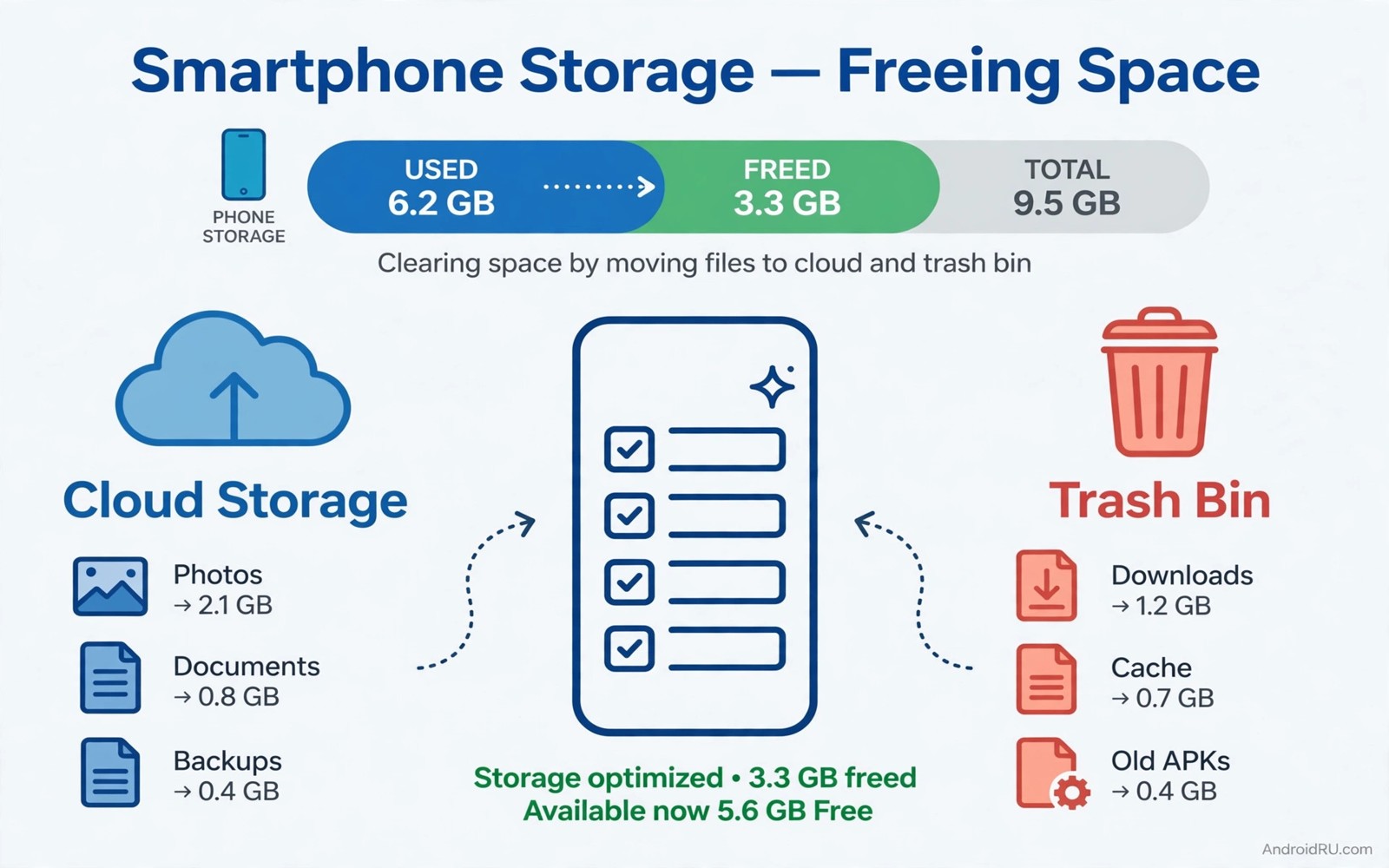
Storage full warnings arrive at the worst moments. A camera refuses to save a photo. An update fails halfway. An app crashes while writing a file. The phone usually holds gigabytes of forgotten files that a systematic cleanup can reclaim in under an hour.
Cleanup order matters more than effort. Large videos and duplicate photos and downloaded installers free the most space first. Cache clearing helps afterwards for smaller gains. Random deletion of unknown folders risks breaking apps for little reward.
Work through this guide from biggest wins to smallest. Check free space after each stage so you know which stage delivered the gigabytes. Stop when comfortable space returns rather than chasing every last megabyte.
Stage one: delete large videos and downloads
Open Files and sort by size largest first. Videos dominate storage on most phones because a minute of high resolution video consumes hundreds of megabytes. Delete videos already shared or backed up.
Open the Downloads folder next and sort by size. Installers and documents and videos accumulate there silently. Delete installers for apps already installed. Move documents you still need to cloud storage and delete the local copies.
Check the screen recordings folder too. Accidental recordings and long gameplay captures hide there. A single forgotten recording can exceed a gigabyte. Deleting three such files often frees more space than an hour of cache clearing.
Stage two: clean photos and their trash
Photos accumulate through bursts and duplicates and screenshots. Open the gallery and review burst sequences. Keep the sharpest frame from each burst and delete the rest. Bursts from children and pets often contain dozens of near identical frames.
Delete screenshots you no longer need. Screenshots of tickets and maps served their purpose once the event passed. A monthly screenshot purge prevents silent accumulation.
Empty the gallery trash after deleting. Deleted photos sit in trash for weeks consuming the same space. Emptying trash completes the freeing process. Check trash contents once before emptying to rescue any accidental deletion.
Stage three: tame chat app media
Chat apps store every photo and video received unless you limit them. Open chat storage settings and sort chats by size. A single active group can hold gigabytes of forwarded videos.
Delete large media from groups you follow casually. Keep media from family chats that hold memories. Most forwarded videos lose value within days yet they occupy space for years without review.
Turn off automatic media download for groups in chat settings. Future media then downloads only when you tap it deliberately. The change prevents the storage problem from returning within weeks.
Stage four: clear cache wisely
Cache helps apps load quickly yet stale cache grows without limit. Open app info for the largest apps and clear cache individually. Start with browsers and social apps whose caches grow fastest.
Avoid clearing all caches at once. A full wipe forces every app to rebuild data slowly and the phone feels sluggish for days. Targeted clearing of three heavy apps beats a blanket wipe in both speed and space.
Never clear app data when you mean cache. Clearing data erases logins and settings and local content. Cache clearing is safe and reversible. Data clearing is destructive and needs a backup first.
Stage five: remove unused apps and games
Games consume gigabytes each with data files that dwarf the app itself. Open storage settings and sort apps by size. Uninstall games finished months ago and apps unused for a season.
Keep one app per job where duplicates exist. Two photo editors and three note apps compete for space and updates. Pick the best of each group and remove the rest without sentiment.
Owners who prune apps regularly also enjoy the refresh that makes a phone feel new because app pruning and storage cleanup share the same mindset. A lighter app collection feels faster as well as roomier.
Stage six: move photos to cloud and free device copies
Cloud backup apps offer a free up space feature that removes device copies of backed up photos. Enable backup first and wait for completion. Run the free up tool only after confirming backup status shows complete.
Device copies vanish while cloud copies remain accessible on demand. Recent photos stay cached for quick viewing. Older photos download when you open them with a connection. The trade suits owners with reliable data access.
Keep original quality backups for photos that matter artistically. Compressed backups save cloud space yet lose detail for large prints. Choose quality per collection rather than a single global setting.
Offline content that hides gigabytes
Offline maps and music and videos hide storage in app data rather than in files. Open map settings and delete offline areas for trips already completed. A single city map can exceed half a gigabyte.
Music apps store downloaded playlists for offline listening. Review downloads and remove playlists you no longer play. Streaming over Wi-Fi replaces most offline needs for home listening.
Video apps store offline episodes similarly. Delete watched episodes promptly because they linger after viewing. A finished series can occupy several gigabytes until manually removed.
Check storage from a computer view
The commands below report storage usage through a computer connection. They help you confirm which areas actually consume space before deleting blindly. Run them at the start of a cleanup session for an honest baseline.
adb shell df -h
adb shell du -sh /sdcard/Download
The snippet above was written for this article as a read only storage check. It displays usage figures and it changes nothing on the phone. Compare the download folder size with your expectation before deleting. A surprisingly large folder deserves a careful review file by file.
Audit app data for hidden giants
App data hides storage that files browsing never shows. Open storage settings and sort apps by total size including data. A browser with years of offline pages or a map app with many regions can rival a video collection.
Clear data only for apps where re-login is easy and content syncs from an account. A streaming app with cloud playlists rebuilds quickly after data clearing. A note app with local only notes must never face data clearing without an export.
Check game data separately because game downloads and updates stack over years. A game you play weekly deserves its data. A game untouched for a year deserves removal rather than data clearing because the whole install can go.
Schedule a monthly storage ritual
Storage stays free only with a recurring habit. Pick the first Sunday of each month for a fifteen minute review. Delete downloads and empty trash and review the largest three apps in that single sitting.
Pair the ritual with another monthly habit such as paying bills or backing up photos. Paired habits survive busy months better than standalone resolutions. A calendar reminder with a checklist keeps the ritual honest.
Record free space after each ritual in a note. A rising trend of free space proves settings changes work. A falling trend warns that auto downloads returned or a new app hoards data silently.
Phones with a memory card slot gain an extra cleanup lever. Move camera photos and downloaded videos to the card and keep internal storage for apps and system files. A card dedicated to media separates the two growth areas so each stays manageable. Check card speed before moving video because a slow card stutters during high resolution playback. A fast card keeps media smooth while internal storage stays roomy for updates.
Review the card contents on a computer once a quarter to catch corrupted files early. A card that fails suddenly can take media with it, so keep a cloud copy of anything irreplaceable.
Common mistakes
The biggest mistake is deleting folders with unknown names from internal storage. System folders and app data folders contain files that apps need to function. Delete only files you recognise inside user folders such as Downloads and Pictures.
Another mistake is relying on cleaner apps that promise one tap freeing. Cleaner apps run constantly and consume the resources they claim to free. Manual cleanup with system tools works better and teaches you what actually fills the phone.
People also free space once and then ignore the cause. Automatic media downloads refill storage within weeks when left enabled. Fix download settings during cleanup so the gain lasts beyond the current month.
Finally avoid deleting the only copy of an important file during a rushed purge. Confirm cloud backup before deleting photos and documents. A freed gigabyte means little when it costs an irreplaceable memory.
Frequently asked questions
How much free space should I keep?
Keep at least ten percent of total storage free. Updates and camera operation need breathing room. A phone below that threshold slows down and fails updates unpredictably.
Is clearing cache safe for banking apps?
Cache clearing is safe for all apps including banking apps. It removes temporary files without touching logins. Data clearing differs and should never substitute for cache clearing.
Why does storage fill again so quickly?
Automatic media downloads and offline content refill storage silently. Disable auto download for groups and review offline playlists monthly. A cleanup without settings changes treats symptoms rather than causes.
Conclusion
Gigabytes hide in videos and downloads and chat media and offline content rather than in mysterious system files. A staged cleanup from largest files downward frees space quickly and safely. Settings changes for auto download and offline content keep the gain alive month after month.
Your concrete next step is to open Files today and sort by size. Delete the three largest forgotten videos or installers. After that turn off automatic media download for your largest chat group. Readers who want the wider refresh path can continue with battery toggles for long days and mistakes that shorten device life as companion guides.

