

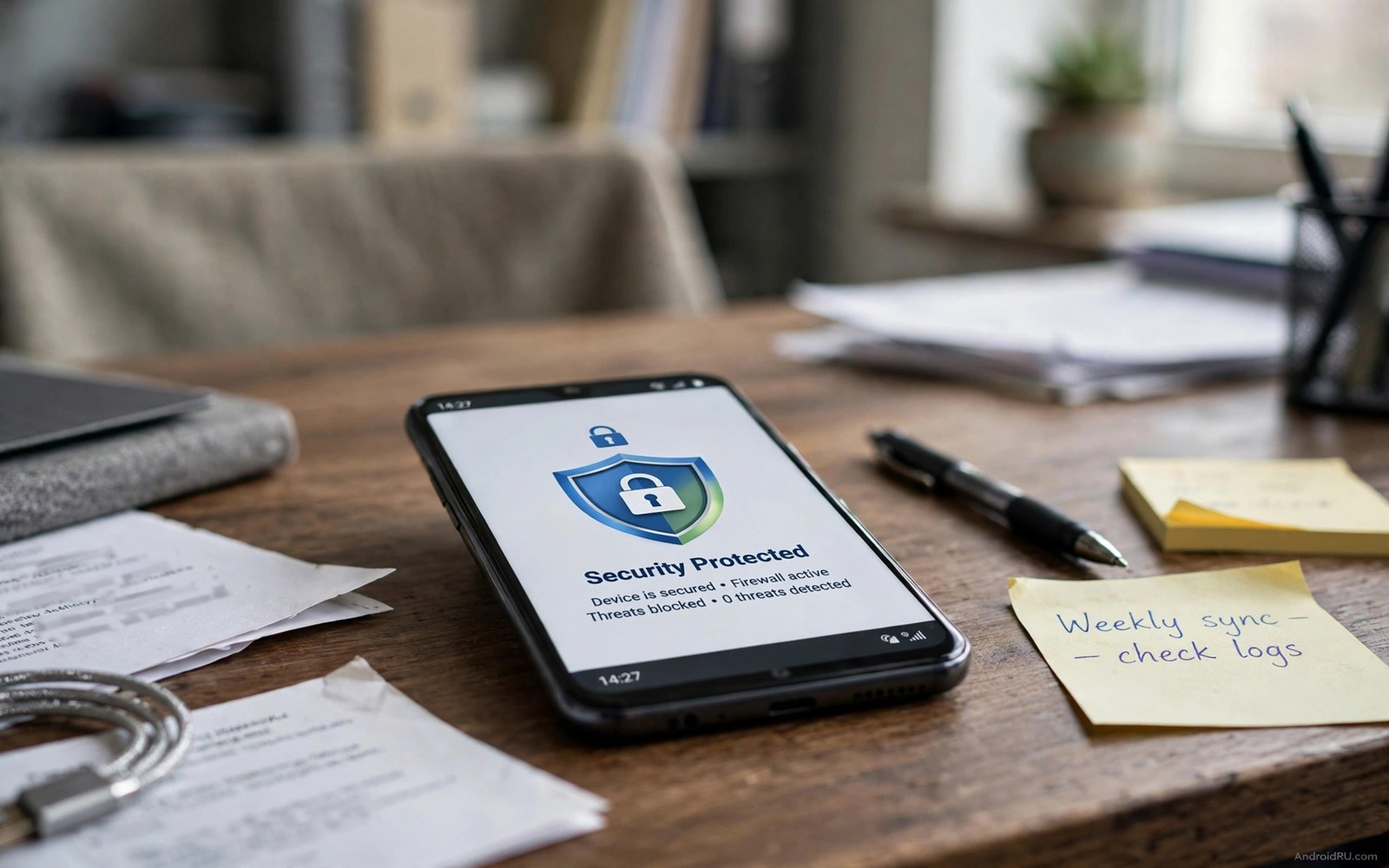
Android includes strong security features at no extra cost. Many owners turn them off without realising the risk. A cleanup app may disable Play Protect. A battery tweak may stop Find My Device. A convenience setting may weaken the lock screen. Each small change removes a layer of protection. Together those changes leave a phone exposed.
This guide covers seven built in features worth checking today. Play Protect scans apps for malware. Find My Device locates a lost phone. Lock screen controls protect data at rest. Safe Browsing warns about dangerous sites. Permission auto reset removes stale access. Each feature works quietly in the background. Checking them takes only a few minutes.
Start with a security status check in Settings. Open Security and privacy to see the overall status. Look for warnings about disabled features. Fix warnings one by one rather than all at once. Note each change so you can reverse a mistake. A calm audit beats a rushed overhaul.
Keep Play Protect and app scanning on
Play Protect scans apps from the Play Store and other sources. It checks apps before install and periodically afterwards. It can remove harmful apps it finds. Open Play Store settings and check Play Protect status. Turn on Scan apps with Play Protect if it is off. Turn on Improve harmful app detection for stronger coverage.
Some cleaner apps ask you to disable Play Protect. They claim scanning slows the phone or blocks their tool. Do not accept that trade. A cleaner app rarely improves a modern phone. Play Protect offers real malware protection for free. Remove any app that demands Play Protect off.
Sideloading apps from unknown sources needs extra care. Keep Install unknown apps off for browsers and file managers. Enable it only for a trusted app for a short task. Turn it off again right after installing. A permanent unknown source permission invites drive by installs. Short temporary access is far safer.
Keep Find My Device and lock screen strong
Find My Device locates and locks and erases a lost phone remotely. Open Settings and check Find My Device status. Make sure location and device finding are enabled. Test the web finder from a computer once. A test proves the feature works before a real loss. A lost phone without finding enabled is far harder to recover.
Lock screen settings protect data when the phone is stolen. Use a strong PIN or password rather than a simple pattern. A six digit PIN beats a four digit PIN clearly. Biometric unlock adds convenience on top of a strong PIN. It does not replace the PIN as a fallback. Keep the fallback strong because thieves target it.
Lock screen notifications can leak private info. Hide sensitive notification content on the lock screen. Open Lock screen settings and choose Hide sensitive content. Messages and codes then stay hidden until unlock. That setting protects one time codes from shoulder surfers. It also protects private messages on a lost phone.
Device recovery and privacy work together. Learning about the setting you must enable before your phone gets lost reinforces Find My Device setup. That setting is the single most important recovery control. Check it first in any security audit.
Use Safe Browsing and permission auto reset
Safe Browsing warns about dangerous websites and downloads in Chrome. Open Chrome settings and check Safe Browsing level. Enhanced protection offers the strongest warnings. Standard protection offers a good balance for most users. Do not turn protection off for speed. The speed gain is tiny and the risk is large.
Permission auto reset removes permissions from unused apps. Android can revoke access after months of disuse. That feature protects against forgotten apps with broad access. Check that auto reset is enabled in App info for sensitive apps. It should stay on by default for most apps. Turn it off only for an app you trust and use rarely by design.
Privacy dashboard shows recent permission use by app. Open Privacy dashboard weekly for a quick review. Look for camera or microphone use at odd times. Look for location use by apps you rarely open. Revoke access for any app with unexplained use. A weekly glance catches problems early.
Protect accounts with screen lock and updates
System updates patch security flaws in Android. Install security updates promptly when they arrive. Delaying updates leaves known flaws open. Turn on automatic system updates where offered. Restart the phone after an update to complete patching. A patched phone resists attacks that target old flaws.
Google account security adds another layer beyond the phone. Turn on two step verification for your Google account. Use an authenticator app rather than SMS where possible. Review account devices and remove old phones. A secure account protects backups and photos even if the phone is lost. Phone security and account security work as a pair.
Screen pinning and app locks add privacy on shared phones. Pin an app before handing the phone to someone else. Lock sensitive apps with a separate code where offered. These tools do not replace a strong lock screen. They add a second barrier for casual access. Use them when family or friends borrow your phone often.
Play Store > Play Protect > Scan apps > On
Settings > Security > Find My Device > On
Settings > Privacy > Permission manager > Auto-reset > On
Chrome > Settings > Privacy > Safe Browsing > Enhanced
This snippet shows a standard Android settings path pattern for built in security. It lists Play Protect before device finding and permissions. Use it as a checklist while you audit security. Menu names can differ slightly by phone brand. The core ideas stay the same across Android devices.
After the audit test Find My Device from a computer. Locate the phone and play a sound. Check that Play Protect shows no harmful apps. Check that lock screen hides sensitive content. A tested security setup gives real confidence. An assumed setup may fail when needed most.
Permission hygiene completes the security picture. Learning about settings you must turn off for maximum privacy helps you review risky defaults. Privacy settings and security features overlap heavily. Review both areas together for a stronger phone.
Run a monthly security check in ten minutes
A monthly check keeps security features from silently disabling. Set a calendar reminder for the first Sunday each month. Open Security settings and scan the status page. Check Play Protect and Find My Device first. Check lock screen and update status next. Ten minutes monthly prevents months of unprotected use. A routine check beats a crisis driven audit.
Review installed apps during the monthly check. Delete apps you have not opened in three months. Unused apps may hold stale permissions. They may also contain unpatched flaws. Deleting them reduces attack surface simply. Keep only apps that earn their place through use. A lean app list is a safer app list.
Review account sessions during the monthly check. Open Google account device list. Remove devices you no longer own. Remove sessions from borrowed computers. A forgotten session can grant access long after use. Monthly session cleanup closes those doors. It takes only a minute per device.
Check backup encryption and restore options monthly. A backup without encryption risks data exposure. A backup that never restores fails when needed. Test restore on a spare device yearly if possible. Monthly checks confirm backup is enabled and recent. Yearly tests confirm backup actually works.
Teach security checks to family members who share devices. Show a child how to spot a fake app install prompt. Show an older relative how to check Play Protect. Shared knowledge protects the whole household. A single informed user can warn others about new scams. Security is a household habit rather than a solo task.
App locking adds a final layer to monthly checks. Learning about how to lock any app without third party apps helps you protect sensitive apps. A locked banking app stays safe even on an unlocked phone momentarily. Combine locks with monthly audits for layered defence. Layers matter when one control fails.
- Set a monthly reminder for a ten minute check.
- Delete apps unused for three months.
- Remove old account sessions and devices.
- Confirm backup is enabled and recent.
- Teach security checks to family members.
Common mistakes
- Disabling Play Protect to install a cleaner app.
- Turning off Find My Device to save a small amount of battery.
- Using a weak four digit PIN as the only lock.
- Showing sensitive notifications on the lock screen.
- Delaying security updates for weeks after release.
- Leaving unknown app installs on for browsers permanently.
FAQ
Does Play Protect replace antivirus apps?
Play Protect covers most Android malware risks well. A separate antivirus rarely adds value on modern Android. It can also drain battery and show ads. Keep Play Protect on and avoid unknown sources.
Can Find My Device work if the phone is off?
Find My Device works best when the phone is on and online. Some newer phones support offline finding through nearby devices. Keep finding enabled for the best chance. A powered off phone cannot report live location.
Should I use Enhanced Safe Browsing?
Enhanced protection offers stronger warnings about dangerous sites. It sends more browsing data to Google for checks. Standard protection suits users who prefer less data sharing. Either option beats protection off.
Quick check before you finish
Open Security settings and confirm Play Protect and Find My Device are both on. Set a six digit PIN if you still use four digits. Hide sensitive lock screen notifications before you finish. Test Find My Device from a computer by playing a sound. A tested setup gives confidence that an assumed setup cannot provide.
Conclusion
Built in Android security works best when left on. Play Protect scans apps quietly. Find My Device recovers lost phones. Strong lock screens protect data. Safe Browsing warns about dangerous sites. Permission auto reset cleans stale access. Updates patch known flaws. Check these features today and keep them on.
Your concrete next step is to open Security settings now and confirm Play Protect and Find My Device are on. Set a six digit PIN if you still use four digits. Hide sensitive lock screen notifications before you finish.

