

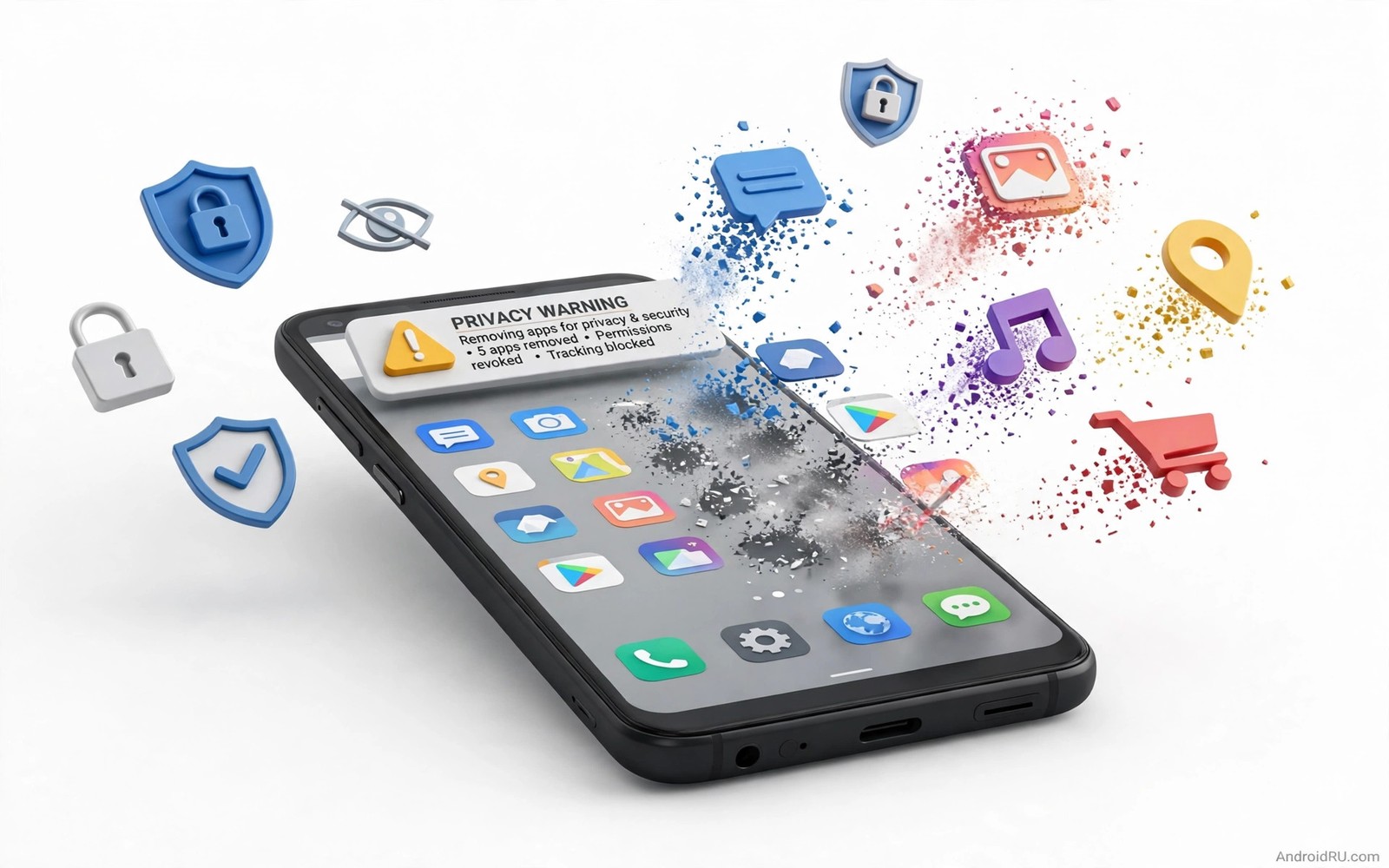
A phone can feel private while quietly reporting far more than you expect. Some apps track location in the background even when you never open them. Some read contacts or call logs for features that never needed that data. Some send usage data to many third parties on every launch. This guide shows how to spot those patterns and remove the worst offenders without breaking your daily tools.
Start with the apps you installed and forgot. A game from a year ago may still run background services. A shopping app you used once may still check location on a schedule. A free utility may still send analytics on every open. Those forgotten apps cost battery and privacy at the same time. A regular review turns that hidden cost into a visible choice.
Tracking is not always obvious from the app icon or the store page. A flashlight app has no honest need for location. A wallpaper app has no honest need for contacts. A simple calculator has no honest need for network access at all. When the permission list does not match the job then treat that mismatch as a warning. You do not need proof of abuse to remove an app that asks for too much.
Deletion is stronger than restriction in many cases. Restricting background activity can reduce tracking but it cannot remove code that phones home on launch. Deleting the app removes that code completely. Keep restriction for apps you truly need and deletion for apps you barely use. That split keeps your phone useful while it cuts the worst exposure.
How to spot a tracking app in settings
Open battery usage and look for apps with high background time. An app you rarely open should not top the background list. Open data usage and look for apps that send data while you sleep. Open location history in settings and check which apps requested location recently. Those three screens together reveal a pattern that a single screen can hide.
Check permissions by type rather than by app. Location permissions show every app that can see where you are. Contacts permissions show every app that can read your address book. Microphone and camera permissions show every app that can listen or watch. Revoke a permission that does not match the job and watch whether the app still works. Many apps work fine without the extra access they requested at install.
Watch for apps that ask again after you revoke a permission. A respectful app explains why it needs access for a specific feature. A pushy app demands full access before it lets you use a basic feature. That behaviour tells you more about the developer than any privacy policy. Remove an app that blocks basic use until you grant unrelated access.
Five kinds of apps to review first
The first kind is a free utility with a vague purpose. A cleaner or booster or battery saver often collects usage data to fund its free model. Its main feature may duplicate a built in Android tool. Remove it if the built in tool covers the same job. A duplicate utility rarely earns its data access.
The second kind is an old game or social app you no longer open. Games can include several analytics kits that run on launch. Social apps can sync contacts and location in the background. Deleting an unused game costs nothing and removes several trackers at once. Keep only the games you actually play each week.
The third kind is a shopping or coupon app with constant location checks. Those apps often build a movement profile from store visits. That profile has value to advertisers even if you never buy through the app. Remove the app and use the shop website for occasional purchases. A browser visit leaves a smaller trail than a background location service.
The fourth kind is a free photo or filter app that uploads images by default. An editor that processes photos on a server sees every image you edit. An editor that works on the device keeps your photos private. Test the editor in airplane mode to see whether it truly works offline. If it refuses to work without a connection then it likely uploads your media.
The fifth kind is a keyboard or launcher with broad data access. Those tools see a huge amount of daily input by design. A keyboard replacement deserves extra scrutiny because it can read passwords and messages. That is why a careful review of feature-packed keyboard alternatives matters before you grant that level of trust. Choose a keyboard with a clear offline mode and a short permission list.
A safe deletion routine
Back up data from an app before you delete it if the data matters. Export notes and photos and chats to a standard format. Check whether the app stored anything only inside its own account. A backup made after deletion is impossible so do the export first. That single step prevents regret after a clean sweep.
adb shell pm uninstall -k --user 0 com.example.trackerThis brief command was prepared to illustrate a removal pattern for an unwanted package. It shows a simple command that removes a package for the current user while keeping its data. You can use the pattern only for a package you have identified and no longer want on the device.
Delete one app at a time and use the phone normally for a day. Watch for a missing feature you actually needed. Reinstall only the app that proves essential after the test. Most deletions cause no problem at all. That quiet result confirms how little you needed the app in the first place.
A monthly privacy audit you can actually keep
Set a repeating reminder on the first day of each month for a ten minute audit. Open the app list and sort by last used date to surface forgotten installs at once. Delete any app you have not opened in thirty days unless it serves a seasonal purpose. Check location permissions for the apps that remain and revoke any access that does not match a current need. A short monthly habit prevents a year of silent accumulation.
During the audit also check data usage for the past month. An app that sent large amounts of data while you rarely opened it deserves investigation. Open its permissions and its background settings before you decide its fate. Restrict background data first if the app still serves a purpose. Delete the app if restriction does not stop the unexplained traffic.
Keep a simple written log of deletions and restrictions from each audit. A log helps you remember why you removed an app when a friend recommends it again later. It also helps you spot a pattern where the same kind of app keeps returning with the same problem. Patterns in the log teach you which categories to avoid in future installs. A log turns isolated deletions into a lasting privacy instinct.
Replacing a tracker without inviting a worse one
A replacement app should ask for fewer permissions than the app it replaces. Compare the permission lists side by side before you install the new tool. A replacement that asks for the same broad access does not improve privacy at all. A replacement that works offline for its core job usually asks for less. Offline strength is a strong signal of a respectful design.
Test a replacement for a week with the same permission audit you used on the old app. Check battery usage and background time and data use after seven days. A replacement that behaves quietly in the background earns its place. A replacement that tops the background list despite a simple job should leave the phone. Behaviour over a week matters more than promises on a store page.
Browser privacy supports the same audit because a private browser cannot fix an app that tracks in the background. Both layers need attention for a real gain. That is why a switch to privacy-focused browsers pairs well with a monthly app audit. Clean the browser and clean the app list together and the phone becomes measurably more private.
Teaching family members to spot trackers
Family members often install apps without checking permissions because the install screen feels like a formality. Show them the permission screen as a plain list of what the app can access. Explain location and contacts and microphone in everyday terms rather than technical terms. A person who understands that a flashlight app does not need location will pause before granting it. That pause is the whole skill in one moment.
Set up a shared habit where family members ask before installing a new free utility. A quick question can prevent a tracker install that takes an hour to clean later. Offer to review the permission list together for the first few installs. After a few joint reviews most people learn the pattern on their own. Teaching works best as a few shared examples rather than a lecture about privacy theory.
Cleaning tools help after a tracker slips through because even careful users make mistakes. A cleaner that explains its categories lets a family member remove cache and duplicates without fear. That is why a careful guide to cleaning hidden storage trash belongs in any family privacy conversation. Teach the clean routine alongside the install habit so mistakes have a safe fix rather than a lingering consequence.
Common mistakes
The biggest mistake is deleting a system app that the phone needs for basic calls or messages. System apps often share a generic name with a third party app. Check the app details screen before you remove anything that came preinstalled. When in doubt restrict the app instead of deleting it and observe the result.
Another mistake is replacing a tracker with a worse tracker that promises privacy. A new app with the same broad permissions does not fix the problem. Check the new app with the same permission review before you install it. A swap only helps when the replacement asks for less and does less in the background.
Frequently asked questions
Will deleting an app delete my account data?
Deleting the app removes it from the phone but not necessarily from a server account. Log in to the service website to delete account data if you want a full removal.
Can I stop tracking without deleting the app?
Yes for many apps. Revoke location and contacts and background data in settings. Delete the app only if tracking continues after those restrictions.
How often should I review installed apps?
Review them once a month and after any large install spree. A monthly review takes ten minutes and catches forgotten apps before they accumulate.
Conclusion
Open your app list today and delete three apps you have not opened in the past month. Check location and background usage for the apps that remain. Repeat that review monthly and your phone will stay lighter and more private.

