

Stop Juice Jacking: How to Safely Charge at Public Airports
Your phone hits 8 percent as the boarding announcement rolls through the terminal. A row of USB ports sits in the armrest of the seat next to you, free and waiting. You plug in, the battery icon lights up, and the problem feels solved. That moment of relief is exactly what juice jacking counts on. The attack is simple: a USB port or cable that looks like a plain power source quietly tries to open a data connection with your phone while it charges, and a tired traveller is the least likely person to notice.
Juice jacking is not a Hollywood hack. It needs no password, no Wi-Fi connection, and no app installed by you. A standard USB cable carries power on some wires and data on others, so any port that supplies power can also attempt to talk to your phone. A tampered kiosk, a modified seat port, or a doctored cable left on a table can all carry that risk. You cannot spot the difference by looking at the port, because a compromised one looks identical to a safe one.
This guide covers the practical side of staying safe: how the attack works, why a USB data blocker belongs on your keyring, when a power bank beats every public port, which phone settings close the data path, and what to check if you already plugged into a port you now doubt. Every step here costs little, needs no technical skill, and works in any airport in any country.
How Juice Jacking Works at Airport Charging Stations
A USB connection is a conversation, not just a power feed. When you plug a phone into a computer, the two devices greet each other, agree on a mode, and then either transfer files or charge only. A malicious charging station tries to steer that greeting toward file transfer, a debug session, or the installation of a configuration profile. Modern phones push back by defaulting to charging only, but defaults are not guarantees. An unlocked screen, an old system version, or a setting changed months ago can all widen the opening.
What happens inside a USB cable during a charge
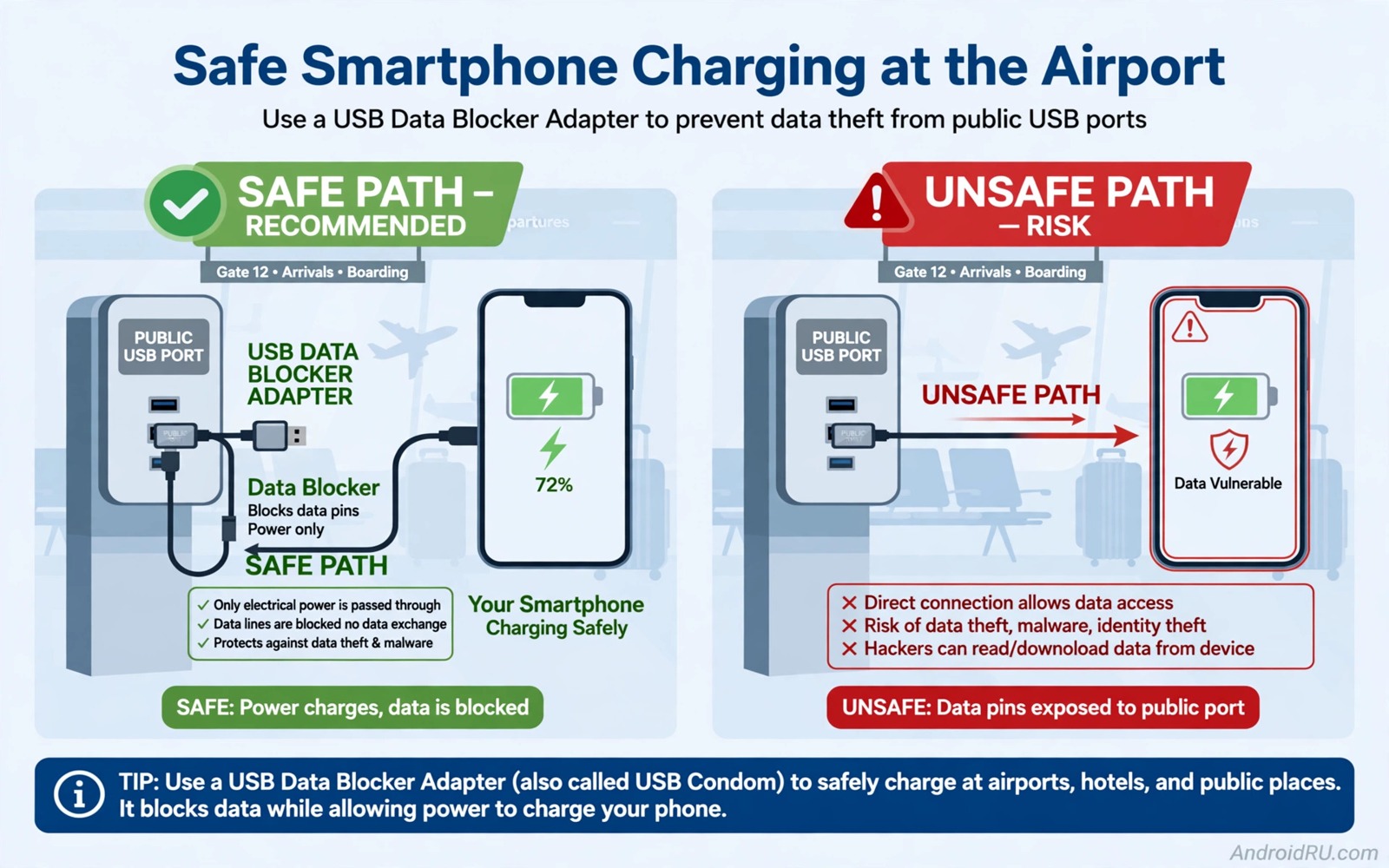
Inside a normal USB cable, separate wires carry power and data. The power wires feed the battery. The data wires let the phone and the host exchange information. A charging-only USB mode tells the phone to ignore the data wires, but the wires themselves are still physically connected unless something blocks them. That physical connection is the whole attack surface. A data blocker removes it by cutting the data path inside a small adapter, so no software on either side can start a conversation.
Fast charging adds a wrinkle worth knowing. Some fast-charge standards negotiate voltage over the data lines, so a cheap blocker can slow charging or drop the phone back to a slow trickle. That trade is usually worth it for a 20-minute top-up at a gate, and it disappears entirely when you charge from your own wall charger. Knowing the trade in advance stops you from blaming the blocker and tossing it in a drawer.
The USB handshake your phone runs every time you plug in
Each time a cable connects, the phone checks what sits on the other end and picks a mode: charging only, file transfer, photo transfer, or MIDI. Android shows this as a notification you can tap to change the mode. A prompt that appears without you asking for it is a warning sign. Unplug first, think second, and never tap Allow just to make the prompt go away.
Why airports are prime targets for tampered ports
Airports pack the three things an attacker wants into one building: crowds, low batteries, and hurry. Travellers land with dead phones, hunt for a port, and plug in without a second thought. A tampered port inside a busy terminal can reach hundreds of phones in a day, and most of those owners will never connect the port to a problem that shows up weeks later. Security teams do inspect public charging points, but a terminal has thousands of ports and a modified one can be swapped in during a busy hour.
Hotels, cafes, trains, and conference centres carry the same pattern on a smaller scale. Anywhere people sit, wait, and charge is worth the same caution. The habit that protects you at an airport protects you everywhere else too, so build it once and use it every time you travel.
Use a USB Data Blocker Every Time You Plug Into a Public Port
A USB data blocker is a small adapter, roughly the size of a thumb drive, that sits between your cable and the public port. It passes power through and physically disconnects the data wires. With one in place, the port cannot start a data handshake no matter what software runs behind it. It costs less than an airport coffee, weighs almost nothing, and clips onto a keyring or a cable pouch. For most travellers this single item is the whole defence.
Buy yours from a reputable seller and test it at home before you travel. Plug your phone into your own computer through the blocker and watch for a file transfer prompt. A working blocker produces no prompt at all, only a charging icon. If a prompt still appears, the blocker is faulty or fake, so replace it rather than trusting it on a trip.
How to test a data blocker before your trip
Testing takes two minutes and saves you from carrying a dead piece of plastic. Connect the blocker between your cable and a laptop, then check the phone screen. You should see charging and nothing else. Open the USB preferences on the phone and confirm the mode reads charging only. Try the same test with a second cable to rule out a cable fault. A blocker that passes both tests is ready for the bag.
Keep the blocker attached to your travel cable
A blocker left in a hotel drawer does not help at the gate the next morning. Clip it to the cable itself, or keep cable and blocker together in a small pouch that never leaves your carry-on. Check for the pair during packing the same way you check for your passport. The most common failure in charging safety is not a clever attack, it is a traveller who owns the right gear and forgot it at home.
Picking a blocker that still supports fast charging
Not every blocker handles high-wattage charging. Check the product specs for your charging standard before you buy, and look for one rated for the wattage your phone uses. A blocker built for basic 5-watt charging will still charge a modern phone, only slowly. If speed matters, carry your own wall charger for full-speed charging and use the blocker for quick top-ups from public ports. One of each covers every situation.
That said, do not overthink the purchase. Any genuine blocker from a known brand beats no blocker at all. A five-dollar adapter that you actually carry is worth more than a perfect one that stays on a shelf.
Carry Your Own Power Instead of Trusting Public Ports
A portable power bank is the safest public charging option because it never connects your phone to an unknown port. Charge the bank at home or through your own wall charger, then use it to top up your phone on the plane, in the terminal, or in a taxi. A bank with enough capacity for one or two full charges covers most flights and layovers without any public port at all.
Pick a bank that matches your phone. A 10,000 mAh bank charges most phones about twice and fits in a jacket pocket. A 20,000 mAh bank covers a long-haul day with a tablet in the mix, at the cost of extra weight. Check airline rules before you fly: most carriers cap power banks at 100 Wh in carry-on luggage and forbid them in checked bags. Print the watt-hour rating from the label if you fly often, since security staff sometimes ask.
Your own wall charger and a standard outlet beat any USB port
When the power bank runs low, your own wall charger plugged into a standard electrical outlet is the next best option. A wall outlet carries power only and cannot start a USB data connection. Outlets sit near seating areas in most modern terminals and in every hotel room. It takes a few minutes to find one, but the safety gain is worth the walk, and your own charger also delivers full fast-charging speed.
Carry a compact multi-port charger and a short cable in your bag. A charger with two USB-C ports covers a phone and a pair of earbuds at once. A short cable tangles less and is harder to swap by accident. Small choices like these turn safe charging from a chore into a habit you never have to think about.
Protect your power bank from the same cable trick
A power bank is only as safe as the cable you use with it. Do not borrow a cable from a fellow traveller, even when your battery is critical. A borrowed cable can carry the same hidden chip as a public port. Use only your own cable with your own bank, and keep a spare cable sealed in your bag for the day you lose the first one.
Set Your Phone to Charging Only Before You Travel
Settings are the second layer behind the physical blocker. A phone set to charging only as its default USB mode forces any data connection to need a deliberate change, rather than happening by itself. Set this before you leave home, when you have time and a calm connection, not at a crowded gate with a dying battery.
On Android, the default USB configuration lives in Developer options, under Default USB configuration. Set it to Charging only. While you are there, check that USB debugging is off. Debugging grants deep access to anything that connects, and it has no place switched on during travel. Turn it back on at home only if a task you run yourself needs it. Keeping these two settings right closes the most common software paths an attacker could use.
General hygiene helps here too. A phone with fewer shady apps has fewer tools that could abuse a data connection, which is one reason how to block all spyware and adware from Android without root pairs well with safe charging habits. The blocker stops the port; a clean phone stops anything that might already live inside it from helping.
Lock your screen before you plug in
An unlocked phone is far more exposed than a locked one, because many data prompts and access requests only appear while the screen is active. Lock the phone before you plug into any public port and leave it locked while it charges. Do not enter your PIN in a crowded place where someone could watch over your shoulder. If a file transfer prompt appears unexpectedly, unplug at once and do not tap Allow.
Turn off USB debugging and check it stays off
USB debugging is a developer tool that lets a connected computer run commands on the phone. It should be off for everyday travel. Check it in Developer options before each trip, and check again after lending the phone to anyone or after a repair. A repair shop or a helpful stranger can switch it on and forget to switch it off, and you would never know until a port tries to use it.
Update your system before the trip, not during it
System updates often close USB and accessory flaws. An old system may allow a data connection that a new system would block. Install updates at home on your own network the night before you fly, so you never need public Wi-Fi or a public port to fetch the update itself. That timing keeps the whole update inside a network you trust.
While updates run, review your lock screen settings. A six-digit PIN beats a four-digit one, and hiding sensitive notification content keeps one-time codes off a screen that sits face-up on a charging station. Small settings add up to a phone that gives away very little even if something goes wrong.
Never Use a Cable You Found or Were Handed
Cables matter as much as ports. A cable that looks normal can hide a tiny chip that acts as a keyboard or a storage device when plugged in. These doctored cables, sometimes called O.MG-style cables, can type commands or copy data without any visible sign. Never use a cable you found on a table, in a seat pocket, or at a promotional stand. Never accept a cable from a stranger at a gate, however friendly the offer sounds.
Carry your own cable from home and keep it in your bag so you always know its history. Mark it with a coloured band or a tag so you can tell it apart from other cables in a shared charging area. If your cable ever leaves your sight at a public station, inspect it before using it again, and replace it if anything about the connectors looks different.
How to spot a tampered cable before you plug it in
Look at the connectors under good light. A genuine cable has clean, even seams and a firm fit. A doctored cable may have a slightly thicker connector housing, an uneven seam, or a loose feel when you plug it in. Weigh it in your hand if you know your cable well; a hidden chip adds a small but noticeable weight to the connector end. None of these checks is perfect, which is why the real defence is using a cable whose history you know.
Keep a spare cable sealed in your bag
A spare cable removes the temptation to borrow one. Keep it in its original packaging or a sealed pouch, and only open it when your main cable fails. A short personal cable weighs almost nothing and removes the riskiest decision a tired traveller makes: accepting a stranger’s cable because the battery is at 2 percent.
Wireless Charging Pads and Other Public Power Sources
Wireless charging pads do not carry USB data in the normal way, so a standard pad is safer than a USB port. A modified pad could still be part of a larger scam setup, for example one that pairs with a nearby fake Wi-Fi network, so use pads only in places you trust and prefer your own power bank when in doubt. In practice, a pad in a well-known airport lounge is a reasonable choice, while a pad glued to a table in an empty corridor deserves a second look.
Public places expose several attack paths at once, and charging is only one of them. The same trip that puts you near a public USB port also puts you near public Wi-Fi, so the habit of locking down mobile browsing on public Wi-Fi belongs in the same travel routine. A VPN on untrusted networks, a locked screen at the charging station, and a data blocker on the cable together cover the three most common public-place attacks.
Airport lounge ports are not automatically safe
A lounge feels private and trusted, which is exactly why it deserves the same caution as the main terminal. Lounges have fewer people, so a tampered port there may sit unnoticed for longer. Staff do check them, but they cannot watch every port every hour. Use your blocker in the lounge too, or charge from your power bank while you enjoy the coffee.
Rental cars, hotel clocks, and other hidden USB ports
USB ports hide in rental cars, hotel alarm clocks, bedside lamps, and seat-back screens. Treat every one of them as untrusted. A rental car USB port connects to the car’s infotainment system, which may store your phone’s name, contacts, or call history after you unplug. Use a power-only adapter or your own bank in the car, and delete the pairing from the car system before you return the keys.
What to Do If You Already Plugged Into a Public Port
First, do not panic. Most public ports are fine, and a single charge from a normal port causes no harm. The steps below are a sensible check, not an emergency drill. Run through them on a trusted network at home and you will know quickly whether anything changed.
Unplug and check the phone for new apps, new configuration profiles, and unfamiliar device administrator entries. On Android, check Settings, then Security, then Device admin apps, and look for anything you did not install. Check the list of installed apps sorted by install date. Run a scan with a reputable security tool, and review recent file access if your phone provides that log. Change important passwords from a trusted device if you suspect any exposure, and watch for strange messages or sign-in alerts in the days after the charge.
Public exposure is a good moment to review the other radios your phone leaves on. A phone that broadcasts its presence in a crowd invites a different kind of attention, which is why understanding Bluetooth visibility risks belongs next to charging safety in any travel checklist. Turn Bluetooth off when you are not using it, or at least set it to non-discoverable.
When a factory reset is the right call
If you tapped Allow on a data prompt, treat the incident more seriously. Back up your photos, contacts, and messages to a trusted service, then consider a factory reset. That step is disruptive, but it removes persistent changes that a scan might miss. Prevention with a blocker is far easier than recovery after an unknown connection, so let one scare buy you a habit that lasts.
A quick post-trip security check in ten minutes
After every trip, spend ten minutes on a check: installed apps sorted by date, device admin apps, permissions for location and contacts, and the battery screen for apps with odd background time. A monthly version of the same check keeps a year of travel from turning into a year of silent accumulation. Write the check into your calendar for the day after you land, while the trip is still fresh.
Frequently Asked Questions About Safe Charging at Airports
Is juice jacking still a real threat today?
Juice jacking is less common than phishing and malware, but it remains a real threat in high-traffic public places. Modern phones default to safer USB modes, which makes mass attacks harder. Targeted attacks and modified cables still exist, and they succeed mainly against unlocked or outdated devices. The low cost of a data blocker makes protection worthwhile even when the overall risk is moderate.
Can a data blocker slow down charging?
A good data blocker should not noticeably slow charging for most phones, because it passes the power wires through unchanged. Some very cheap blockers may limit fast charging protocols that negotiate over data lines. If your phone charges slowly through a blocker, test a different reputable blocker before giving up on the idea. Fast charging through a trusted wall charger remains an alternative when speed matters.
What should I do if I already used a public port?
Unplug and check your phone for new apps, new profiles, and unfamiliar device administrator settings. Run a security scan with a reputable tool and review recent file access if your phone provides that log. Change important passwords from a trusted device if you suspect any data exposure. Watch for strange messages or sign-in alerts in the days after the charge.
Is wireless charging safer than a USB port?
Yes, in the normal case. A wireless pad transfers power through induction and does not open a USB data connection. That removes the juice jacking path entirely. Use pads in places you trust, keep your phone locked while it charges, and prefer your own power bank when a pad looks damaged or out of place.
Do iPhones and Android phones face the same risk?
Both face it, with different details. iPhones ask for trust the first time they connect to a new computer, and an unlocked iPhone that trusts a malicious host can expose photos and files. Android phones vary by brand and system version, and older versions are more exposed. The same defences work for both: a data blocker, a locked screen, your own cable, and updated software.
Your Travel Charging Kit and Next Steps
Safe charging comes down to three items and two settings. The items are a portable power bank, your own cable, and a USB data blocker. The settings are a charging-only default USB mode and USB debugging switched off. Together they remove the data path that juice jacking depends on, and they travel easily in any bag. They also work in every country without needing a local SIM or a special app.
Your concrete next step is to buy a USB data blocker this week and attach it to your travel cable before your next trip. Test it at home with your own computer and confirm that only charging occurs. Pack the bank, the cable, and the blocker together, and from then on never plug your phone into a public charging station without that blocker in place. One small habit, repeated every trip, is the whole defence.

