

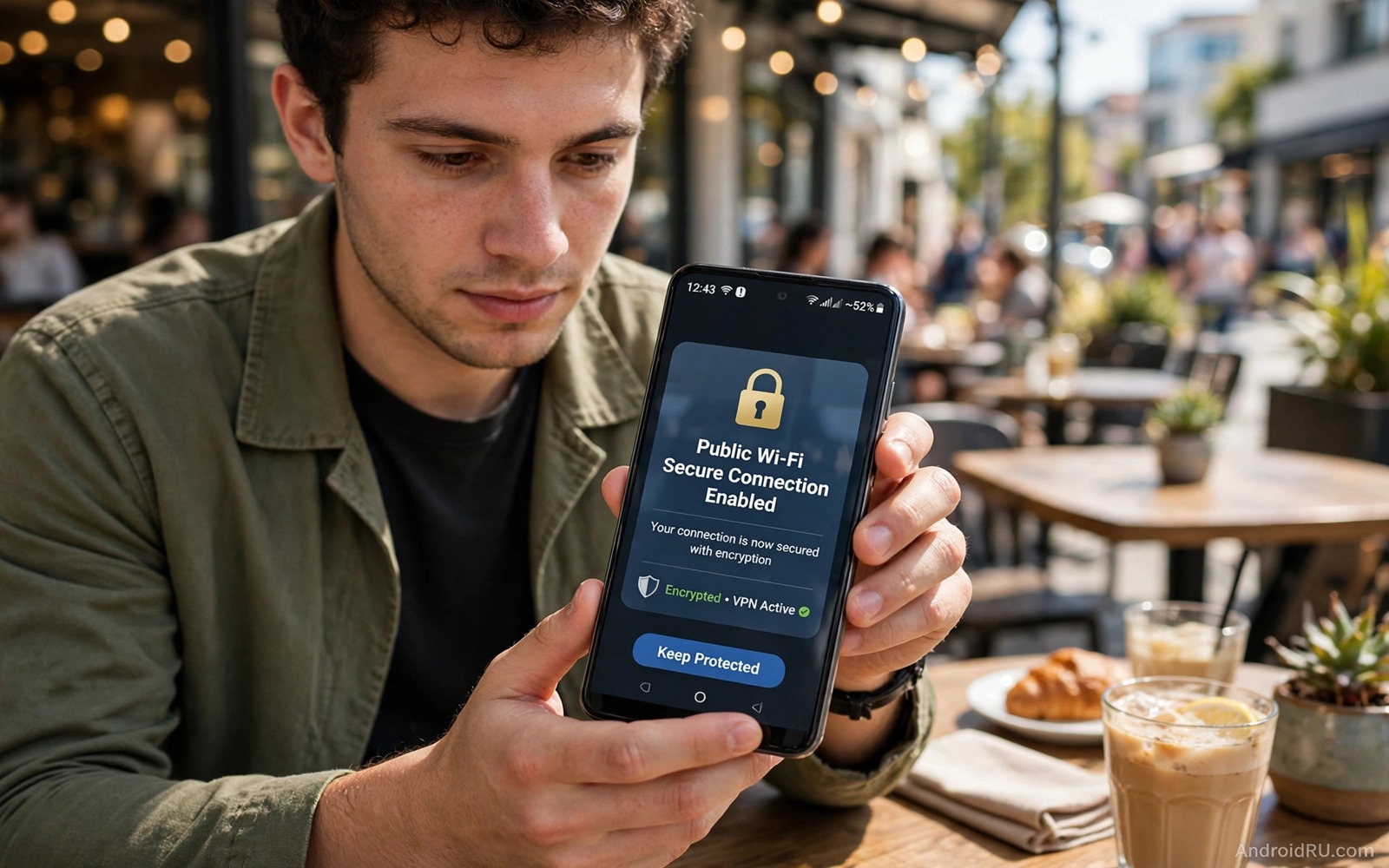
Public Wi-Fi feels like a free gift in cafes and airports and hotels. That gift comes with a shared network where strangers sit beside you digitally. An attacker on the same network can watch unprotected traffic or fake a login page or redirect you to a harmful site. Most of those attacks fail when basic protections are in place.
This guide locks down mobile browsing in layers. HTTPS protects page content. Private DNS blocks tracker domains. Auto join controls stop the phone from connecting to fake networks. Login habits protect accounts even when the network itself cannot be trusted. Together those layers make public Wi-Fi usable without naive trust.
Start by treating every public network as untrusted by default. A network with a password is not automatically safe because the password is often shared with everyone in the room. A network without a password is even less safe. The protections in this guide assume that the network owner and other users could be hostile.
Use HTTPS and check for warnings
Modern browsers warn when a site lacks HTTPS. Never ignore that warning on public Wi-Fi. An HTTP site sends data in a form that others on the network can read. A login page without HTTPS should never receive a password. Close the page and find a safer path to the service.
Check the address bar before you enter sensitive data. A padlock icon and a correct domain name together confirm a safer connection. A domain with a small spelling change can mimic a trusted site. An attacker on public Wi-Fi can push such a fake page through a captive portal or a redirect. Spelling checks catch many of those fakes.
Captive portals deserve special care. A portal page that asks for a login before internet access should receive only the minimum data needed to connect. Avoid entering a main email password into a portal form. Use a guest option or a temporary code when available. Disconnect from the portal network after you finish using it.
Control auto join and network settings
Auto join is a convenience that creates a real risk. A phone that auto joins open networks can connect to a fake network with a familiar name. An attacker can broadcast a common hotspot name and capture traffic from phones that join automatically. Turn off auto join for public networks after each use.
Open Settings and then open Network and then open Wi-Fi and then open saved networks. Remove saved public networks that you no longer need. A saved network list that grows forever increases the chance of an unwanted auto connection. Keep only home and work networks saved for automatic use.
Randomised MAC address settings add another layer on modern Android. A randomised address prevents a network from tracking your device across visits by its hardware address. Check the privacy setting for each Wi-Fi network and choose randomised address where available. That setting does not hide your traffic content yet it reduces long term tracking. For VPN decisions read why free VPNs carry a dangerous hidden cost and choose a trusted tunnel for sensitive sessions.
Protect accounts on untrusted networks
Two factor authentication protects accounts even when a password leaks on a bad network. Enable it for email and banking and social accounts before you travel. An attacker who captures a password still needs the second factor to log in. That second layer turns a password leak into a minor incident rather than a full takeover.
Avoid banking and work logins on public Wi-Fi when a mobile data connection is available. Mobile data travels through a carrier network that is harder for a cafe attacker to intercept. A short mobile data session for a sensitive task is worth the data cost. Save public Wi-Fi for low risk browsing such as news and maps.
Log out of sensitive sessions after use on a shared network. A session that stays open in a browser can be reused by later attacks on the same network. Close sensitive tabs and clear session cookies when you finish. That habit limits the window during which a captured session remains useful.
A simple public Wi-Fi checklist
The checklist below gives a repeatable routine for any public network. Work through it before you browse and again when you disconnect. A routine that you follow every time beats a perfect setup that you use only occasionally. Keep the list short enough to remember on the road.
1. Turn off auto join for the public network
2. Confirm HTTPS and correct domain before logins
3. Enable private DNS with a reputable provider
4. Use mobile data for banking and work logins
5. Log out of sensitive sessions after use
6. Forget the public network when you leave
This checklist follows the standard controls built into Android and it uses only the menus that ship with the system. No extra tool is required to complete the six steps. The order matters because network control comes first and cleanup closes the session safely.
Plan public Wi-Fi use before you travel
Travel planning makes public Wi-Fi safety easier because it removes rushed decisions at an airport gate. Download maps and tickets and reading material before you leave home so you need less public Wi-Fi during the trip. A phone with offline content can stay on mobile data for sensitive tasks and use public Wi-Fi only for low risk browsing. That preparation reduces exposure time on untrusted networks from hours to minutes. A travel plan that includes offline downloads is a security plan as well as a convenience plan.
Prepare a trusted VPN and test it at home before the trip. A VPN tested at home with a leak test and a speed test will behave predictably on a hotel network. A VPN installed at an airport in a rush may carry a weak configuration that leaks on the first public network. Install and test the VPN a week before travel and keep its login details in a password manager. That advance testing turns a travel security tool into a known quantity rather than a last minute gamble.
Set a rule for sensitive tasks during travel and share it with travel companions. A rule that banking happens only on mobile data is easy to follow when everyone in the group knows it. A rule that work logins wait until a trusted network is available prevents a rushed login on a fake hotel portal. That shared rule helps companions avoid the same traps and it creates a travel culture where security is a normal part of the trip rather than an afterthought.
Review saved networks after you return home from a trip. A trip adds several public networks to the saved list and each saved network increases future auto join risk. Forget every travel network on the day that you return home. That post trip cleanup takes two minutes and it restores the phone to a home only saved list. A phone that forgets travel networks promptly is far less likely to auto join a fake twin network during a future trip.
Use offline tools to reduce public Wi-Fi need
Offline tools reduce public Wi-Fi exposure by removing the need to connect at all. Download maps for a city before you travel so navigation works without a network. Download reading material and music before a flight so entertainment needs no public Wi-Fi. Download tickets and boarding passes before you reach the airport so check in needs no network at the gate. Those offline preparations turn a long public Wi-Fi session into a short low risk session or no session at all.
Use mobile data as a bridge when offline tools cannot cover a task. A short mobile data session for a banking login is safer than a long public Wi-Fi session for the same login. A mobile data session for a work email check is safer than a public network session for the same check. That bridge habit costs a small amount of data yet it removes the main risk of public Wi-Fi for sensitive tasks. A data plan with a modest allowance can support that bridge habit for most travellers.
Teach offline habits to travel companions who may otherwise connect to every public network they see. A companion who downloads maps before a trip will not need to join a fake airport network for directions. A companion who carries offline tickets will not need to join a hotel portal for check in. That shared offline preparation protects the whole travel group because a fake network that targets one traveller often targets the whole group at once.
Common mistakes
One mistake is trusting a network because it has a password. A shared cafe password protects nothing against other cafe guests. Every guest knows the same password. Treat a password protected public network with the same caution as an open network.
Another mistake is leaving Wi-Fi on while walking through an airport. A phone with Wi-Fi on may probe for saved networks and connect to a fake twin. Turn off Wi-Fi when you are not actively using it. That simple habit stops many opportunistic attacks.
A third mistake is ignoring browser warnings for the sake of speed. A warning page exists because something about the connection looks wrong. Bypassing it on public Wi-Fi invites interception. If a trusted site shows a warning then switch to mobile data and try again. For fake app safety read how to spot fake store apps that steal credentials and apply its domain checks to websites as well.
Frequently asked questions
Is public Wi-Fi safe with HTTPS?
HTTPS makes public Wi-Fi much safer for page content. It does not hide which sites you visit from the network operator. It does not protect against fake portals or session theft. Combine HTTPS with private DNS and careful login habits for full protection.
Should I always use a VPN on public Wi-Fi?
A trusted VPN adds a strong layer on public Wi-Fi. It encrypts traffic that HTTPS alone may leave exposed. Use a reputable paid VPN for sensitive work. Avoid unknown free VPN apps that may collect the very data that you want to protect.
Can an attacker see my passwords on public Wi-Fi?
An attacker can see passwords sent over HTTP without encryption. HTTPS logins protect passwords in transit. Two factor authentication adds protection even when a password leaks. Never enter a password on a page without HTTPS.
Conclusion
Public Wi-Fi attacks succeed when users trust the network too much. HTTPS checks and auto join controls and private DNS and careful login habits together close the common attack paths. No single setting is enough yet the combination is strong.
Your concrete next step is to turn off auto join for public networks today and forget old public networks that you no longer use. Then enable private DNS before your next cafe visit. For tracker blocking read how to use private DNS to block ads and trackers systemwide and keep that setting on every network.

