

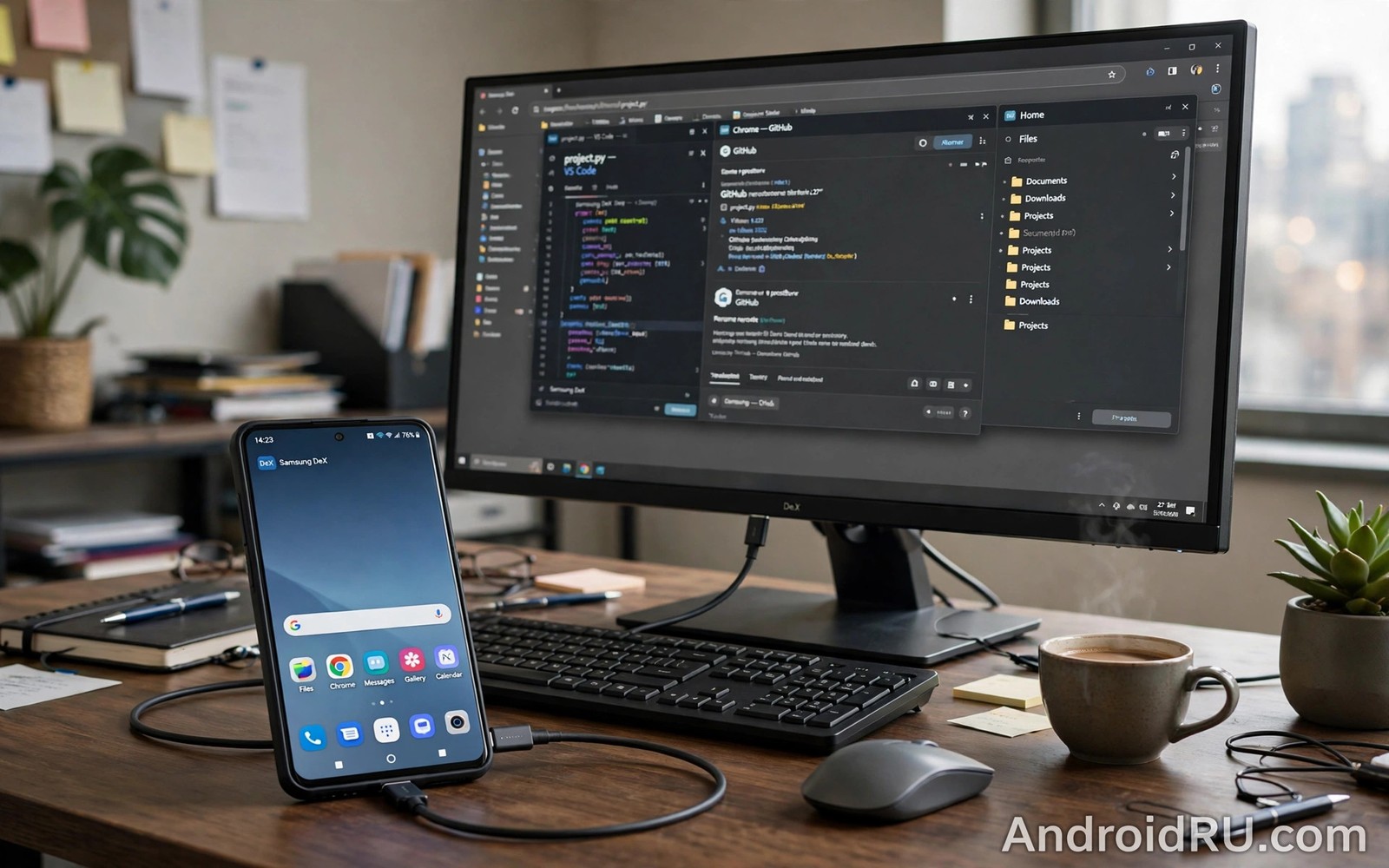
Understanding Android desktop mode progress matters because phones now carry enough power for real desktop work. Desktop mode turns a phone into a windowed workspace when connected to a monitor. Apps open in resizable windows and a taskbar helps switch between them. The idea is old but recent Android work has made it far more usable.
Early desktop modes felt like stretched phone screens. Recent work adds proper window management and better keyboard and mouse support. App support still limits the experience for many users. If you follow update timing then why update rollouts are phased by region explains why desktop features reach different phones at different times.
What desktop mode does today
Desktop mode shows a desktop style interface on an external display while the phone screen can stay separate. Users can open several apps in windows and drag them and resize them. A taskbar or dock shows running apps and helps switch quickly. Keyboard shortcuts work in many apps and mouse input feels natural for office tasks.
Not every phone supports desktop mode today. Support depends on the brand and the model and the Android version. Some brands offer their own desktop mode with extra features. Others rely on the standard Android implementation which is still maturing. Check your brand feature list before buying accessories for desktop use.
Window management improvements
Recent Android work improves how windows behave on large screens. Windows can snap to halves and remember sizes better than before. Multitasking feels closer to a laptop when several windows stay visible at once. Freeform windows still need polish for edge cases such as popups and dialogs.
Developers need to design apps for resizable windows. An app built only for portrait phone screens may look awkward in a wide window. Google provides tools for adaptive layouts but adoption takes time. The best desktop apps today are those already designed for tablets and large screens.
Keyboard mouse and display support
Keyboard and mouse support has improved steadily in Android. Shortcuts for copy and paste and switching windows now work in more places. Mouse scrolling and right click behaviour feel more desktop like than in early versions. External display resolution and scaling also affect how sharp the workspace looks.
adb shell dumpsys display | grep -i density
adb shell settings get global force_desktop_mode
adb shell pm list features | grep -i desktop
These commands follow the approach described in the official Android developer documentation for inspecting display settings and device features on a phone.
Connection options include USB-C to a monitor and wireless casting in some cases. Wired USB-C gives the most reliable result for work. Wireless casting suits presentations but it can lag during fast interaction. A powered dock helps because desktop work drains the battery faster than normal phone use.
Limits that still hold it back
App support remains the main limit. Many popular apps still assume a phone screen and they may refuse to resize well. Professional desktop software rarely runs on Android without a web version or a remote desktop tool. Users who need full desktop apps should still consider a laptop for heavy work.
Performance also limits long sessions. A phone processor can handle office work and browsing well. Heavy video editing or large spreadsheets may still feel constrained. Reading about how carrier locked phones delay updates is unrelated to speed but it reminds owners that brand rollout timing affects when desktop improvements arrive.
Future expectations
Future Android versions may make desktop mode a standard feature rather than a brand extra. Better window tools and broader app support would make that shift meaningful. Google work on large screens and foldables points in the same direction. A unified large screen system would help phones and tablets and foldables together.
Expect gradual progress rather than a sudden laptop replacement. Each version adds a piece such as better windows or better input support. Owners who try desktop mode now should judge it for light office work and browsing. Learning Android seamless updates and AB partitioning shows another system area where steady progress beats sudden change.
Desktop mode for work and study
Desktop mode can transform a phone into a useful work station for writing and spreadsheets and email. A large monitor gives documents room to breathe. A physical keyboard makes long writing far easier than a phone keyboard. A mouse makes selecting text and moving files more precise. Together those tools let a phone handle many office tasks that once required a laptop. Workers who travel light benefit most from that flexibility.
Students can use desktop mode for research and essay writing with a portable monitor or a library display. Multiple windows allow a source document and a writing app to stay visible together. That layout reduces switching and it helps students compare sources while writing. A phone plus a cheap monitor can therefore serve as a study station in a small room. Cost savings matter for students who cannot afford both a phone and a laptop.
Desktop mode also helps presenters who need to show slides from a phone. A phone connected to a projector can display a presentation in a windowed workspace. The presenter can keep notes visible on the phone screen while the audience sees only the slides. That separation improves presentation flow. Presenters should test the setup before an important talk because display scaling can surprise first time users.
Limitations remain for creative work that needs precise colour or heavy processing. Photo editing on a phone screen through desktop mode may lack colour accuracy compared with a calibrated monitor. Video editing may feel constrained by processor and memory limits. Creative professionals should therefore test desktop mode with their own files before relying on it for client work. Light creative tasks work well while heavy tasks still favour a dedicated computer.
Accessories that make desktop mode practical
A USB-C hub with power delivery is the most useful desktop mode accessory. It connects the phone to a monitor and to a keyboard and to a mouse while charging the phone at the same time. Without power delivery the phone battery drains during a long desktop session. A hub with HDMI output suits most monitors. Owners should check hub compatibility with their phone model before purchase because some phones need specific hub features.
A portable monitor adds flexibility for travellers who cannot carry a full desktop display. Portable monitors run from USB-C power and they fold into a bag easily. They suit hotel rooms and coworking spaces. Image quality varies by price so travellers should read reviews before buying. A portable monitor plus a folding keyboard creates a compact mobile office that fits in a backpack.
Bluetooth keyboards and mice reduce cable clutter in a desktop setup. They pair quickly and they work across phone and tablet. Battery life for Bluetooth accessories usually lasts weeks. Owners should keep a wired backup for important work because Bluetooth pairing can fail at an awkward moment. A small wired keyboard in a bag provides insurance for critical tasks.
Storage accessories also matter for desktop work because phones have limited internal storage. A USB drive connected through a hub can hold large documents and media files. Cloud storage provides another option for files that need sharing across devices. Owners should organise files before a desktop session so they do not waste work time searching through phone folders on a large screen.
Desktop mode and battery management
Desktop mode sessions drain battery faster than normal phone use because the processor drives a large display and handles multiple windows. Owners should keep the phone charging during long desktop sessions. A hub with power delivery solves this problem elegantly by charging while connecting. Without charging a desktop session may end abruptly when the battery runs low. Planning power before a session therefore matters as much as planning the display connection.
Heat during desktop mode also deserves attention because sustained window work warms the phone more than brief phone tasks. A phone in a thick case may trap heat during a long session. Removing the case during desktop work can improve cooling slightly. Owners should also avoid placing the phone in direct sunlight during a desktop session. Heat management protects performance and battery health over many sessions.
Display scaling choices affect readability and productivity in desktop mode. A scaling setting that is too small makes text hard to read. A setting that is too large wastes screen space. Owners should experiment with scaling for their monitor size and viewing distance. Finding a comfortable scaling setting takes a few minutes but it improves every later session. Personal comfort matters more than a default setting chosen for a different monitor.
File management in desktop mode benefits from a clear folder structure prepared in advance. Owners who organise documents into folders before a session waste less time searching during work. Cloud folders that sync across devices also help because files remain available after the desktop session ends. Preparation before a session therefore improves productivity during the session itself.
Common mistakes
A common mistake is buying an expensive dock before checking whether the phone supports desktop mode at all. Another mistake is expecting full laptop software on a phone. Desktop mode runs Android apps and web apps well but it does not turn a phone into a Windows laptop.
- Buying a dock before confirming desktop mode support wastes money when the phone lacks the feature.
- Expecting full desktop software on Android leads to disappointment for heavy professional workflows.
- Using wireless casting for fast work introduces lag that a wired USB-C connection would avoid.
Frequently asked questions
Does my phone support desktop mode?
Support depends on brand and model and Android version. Check the brand feature page for your exact model. Some phones need a specific update before desktop mode appears.
Can I use desktop mode with any monitor?
Most USB-C monitors work with supported phones. A powered dock improves reliability and charging. Wireless casting works on some phones but wired connections feel smoother.
Will desktop mode replace my laptop?
For browsing and office documents and email it can work well. For heavy editing and full desktop software a laptop remains better. Treat desktop mode as a useful extra rather than a full replacement.
Conclusion
Android desktop mode has moved from a stretched phone screen to a usable windowed workspace. Window management and keyboard support have improved. App support and performance still limit heavy work.
Your next step is to check whether your phone supports desktop mode and test it with a USB-C monitor for light office tasks. If it fits your workflow then a dock becomes a worthwhile purchase. If it does not fit then wait for the next major version to add more polish.

