

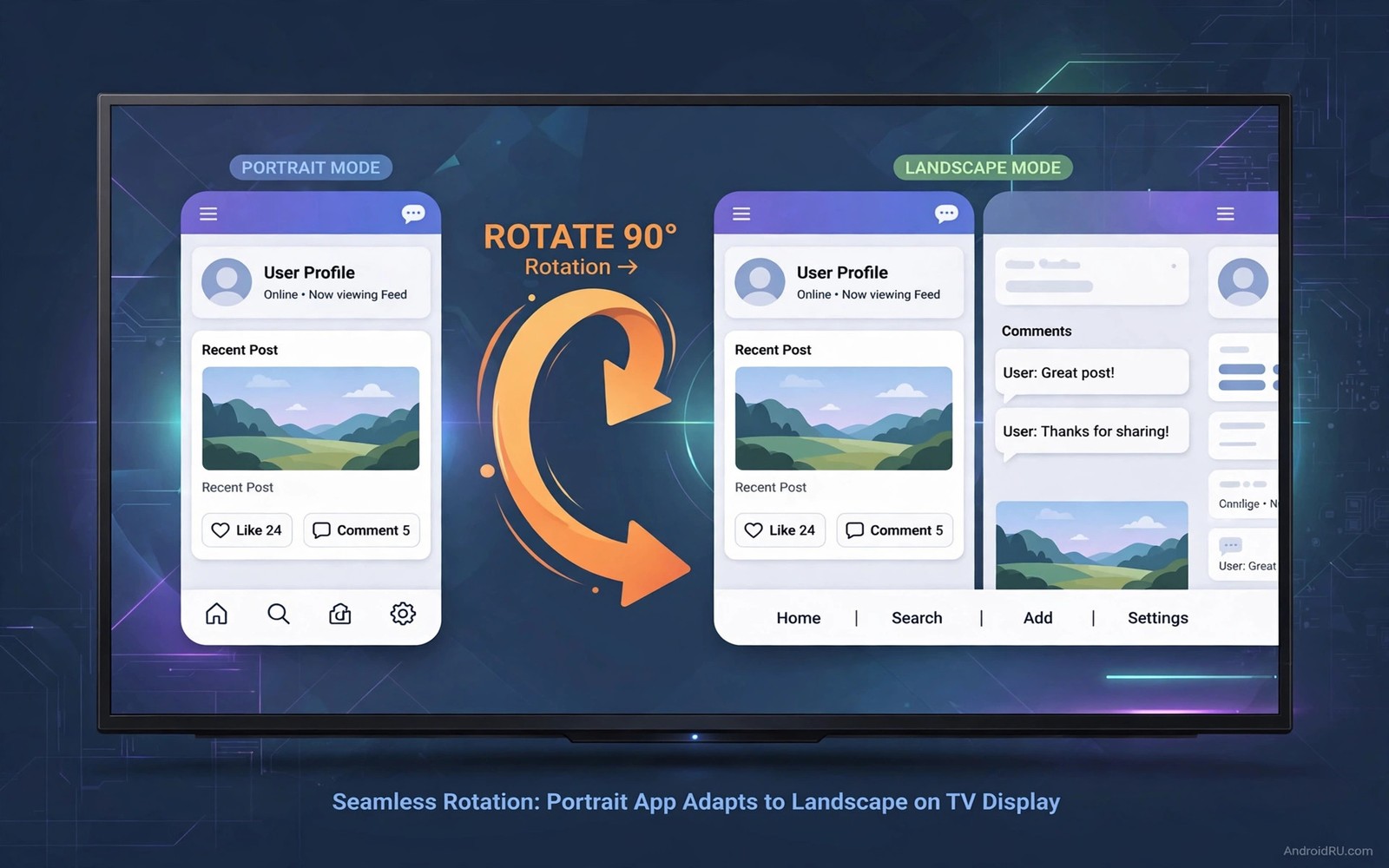
Many phone apps assume a tall portrait screen and they look broken on a wide television. Text stretches or the layout crops or the app refuses to fill the screen. That failure blocks useful apps from a television even though they could work well in landscape. A rotation trick can force those apps into a wide layout. It does not fix every app but it rescues many that would otherwise stay unusable on TV.
Android handles orientation through app settings and system rotation controls. A television launcher often locks orientation to landscape for the system itself. An individual phone app can still request portrait and the television may letterbox it or stretch it. Rotation tools override that request by telling the system to treat the app as landscape. The app then draws its layout in a wide window instead of a tall one.
This guide explains safe rotation methods for television boxes and sticks. You will learn which tools work without root and which limits remain. You will also learn how to test an app after rotation so text stays readable. For a related TV layout topic see dual apps on Android TV split screen because window layout and orientation solve different parts of the same problem. Start with one app and judge the result honestly.
Rotation tricks also help a viewer who wants to read a long article on a television. A portrait article app can become readable in landscape with larger text. That use suits a living room reading session better than a phone screen. A comfortable chair and a large screen make long reading pleasant. Rotation turns a phone reading app into a living room reader.
Why Portrait Apps Break On A TV
A portrait app designs its screens for a narrow tall window with scrolling lists. A television window is wide and short so that layout cannot map cleanly. Some apps scale the portrait window into the centre of the screen with black bars on the sides. Others stretch the window to fill the screen and distort text and images. Both results look poor and both make buttons hard to hit with a remote.
Touch design adds another problem because portrait apps expect finger taps close together. A remote moves focus step by step and a stretched layout can hide focus highlights. Buttons near the edge may sit outside the safe area of the television. Those issues explain why a simple install from a phone store rarely gives a good TV result. Rotation alone cannot fix a bad focus design but it can make the layout readable enough to use.
Use Rotation Tools Without Root
Install a rotation control app that can set orientation per app on your television box. Open the tool and add the portrait app to its list and choose landscape as the forced orientation. Launch the app from the tool or restart it after you set the rule. Check whether the app now fills the wide screen with a readable layout. If it does then keep the rule and move on to focus testing.
# Portrait app rotation test
rotation_tool_rule = landscape_for_app
launch_method = restart_after_rule
focus_check = buttons_highlighted
text_check = no_clipping_at_edges
fallback = mouse_for_poor_focus
The snippet above is an original example written for this guide. It shows generic settings that you can adapt to your own device. It does not copy code from any outside source.
Some boxes offer a developer option to force activities to be resizable which can help rotation tools work better. Enable that option only if you understand that it affects all apps. Test a familiar app after enabling it to confirm normal apps still behave well. Disable the option if it causes crashes in apps that previously worked. A rotation tool with per app rules is safer than a global setting that touches everything.
Test Layout Focus And Text After Rotation
Open the rotated app and move through its main screens with the remote. Check that buttons show a clear focus highlight and that text does not clip at the edges. Try the most important task in the app such as playing media or opening a list. If that task works smoothly then the rotation is a success for daily use. If buttons overlap or text cuts off then try a different orientation mode in the tool such as reverse landscape.
Adjust font size in system settings if rotated text feels too small on a large screen. A slightly larger font can rescue a layout that otherwise looks cramped. Use a mouse for apps where remote focus remains poor after rotation. A mouse gives precise clicks that a directional pad cannot match in a phone layout. Keep the mouse nearby for those apps and use the remote for apps that focus well.
Know When Rotation Cannot Save An App
Some apps check orientation in code and refuse to draw in landscape at all. Those apps may crash or show a rotated portrait window inside a landscape frame. No safe tool can rewrite that app logic without modifying the app itself. Accept that limit and look for a television friendly alternative for that task. A web version in a TV browser sometimes works better than a forced phone app.
Apps that rely on portrait camera or portrait sensors also struggle after rotation. A camera app may show a sideways preview that no rotation setting fixes cleanly. A game with portrait controls may place buttons where a remote cannot reach them. In those cases a tablet version or a different app is a better answer. Rotation is a useful trick but it is not a universal fix for phone design.
Adjust Text Size After Rotation
Text size becomes critical after rotation because a phone layout may use small fonts on a large screen. Increase system font size one step and recheck the rotated app. A larger font may push some buttons to a second row but it improves readability greatly. Find the smallest font that still reads comfortably from your sofa. That balance keeps layout and readability together.
Use display size settings in addition to font size when the whole layout feels cramped. Display size scales interface elements while font size scales text alone. Test both settings separately so you know which one helped. A combination of slightly larger font and slightly larger display often works best. Record the winning combination for future apps.
Check contrast after rotation because a light phone theme may wash out on a bright television. Switch to a dark theme inside the app when available. A dark theme also reduces eye strain during long reading. If the app lacks a dark theme then lower television brightness slightly. Contrast tuning completes the rotation fix.
Combine Rotation With A Better Remote
A rotated app with small buttons still needs precise input for a good experience. A wireless mouse solves that problem better than a directional remote. The setup for using a phone as a wireless TV remote also shows how a phone can act as a touchpad for rotated apps. Use the phone touchpad for scrolling and the mouse for precise clicks. That pair covers most rotated app needs.
Map a remote button to back when the rotated app hides its back control. A reliable back button prevents getting stuck in a rotated screen. Test back navigation from every main screen in the app. If back fails on one screen then note it and use the home button as an escape. A known escape route reduces frustration during daily use.
Save rotated app rules in the rotation tool with clear names. A rule named for the app and the orientation is easy to find months later. Export rotation rules when the tool allows it. That export protects your setup during a box reset. A documented rule set is part of a maintainable television.
Common Mistakes
The most common mistake is forcing landscape globally for every app which breaks apps that already work well. Use per app rules so only problem apps change. Another mistake is judging rotation from the home screen alone without testing the main task inside the app. A home screen can look fine while inner screens clip badly. A third mistake is installing a rotation tool that demands broad system access without checking its maker. Orientation fixes feel better inside custom launchers for a clean Android TV look that keep windows tidy.
People also forget to restart the app after setting a rotation rule and then conclude the tool failed. Close the app fully and launch it again after the rule is set. Do not combine several rotation tools at once because they can fight over orientation. Pick one tool and remove the others. A single clear rule gives predictable results.
Owners also force rotation and then forget to test video playback inside the rotated app. A rotated video may play sideways or with black bars that hide controls. Test video specifically rather than assuming text success means video success. If video fails then try a different orientation mode for that app. Text and video can need different rotation choices.
Frequently Asked Questions
Will forcing landscape work on every portrait app?
It works on many apps that simply request portrait without hardcoding the layout. It fails on apps that check orientation in code or rely on portrait sensors. Test each app after rotation with its main task. Keep the apps that pass and find alternatives for the apps that fail.
Do I need root to force landscape on Android TV?
Many rotation tools work without root by using accessibility or overlay permissions. Those tools set orientation per app within normal system limits. Root tools offer deeper control but they carry higher risk and they can break updates. Start with a no root tool and judge the result before you consider anything deeper.
Why does text clip after I force landscape?
Clipping happens when the app layout assumes a tall window and its elements do not reflow for a wide window. A different orientation mode or a larger font size can sometimes help. If clipping persists across modes then the app layout cannot adapt. Use a mouse to reach clipped controls or choose a television friendly alternative.
Conclusion
Pick one portrait app you want on your TV today and set a per app landscape rule for it. Close the app fully and relaunch it and test its main task with the remote. If buttons highlight and text stays readable then keep the rule. If the layout clips badly then try reverse landscape once before you look for an alternative app.
After a week with a rotated app test its main task again from a normal sofa distance. A layout that looked fine up close may strain eyes from the sofa. Adjust font size and display size until text reads comfortably without leaning forward. If video inside the app still fails then try a different orientation mode once. A week of real use is the true test of a rotation rule.

