

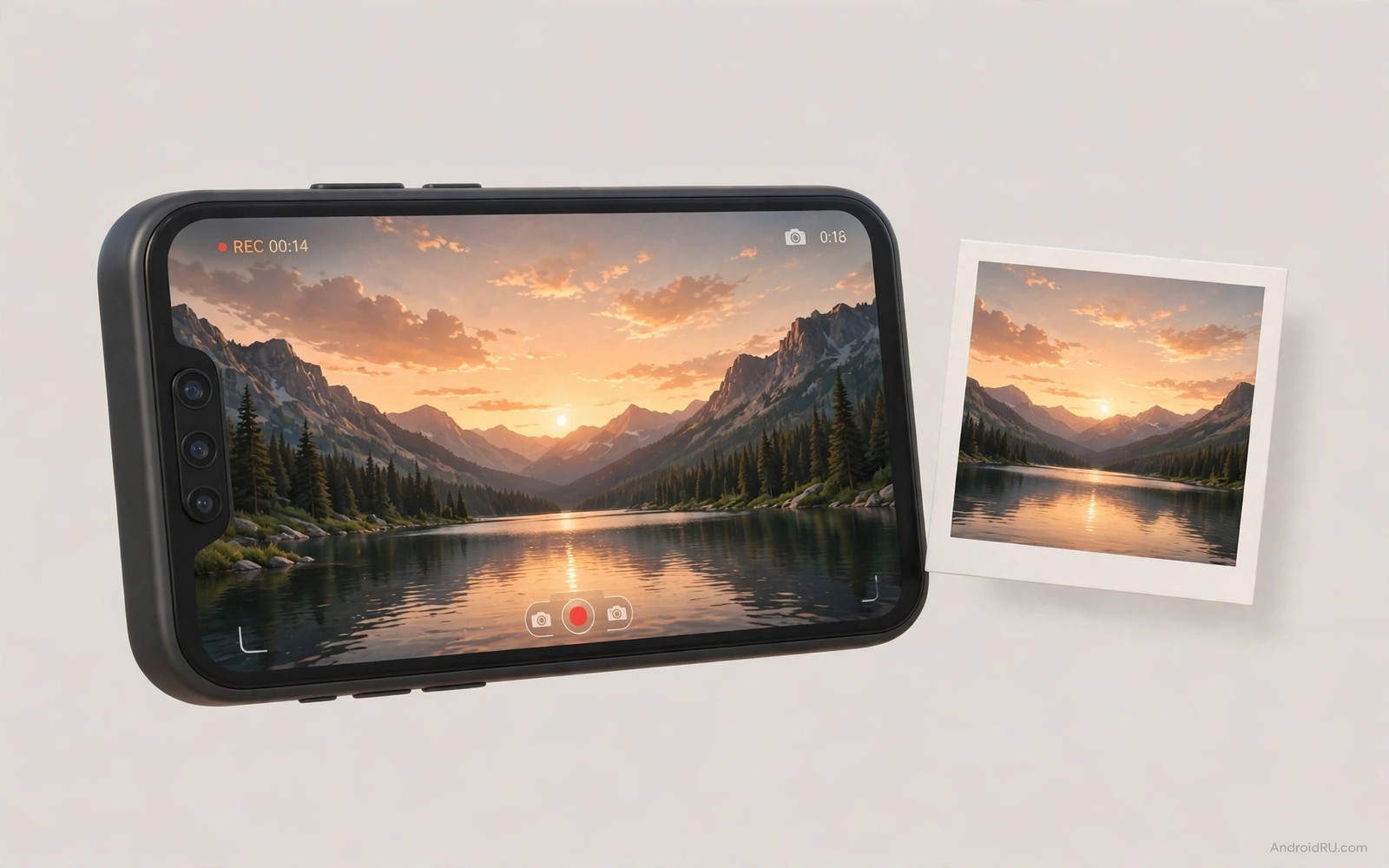
A birthday candle flickers for one second. A dog leaps for a ball. A street performer nails a jump. These moments vanish while you record video. Most people accept the loss and keep filming. You do not have to accept it. Your phone can save a still photo while the video keeps rolling.
The trick lives inside the camera app you already use. A small shutter button appears beside the record button on many phones. Tap it during a recording and the phone saves a photo at that exact instant. The video never pauses. The audio never drops. The moment survives in two forms at once.
This guide shows the exact steps for the stock camera app and for the common camera apps that hide the button in a different place. You will learn what resolution to expect from a mid-recording photo. You will learn why some phones save a full photo and others save only a video frame. You will also learn how to avoid shaky stills and blown highlights when you grab a shot in a hurry.
Find the shutter button before you need it
Open the camera app and switch to video mode. Look at the right side of the screen or the bottom edge in landscape. The large red button starts the recording. A smaller white circle often sits next to it. That smaller circle is your still capture button. It only appears after recording starts on some phones. Start a short test recording at home and watch for it.
Tap the small circle once during the test clip. Stop the recording. Open the gallery. You should see one video file and one new photo file with almost the same timestamp. Check the photo resolution in its details panel. Some phones save a full sensor photo. Others save a still that matches the video frame size. Knowing the result in advance stops disappointment at a real event.
Use the button at the right moment
Hold the phone with both hands before you tap. Brace your elbows against your body when you stand. Tap the still button with your thumb and keep the phone steady for one extra second. A rushed tap during a pan creates a smeared photo. A calm tap during a pause in the action creates a sharp one.
Watch the subject instead of the screen when the action peaks. Anticipate the peak by half a second. A singer holds a high note. A child reaches the top of a slide. A wave breaks against rocks. Tap just as the peak begins. The photo will catch the subject at full expression rather than halfway into the next move.
Understand the quality trade-off
A mid-recording photo is not always equal to a normal photo. Video mode locks exposure and focus for moving footage. The still inherits those settings. A fast moving subject may look softer than a dedicated photo shot. Bright skies may clip sooner because video exposure favours the whole scene. These limits are normal and they are worth it when the alternative is no photo at all.
Light changes the result more than any other factor. Outdoor daylight gives the sharpest mid-recording stills. Indoor stage light gives usable stills with some grain. Very dark rooms give noisy stills that still beat a blurry video frame pulled later. If the scene is dark then move closer to the light source before you tap. Two steps toward a lamp can transform a muddy still into a keeper.
Grab a frame later when the button is missing
Some phones hide the still button entirely. Some camera apps remove it at high resolutions. You still have a fallback. Open the recorded video in the gallery app. Scrub to the exact moment you want. Use the frame capture option in the video player menu. The saved image will match the video resolution and it will carry the same exposure as the clip.
Frame grabs work best on a large screen. Transfer the clip to a tablet or a computer before you pick the frame. Scrub slowly with the timeline slider. Pause on the sharpest frame and capture it there. A frame picked on a small phone screen often looks soft on a bigger display. The extra minute of care pays off when you print the image or share it full size.
Keep storage and heat under control
A long 4K clip plus a burst of stills fills storage fast. A single minute of 4K video can exceed 300 megabytes on many phones. Each still adds several megabytes more. Free at least two gigabytes before an important event. Delete old downloads and move last month clips to backup first. A full storage warning mid-recording is the worst surprise at a wedding.
Heat is the second limit. Long 4K sessions warm the phone and some models stop recording to protect the sensor. Record in shorter segments when the sun is strong. Rest the phone in shade between takes. Close heavy apps before you start. These habits protect both the video and the stills you grab along the way.
Plan a shot list before the event starts
A shot list turns random tapping into deliberate capture. Write down five moments that matter most at the event. A first entrance and a key speech and a group reaction belong on most lists. Keep the list in your pocket or on a second device. Glance at it between clips rather than during a peak moment.
Assign one still per listed moment. A single strong still beats ten near duplicates from one burst. Review the list after the event and mark the moments you caught. Missing moments teach you where timing failed. Next event planning improves from that honest review alone.
Rehearse the button location with eyes closed. Muscle memory matters when the action moves fast. Practise on a television show or a pet playing indoors. Ten rehearsals build a thumb path that survives excitement. A rehearsed thumb never hunts for the button during a real peak.
Charge the phone fully and clear storage the night before. A shot list means nothing when storage fills mid-ceremony. Pack a small power bank for events longer than two hours. Power and space are the unglamorous foundations of every great event album.
Edit stills and clips into one story
Open the gallery after the event and sort by time. Stills and clips from the same hour belong together. Pick the strongest still from each clip segment. Delete near duplicates ruthlessly before editing. A tight selection edits faster and shares better.
Place a still before its clip in a shared album. Viewers see the peak moment frozen first. Then they watch the motion that led to it. The pairing feels intentional rather than accidental. Friends remember the story structure long after the event ends.
Adjust still brightness slightly when video exposure darkened it. Raise shadows gently without washing out highlights. Keep skin tones natural and avoid heavy filters. A light edit respects the moment better than a dramatic preset. The goal is clarity and not a new reality.
Back up the final selection in two places before deleting originals. Cloud backup plus a local copy protects against account problems. Verify the backup opens correctly on another device. Deleting originals before verification risks losing the only copy of a precious moment.
Recover a missed moment after the event
A missed moment feels final when the event ends and the clip already stopped. The video file often contains a usable frame from just before the peak action happened. Open the clip on a large screen and scrub slowly backward from the moment you remember. Pause on the sharpest frame near the peak and capture it as a still image. A recovered frame will never match a dedicated photo for resolution but it preserves a memory that otherwise disappears completely.
Ask friends who filmed the same moment for their clips and stills after the event. A friend standing at a different angle may have captured the exact expression you missed. Exchange files over a direct transfer rather than a compressed chat message. Compressed chat copies lose detail that matters for printing and cropping. Original files keep every pixel available for later editing and sharing.
Check cloud backup versions when a local file looks corrupted or incomplete. Cloud services sometimes store an earlier upload that differs from the damaged local copy. Download the cloud version and compare it frame by frame against the local file. A single intact cloud copy can rescue an entire event album from one storage failure. Verification takes minutes and prevents permanent loss from hasty deletion.
Build a recovery habit for future events by reviewing footage on the same evening. Same day review reveals missing moments while friends still hold their own copies. A message sent that evening recovers files that vanish after a week of phone cleanups. Delayed review lets other people delete the very clips you need most. Speed matters more than perfection when recovering shared memories.
Accept imperfect recovered images gracefully when no perfect version exists anywhere. A slightly soft frame of a genuine laugh beats a sharp photo of an empty stage. Memories attach to expressions and moments rather than pixel counts. Print the best available version at a modest size where softness stays invisible. A modest print on a wall outlives a perfect file that never existed.
adb shell cmd media_session list-sessions
adb shell dumpsys media.camera | grep -i snapshot
adb shell settings get system camera_snapshot_enabled
The commands above are a generic illustration for checking camera behaviour from a computer. They show the kind of output a technician reads when a still button behaves oddly. They are not a requirement for everyday shooting. The on-screen button remains the fastest route for most owners.
Camera work connects closely with turning a phone camera into a PC webcam for calls and streams. Ported camera processing shows how Pixel camera features reach other phones through tuned builds. Home screen control matters too when custom launchers reshape grids and gestures around daily habits.
Common mistakes
Many people tap the big red button again when they want a photo. That stops the recording. The moment splits into two clips and the photo never happens. Train your thumb to find the smaller circle. Practise on a pet or a passing car before a real event.
Another common error is grabbing twenty stills in ten seconds. The gallery fills with near duplicates. The phone heats up faster. Pick three decisive moments per clip instead. Quality beats quantity when you review the results later that night.
A third error is forgetting to check focus before recording. Video autofocus hunts in low light. Lock focus on the subject with a long press before you press record. Locked focus keeps both the video and every still sharp through the whole scene.
FAQ
Does every Android phone support photos during video recording?
Most modern phones support it but the button placement varies by brand. Some phones show it only in certain video modes. Some phones disable it at the highest resolution. Run the short test recording described above to confirm support on your exact model before an important event.
Why does my mid-recording photo look softer than a normal photo?
Video mode locks settings for smooth footage and the still inherits those settings. Motion blur and video exposure can soften the result. Bright light and a steady hand reduce the gap sharply. A frame grab from the same clip will look similar because it shares the same source.
Can I take photos during slow motion or time lapse video?
Slow motion often disables the still button because the sensor runs at a very high frame rate. Time lapse also blocks still capture on many phones. Record a separate normal clip alongside a slow motion take when you know you will want stills from the same scene.
Conclusion
Open your camera app today and run the two minute test from this guide. Start a 4K clip of a moving subject and tap the small shutter circle twice. Review the photo files and note their resolution. That single test tells you exactly what your phone can do.
Your next event will feel different once the button becomes muscle memory. You will stop choosing between video and photos. You will keep the motion and the still. You will come home with both versions of the moment that mattered.

