

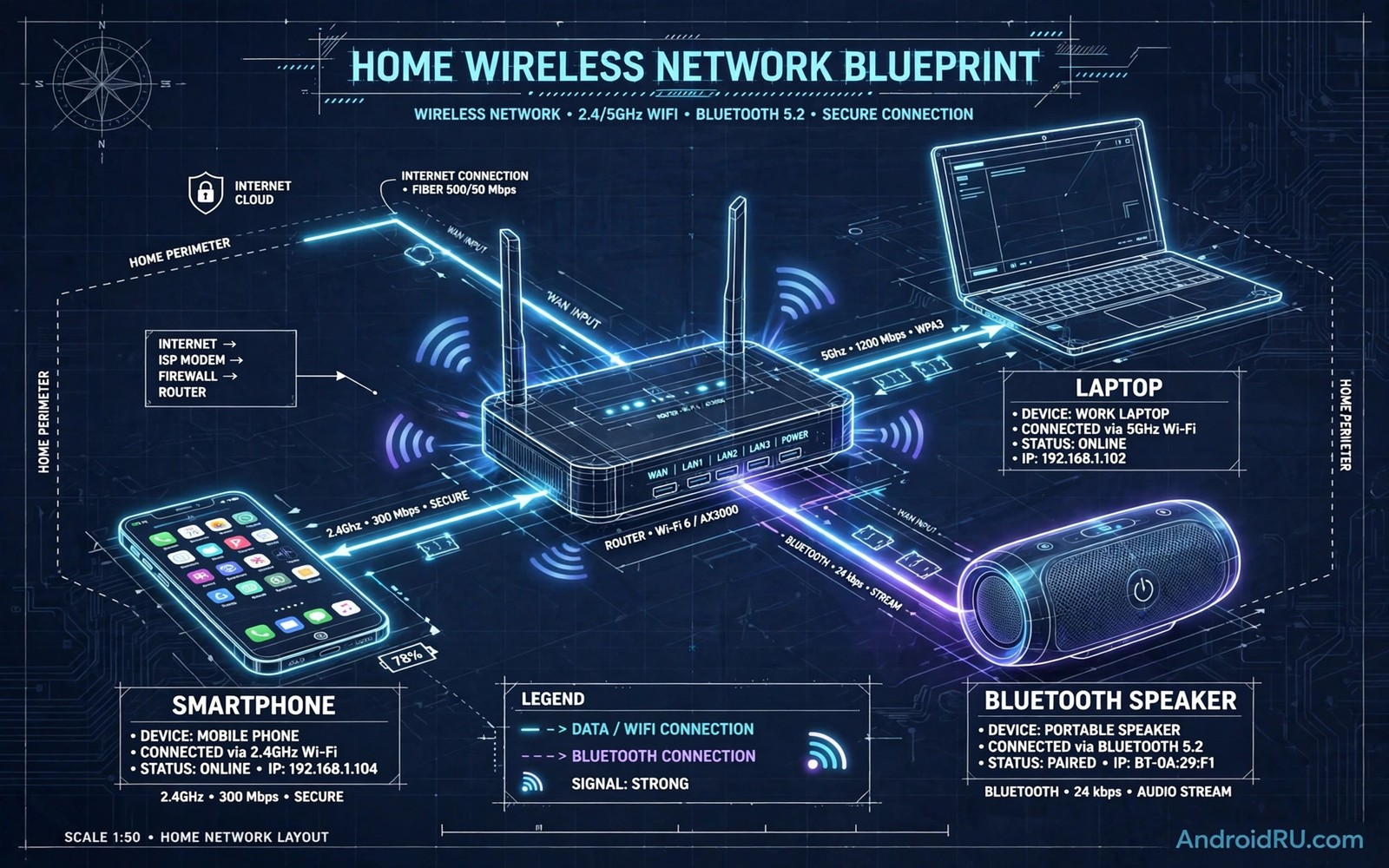
Wireless problems rarely come from one setting. Wi-Fi and mobile data and Bluetooth and hotspot all share radios and airtime. A fix for Wi-Fi can hurt Bluetooth. A fix for mobile data can drain battery. A master blueprint treats the whole wireless system as one design. That view prevents fixes that solve one problem and create another.
This blueprint gives you a clear order for wireless work. You start with measurement and then you fix the biggest limit first. You then tune each radio with the others in mind. You finish with a routine that keeps the system calm over time. The blueprint suits a home user and a traveller and a remote worker.
You do not need special tools to follow it. A phone and a scanner app and a notebook are enough. The notebook matters because wireless settings interact in ways that memory forgets. Write down each change and each result. That record turns random tweaks into a real blueprint for your phone.
Measure The Whole Wireless System First
Run a Wi-Fi scan near your router and in your work room. Note the crowded channels and the signal strength in each room. Run a mobile speed test outdoors and indoors. Note download and upload and latency for each location. Test Bluetooth audio at close range and at normal room distance.
Write the results in a simple table in your notes app. Mark the worst result in each area. That worst result is your first target. A blueprint that starts with the worst limit gives the fastest visible gain. Do not start with a minor tweak while a major limit stays hidden. Measurement first keeps the work honest.
Fix Wi-Fi Channels And Router Placement
Pick the cleanest Wi-Fi channel for each band from your scan. Change the router channel and test a real video call after the change. Move the router to a central open spot if it sits behind a TV or inside a cabinet. A router in a cabinet loses signal before any setting can help. Raise the router above furniture level when you can.
Place mesh nodes with space between them and away from neighbour routers. A node too close to a neighbour router can create a new crowded zone. Test speed near each node after placement. Keep the node layout that gives steady speed in every room. A good layout beats a new channel in many homes. Channel skills from finding the least crowded Wi-Fi channel form the first layer of this blueprint.
Tune Mobile Data For Coverage And Battery
Set the network mode to auto so the phone can fall back when 5G is weak. Turn on smart 5G mode if your phone offers it. That mode saves battery on travel days with weak signal. Set a mobile data warning near your plan limit. Review background data for heavy apps once a month.
Use Wi-Fi at home and at work so the mobile radio can rest. Turn off mobile data during long trusted Wi-Fi sessions if your phone allows it. Test signal strength in dBm in weak areas to separate a coverage problem from a settings problem. A coverage problem needs a different fix from a settings problem. Honest measurement stops wasted tweaks.
Tune Bluetooth And Hotspot Together
Bluetooth and Wi-Fi share the 2.4 GHz band on many phones. A crowded 2.4 GHz channel can hurt Bluetooth audio as well as Wi-Fi. Move Wi-Fi to 5 GHz at home when devices support it. That move frees the 2.4 GHz band for Bluetooth. Test Bluetooth audio after the Wi-Fi move to confirm the gain.
Set hotspot band based on distance and not on speed alone. Use 2.4 GHz for far devices and 5 GHz for close devices. Set a strong hotspot password and a long auto off timer for work sessions. Turn the hotspot off when work ends. A hotspot left on drains battery and invites strangers to join.
Build A Monthly Wireless Routine
Scan Wi-Fi channels once a month and after a neighbour moves in. Check mobile data use at mid month and adjust warnings if needed. Forget old saved networks once a month. Update phone software and router firmware when updates appear. A short monthly routine stops slow decline before it becomes a daily problem.
Test a real task after each monthly change. A video call and a large download and a Bluetooth song cover the main radios. Note the results beside the previous month results. A trend over months tells you more than a single day test. Keep the routine short so you actually repeat it.
step_1 = measure_all_radios
step_2 = fix_wifi_channel_and_placement
step_3 = tune_mobile_mode
step_4 = tune_bluetooth_and_hotspot
step_5 = monthly_routine
The snippet above is an original example written for this guide. It shows generic settings that you can adapt to your own device. It does not copy code from any outside source.
Use the example above as the blueprint order for wireless work. It is not code to install on your phone. Follow the steps in order and do not skip measurement. Write each result beside the matching step.
Secure Wireless Settings Without Slowing Them
Wireless security and wireless speed can coexist with a few smart choices. Use a strong Wi-Fi password with modern encryption on your home router. Modern encryption adds negligible speed cost on current hardware. Old encryption can slow a network and it also risks security. Upgrade router encryption when you upgrade the router firmware.
Use a guest network for visitors instead of sharing your main Wi-Fi password. A guest network isolates visitor devices from your main devices. Isolation protects shared folders and smart home controls. A guest network also lets you change visitor access without changing your own password. Security isolation is a practical home network design.
Keep router admin access protected with a strong password. Change the default admin password on day one. A router with a default admin password is an open door. Check router logs occasionally for unknown devices. Unknown devices deserve investigation before they deserve trust. A secure router is the foundation of wireless optimisation.
Update router firmware on a regular schedule. Firmware updates fix security faults and sometimes improve wireless performance. A firmware update can change channel behaviour so retest after an update. A retest after firmware work keeps the blueprint honest. Security and speed both benefit from current firmware.
Future Proof Your Wireless Setup
Wireless standards change every few years and a setup should grow with them. Choose a router that supports current standards with room for the next standard. A router that barely meets today needs will age fast. A router with stronger hardware lasts through several phone upgrades. Future proofing is a purchase decision as much as a settings decision.
Plan cable runs for access points even in a wireless home. A wired backhaul for mesh nodes beats a wireless backhaul for speed. A cable run to a central spot future proofs that spot for years. Wired backhaul also frees wireless airtime for devices. A little cabling work pays back in wireless calm.
Keep a simple diagram of your wireless setup with router and node positions. A diagram helps future troubleshooting and future upgrades. Note channel choices and band choices on the diagram. A diagram turns a forgotten setup into a documented system. Documentation is the most underrated wireless tool. Channel method remains central and finding the least crowded Wi-Fi channel stays useful as standards change.
Review the setup once a year against new standards and new devices. A yearly review catches a router that has become the bottleneck. A yearly review also catches a phone that needs a new band setting. Annual review keeps a wireless system modern without constant tinkering.
Audit Wireless Devices Once A Quarter
A quarterly audit catches devices that no longer need network access. Old phones and tablets may still sync in the background. Background sync from forgotten devices uses airtime. An audit removes forgotten devices from the network. Removal frees airtime for active devices.
List every device connected to your home Wi-Fi. Check the router device list for unknown entries. An unknown entry deserves investigation before trust. Remove devices that you no longer own. A clean device list improves both security and speed.
Check each active device for software updates during the audit. An outdated device can use old wireless standards. Old standards can slow a whole network in some cases. Updates bring newer wireless behaviour. An updated device list performs better as a group.
Review smart home devices during the audit as well. A smart speaker or camera may use a crowded band unnecessarily. Move a smart device to 2.4 GHz if it needs range more than speed. Band placement for smart devices reduces competition on 5 GHz. Thoughtful placement helps every device. Speed basics still apply and doubling your Wi-Fi speed on Android covers a quick phone setting.
Record audit results beside previous quarter results. A trend shows whether device count grows unchecked. Growth without control eventually hurts speed. A quarterly record keeps growth visible. Visible growth invites timely cleanup.
If Wi-Fi drains battery when you leave home then auto disabling Wi-Fi when leaving home to save battery keeps the radio calm on travel days.
Common Mistakes
The first mistake is fixing one radio in isolation and ignoring the others. A Wi-Fi fix can crowd Bluetooth and a hotspot fix can drain battery. The second mistake is changing many settings at once. A blueprint needs one change at a time for clear results. The third mistake is skipping measurement and guessing the limit. Guessing wastes time on healthy radios while the real limit stays.
Another mistake is placing a router inside a cabinet for looks and then blaming settings. Placement is a wireless setting in physical form. A further mistake is running a monthly routine once and then forgetting it. Wireless conditions change and the routine must change with them.
Frequently Asked Questions
Where should I start if everything feels slow?
Start with measurement across all radios. Find the worst result and fix that area first. A single worst limit often explains several symptoms. Fix that limit and remeasure before you move on.
How often should I repeat the full blueprint?
Repeat the full measurement once a month. Repeat a single radio check when that radio feels slow. A full blueprint monthly keeps the system calm. A single check on demand fixes a sudden problem fast.
Do I need new hardware for wireless optimization?
No most gains come from channels and placement and settings. Buy new hardware only after measurement shows a hardware limit. A new router cannot fix a crowded channel if you never change the channel. Measure first and buy second.
Conclusion
Run the full measurement today across Wi-Fi and mobile and Bluetooth. Fix the worst limit first and test a real task after the fix. Then work through the remaining radios in blueprint order. Save your notes as your personal wireless blueprint. That saved blueprint is your concrete next step toward a calm and fast wireless system.

