

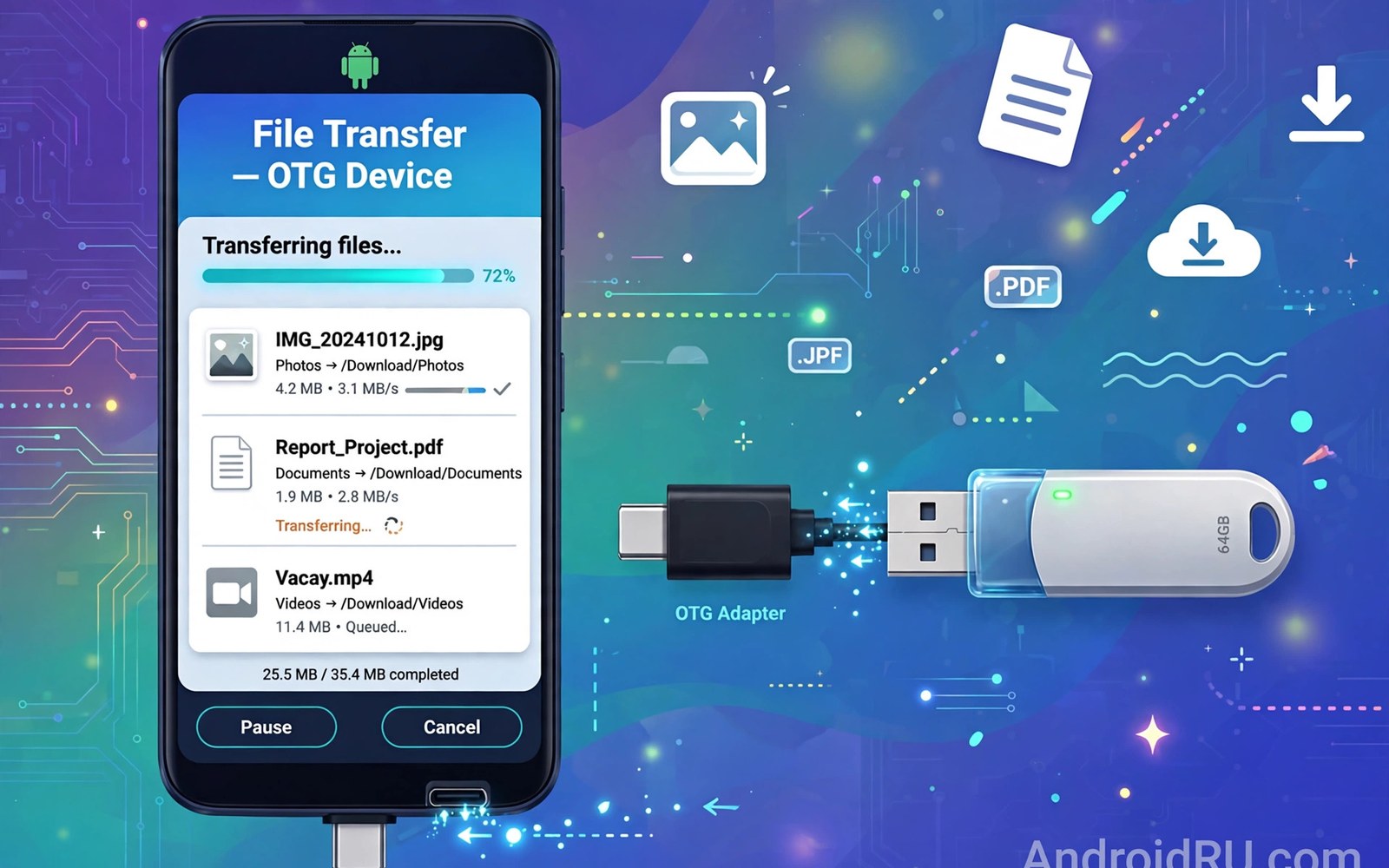
An OTG adapter lets a phone act as a host. The phone powers a USB device. It reads files from a flash drive. It writes files back to the drive. No computer is needed in between. That trick suits travel and field work. A photographer can back up photos on location. A student can carry documents on a small drive. A traveller can watch movies from a drive. The adapter is small and cheap. The setup takes seconds when it works. This guide explains the setup in plain terms. It covers formats and power limits. It also covers common failures.
OTG stands for On-The-Go. The name describes a phone that goes beyond normal accessory mode. A normal phone acts as a device when plugged into a computer. The computer hosts the connection. An OTG adapter flips that role. The phone becomes the host. The flash drive becomes the device. The flip needs support in the phone hardware and software. Most modern Android phones support it. Some budget phones lack it. Check support before buying an adapter. A phone without support cannot use any OTG adapter. No adapter can add a missing hardware feature. A quick check saves a wasted purchase.
What You Need for an OTG Setup
You need a phone with OTG support. You need an OTG adapter with a USB-C plug. You need a flash drive with a USB-A plug or a USB-C plug. A USB-C flash drive can plug directly into many phones. It needs no adapter in that case. A USB-A drive needs an adapter. The adapter converts the plug shape. It also signals the phone to enter host mode. A simple plug shape converter without that signal may fail. Buy an adapter labelled OTG rather than a generic converter. The label matters. A generic converter may pass power only. An OTG adapter passes data and host signals too.
Drive format matters as much as hardware. Android reads several formats. It reads FAT32 widely. It reads exFAT on most modern phones. It may not read NTFS on some phones. A drive formatted for Windows may use NTFS. That drive may fail on a phone. A drive formatted for a camera may use exFAT. That drive usually works. Check the drive format on a computer before travel. Reformat the drive if needed. Copy files off the drive first. Reformatting erases all data on the drive. Choose exFAT for large files. Choose FAT32 for maximum compatibility with small files. FAT32 limits single files to a modest size. ExFAT removes that limit.
Power limits shape which drives work well. A flash drive draws little power. A phone can supply it easily. A portable hard drive draws more power. A phone may fail to spin it up. A hard drive that clicks or fails to appear likely lacks power. Use a powered hub for such drives. A powered hub draws power from a charger. It then feeds the drive and the phone. That setup suits large drives. It adds bulk for travel. A flash drive remains the best travel choice. It is small and light and low power. It also survives drops better than a spinning drive.
Connecting and Browsing Files
Plug the adapter into the phone first. Plug the drive into the adapter next. Wait a few seconds for detection. A notification should appear on the phone. The notification names the drive. Tap it to open the file manager. The file manager shows the drive contents. Browse folders like any other storage. Copy files by selecting them. Paste them into phone storage or into another folder. Eject the drive before unplugging it. The eject option lives in the notification or the storage settings. Ejecting prevents file corruption. Unplugging during a write can corrupt files. Always eject after copying.
The built in file manager handles basic tasks well. It copies and moves and deletes files. It opens photos and videos directly from the drive. It may lack advanced features. A third party file manager can add more features. It can show hidden files. It can handle archives. It can connect to network storage too. Choose a file manager with a clear interface. Avoid file managers with heavy advertising. A clean file manager makes OTG work pleasant. It also reduces the chance of accidental deletion. Take care when deleting from a drive. Deleted files on a drive are hard to recover. Copy important files to the phone first.
Video playback from a drive works well for most formats. The phone media player reads the file directly. High bitrate video may stutter on a slow drive. A fast drive avoids that stutter. A slow drive suits standard definition video. A fast drive suits high definition video. Audio playback from a drive works smoothly. Music files are small and easy to stream. Photo viewing from a drive works smoothly too. Large raw photos may load slower. A fast drive speeds that loading. Test playback before a long trip. A test reveals drive speed limits early. It also confirms format support.
Backing Up Photos on Location
Photographers use OTG to back up camera cards. A card reader plus an OTG adapter reads the card. The phone copies photos to a flash drive. That copy frees the card for more shooting. It also creates a second copy of precious photos. A second copy protects against card failure. A card failure on a trip can lose a whole day. A backup copy prevents that loss. Copy photos at the end of each shoot. Verify the copy before formatting the card. Verification takes a minute. It prevents a false sense of safety. A copy that failed silently is worse than no copy. It hides the loss until later.
Organise backups by date and location. Create a folder for each day of a trip. Copy that day photos into that folder. A clear folder structure speeds later editing. It also prevents overwriting older backups. Use the same naming pattern each day. A pattern like year month day plus place works well. The pattern needs no special software. Any file manager can create it. A tidy backup habit saves hours at home. It also makes sharing easier. A friend can find a specific day quickly. Readers moving camera photos may also like SD card reader adapters for transferring camera photos to phone storage for card workflows.
Battery drain during backup deserves attention. Copying large photo sets uses power. The phone powers the drive and the card reader. The screen stays on during copying. That combination drains the battery faster. Start backups with a good charge level. Use a power bank for long backup sessions. A power bank with pass through charging helps. It charges the phone while the drive works. That setup needs a hub with power input. A simple OTG adapter cannot charge and host at once. A hub with power input can do both. Plan power for long field days. A dead phone cannot back up photos.
Keyboards Mice and Other OTG Devices
OTG supports more than storage. A USB keyboard works through OTG. A USB mouse works too. A game controller may work as well. These devices draw little power. They connect through a simple OTG adapter. A hub expands one OTG port into several ports. A hub lets a keyboard and a drive share the phone. That combination suits light desk work. It suits travel work where a laptop is absent. Test each device before relying on it. Some controllers need specific app support. Some keyboards need layout settings. A quick test reveals those needs early. It also confirms OTG support on the phone.
Audio interfaces and MIDI devices may also work through OTG. Support varies by device and by phone. Some audio devices need more power than a phone supplies. A powered hub solves that limit. Some MIDI devices work at once. Others need a specific app. Research your exact device before travel. Owner reports give practical guidance. A device that works on one phone may fail on another. The difference comes from driver support. Android includes many common drivers. It lacks drivers for rare devices. A rare device may need a computer instead. A phone cannot replace a computer for every device.
Game controllers deserve a special note. Many wired controllers work through OTG. The phone treats the controller as an input device. Games with controller support respond at once. Games without support ignore the controller. Check game support before buying a controller for a phone. A controller with a phone clip suits mobile gaming. A wired controller through OTG suits a television setup. The phone can output video to a television. The controller gives a console feel. That combination turns a phone into a small game station. It works best with games that support controllers fully.
Power and Compatibility Limits
Phone power output limits OTG devices. A phone supplies only a modest current. A flash drive fits within that limit. A spinning hard drive often exceeds it. A drive that exceeds the limit may click. It may appear and disappear repeatedly. It may fail to appear at all. Those symptoms point to power shortage. A powered hub fixes the shortage. A hub with a charger input supplies the drive. The phone then only handles data. That split keeps the drive stable. It also preserves phone battery. A powered hub is the right tool for large drives.
File system limits also affect OTG use. A FAT32 drive cannot hold a single file above a modest size. A large video may exceed that limit. The copy will fail with a vague error. The error rarely mentions the file system limit. Users blame the adapter or the phone. The real cause is the format. Reformatting to exFAT fixes it. ExFAT supports very large files. Most modern phones read exFAT. Older phones may lack exFAT support. Check phone support before reformatting. A drive that no phone can read helps no one. A test with a small file confirms format support quickly.
Some phones disable OTG by default in settings. A setting may need enabling before first use. Look in the additional settings or the OTG section. Enable the option and reconnect the adapter. Some phones enable OTG for a short time only. The setting may turn off after inactivity. Re-enable it when needed. That behaviour saves battery. It also confuses first time users. They connect a drive and see nothing. The setting was off. A quick settings check solves it. For network style wired setups see Ethernet to USB-C adapters for wired high-speed internet on phones for a related wired option.
- Buy an adapter labelled OTG rather than a generic converter.
- Check drive format and prefer exFAT for large files.
- Eject the drive before unplugging it every time.
- Use flash drives for travel and powered hubs for hard drives.
- Verify backup copies before formatting a camera card.
OTG setup checklist:
1. Phone OTG support: confirmed
2. Adapter type: OTG labelled
3. Drive format: FAT32 or exFAT
4. Power need: flash drive or powered hub
5. Connect: adapter then drive
6. Browse: file manager notification
7. Finish: eject before unplugging
Troubleshooting OTG Failures
A drive that never appears has several causes. First check the OTG setting on the phone. Enable it if present. Next try another adapter. A faulty adapter is a common cause. Next try another drive. A faulty drive is another common cause. Next try another phone if possible. A phone without support explains a total failure. Work through swaps one at a time. Each swap isolates one part. Random swaps waste time. Notes help track which parts were tested. A tested adapter that works elsewhere points to the phone. A tested drive that works elsewhere points to the adapter.
A drive that appears then disappears often lacks power. Try a smaller flash drive. A smaller drive draws less power. Try a powered hub for a larger drive. A powered hub stabilises the power supply. Check the cable seating as well. A loose adapter can disconnect with movement. Push the adapter fully into the port. Clean lint from the port if seating feels shallow. Movement during copying can also cause drops. Hold the phone still during large copies. A stable setup prevents corruption. Corruption from a drop during writing can ruin a file. Eject and recopy after a drop.
Files that fail to copy may exceed format limits. Check the single file size against the format limit. A large video on a FAT32 drive fails. Reformat to exFAT to fix it. Files with special characters in names may also fail. Rename the file with simple letters and numbers. Long file paths may fail on some drives. Shorten folder names to fix it. A drive that is full also fails copies silently in some managers. Check free space before copying. Free space should exceed the file size with margin. A drive with little free space may report a vague error. Clearing old files fixes it.
Final Thoughts on OTG Adapters
OTG turns a phone into a capable host for storage and input devices. A small adapter unlocks that power. A flash drive becomes a pocket library. A keyboard becomes a travel workstation. A card reader becomes a field backup tool. The setup needs phone support and a proper adapter. It needs a compatible drive format. It needs enough power for the device. A careful setup works reliably. A careless setup frustrates with silent failures. The difference is a few checks before use.
Readers may also find multi-port hubs that connect keyboards and power to phones useful for a related setup.
Start by confirming OTG support on your phone model. Buy a labelled OTG adapter and a fast flash drive. Format the drive to exFAT for large files. Connect the adapter and then the drive. Eject before unplugging every time. The steps above follow the approach described in the official developer documentation for host mode and external storage handling. That approach stresses checking support and ejecting safely before disconnecting. Follow it and your phone will handle flash drives with confidence.

