

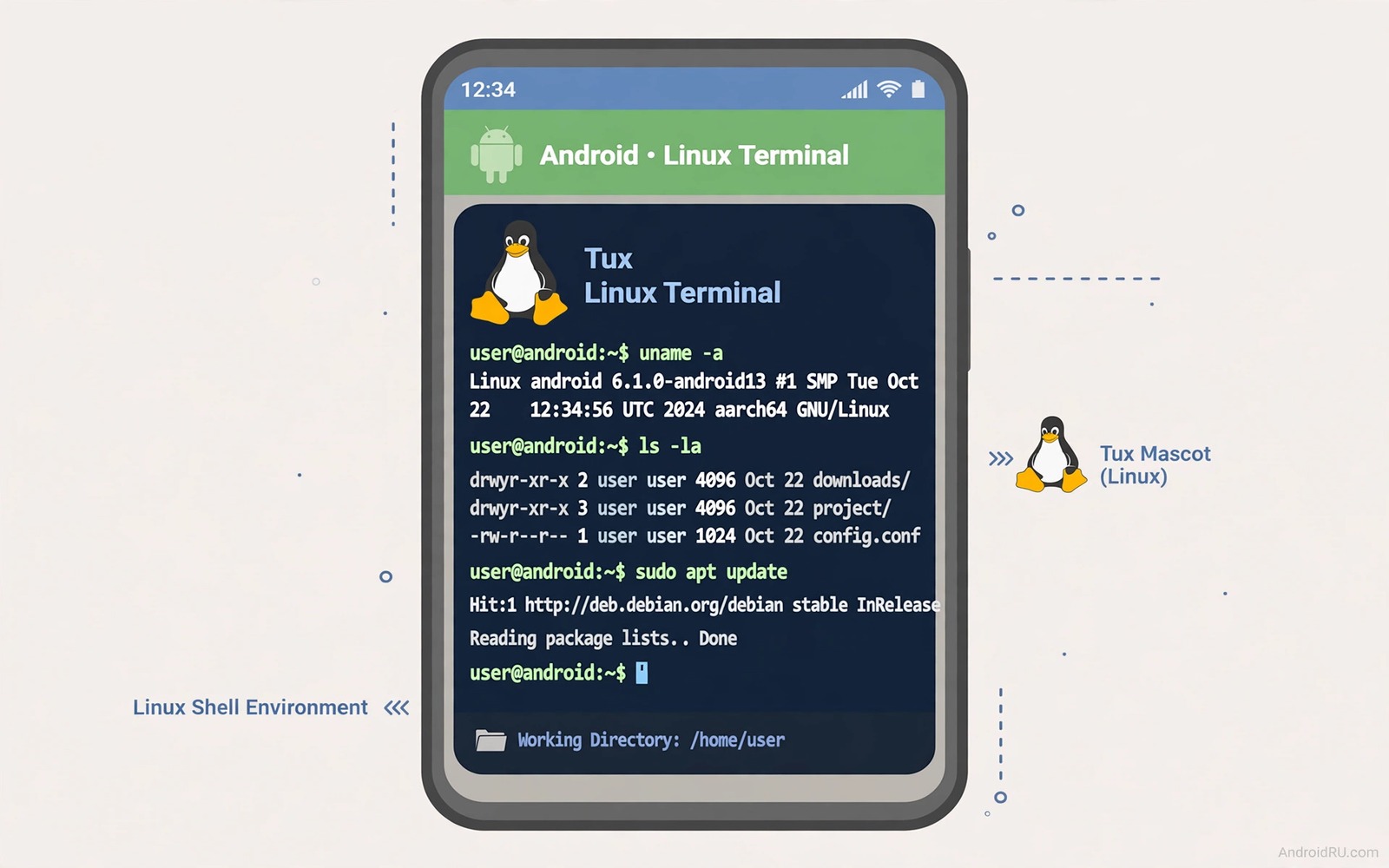
A Linux terminal on Android sounds like a trick but it is a real tool for developers and students. A terminal app can run a full Linux environment inside Android without root on many phones. That environment can run Python and shell scripts and text tools that normally live on a computer. It turns a phone into a portable lab for learning and for small real tasks. This guide shows a safe setup and it shows what a phone terminal can and cannot do well.
The key idea is a user space Linux system that shares the phone kernel but keeps its own files. A popular approach uses a terminal app with a package manager that installs Linux tools into a private folder. That folder acts like a tiny Linux home directory. You can install tools and write scripts and run them without touching the Android system itself. That separation is why the setup is safe for most owners.
A phone terminal pairs well with other power user tools because it gives you a command line for file and network tasks. ADB commands that unlock hidden hardware features gives a computer side command line for the same phone. A phone terminal gives you a command line on the phone itself. Use both for different jobs and keep each setup simple at first.
Choose A Terminal App And Distro
Look for a terminal app that offers a real package manager and a clear update path. The app should let you install common tools with one command and it should show a clear error when a package fails. A good app also offers a simple way to back up your Linux home folder. Check recent reviews for stability on your Android version before you install a large environment. A stable app matters more than a long feature list.
Choose a small distro or a minimal toolset for a first install. A minimal install uses less storage and it installs faster. You can add tools later as you learn what you need. A full desktop Linux install on a phone can eat many gigabytes and it can feel slow on a small screen. Start minimal and grow the toolset from real tasks rather than from a wish list.
Check storage before you install. A Linux environment plus tools can need several gigabytes. Free space on the phone first and check that the phone has at least twice the install size free. A cramped install can fail midway and leave a broken environment. A clean install on a phone with room to spare saves a frustrating reinstall.
Install And Run Your First Commands
Install the terminal app and open it and run its setup command if it offers one. Update the package list first and then install a text editor and Python if you need them. Test the install with a simple version command for each tool. A version output proves that the tool installed correctly. If a version command fails then check the package name and the network connection before you try again.
Create a work folder inside the Linux home and write a small test script there. Run the script and read its output. A test script that prints a greeting is enough for a first run. That simple success proves that the shell and the file system and the editor all work together. Build larger scripts only after that small success passes.
Learn basic shell navigation before you install more tools. Learn how to list files and change folders and view a text file. Those three skills cover most daily terminal work. A terminal without navigation skills feels confusing even when the install is perfect. Spend an hour on navigation and the rest of the learning becomes far easier.
A First Linux Script Example
The script below is a small shell script that prints a greeting and lists files in the current folder. It uses only basic shell commands that work in a normal Linux environment. It does not change system files and it does not need root. Save it in a test folder and run it with a shell command. Read the output and check that the file list matches the folder that you expect.
#!/bin/sh
echo "Hello from Linux on Android"
ls -la
Attribution: the code above is an original example written for this guide. It follows the standard command interface shipped with the Android platform tools and it uses only public commands that work on a normal developer setup.
After the script runs you can extend it with a loop or a condition when you feel ready. A loop can process many files and a condition can skip files that do not match a pattern. Keep each extension small and test after each change. A script that grows by small tested steps stays reliable. A script that grows by large untested steps becomes hard to debug.
Use Python And Text Tools On The Phone
Python on a phone terminal is useful for learning and for small data tasks. You can write a script that reads a text file and counts words or sorts lines. A phone Python setup is slower than a computer for large data but it is fine for learning and for small files. Test a script on a small sample first and scale up only when the small test passes. That habit prevents a long run on a phone battery for a flawed script.
Text tools such as grep and sed and awk can search and transform files fast. Learn grep first because searching a log or a note set is a common daily task. Learn sed for simple replacements and learn awk for column data later. Each tool deserves a short practice session with a test file. A test file lets you make mistakes safely without touching real data.
Use a terminal friendly editor for code on a small screen. A simple editor with clear keys works better than a complex editor that needs many shortcuts. Test the editor with a small file before you write a long script in it. An editor that feels awkward will slow every later task. Choose comfort over power for phone editing.
Limits Battery And Security
A phone terminal has limits that a computer does not have. A small screen makes long code hard to read and a phone keyboard makes typing symbols slow. Use a Bluetooth keyboard for longer sessions when possible. A large external screen through a display link can also help. Without those aids keep phone terminal sessions short and focused on small tasks.
Battery drain grows during long terminal sessions because the processor stays busy and the screen stays lit. Keep sessions short or keep a charger nearby for a long task. A terminal task that runs for hours in the background can drain a phone fast. Check battery use after a long session and adjust session length based on that result. A short focused session beats a long draining session for most learning tasks.
Security matters in a terminal because a shell command can delete files fast. Never run a command that you do not understand especially when it includes a delete or a force flag. Test destructive commands on copies first. That caution is the same rule that protects ADB work and access an Android command shell over wireless ADB needs the same careful reading before any command runs.
Keep A Terminal Journal Of Commands
A terminal journal is a simple note where you write each useful command and what it did. A command that worked once can be hard to recall a month later. A journal entry with the command and a short note about the result saves a fresh search. Write the entry right after a success while the context is fresh. A journal built from successes becomes a personal manual.
A journal should also record commands that failed and why they failed. A failed command teaches as much as a success when the reason is clear. Note the error and the fix in one line. That line prevents the same failure next time and it helps a friend who hits the same error.
Review the journal monthly and delete entries for tools that you no longer use. A short journal stays useful and a long journal becomes noise. Keep entries for core navigation and for scripts that you run often. Delete entries for one time experiments that taught little.
Common Mistakes
One common mistake is to install a huge Linux desktop on a first try. A huge install uses storage and it feels slow on a phone screen. Start minimal and add tools as needed. Another mistake is to run commands copied from a random post without reading them. A copied command can delete files or change settings. Read every command before you run it.
A further mistake is to work on real files before a test on copies. A test folder protects real data from a learning mistake. A further mistake is to ignore storage space before install. A cramped phone can fail an install midway and leave a broken environment. Free space first and check the size twice.
A final mistake is to expect computer speed from a phone terminal for heavy tasks. A phone is fine for learning and small scripts but it is slow for large builds. Use the phone for learning and small jobs and use a computer for heavy work. That honest limit keeps the phone useful rather than frustrating. The same limit awareness helps other power tools and run complex Python scripts directly on mobile needs a realistic size expectation too.
Frequently Asked Questions
Do I need root to run Linux on Android?
No for a user space terminal environment on many phones. A terminal app can run Linux tools in a private folder without root. Root opens deeper system access but it adds risk and it is not needed for learning or small scripts.
Can a phone terminal replace a computer for coding?
It can replace a computer for learning and for small scripts. It struggles with large projects and long editing sessions on a small screen. Use a Bluetooth keyboard and an external display for longer work or move large projects to a computer.
Is a Linux terminal on Android safe?
It is safe when you work inside its private folder and when you read commands before you run them. Never run a destructive command that you do not understand. Back up important files before you test a new script.
Conclusion
Install a terminal app today and run a version check for one tool. Create a test folder and run a small greeting script. That first success proves that Linux on your phone works and it gives you a safe place to learn.
After that success learn shell navigation for an hour and then add Python for small tasks. Keep sessions short and test destructive commands on copies only. A steady small habit turns a phone terminal into a useful portable lab.
Review storage and battery after a week of terminal use and adjust session length based on those numbers. A terminal that fits your phone and your battery will stay useful for months. Start with the greeting script today and build from there.

