

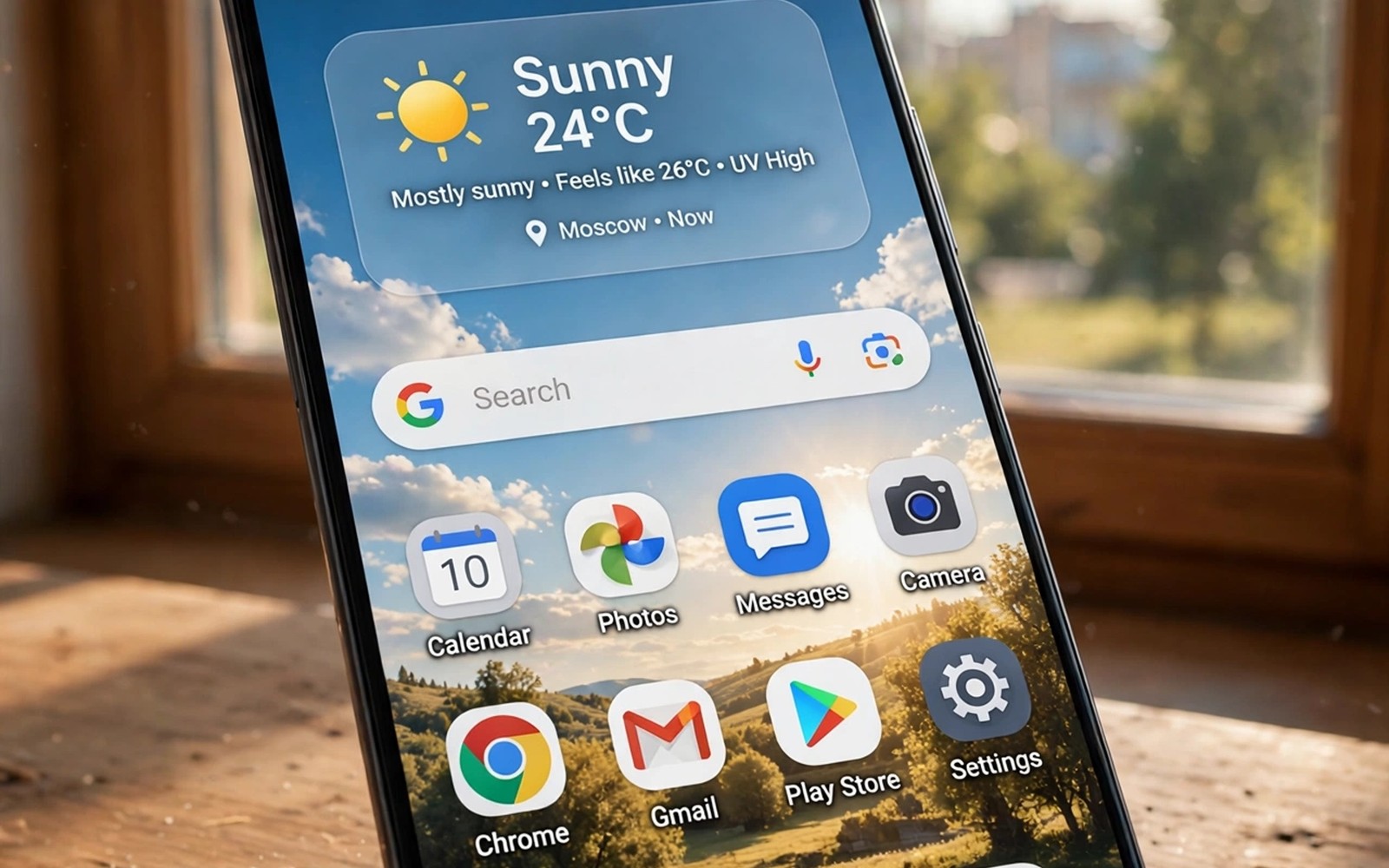
Your wallpaper sets the mood every time you unlock the phone. A sunny beach photo feels wrong on a grey rainy morning. A dark mountain scene feels heavy on a bright summer day. A wallpaper that follows the weather outside creates a small sense of harmony. Automation can change that image for you as conditions shift. You wake to a screen that matches the sky rather than a screen frozen in another season. This guide shows how to build that automation safely. It covers weather sources and image choices and battery friendly timing.
Weather based wallpaper works best when it stays subtle. A dramatic storm image for every rain shower can feel distracting. A calm variation in colour and light works better for daily use. Bright clear images suit sunny days. Soft muted images suit cloudy days. Cool blue images suit rain. Warm golden images suit sunset hours. A small set of images for broad conditions beats a huge set for every forecast detail. Broad categories keep the automation reliable and the screen calm.
Choose images that you already enjoy rather than images that merely depict weather literally. A favourite landscape in sun and the same landscape in rain can form a beautiful pair. A city skyline at dawn and at dusk can form another pair. Personal photos often work better than stock weather icons. A photo from a real trip carries memory alongside weather information. The wallpaper then tells two stories at once. It shows the weather and it reminds you of a place you love.
Pick A Weather Source You Can Trust
An automation tool needs a weather condition to trigger each change. Some tools read a weather app on the phone. Others fetch a forecast from an online service. A phone based weather app is simpler because it already knows your location. An online service can offer finer conditions but it needs internet access. Choose the source that already works reliably on your phone. A source that fails on a weak connection will leave the wallpaper stuck.
Test the source during a real weather change before you build the full routine. Note the condition label it uses for rain and for cloud and for clear sky. Those labels become your trigger values. A label that says overcast differs from a label that says cloudy. A trigger that expects one label will miss the other. Write down the exact labels from your source. Exact labels prevent silent failures that are hard to diagnose later.
Location accuracy matters for a weather wallpaper. A city level location is enough for broad conditions. A precise street location adds little value and it increases privacy exposure. Use city level location when the tool allows it. Disable precise location for the wallpaper routine if possible. A wallpaper does not need to know your exact address. Broad weather suits a broad location.
Build The Wallpaper Routine
Create one routine per broad condition rather than one routine for every forecast detail. A clear routine and a cloudy routine and a rainy routine cover most days. Add a snow routine only if snow occurs in your region. Add a night routine that dims any daytime image after sunset. A small routine set is easier to maintain than a large routine set. Each routine should set one wallpaper image from a dedicated folder. A dedicated folder prevents the routine from picking an unrelated photo.
Set a sensible check interval for weather changes. Checking every fifteen minutes drains battery for little benefit. Checking every two hours still catches most weather shifts during a day. Checking on unlock can feel responsive but it may change the wallpaper too often. A two hour interval balances freshness against battery use. A wallpaper that changes twice a day feels alive without feeling restless. Frequency is a design choice rather than a technical limit.
Add a manual override for days when you want a fixed image. A favourite photo for a special occasion should not be replaced by a rain image. A simple toggle can pause the routine for a day. A pause option respects personal taste over automation rules. Automation should serve the user rather than overrule the user. A routine with an off switch lasts longer than a routine without one.
Folder: WeatherWallpapers
Clear: wall_clear.jpg
Cloudy: wall_cloudy.jpg
Rain: wall_rain.jpg
Snow: wall_snow.jpg
Night: wall_night.jpg
Check: Every 2 hours
The layout above follows standard automation practice for personal Android devices and it is presented here as a practical template for organising weather images rather than as a claim about any single automation app. Each entry in that layout stands for a choice you can confirm inside the tool you pick. Keep the folder names simple and keep image files in one place. A clear folder structure makes future image swaps easy. Replace any image file with a new photo of the same condition when you want a fresh look.
Choose Images That Stay Readable
A wallpaper must keep icons and text readable in all weather conditions. A bright sky image can wash out white icon labels. A dark storm image can hide dark widgets. Test each weather image with your actual home screen layout. Move widgets if an image hides them. Choose images with a calm area at the top for the clock. Choose images with a calm area at the bottom for the dock. Readability decides whether a beautiful image works as a wallpaper.
Use the same visual style across all weather images for a coherent screen. A set of landscape photos looks coherent. A set mixing illustration and photography looks scattered. A coherent set makes each change feel intentional. A scattered set makes each change feel random. Style consistency matters more than individual image beauty. A phone screen is a small canvas and coherence helps it feel designed.
Resize images to the phone screen resolution before adding them to the folder. Oversized images waste storage and they can slow wallpaper changes. A resolution close to the screen size loads quickly. A slightly larger image allows cropping without quality loss. Avoid images far larger than the screen. A lean image folder keeps the routine fast and the phone storage healthy.
Common Mistakes
One common mistake is creating a routine for every tiny forecast variation. A routine for drizzle and a routine for light rain and a routine for heavy rain will fight each other. Broad conditions give stable results. A rainy day needs one rain image rather than three competing images. Simplicity keeps the automation predictable. Predictability builds trust in the routine.
Another mistake is checking weather every few minutes. Frequent checks drain battery and they can change the wallpaper during a single task. A user who watches a wallpaper change mid task loses focus. A two hour interval avoids that distraction. A wallpaper should change between tasks rather than during them. Timing matters for calm automation.
A third mistake is using location precise to the street for a wallpaper. Precise location adds privacy risk for no visual benefit. City weather already determines the right broad image. Use the broadest location that still gives correct conditions. Privacy and usefulness can coexist when the scope stays narrow. A wallpaper routine should not become a tracking routine.
Frequently Asked Questions
Will weather wallpapers drain my battery quickly?
A two hour check interval adds very little battery use. The wallpaper change itself is a brief operation. Frequent checks and large images cause most drain. Keep the interval at two hours and keep images near screen resolution. Monitor battery use for a week after setup. A well tuned routine should not appear near the top of battery use.
What happens when the weather service is offline?
The routine should keep the last wallpaper when a check fails. A failed check is not a reason to set a blank image. Design the routine to skip a change on failure rather than to clear the wallpaper. Test this behaviour by disabling data briefly during a check window. A graceful failure keeps the screen pleasant during outages. Reliability includes handling offline moments.
Can I use my own photos for weather wallpapers?
Personal photos work beautifully when they match broad conditions. Sort your photos into clear and cloudy and rainy folders by mood rather than by exact weather on the day taken. A sunny beach photo suits clear days even if it was taken on a holiday. A moody forest photo suits rainy days even if the day was only cloudy. Mood matching matters more than meteorological accuracy for a wallpaper.
Handle Seasonal Transitions Gracefully
Season changes bring mixed weather that can flip a wallpaper several times in one week. A spring week may show clear mornings and rainy afternoons. A two hour check interval smooths those flips into a calm rhythm. Avoid a routine that reacts to every hourly forecast update. A wallpaper should reflect the dominant condition of the day rather than the latest minute. Dominant conditions keep the screen stable during changeable weeks.
Prepare a transitional image set for spring and autumn when neither summer nor winter images fit. A soft green landscape suits spring rain better than a harsh winter scene. A warm amber landscape suits autumn cloud better than a bright summer beach. Transitional images bridge the seasons without a jarring jump. Swap the transitional set in at the start of each season. A seasonal refresh keeps the automation feeling intentional rather than mechanical.
Review the weather folder at each season change and remove images that no longer please you. A folder that grows stale loses its charm. A folder refreshed twice a year stays personal. Keep only images that still make you smile on sight. A wallpaper routine deserves the same seasonal care as a wardrobe change. Small refreshes prevent a good system from feeling tired.
Conclusion
Create a weather folder today with four images for clear and cloudy and rainy and night conditions. Build one routine for the clear condition and test it for a day. Add the other conditions once the first routine works reliably. Readers who enjoy a living home screen may also like turning an old phone into a smart desk assistant for a dedicated display, and a master approach to Android power automation for wider routines, plus easier automation apps for daily routines to build the routines faster. Your next step is four images in one folder.

