

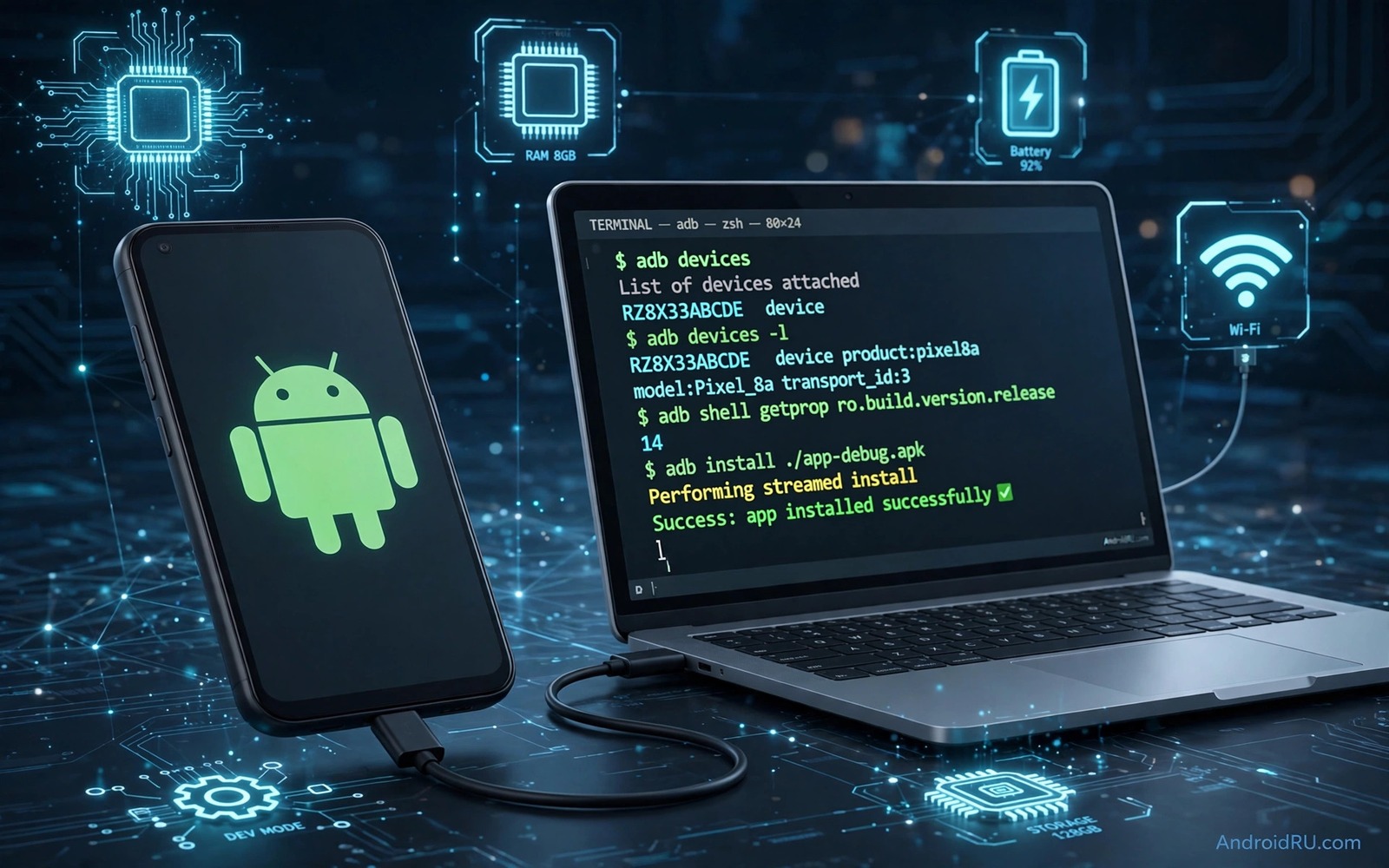
Your phone hides hardware controls behind menus that never appear on the home screen. A developer bridge can reach those controls in seconds and it can show you sensors and radios and display settings that stay invisible in normal use. The tool is called ADB and it runs from a computer while your phone stays connected by cable. You do not need to root the phone for the basic commands in this guide and you do not need to install a custom system. You only need a careful approach and a backup of any setting that you plan to change.
Start with one clear goal before you type any command. A vague search for hidden features leads to random toggles and random toggles lead to odd behaviour. Pick one feature such as a sensor test or a display density check or a battery health readout. Test that feature alone and write down the result. That habit keeps your phone stable and it makes every later test easier to repeat. The five commands below cover the most useful checks and each one can be reversed by restarting the phone or by restoring the value that you recorded.
Many power users pair ADB work with wider automation because a command that you run once can become a routine that runs on its own. Tasker scripts that automate a daily routine show how a simple trigger can run a useful action without extra taps. The same idea applies here. Once you know a safe command you can store it in a note and reuse it after an update or after a factory reset. Keep that note private and never share a command that changes a system value without explaining what it does.
Prepare Your Phone And Computer Safely
Open Settings on your phone and open About phone and tap the build number seven times until developer mode turns on. Return to Settings and open Developer options and turn on USB debugging. Connect the phone to your computer with a good data cable and accept the fingerprint prompt that appears on the phone screen. That prompt is a security check and you should only accept it on a computer that you own. A public computer should never receive this trust because it could then run commands on your phone without a new prompt.
Install the platform tools package on your computer and open a terminal in the folder that holds the ADB program. Type the devices command and confirm that your phone appears with a device state. If the list looks empty then try a different cable or a different USB port or a restart of the ADB server. A charge only cable is a common cause of this problem because it carries power but it carries no data. A short quality cable usually fixes the issue at once and it also gives a steadier connection during a longer test session.
Five Commands That Reveal Hidden Hardware
The first command lists connected devices and confirms the link. The second command opens a shell on the phone and lets you read system properties. The third command dumps sensor data and it can reveal a gyroscope or a compass or a light sensor that a settings menu never names. The fourth command reads display information and it can show the real density and the real refresh range. The fifth command reads battery health data and it can show cycle wear in a form that a normal battery screen hides.
Run each command one at a time and read the output before you move on. Sensor output can look messy because it lists many values in one block. Focus on the sensor name and the current reading and ignore the rest of the block for a first pass. Display output can also look dense because it lists several modes at once. Focus on the active mode and the density value that matches your screen. Battery output needs the same care because a single low reading on a hot day does not prove a dead battery. Repeat the test when the phone is cool and compare the two results.
A Safe Command Set To Copy
The block below gives a safe read only set. It lists devices and it reads properties and sensors and display data and battery data. It changes nothing on the phone and it is a good first test for a new computer setup. Save it in a text file on your computer so you can reuse it without retyping long lines. Check each line before you press enter and stop at once if any line asks for a value that you do not recognise.
adb devices
adb shell getprop ro.product.model
adb shell dumpsys sensorservice
adb shell dumpsys display
adb shell dumpsys battery
Attribution: the code above is an original example written for this guide. It follows the standard command interface shipped with the Android platform tools and it uses only public commands that work on a normal developer setup.
After the test you can extend the set with write commands only when you understand the value that you will change. A display density change is a good example because it is easy to test and easy to reverse. Record the original density first and set the new value in small steps. If text looks too small or too large then restore the original value and restart the phone. Never change a radio or modem value unless you have a full backup and a clear reason for the change.
Read Sensor Data Like A Technician
Sensor output rewards patience because it lists every sensor that the phone reports. Find the sensor name first and then read the value that follows it. A gyroscope value changes when you tilt the phone and a light sensor value changes when you cover the top of the phone. Those live changes prove that the sensor works and they prove that you read the right line. If a value never changes then check whether the sensor needs an active app to wake it up. Some sensors sleep until an app asks for data.
Compare readings across two phones only when both phones sit in the same light and the same position. A light sensor in a bright room will read far higher than the same sensor in a dim room and that gap says nothing about quality. The same rule applies to a compass because a nearby magnet can skew the reading. A clean test needs a clean setup and a short note about the conditions. That note turns a random number into a useful baseline that you can trust later.
Keep A Log Of Every Change
A simple log prevents most ADB regrets. Write the date and the command and the original value and the new value in one note. That note takes thirty seconds to write and it saves a long search when a setting behaves oddly after an update. A log also helps when you move to a new phone because you can repeat only the changes that proved useful. Skip changes that gave no clear benefit and keep only the ones that solved a real problem. This habit also supports other power user work and a macro that turns off Wi-Fi when leaving home shows how a logged trigger can run safely day after day.
Review the log once a month and remove entries for features that you no longer use. A short log stays useful and a long log becomes noise. Delete a test entry after you restore the original value so the log shows only live changes. That review takes five minutes and it keeps your phone setup honest. A clean log also makes it easier to help a friend because you can share only the tested steps that worked.
Test Battery And Display Data Over Time
A single battery reading tells you little about long term health. Record the battery level and the temperature and the time at the start of a test and record the same values after one hour of normal use. Repeat that test on three different days and compare the pattern. A steady pattern means normal wear and a sudden drop on one day usually points to a hot day or a heavy app rather than a dying battery. A log over time beats a single dramatic number every time.
Display data also needs a time view because refresh behaviour changes with power mode and heat. Test the display at full brightness and at medium brightness and note which mode the phone chooses in each case. A phone that drops refresh rate on low battery is protecting its battery and that drop is not a fault. A phone that drops refresh rate on a cool full battery may have a power saving setting turned on. Check that setting before you blame the screen hardware.
Share your findings only with the test conditions attached. A sensor value without conditions can mislead a friend who tests in different light or heat. A value with conditions lets another person repeat the test and reach the same result. That repeatability is what turns a casual tweak into a reliable guide. Keep conditions short and clear and include brightness and temperature and power mode in every note.
Common Mistakes
One common mistake is to grant USB debugging trust on a shared computer and then forget about it. Revoke that trust after the test from Developer options so the computer cannot reconnect without a new prompt. Another mistake is to run a command copied from a random post without reading it first. A command that looks like a simple tweak can wipe data or change a radio setting. A third mistake is to change several values at once. That habit hides the cause when something breaks and it turns a simple fix into a long search. The same careful routine helps with other phone tricks and keyboard shortcuts that control an entire Android device can reduce taps once your core setup is stable.
A further mistake is to test ADB while the battery is low or while the phone is hot. A hot phone can throttle its processor and a low battery can shut the phone down during a write. Charge the phone above half and let it cool before a longer session. Keep a charger nearby and keep the phone on a hard surface so heat can escape. These small steps protect both the test and the hardware and they cost almost no time.
Frequently Asked Questions
Do I need root access to use these ADB commands?
No. The read only commands in this guide work without root on a normal phone. Root opens deeper system areas but it also adds risk and it can void support for some services. Start with the safe set and only consider deeper access after you understand the limits of the standard commands.
Can an ADB command damage my phone permanently?
A read only command cannot change your phone. A write command can change a setting and a careless write can cause a boot problem. Record every original value before a write and change only one value at a time. That record is your fastest route back to a working phone.
Why does my computer fail to see my phone?
The usual causes are a charge only cable and a missing driver and a declined trust prompt. Try a known data cable and a different port and check the phone screen for a prompt. Restart the ADB server if the list still looks empty and check that USB debugging stays on.
Conclusion
Pick one safe command today and run it on your own computer. Start with the devices list and then read the battery data and write both results in a note. That single test proves that your setup works and it gives you a baseline for every later check. Once the baseline is safe you can explore sensors and display data with the same careful habit and you can build a small library of commands that you truly understand.

