

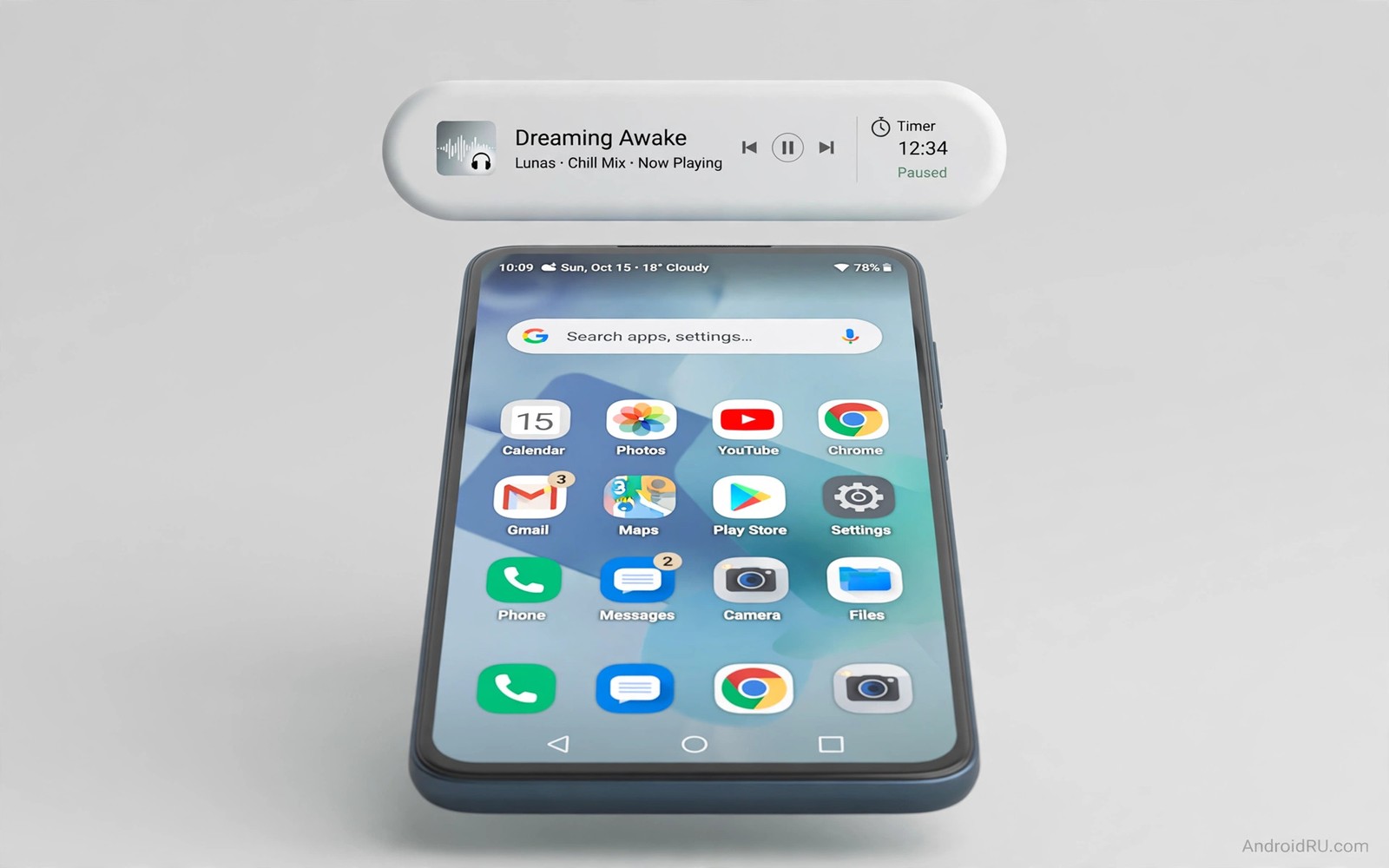
Your phone already shows notifications at the top of the screen. A dynamic island style bubble turns that dead space around the camera cutout into a live control that grows and shrinks as events happen. Music playback appears as a small pill with album art and a progress line. A timer appears as a countdown that you can expand with one tap. A call appears as a compact banner that lets you answer or decline without opening the full phone app.
The trick is not to copy a single phone brand. The trick is to build a floating overlay that respects your layout and your privacy. A good overlay reads only the notifications you allow and it hides itself when nothing is happening. It should never cover a back button or a search field for long. It should move out of the way when you type and it should return when a new event needs your attention. That balance is what makes the feature feel native instead of feeling like a sticker pasted on the screen.
Start by deciding which events deserve the bubble. Music and timers are ideal because they change over time and they benefit from a glanceable control. Navigation directions are also useful because they update every few seconds. Chat messages are less ideal because a bubble for every message becomes noise within an hour. Pick three event types at most for the first week. You can add more later once you know which ones you actually tap. A focused bubble setup also pairs well with a tidy home screen and with custom quick settings tiles that keep your most used controls one swipe away.
Choose the right overlay approach for your phone
There are two broad ways to get this effect on Android. The first way is a dedicated overlay app that draws a pill around the camera cutout and listens for media sessions and timers. This way is fast to set up and it works on most phones without special access. The second way is a launcher or widget system that adds a pill to the home screen only. This way is lighter but it disappears when you open another app. Most people should start with the dedicated overlay app because the whole point is a bubble that follows you across apps.
Check the permissions before you install anything. A legitimate overlay needs permission to draw over other apps and permission to read notifications for the apps you select. It does not need your contacts or your files or your location. If an overlay asks for full device access or for accessibility control over every app then stop and choose a different tool. Read the permission screen line by line and deny anything that does not match the bubble job. You can always grant a permission later when a specific feature asks for it.
Test the overlay on your lock screen and on your home screen first. Open a music app and play a track. The pill should appear near the top centre and it should show the track title in a readable size. Pause the track and the pill should shrink back to a small dot or disappear based on your setting. Set a timer for two minutes and watch the countdown appear. If the pill stays stuck after the timer ends then the overlay is not releasing its session correctly and you should try a different idle timeout value.
Camera cutout position matters more than most guides admit. A pill that is centred on a left aligned hole punch will look wrong and it will block status icons. Measure your cutout by taking a screenshot and zooming in on the top edge. Many overlay apps let you shift the pill left or right by a few pixels and adjust its width and height. Spend ten minutes on alignment before you judge the result. A pill that lines up exactly with the cutout looks intentional and it fades into the background when you stop noticing it.
Set up music timers and calls step by step
Open the overlay settings and turn on media session support first. This lets the pill follow the track that is currently playing in any media app. Turn on the progress bar and set it to a thin line under the pill. A thin line is easier to read at a glance than a thick bar that competes with the track title. Turn on tap to expand and long press to dismiss. Tap should open the media controls. Long press should hide the pill until the next track starts.
Next turn on timer support if your overlay offers it. Some overlays read the system clock app directly. Others need you to start timers inside the overlay itself. The system clock route is better because your existing alarms and timers keep working as normal. Create a test timer for three minutes and check that the pill shows minutes and seconds without flicker. If the seconds jump or freeze then reduce the refresh rate in the overlay settings. A refresh rate of once per second is enough for a timer and it saves battery.
Call handling needs care because a wrong tap can answer a call you wanted to ignore. Set the call pill to show the caller name and two clear buttons for answer and decline. Keep the pill compact so it does not cover the top of a navigation app while you drive. Test with a call from a second phone or a voice call from a messaging app. Decline the test call from the pill and confirm that the call ends cleanly. Answer the next test call from the pill and confirm that audio routes to the earpiece as normal.
Navigation and charging are useful extras once the basics work. A navigation pill can show the next turn and the distance to it without opening the map. A charging pill can show the battery percentage while the phone is plugged in. Turn these on one at a time and use each for a full day. If a pill distracts you while you read or watch video then turn that category off. The goal is fewer interruptions and not a new source of visual noise at the top of every screen.
Make the bubble match your theme and screen
Colour and shape decide whether the bubble feels like part of your phone. Use a dark pill on a light wallpaper and a light pill on a dark wallpaper if your overlay supports automatic contrast. Set the corner radius to match your system style. Sharp corners suit a technical theme. Fully rounded corners suit a soft theme. Avoid bright neon colours for the pill background because they draw the eye even when nothing is happening. A muted pill with a clear icon is easier to live with for months.
Size is a trade off between readability and screen space. A pill that is too wide will push status icons off the screen. A pill that is too narrow will cut off track titles and timer digits. Start with a width that covers the cutout plus a small margin on each side. Expand it only when an event is active. This expand and collapse behaviour is the core of the dynamic island idea. A static wide bar is just a banner and it wastes space when nothing is playing.
Animation speed also matters. A pill that snaps open in a blink feels abrupt. A pill that slides open over half a second feels smooth but can feel slow when you need to pause music fast. Set the expand animation to a fast but visible speed and test it while music is playing. The pill should grow without shifting the status icons below it in a jarring way. If icons jump around then reduce the animation distance or turn off icon shifting in the overlay settings.
Dark mode deserves a separate check because many overlays use a fixed background colour. Switch your phone to dark mode and open a video app in full screen. The pill should stay visible but it should not glow against the video. Switch back to light mode and check the same video. If the pill becomes invisible in one mode then set a manual background colour with strong contrast in both modes. A consistent pill is more useful than a pill that matches your theme perfectly in one mode only. You can also coordinate the pill colour with Material You colour tweaks so the whole interface feels coherent.
Fix battery drain and notification conflicts
An overlay that never sleeps can drain battery even when it looks idle. Open battery usage after one full day with the overlay on. A healthy overlay should use a small share of battery that is far below your screen and your top social apps. If the overlay is near the top of the list then check its background activity setting. Turn off constant polling and let it wake only when a media session or a timer changes. This single change often cuts its usage in half.
Notification conflicts appear when two tools try to show the same event. If you use a separate notification manager or a chat bubble system then disable overlapping categories in one of them. For example let the island pill handle music and timers while chat bubbles handle messages. Do not let both tools draw a pill for the same music track. Duplicate pills confuse taps because you may tap the wrong layer and nothing happens. Clean layering is more important than having every feature turned on at once.
Full screen apps need a special rule. Games and video players should be able to hide the pill or push it to a corner. Set a full screen exception that hides the pill after three seconds of no interaction. Test this in a game and in a video app. The pill should reappear when you pause the game or when a timer ends. If the pill stays on top of a game control then add that game to the block list in the overlay settings. A blocked app still sends normal notifications and you lose nothing important.
When the pill stops updating then restart the media session rather than reinstalling the overlay. Pause and play the track again. Force stop the overlay and open it once more. Check that notification access is still granted after a system update because updates sometimes revoke it silently. This checklist solves most frozen pill problems in under two minutes. Only reinstall if the pill stays frozen after a restart and after permission checks. A fresh install should be the last step and not the first reaction.
adb shell settings put global show_notification_bubble 1
adb shell cmd notification allow_bubbles com.example.music
adb shell dumpsys activity top | findstr island
The code above is an original example created for this article to show how a developer might inspect bubble settings from a computer. It is not a required step for most readers and normal overlay settings are enough for daily use.
Common mistakes
The most common mistake is turning on every category on day one. A pill for every app becomes a flashing strip that you learn to ignore. Start with music and timers only. Add calls after a week if you answer calls from the pill at least once a day. Remove any category that you have not tapped in seven days. A small set of useful pills beats a large set of ignored pills every time.
Another mistake is placing the pill over the camera cutout without measuring it. A misaligned pill looks broken even if the features work well. Take time to align width and position before you show the setup to anyone. Check alignment in portrait and landscape because the cutout moves relative to the screen in landscape. Save a separate landscape profile if your overlay supports it. This extra step prevents a setup that looks great in one orientation and wrong in the other.
People also forget to test the pill while driving or walking. A pill that needs precise taps is dangerous when you are moving. Set large tap targets for pause and dismiss. Use voice commands for navigation while the pill only shows the next turn. If you cannot pause music with one confident tap while walking then enlarge the pill or simplify its controls. Safety and speed matter more than a clever animation.
Frequently asked questions
Does a dynamic island bubble work on phones without a camera cutout?
Yes it works because the pill is drawn by software and it does not need a physical hole. On a phone with a notch the pill can sit below the notch or wrap around it based on your alignment settings. On a phone with a pop up camera the pill can sit at the top centre without any cutout to hide. The effect is less hidden but the controls still work the same way.
Will the bubble drain my battery or slow down my phone?
A well built overlay uses very little battery because it only updates when a session changes. Battery problems usually come from constant polling or from a second overlay doing the same job. Turn off polling and disable duplicate tools. Check battery usage after one day. If usage stays low then the bubble is safe to keep on permanently.
Can I use the bubble with my launcher and lock screen?
Yes the bubble is independent of your launcher because it draws over other apps. It works on the home screen and inside apps. Lock screen behaviour depends on your overlay and your security settings. Some overlays show a compact pill on the lock screen while others hide until you unlock. Test both states and choose the setting that matches how much detail you want visible before unlock. A related lock screen setup can be explored through custom lock screen ideas that keep private details hidden while keeping controls handy.
Conclusion
A dynamic island bubble earns its place when it shows live events without stealing your screen. Keep the categories small and align the pill with care. Test music and timers for a full day before you add calls or navigation. Your concrete next step is to install one overlay and enable music only tonight. Play a track and pause it from the pill three times. If those three taps feel fast and natural then you have a setup worth keeping.

