

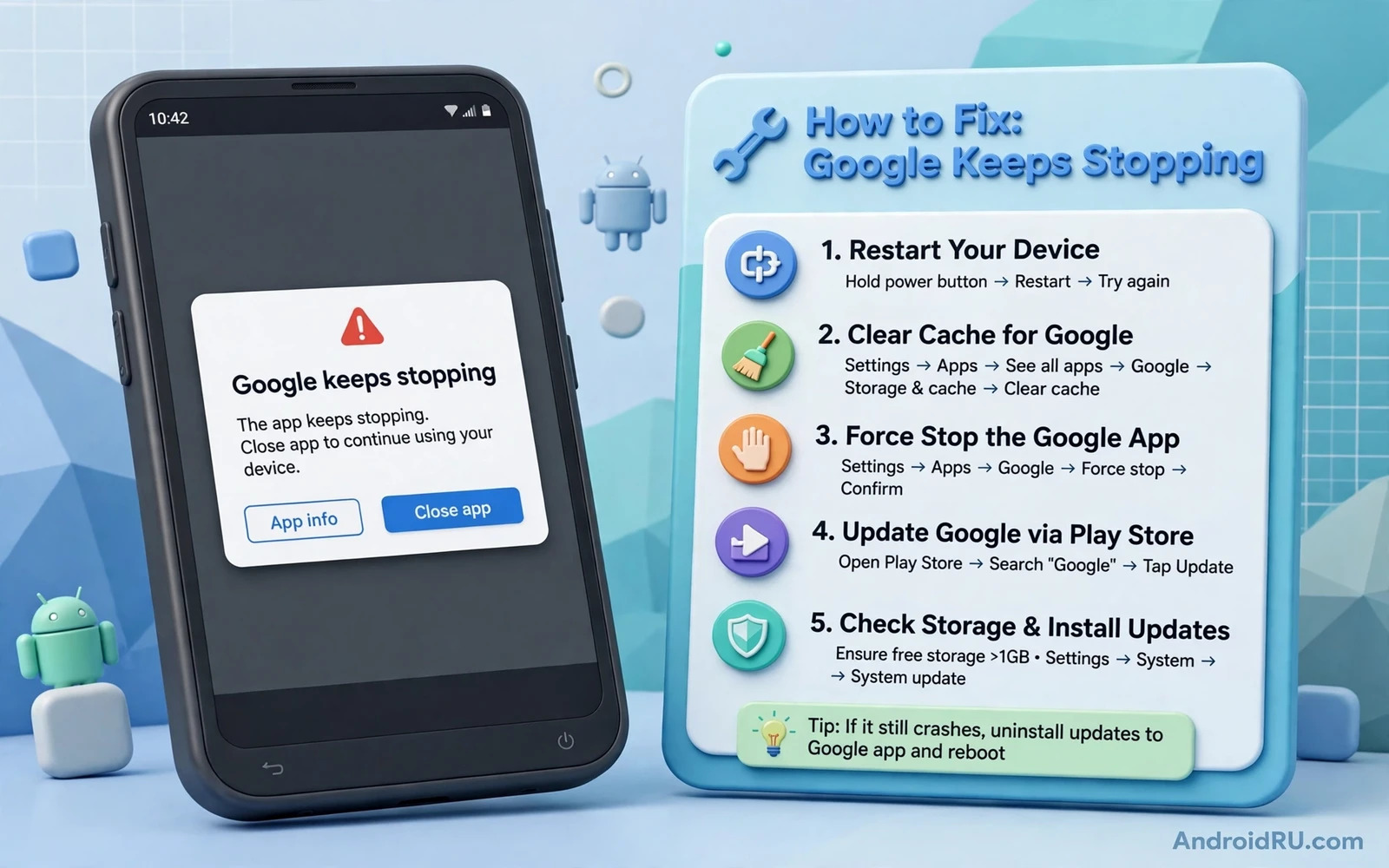
Why The Keep Stopping Popup Appears
The popup that says an app has stopped means the app crashed while it was running or while it tried to start. Google Keep is a notes app that syncs with your Google account. A crash can come from corrupted temporary data or a failed update or a sync conflict or low storage or a clash with another app. The popup often repeats because Keep tries to restart in the background and crashes again. That loop is annoying but it rarely means your notes are gone. Notes synced to your account usually survive an app crash untouched.
Start by checking whether your notes are safe. Open a browser on another device or on the phone and visit the Keep web version if you can. If your notes appear there then your data is safe in the cloud. That knowledge makes the fix calmer because even a full app reset cannot delete synced notes. If notes appear only on the phone and never synced then be gentler with data clearing steps later in this guide. Back up those local notes by copying their text elsewhere before any reset.
Force Stop And Clear Cache First
Open Settings and then Apps and then Google Keep and tap Force stop. A force stop ends the crash loop and gives the app a clean start. Then tap Storage and then Clear cache. A cache clear removes temporary files without deleting your notes or settings. Reopen Keep and wait a few seconds. If the app opens normally then the fault was likely stale cache data. Use the app for a few minutes and watch for a repeat popup.
If the popup returns then repeat the force stop and check storage space on the phone. Keep needs free space to write temporary data. Open Settings and then Storage and confirm that several hundred megabytes are free. A nearly full phone can crash apps that seem unrelated to storage. Free space by removing large unused files before you blame Keep itself. Readers short on space can follow the guide to freeing storage without deleting apps before deeper Keep steps.
Update Keep And Update System Services
Open the Play Store and search for Google Keep and check for an update. An update often fixes a crash that affects many users at once. Install the update and reopen Keep. Also update Google Play services if an update is pending because Keep sync depends on it. Outdated Play services can break sign-in and sync for several Google apps at once. If other Google apps also crash then Play services is a stronger suspect than Keep alone.
Check for a system update too. A system update can fix a framework bug that crashes apps on launch. Install the update over Wi-Fi and restart the phone. After the restart open Keep before opening other apps. A clean first launch after an update is a good test. If Keep still crashes then the fault is likely inside Keep data or its account sync rather than the system.
Clear Data Carefully And Resync
If cache and updates fail then clearing data is the next step. First confirm that your notes are synced as described earlier. Then open Settings and then Apps and then Google Keep and tap Storage and then Clear data or Clear storage. This step resets Keep to a fresh state and removes local settings and offline notes. Reopen Keep and sign in with the same Google account. Wait for sync to restore your notes. Do not create new notes until sync finishes or you may create duplicates.
If sync stalls then check the account itself. Open Settings and then Accounts or Passwords and accounts and tap your Google account and confirm that Keep sync is on. Toggle it off and on to force a fresh sync attempt. Check that the phone has a stable connection during sync. A weak connection can interrupt the first sync and leave the app half restored. A stable Wi-Fi connection gives the cleanest restore.
Check Conflicts With Other Apps
Boot into safe mode to test whether a third party app clashes with Keep. In safe mode only system apps run. Open Keep in safe mode and use it briefly. If Keep works in safe mode then a third party app is likely involved. Restart normally and think about apps installed just before the crashes began. A new accessibility app or a new notes widget or a new automation app can interfere with Keep. Remove suspects one by one and test after each removal.
Widgets deserve a special check. A Keep widget on the home screen loads Keep data in the background. A corrupted widget can trigger crashes even when the main app is closed. Remove the Keep widget from the home screen and test the app alone. If crashes stop then re-add the widget fresh. A fresh widget often behaves normally. The same logic applies to shortcuts and lock screen widgets that pull Keep data.
Deal With Account And Permission Problems
Open Settings and then Apps and then Google Keep and then Permissions. Keep needs storage or media permission for attachments and it needs account access for sync. Grant the permissions the app requests and test again. A denied permission can crash an app when it tries an action that needs that permission. Do not grant permissions the app does not request. Keep permissions to what the app actually uses.
If you use more than one Google account then check which account Keep uses. Open Keep settings and confirm the active account. Switch to the account that holds your notes if the app opened with the wrong one. An empty Keep after a reset often means the wrong account is active rather than lost notes. Switching accounts restores the correct note set without any data recovery step.
When A Deeper Fix Is Needed
Uninstalling updates is a useful step when a fresh update introduced the crash. Open Settings and then Apps and then Google Keep and tap the menu and choose Uninstall updates if that option exists. This returns Keep to the factory version. Test the factory version briefly. If it works then reinstall updates from the Play Store after a short wait. A later update may fix the faulty release. Keep your notes synced before this step as a precaution.
If every app step fails then a factory reset remains as a last resort. Back up the whole phone first because a reset erases everything. A reset is worth it only when several apps crash and system steps have failed. For a single app crash a reset is usually overkill. Readers weighing a reset should also read the guide to fixing apps that freeze and force close because the same decision logic applies. Most Keep crashes end at cache or data or update steps without a reset.
Keep Notes Safe Going Forward
Let Keep sync run normally and avoid force stopping it daily. Force stops interrupt sync and can leave partial data behind. Keep the app updated and keep free storage available. Check synced notes on the web version occasionally so you know the cloud copy is current. A quick web check every month gives confidence that a future app crash cannot threaten your notes.
A stopping popup feels alarming because notes feel personal. In practice the fix is usually short and the notes usually survive. Force stop and clear cache and update and resync in that order. That sequence solves most Keep crashes without drama. Your notes return and the popup goes away and the app fades back into quiet usefulness.
Notes And Sync Health
Keep sync health is a habit worth building. Open Keep on the web occasionally and confirm recent notes appear there. A note that exists only on the phone is one accident away from loss. A note that appears on the web is safe from app crashes and phone resets. That web check takes a minute and it gives confidence that the main guide steps can be used freely.
Avoid creating critical notes only inside a crashing app. If Keep crashes repeatedly then write urgent notes in a plain notes app or a text file until Keep is fixed. A temporary home for notes beats losing them to a crash loop. Move the notes back to Keep once the app is stable. Pragmatism during a fault protects content better than loyalty to one app.
Widgets And Shortcuts Revisited
Keep widgets pull live data and they can trigger crashes when their data is stale. Remove the widget before deeper troubleshooting as the main guide advises. After the app stabilises re-add the widget and watch it for a day. A widget that crashes again points to a widget specific bug rather than a general app bug. Report that pattern through app feedback if the store offers it. Specific bug reports help developers fix faster.
Home screen shortcuts to single notes can also misbehave after an app reset. Delete old shortcuts and recreate them after a data clear. A stale shortcut may point to a note reference that no longer exists. Fresh shortcuts avoid that mismatch. Small cleanup after a reset prevents a second round of strange behaviour.
When To Switch Notes Apps
A notes app that crashes weekly despite cache and data steps may not deserve more chances. Export notes through the web version before switching. A web export preserves content in a portable form. Import the export into the new app and verify a sample of notes before deleting the old app. A verified import prevents a migration loss.
Switching apps is a last resort not a first reaction. Most Keep crashes end with the main guide steps. For a broader crash method the guide to fixing the Play Store stuck on downloading covers store side faults that can mimic app faults. Store health plus app health together explain most crash loops. A calm sequence beats repeated reinstalls.
A Practical Checklist For Keep Stability
Keep Keep stable with a short monthly routine. Open Keep on the web and confirm recent notes appear there. Update Keep from the Play Store and update Google Play services when an update is pending. Clear Keep cache if the app feels slow or shows stale notes. Check free storage on the phone because a nearly full phone destabilises many apps at once. Remove the Keep widget and re-add it fresh if widget data looks stale. A monthly routine catches small problems before they grow into crash loops that interrupt note taking at the worst moment.
Protect notes during any troubleshooting step. Confirm web sync before clearing data and copy critical notes elsewhere before a reset. A note that exists in two places survives any single app failure. A note that exists only in a crashing app is at risk from every fix attempt. Treat sync confirmation as the first step of every deeper fix. That discipline turns a scary data clear into a safe routine step. Notes are personal and their safety deserves a deliberate check rather than an assumption.
Know when to stop troubleshooting and switch tools temporarily. A notes app that crashes daily despite cache and data and update steps is costing more time than a temporary alternative costs. Use a plain notes app for urgent notes while Keep is unstable and move them back when Keep recovers. Temporary tools are not defeat. They are pragmatism that protects content while the main app heals. Return to Keep when it proves stable for a full week of normal use. A week of stability is a fair test before trusting it with critical notes again.

