

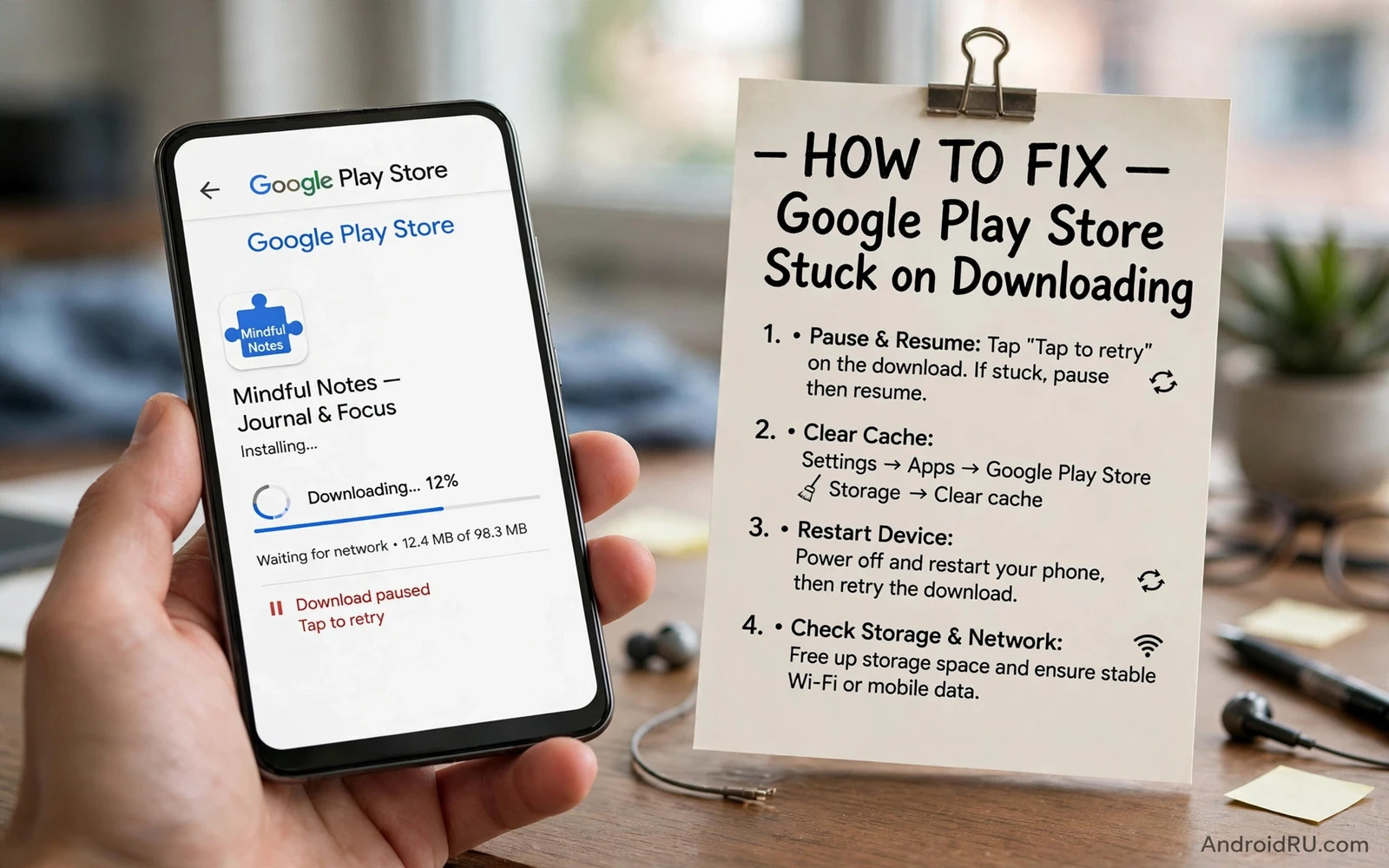
What Stuck On Downloading Means
A download stuck on Downloading means the store started the job but the file never finishes arriving. The progress bar may sit at the same place for a long time. The bar may move slowly and then stop. The bar may show Waiting for download for hours. These signs point to a queue problem or a network problem or a storage problem or a store service problem. The app itself is rarely the cause when many downloads stall at once. A single app stalling while others download fine points to that app file or to a pending update for that app. A store wide stall points to the phone connection or to the store app data.
Do not keep tapping the download button repeatedly. Repeated taps add more jobs to the queue and can make the queue worse. Pause the stuck download once and wait a minute. Resume it once and watch the progress for a few minutes. A healthy download shows movement even when slow. A stuck download shows no movement at all across several minutes. Note whether Wi-Fi or mobile data is active. Note whether other apps can load pages. Those two facts narrow the cause fast. A browser that loads pages fine while the store stalls points to the store app. A browser that also fails points to the network.
Check the time and date setting on the phone. A wrong date can break secure connections to the store. Set date and time to automatic in Settings. A date error is rare but it is quick to rule out. Check storage too. A phone near full storage can start a download and then stall when no space remains for the unpack step. Free space before you retry a large app. A download needs space for the file and for the install step that follows. Tight storage creates stalls that look like network failures.
Fix The Network Path First
Toggle Wi-Fi off and on once. Forget the network and reconnect only when toggling fails. A fresh connection clears a stale network state. Move closer to the router when signal is weak. A weak signal causes retries that look like a stall. Test the store on mobile data when Wi-Fi stalls. A successful mobile data download proves the Wi-Fi path is the problem. A mobile data download that also stalls points to the phone or to the store service. Switch back to Wi-Fi after the test to avoid mobile data charges for large apps.
Restart the router when other devices also struggle. Power the router off for thirty seconds and power it on again. Wait for the router lights to settle before you retry the download. A router restart clears a congested state that affects every device in the home. Do not restart the router repeatedly in a short period. One clean restart is enough for a test. If other devices work fine on the same network then the router is probably not the cause. Focus on the phone in that case.
Turn off VPN during the test. A VPN can route store traffic through a slow or blocked path. Pause the VPN and retry the download. If the download works without VPN then the VPN server or setting is the cause. Try a different VPN server later if you need VPN for privacy. Do not disable security tools permanently to fix a download. Pause them only for a short test and restore them after you learn the cause. A short test gives a clear answer without leaving the phone exposed for long.
Clear The Download Queue
Open the store and open the downloads section. Pause every pending download. Cancel downloads you no longer need. A long queue can block a new download behind older jobs. Start with one download only. A single download gets full bandwidth and full attention from the installer. Adding many downloads at once slows each one and can stall the queue on a weak connection. Download large apps one at a time when the network is slow. Patience with the queue beats a crowded queue every time.
Check for a pending system update that may hold the queue. A system update download can consume bandwidth and storage in the background. Pause the system update download when you need an app urgently. Resume the system update later on Wi-Fi and power. Check for a large app update that started automatically. Automatic updates can fill the queue without a visible prompt. Turn off auto update over mobile data when data is limited. Auto update on Wi-Fi only is a safer default for most users.
Restart the phone after clearing the queue. A restart clears stuck installer processes and frees locks on partial files. Try the single download again after boot. A download that starts cleanly after restart points to a temporary queue lock. A download that stalls again after restart points to a deeper cause. Move to store data clearing next. Do not restart many times in a row. One restart after queue clearing is a valid test. Repeated restarts without a change in steps add no new information.
Clear Store And Service Data Safely
Open Settings and then Apps and find the store app. Tap Storage and then Clear cache. Clearing cache removes temporary store data without removing your account or your installed apps. Restart the store app and retry the download. Cache clearing fixes many stalls caused by stale download state. It is safe and quick. Do this before any stronger data clearing step. Cache is temporary by design and the store rebuilds it on next use.
Find Google Play Services in Settings and then Apps and then Show system apps when cache clearing for the store alone fails. Tap Storage and then Clear cache for Play Services as well. Play Services handles many background jobs including downloads and account sync. Stale cache in Play Services can stall store jobs even when the store app itself looks fine. Do not tap Clear data for Play Services as a first step. Clear data can reset account sync settings and may require reconfiguration. Cache first is the safe order.
Clear data for the store app only when cache steps fail and you understand the trade. Clearing store data signs you out of store preferences and may reset download settings. Your installed apps stay installed. Your purchases stay tied to your account. Sign in again after clearing data and retry the download. Note the time you cleared data so you can tell support what changed. If clearing data fixes the stall then the cause was corrupted store state. If it does not fix the stall then the cause lies elsewhere and you have not lost installed apps.
Account And Device Checks
Check the Google account on the phone. Open Settings and then Accounts and confirm the account is present and syncing. A removed or paused account can stall downloads. Re-add the account when it shows a sync error. Check account storage and payment status only when the store shows an account error. A normal free app download should not need payment details. Do not add payment details to fix a free download stall. Payment details matter for paid apps and for subscriptions not for a basic free download queue.
Check device date and time again after account checks. Set the time zone to automatic as well. A time zone error alone rarely stalls downloads but a combined date and zone error can break secure sessions. Check system updates for the phone. An outdated system component can conflict with a newer store version. Install a stable system update on Wi-Fi and power when one is available. Do not install beta system software to fix a store stall. Beta software can add new issues while you chase one download problem.
Remove the store account and re-add it only as a later step. Account removal can disrupt other sync services. Back up contacts and app data before you remove an account. Re-adding an account restores sync but it takes time. Try network and cache and queue fixes first. Account removal is a stronger step for a persistent stall that survives every simpler fix. Document the steps you already tried before account removal so you do not repeat them after re-adding the account.
When Only One App Stalls
A single app stall needs a different lens. Cancel that app download fully. Search for the app again and start a fresh download. A fresh start removes a corrupted partial file for that app. Check the app size. A very large app needs more storage and more time than a small app. Free extra space for a large app even when total free space looks sufficient. Check whether the app requires a newer Android version. The store normally blocks incompatible apps but a pending update for an older version can stall in edge cases. Update the system when an update is available for your model.
Uninstall the app fully when an update stalls but the old version still works. A clean reinstall can succeed where an update fails. Back up app data first when the app holds important content. Some apps store data in an account and restore it after reinstall. Some apps store data only on the device. Check the app backup behaviour before you uninstall. Losing local app data to fix a download is a poor trade when the data matters. A backup first rule applies here just as it applies to larger phone changes.
When an install fails after the download finally finishes the problem shifts from download to install. A completed download that cannot install often involves a damaged package or a storage limit or a conflict with an older version. In that case the download fix alone will not finish the job. The install stage needs its own checks for file integrity and conflicts and permissions. Working through how to fix an App Not Installed error on Android after a successful download helps separate a download stall from an install failure. The two stages look similar on screen but they need different fixes.
Storage And System Cache As Hidden Causes
Storage pressure hides behind many stalls. The store may show a download starting and then stop without a clear storage warning. Check Settings and then Storage for the true free space. Move photos and videos to a computer or cloud storage when space is tight. Uninstall unused apps. Clear cache for heavy apps such as browsers and social apps. These steps free space without deleting personal files. After freeing space restart the store and retry the single download. A download that succeeds after freeing space proves storage was the blocker.
System cache can also interfere with downloads in subtle ways. Temporary system data can hold stale installer state. Clearing the system cache partition is a deeper step than clearing app cache. It does not delete personal files. It requires entering recovery mode with the correct key combination for your model. Read the recovery steps fully before you start. The cache wipe option sits near other wipe options on some phones. Confirm the item name before you select it. A careful cache partition wipe can clear a persistent stall that survives app cache clearing.
Before entering recovery for a download problem it helps to understand the full process and the risks of choosing the wrong menu item. A guide that explains how to clear the system cache partition to speed up performance also explains the recovery navigation that applies here. The same careful reading habit protects both a performance fix and a download fix. Never rush in recovery mode. Read each screen and confirm each choice. A slow careful recovery visit beats a fast mistaken wipe.
Other Apps Freezing During Downloads
Downloads can stall when another app freezes the system. A frozen app can hold processor and memory resources that the installer needs. Close recent apps and retry the download. Restart the phone when closing apps does not help. Check battery usage for an app that runs constantly in the background. Restrict that app and retry the download. A background app that hogs resources can stall many system jobs not just downloads. Fixing the hog app improves the whole phone.
Watch for a pattern where downloads stall only when a specific app runs. Note the app name and the time of each stall. Uninstall or update that app and test downloads again. A pattern beats a guess. One pattern observation can save many random fixes. When apps freeze often during any heavy task the freeze itself may be the root cause rather than the store. A freeze during a download and a freeze during normal use share the same underlying load problem.
That shared load problem is why a download stall sometimes appears alongside apps that stop responding. The installer needs steady processor and storage access. A freezing app can interrupt that access. Learning how to fix apps that freeze and force close unexpectedly gives you steps for the freezing app itself rather than only for the store queue. Fix the freezing app and the download queue often recovers on its own. Treat the freeze as a clue not as a separate unrelated bug.
Prevention For Future Downloads
Keep auto updates on Wi-Fi only. Keep at least a comfortable margin of free storage at all times. Download large apps one at a time. Keep the store app and Play Services updated. Keep date and time on automatic. Restart the phone once a week to clear temporary locks. These habits prevent most stalls before they start. A phone with free space and a clean queue downloads smoothly even on a modest connection. Prevention is less work than repeated stall fixes.
Check the queue before you start a large download. Pause older jobs you do not need right away. Start the large job first and let it finish. Avoid starting a system update and a large app download at the same moment. Stagger heavy downloads across the day. A staggered schedule uses the network well and avoids timeouts. Note download behaviour after each system update. A new stall pattern after an update may point to a setting that the update changed.
Frequently Asked Questions
Will clearing store cache delete my apps. No. Clearing cache removes temporary store data only. Installed apps stay installed. Purchases stay tied to your account. You may need to reopen the store and let it reload lists. That reload is normal after cache clearing. Clearing data is stronger than clearing cache and may reset store preferences but it still does not uninstall your apps.
Why does the download work on mobile data but not on Wi-Fi. A Wi-Fi specific path problem is likely. The router or the network setting or a VPN on Wi-Fi may block store traffic. Forget and reconnect to Wi-Fi. Restart the router once. Pause VPN for a test. A mobile data success proves the phone and the account can download. The remaining cause sits on the Wi-Fi path.
How long should I wait before calling a download stuck. Wait at least several minutes on a stable connection. Large apps need time even on fast Wi-Fi. Watch for any progress movement. No movement across several minutes on a stable network is a fair definition of stuck. Restarting the download after a short wait is reasonable. Waiting hours without movement wastes time that a queue fix could save.
Does a factory reset fix a stuck download. A factory reset can fix a deep software fault but it deletes data and should be a last resort. Try network fixes and queue fixes and cache fixes and account fixes first. Back up fully before any reset. Most stalls resolve without a reset. A reset for a simple queue stall is a heavy answer to a light problem.
What if downloads stall on every network. A stall on Wi-Fi and on mobile data points to the phone or to the account. Work through cache clearing and queue clearing and restart steps. Check storage and date settings. Re-add the account only after simpler steps fail. Contact maker support with a clear list of steps tried when the stall survives every safe fix. A clear step list helps support move past basic advice quickly.

