

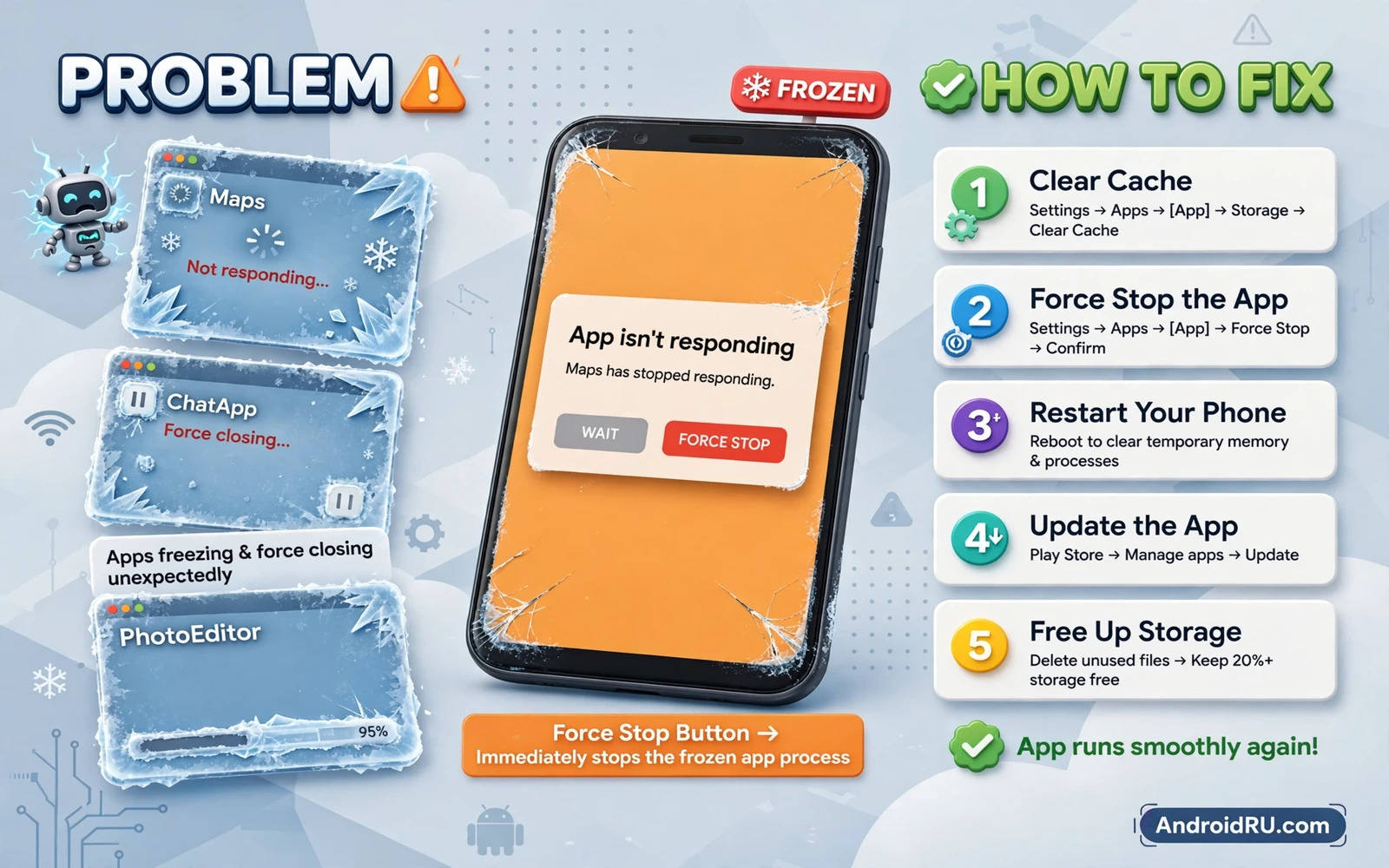
Why Apps Freeze And Close Without Warning
An app that freezes or closes by itself breaks your flow at the worst moment. A message app can close while you type a long reply and a map app can close while you navigate an unfamiliar road. The cause can be a corrupted cache file or a full storage drive or an outdated app build or a system that runs out of memory. A single app fault usually points to that app while many apps failing together points to storage or system trouble. A calm order of tests finds the true cause without deleting data blindly.
Start by noting which apps fail and when they fail. Note whether one app fails every time or whether many apps fail after a recent update. Note whether the failure happens on launch or after a few minutes of use. Note whether the phone feels hot or slow when the failure happens. Those notes separate an app bug from a system resource problem. A clear pattern saves you from resetting a phone for a single bad app update.
Restart And Check For Updates First
Restart the phone and open the failing app before you open any other app. A restart clears temporary memory and stops a stuck process that was blocking the app. If the app works after a restart then watch for the moment when it fails again because a background app may be interfering. Update the failing app from the official store and check for a system update as well. Developers often fix a crash quickly and a pending update may already contain the fix.
If the app still fails after an update then check the store page for recent reviews that mention the same crash. A wave of similar reports suggests a bad update that the developer must fix. In that case a temporary workaround is to use the web version of the service or an older stable feature within the app. Do not install an old app file from an unknown site because that file can carry malware. Wait for an official fix and keep the app updated.
Clear Cache Without Losing Data
Open Settings and tap Apps and find the failing app in the list. Tap Storage and cache and then tap Clear cache to remove temporary files. Clearing cache does not delete your account or your saved content in most apps. Open the app again and test the action that caused the freeze. A corrupted cache file is a common cause of repeated crashes and a cache clear often restores normal behaviour in seconds. Repeat the cache clear for each failing app separately.
The same safe cache pattern helps other misbehaving apps and the app error steps in How to Fix “App Not Installed” Error on Android show why a clean install source matters for stability. Check whether the app needs a permission that was denied after an update. Open app info and review permissions and grant only the permissions that the app truly needs for its core feature. A denied permission can make an app close when it tries to use a feature that it cannot access.
Free Storage And Memory
A phone with almost no free storage cannot write temporary files and apps may freeze when they try to save data. Open storage settings and check how much free space remains. Aim to keep a comfortable buffer of free space rather than running the phone to the last megabyte. Delete large downloaded files that you no longer need and move photos to a backup before you delete local copies. A phone with breathing room runs apps more smoothly.
Storage pressure also slows the whole system and the space routine in How to Free Up Storage Space on Android Without Deleting Apps shows how to recover room without losing apps that you use. Close apps that you are not using and check memory usage in developer or device care settings if your phone offers it. A phone that runs many heavy apps at once can run out of memory and close the app in the foreground. Restart the phone after a cleanup to give the system a fresh start.
Safe first steps
Restart > Update app > Clear cache > Free storage > Test again
Check Battery Optimisation And Background Limits
Aggressive battery optimisation can close an app in the background and make it look like a crash when you return to it. Open battery settings and check whether the failing app is set to restricted background use. Change it to unrestricted or optimised only if the app needs to run in the background for messages or navigation. A messaging app that is restricted may miss messages and a navigation app that is restricted may close mid-route. Balance battery saving with reliability for apps that must stay alive.
Also check whether a device care app or a cleaner app is force closing apps automatically. Some cleaner apps promise speed but they close apps aggressively and cause more freezes than they fix. Uninstall a cleaner app that you do not trust and test the failing app again. A phone does not need an aggressive cleaner to run well when storage and cache are managed manually. Simpler maintenance often gives a more stable phone.
Test In Safe Mode
Safe mode loads only system apps and it blocks third-party apps from starting. Restart into safe mode using your phone model method and open the failing app if it is a system app or test overall stability. If the phone feels stable in safe mode then a third-party app is likely interfering. Restart normally and uninstall recently installed apps one by one. Test after each uninstall until stability returns and then keep a note of the app that caused trouble.
If a third-party app still fails in safe mode then the fault may sit in the system or in shared storage. Check whether the app stores data on a damaged memory card and remove the card for a test if the app uses external storage. A failing memory card can freeze apps that read from it. Replace a card that shows read errors and move important files to internal storage or to a backup first. A stable card matters for apps that depend on it.
Clear Data As A Later Step
Clearing app data is stronger than clearing cache because it resets the app to a fresh state. Use this step only after cache and update steps have failed and only when you know your login details. Back up any unsaved work inside the app before you clear its data. Open app info and tap Storage and then tap Clear data and then open the app and sign in again. Test the action that caused the crash and see whether a fresh state fixes it.
Store download faults can look like app faults and the download steps in How to Fix “Google Play Store Stuck on Downloading” Issue help you separate a store problem from an app problem. If the app fails again after a data clear then the fault may be a bug in the current app version. Report the crash through the store page or the app feedback form and include your phone model and the steps that trigger it. A clear report helps the developer fix the bug for everyone.
Factory Reset As A Last Resort
A factory reset should be the last step and only after a full backup of photos and contacts and messages. A reset removes all apps and settings and returns the phone to its out-of-box state. It can fix deep system corruption that no single app step can reach. It cannot fix a hardware fault and it cannot fix a bug in a new app update that you reinstall right after the reset. Use a reset only when many apps fail and when safe mode and storage steps have already failed.
After a reset install apps one by one and test stability after each batch. Install the most important apps first and wait a day before you install a large batch of older apps. A staged reinstall reveals a bad app quickly and it prevents a repeat of the same mess. Restore your backup selectively rather than restoring every app at once. A patient reinstall gives you a clean and stable phone.
When To Seek Repair Help
A phone that freezes across many apps after a reset may have a storage or memory hardware fault. A phone that freezes only when it gets hot may have a cooling or battery fault. Take the phone to a trusted repair shop with a clear note of the failure pattern and the steps that you already tried. A clear note saves diagnostic time and it prevents unnecessary part replacement. Ask the shop to test the phone before and after any repair.
Do not open the phone yourself unless you accept the risk of losing water resistance and warranty cover. A repair shop can test internal storage health and battery health without risking other parts. Keep your backup safe before you hand the phone over. A documented repair protects you if the fault returns soon after the work. A calm repair decision beats repeated resets that cannot fix hardware.
A Stable Routine For The Future
Keep apps updated and keep storage free and clear cache when an app first misbehaves and the partition routine in How to Clear System Cache Partition to Speed Up Performance can help when system slowness adds to app trouble. Review new apps after installation and uninstall apps that you do not use. A short monthly check keeps the phone stable without aggressive cleaners. Stability comes from small habits and not from drastic fixes.
Keep Apps Stable Over Time
Review installed apps once a month and uninstall apps that you have not opened in weeks. An unused app can still run background tasks and consume memory that active apps need. A shorter app list gives the system more room to run the apps that matter. A tidy phone feels faster without any aggressive cleaner.
Read update notes before you install a major app update and check whether other users report crashes. A major update can change app behaviour and a short wait can save you from a buggy release. Install updates over Wi-Fi and restart the phone after a large batch of updates. A restart after updates clears temporary files that can cause freezes.
Keep at least a small buffer of free storage at all times and treat a storage warning as an urgent task. A full storage drive can freeze apps that need to save data. Move photos to a backup promptly when a warning appears. A prompt cleanup prevents a cascade of app crashes later in the week.
Back up app data that matters before you clear data for any app. A backup lets you restore settings quickly after a fresh start. Note your login details in a secure password manager so a data clear does not lock you out. A prepared user can clear data without fear of losing access.
Treat a single app crash as an app problem and treat many app crashes as a system problem. That simple rule guides every step in this guide. Restart and update and clear cache and free storage and test in safe mode before you consider a reset. Your apps should stay open when you need them and a methodical fix restores that reliability.

