

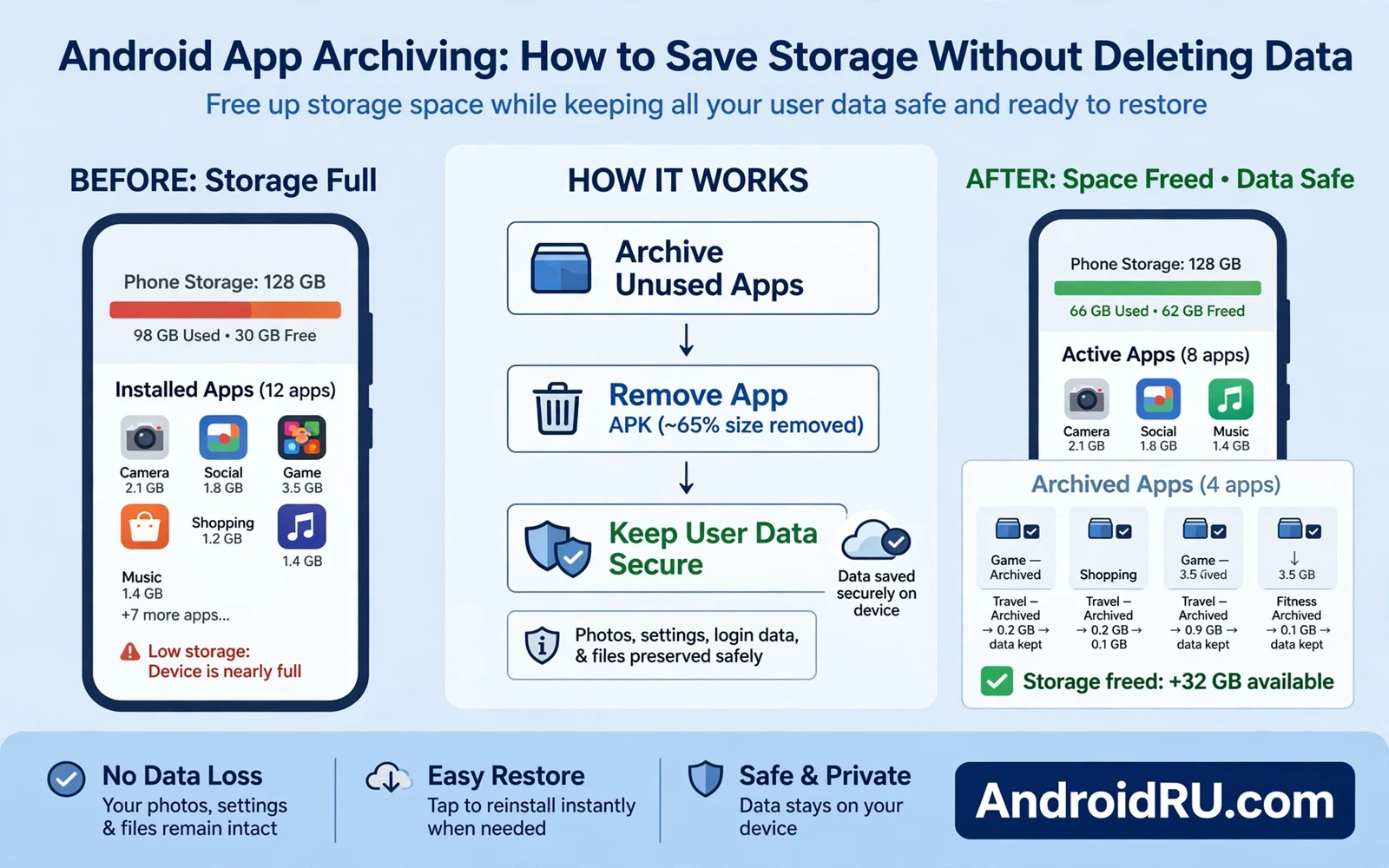
Storage fills up quietly on every phone. Photos grow in number each month. Apps grow in size with each update. Games add large asset packs over time. One day a new app refuses to install. One day a camera refuses to save a photo. One day an update refuses to download. Deleting an app feels like the only fast fix. Archiving offers a gentler fix. It removes the heavy app code while it keeps your data safe on the phone.
An archived app becomes a small placeholder on your phone. The icon may stay on the home screen with a small cloud mark. Tapping the icon downloads the app again from the store. Your login and your settings and your saved files return with the reinstall. You do not need to set the app up from scratch. You do not need to hunt for lost documents inside it. Archiving trades a large code download for a tiny placeholder until you need the app again.
This approach suits apps that you use rarely but still value. A travel app for a yearly trip fits well. A tax tool for one season fits well. A game that you pause for months fits well. A work tool for a past project fits well. Keep daily apps fully installed. Archive the apps that sit untouched for weeks. That split frees the most space with the least disruption to daily life.
How Archiving Differs From Deleting
Deleting an app removes its code and it may remove its data as well. Some apps keep data in a cloud account after deletion. Some apps lose local data forever when you delete them. Some apps ask you to confirm data removal during uninstall. The outcome varies by app and by account. Archiving removes that uncertainty for the apps that support it. The system promises to keep user data on the device while it removes the installable code.
Uninstalling also removes the app from update queues and from home screen shortcuts in many cases. Archiving keeps the icon and keeps the store record of the app. You can find the app again in one tap. You can restore it without searching the store. You can restore it without remembering the exact app name. That convenience matters when you archive many apps at once. A placeholder list becomes a waiting room rather than a graveyard.
Data safety still needs a backup habit alongside archiving. Archiving keeps data on the device. It does not copy that data to the cloud by itself. A lost phone still loses archived data along with everything else. Turn on the backup options for apps that hold important files. Check that photos and documents sync before you archive a storage heavy app. Archiving plus backup gives you space now and safety later.
Turn On Automatic Archiving
Automatic archiving watches for apps that you have not opened in a long time. It archives them only when storage runs low. It skips apps that you use often. It skips apps that run background jobs you rely on. Open the store settings and look for the archiving option. Enable it and let the system manage the quiet cleanup. You will see placeholders appear for apps that crossed the idle threshold.
Review the automatic choices after the first month. Open the apps list in settings and look for archived entries. Restore any app that you actually need sooner than expected. Disable automatic archiving when it archives an app that you want always ready. Manual control suits people with a small set of rarely used apps. Automatic control suits people who forget to clean storage until a warning appears.
Manual archiving gives finer control for a storage crunch. Open the apps list and sort by size. Large apps at the top give the biggest gain per archive. Check the last opened date when the list shows it. Archive the largest idle apps first. Skip messaging apps and banking apps and authenticator apps even when they look large. Those apps must stay ready at all times. A small delay to restore them could cost you access when you need it most.
Restore An Archived App
Restoring takes one tap on the archived icon. The phone downloads the app code from the store again. The download size matches a normal app install. The install uses the same network and storage rules as any update. Wait for the download to finish before you open the app. Opening too early may show a loading state that confuses the restore. A completed restore returns the app to full function with your data intact.
A restore can fail when the app left the store since you archived it. An app that a maker removed cannot download again. An app that changed its store region may refuse to install on your account. Keep a note of critical archived apps and check their store pages once in a while. Export data from an app before you archive it when that data cannot be replaced. That export turns a store risk into a minor inconvenience.
Network choice matters for restores. A large game restore on mobile data can consume a whole data allowance. Wait for a stable wireless network for large restores. Small utility restores can run on mobile data without much cost. Check the app size in the store before you start a restore. That size tells you whether to wait for wireless. A patient restore saves both data and frustration.
Archiving And Memory Management Together
Storage and memory solve different problems on a phone. Storage holds apps and files for the long term. Memory holds running apps for the short term. Archiving frees storage. It does not directly free memory. Memory gains come from how the system handles background apps. That background behaviour is explained in How Android Handles Background Apps and Memory Management and that explanation shows why closing every app by hand rarely helps. Use archiving for storage pressure and use system memory rules for speed pressure. Mixing the two jobs leads to wasted effort.
Background limits also affect archived apps in a useful way. An archived app cannot run background jobs until you restore it. That silence saves battery for apps that you do not use. It also stops stale notifications from apps that you forgot. When you restore the app its background jobs return with it. Check notification settings after a restore when an app stays quiet. A restore returns data but it may need a fresh permission grant for notifications.
The wider platform shift toward larger apps makes archiving more valuable each year and the format change in Understanding Android 64-Bit Only Apps Shift shows how app packaging keeps evolving for modern phones. Satellite features may change how restores work far from networks and the future view in The Impact of Satellite Connectivity on Future Android Phones explores connectivity that could reach phones beyond normal coverage. Together these trends point to a phone that manages scarce resources smarter. Archiving is one quiet part of that smarter management.
Build A Storage Routine That Works
Check storage once a month rather than waiting for a warning. Open settings and view the storage breakdown by category. Photos and videos often dominate the total. Apps come next for most users. System files take a fixed share that you cannot shrink much. Archive idle apps before you delete photos that you love. Photos carry memories that archiving cannot replace. Apps can return in one tap. Photos cannot.
Pair archiving with a photo habit for the best gain. Back up photos to a cloud account or to a computer. Remove local copies of photos that already backed up safely. Archive idle apps after the photo cleanup. That order frees space from the largest categories first. It also keeps your decisions reversible. A backed up photo can return. An archived app can return. A deleted file without a backup cannot.
Set a personal rule for archiving and stick to it. Archive any app untouched for two months. Restore it only when a real task needs it. Review the archived list each season. Delete placeholders for apps that you no longer want at all. That seasonal review keeps the phone lean without constant attention. Storage stops being a crisis and becomes a routine. Your phone stays ready for new apps and new photos and new updates.
Archiving On Phones With Small Storage
Small storage phones gain the most from archiving because every megabyte counts. A phone with little free space may refuse updates before it refuses new installs. Archive idle apps first when an update warns about space. Check the storage screen after each archive. The freed space appears at once. Repeat until the update fits. That loop turns a blocked update into a short cleanup task.
Games deserve special attention on small storage phones. A single game can outweigh ten small utilities combined. Archive a finished game rather than deleting its save data. The placeholder keeps your progress safe on the device. Restore the game later when you want another run. That habit lets a small phone hold a large game library in waiting form. Only the active game needs full space at once.
Photos compete with apps for the same small pool of space. Back up photos often on a small storage phone. Remove local copies after a backup confirms. Archive idle apps after the photo cleanup. That order matters because photos cannot return without a backup. Apps can return from the store in one tap. Protect the irreplaceable category first and archive the replaceable category second.
System files grow slowly on every phone and they cannot shrink much. Accept the system share as fixed. Focus your effort on apps and media that you control. A monthly check of the storage breakdown keeps surprises away. Archive early and archive often on a small phone. Waiting for a warning wastes time that a routine check would have saved.
A storage warning on a shared family phone needs a gentle conversation first. Explain archiving to other users before you archive their apps. Show them the placeholder icon and the one tap restore. Agree on which apps stay fully installed for everyone. Archive only the apps that everyone agrees sit idle. That agreement prevents a surprise when someone opens a placeholder during a busy moment. Shared phones work best when storage choices stay visible to all users.

