

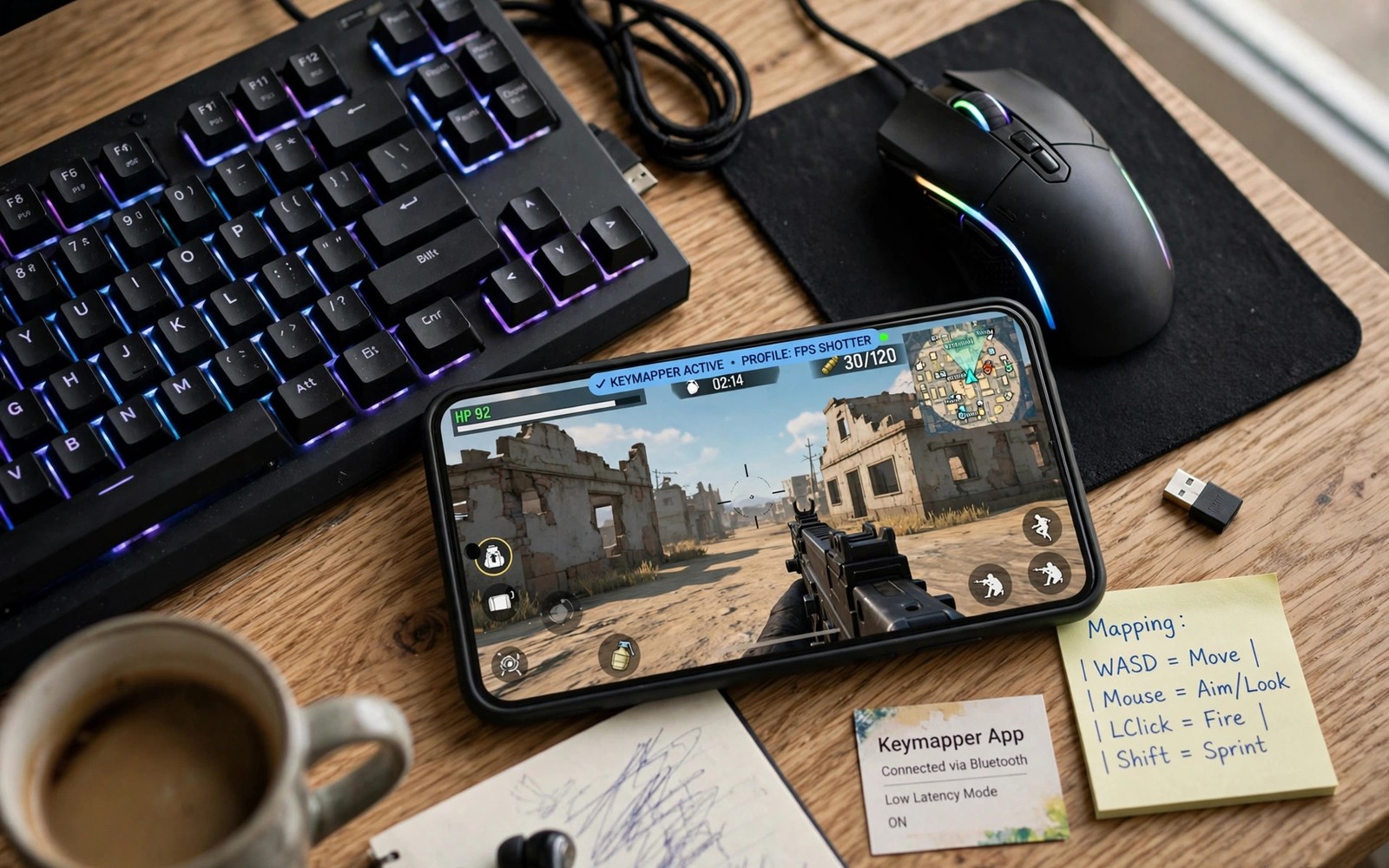
Keymapper apps keyboard mouse mobile games tools let desktop inputs control touch games. A keymapper links keyboard keys to screen taps. Mouse movement can steer camera or aim areas. That setup suits players who prefer keys over touch for long sessions.
Keymapper tools vary in power and permission needs. Simple tools use accessibility services without root. Stronger tools need computer activation or root access. Game rules also vary since some competitive titles restrict external input tools. Learn safety limits before using keymappers in ranked modes.
This article shows a safe setup path for keyboard and mouse play. You will learn how to map keys sensibly. You will learn how to test layouts without risking accounts. You will also learn when native pad support beats keymapping entirely.
How keymappers translate keys to touches
A keymapper draws invisible or visible zones over game controls. Each zone links to a keyboard key or mouse button. Pressing that key sends a tap at the zone location. Mouse movement can map to a virtual joystick zone for camera control. That translation lets desktop habits work inside touch games.
Advanced keymappers support macros and multi key combos for complex actions. Macros can chain taps with one key press. Game rules may treat macros as unfair automation in competitive modes. Use simple one to one mappings for ranked play. Save macros for casual exploration where rules allow them.
Setting up keyboard and mouse hardware
Connect a keyboard and mouse over Bluetooth or a USB hub. Test both inputs in a notes app before opening a game. Confirm keys register correctly and mouse movement feels smooth. A faulty link frustrates mapping tests needlessly. Fix hardware links before building complex layouts.
Place the phone or display where keys and screen stay comfortable together. A phone stand helps when using a separate keyboard. A large external display helps even more for long sessions. Comfortable posture prevents neck strain during keyboard play. Ergonomics matter as much as mapping quality for daily use.
Building a clean key layout
Map movement keys to the virtual joystick area first. Use familiar WASD style layouts for movement games. Map fire and jump to nearby keys for fast access. Keep the layout close to desktop game habits. Familiar layouts shorten learning time and reduce mistakes under pressure.
Test layouts in practice mode before ranked matches. Practice reveals dead zones and misplaced keys safely. For pad based alternatives read about mapping buttons to touch controls and compare pad mapping with keyboard mapping for your game.
Safety rules and account protection
Read game terms before using keymappers in competitive modes. Some games ban external input tools explicitly. Others tolerate them for casual play only. Native controller or keyboard support stays safest where offered. Do not risk a valued account for a control experiment in ranked modes.
Use keymappers from trusted sources with clear permission explanations. Grant only permissions the tool truly needs for mapping. Remove tools you stop using to reduce exposure. Keep banking apps separate from heavy permission tools when possible. Security habits protect accounts beyond gaming alone.
Accessories that pair well with this setup
A sturdy phone stand improves keyboard play posture a lot. Stands hold screens at eye level while keyboards sit naturally below. That posture prevents neck strain during long keymapper sessions. Choose stands with adjustable angles for different desks. A comfortable posture matters as much as mapping quality for daily keyboard gaming enjoyment.
A large external display transforms keymapper sessions from cramped to comfortable. Desktop mode or casting shows games bigger than phone screens. Larger visuals ease aim and text reading during play. Check display latency before ranked use with external screens. A low latency display keeps keyboard advantages intact rather than adding display delay.
Native pad games offer a simpler alternative for players who dislike keymapper setup complexity. Pads work without overlays or permission worries in supported titles. The genre picture is clear in games with native controller support for players weighing pads against keys. That comparison helps input choice match game support rather than habit alone.
A weekly routine that keeps everything working
Review keymapper permissions monthly and remove tools no longer used. Unused tools with broad permissions pose unnecessary exposure. Keep only active mappers with clear permission needs. Check permission lists after tool updates since updates can request more access. That monthly audit protects accounts beyond gaming convenience alone over time.
Test key layouts monthly in practice mode after game updates. Updates shift buttons and break key zones silently. A monthly practice check reveals broken mappings before ranked play. Fix zones promptly during that check. That discipline keeps keymapper play reliable across frequent game patches and long titles alike.
Review link types monthly if keyboard sessions move between desk and couch. Wired links suit desk play while wireless suits couch freedom. The trade offs are clear in USB-C versus Bluetooth controllers for players weighing both options. Monthly review matches connection habits to current rooms rather than old desk setups alone.
How this plays out in real life
A strategy gamer uses keyboard mapping for precise unit control on a tablet. Keyboard shortcuts speed commands beyond touch tapping. That precision transforms complex strategy games enjoyably. The gamer maps camera controls to mouse movement smoothly. That desktop style setup suits strategy genres better than pads for many players.
A shooter fan tries keyboard mapping for aim precision in a touch only title. Mouse aim feels familiar from desktop shooter experience. That fan practices in training mode before ranked attempts. Ranked rules get checked carefully before competitive use. That cautious path balances new control advantages against account safety concerns wisely.
A student uses a cheap keyboard for casual keymapper experiments on weekends. Low cost gear enables learning without major investment. That student maps only movement and fire initially. Complexity grows slowly as comfort increases. That gradual learning path prevents frustration and builds lasting keymapper skills over time.
A player with wrist pain from touch controls switches to keyboard mapping for comfort. Keys distribute effort across fingers better than thumbs alone. That ergonomic benefit matters more than competitive advantage. Comfort driven mapping shows accessibility value clearly. Players should prioritise health over habit when controls cause pain regularly.
A retro gamer maps keyboard keys to emulated classic controls on a phone. Arrow keys plus action keys recreate original handheld feelings. That nostalgic setup costs nothing beyond a spare keyboard. Classic games feel authentic with real keys. That retro use demonstrates keymapper versatility beyond modern touch titles alone beautifully.
A practical check you can run
You can inspect connected input devices before keymapper setup. Connect the keyboard and mouse and run the checks below on a computer linked to the phone. The output lists input devices and USB or Bluetooth status.
adb shell dumpsys input
adb shell dumpsys usb
adb shell dumpsys bluetooth_manager
The commands above are adapted from public platform documentation for Android developer tools. They are included here as a teaching example for checking device behaviour and not as copied product code.
Common mistakes
A common mistake is mapping too many keys before learning core movement. A crowded layout confuses new keymapper users fast. Start with movement and fire only. Add extra keys slowly after core play feels natural. Gradual growth builds reliable muscle memory.
Another mistake is using macros in ranked games without checking rules. Macros may count as automation under competitive rules. That risk threatens accounts with long histories. Use simple mappings for ranked play and save macros for casual modes where allowed.
A third mistake is skipping hardware tests before mapping work. A laggy mouse or sticky key ruins mapping tests. Test hardware in a simple app first. Fix links and batteries before building layouts. Clean hardware makes mapping results trustworthy.
Frequently asked questions
Do keymapper apps need root on Android?
Many keymappers work without root through accessibility services or computer activation. Root tools offer deeper control but carry higher risks. Try a no root tool first for your game. Switch only when no root options map your controls well.
Can keymappers get my game account banned?
Keymappers mimic touch input but competitive rules vary by game. Some titles restrict external input tools in ranked modes. Read game terms before ranked use. Native support remains safest whenever a game offers keyboard or pad input.
Is keyboard and mouse better than a controller for mobile games?
Keyboard and mouse suit strategy and shooter games with precise aim needs. Controllers suit racing and platform games with analogue movement. Personal habit matters most for comfort. Test both input styles in practice mode before choosing a main setup.
Conclusion
Keymapper apps open desktop style control for touch games with care and testing. Start with simple mappings and trusted tools. Respect game rules for ranked play. Test layouts in practice before competitive matches. Those habits make keymapping a useful option rather than a risky shortcut.
Your next step is a small trial today. Map only movement and fire for one casual game. Play three practice rounds and tune key positions after each round. Expand the layout only when core controls feel fully natural.
Plan your first keymapper week around simple layouts and safety checks. Connect keyboard and mouse on day one and test them in a notes app first. Map movement and fire on day two for one casual game only. Practise fifteen minutes on day three in training mode without ranked pressure. Read game terms on day four before any competitive keymapper use. Add jump on day five only after core controls feel natural. Test layout after a game update on day six for shifted buttons. Decide on day seven whether keyboard play suits your games better than pads. A safe week explores new controls without risking accounts or ranked progress unnecessarily.
Keep keymapper layouts backed up outside the mapping tool whenever export allows it. Tool reinstalls and phone changes erase layouts without backups. Exported profiles restore complex mappings in minutes instead of hours. That backup habit respects the time invested in careful layout tuning. Protecting layouts preserves skill built through patient practice across devices and years.

