

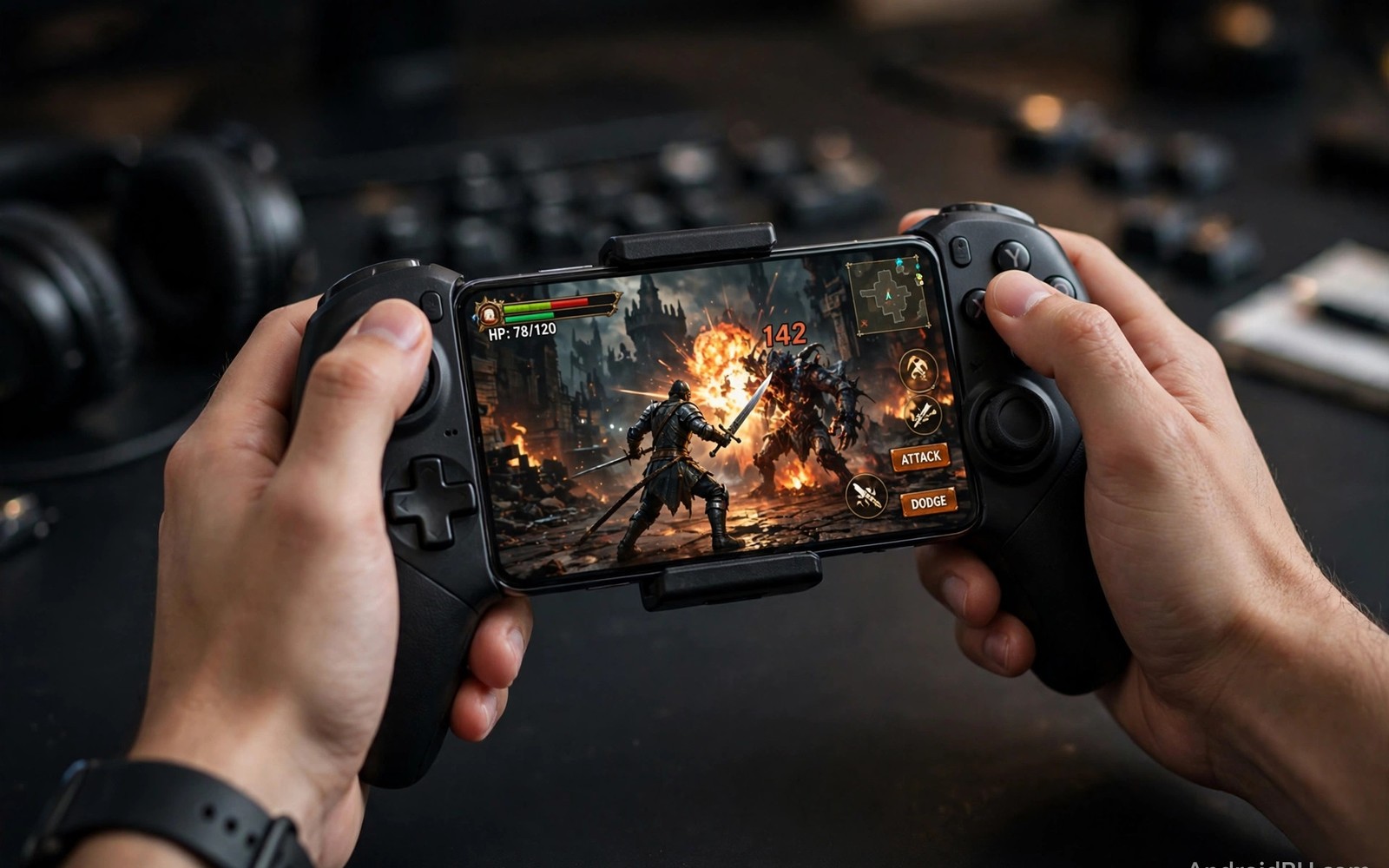
Android games native controller support means a title accepts pad input without mapping tricks. Buttons work as designed and prompts match your inputs. Camera and movement feel precise from the first match. That native feel separates great pad games from awkward ports.
Support varies widely across genres on Android. Racers and platformers often support pads fully. Shooters vary by title and some offer only partial button support. Strategy games may support pads poorly since they were designed for touch. Genre gives a useful first clue but title checks still matter.
This article groups native support by genre and shows how to verify it fast. You will learn which genres to trust and which to test carefully. You will also learn settings that improve pad play. Use this article as a starting filter before you download large games.
Racers and platformers lead native support
Racing games benefit most from analogue triggers and sticks. Native support lets you feather throttle and brake with precision. Touch controls cannot match that gradation for serious racing. Platformers gain precise jumps and runs with a real d pad or stick. These genres should top your list when you buy a pad.
Check for full menu navigation with a pad in racing titles. Some games support pads in races but force touch in menus. That split annoys players who want a pure pad session. Test menus and races before judging support. Full support across both areas marks a well adapted title.
Shooters and action games need closer checks
Shooters vary a lot in pad support quality on Android. Some offer aim assist tuned for sticks. Others map buttons oddly and leave key actions on touch. Test aim and fire and reload and crouch in practice mode. If any core action needs touch then support counts as partial. Partial support may still satisfy casual play but frustrates ranked players.
Action adventures often support pads well for movement and combat. Camera control with the right stick transforms exploration. Quick time prompts may still use touch in some titles. Read recent player notes for your exact title. Support can change with updates so fresh reports matter more than old reviews.
How to verify support before downloading
Check game settings screenshots for controller options before install. Look for button mapping menus and sensitivity sliders. Search player forums for pad reports on your title. A title with an active pad community likely supports pads well. Silence about pads often signals weak or missing support.
If a favourite title lacks native support then mapping may bridge the gap. Mapping works best for fixed button layouts. Learn the method in button mapping for unsupported games before you commit to a touch only favourite with a pad.
Settings that improve native pad play
Tune stick sensitivity to your aim style before ranked play. Lower sensitivity helps precise long range aim. Higher sensitivity helps fast close combat turns. Test both extremes in practice and then settle in the middle. Sensitivity is personal so copy settings only as a starting point.
Adjust dead zones when sticks drift or feel stiff. A small dead zone sharpens fine aim. A larger dead zone hides minor drift on older pads. Change one setting at a time and retest. Patience here pays off in every match that follows.
Accessories that pair well with this setup
A second pad for friends turns native pad games into social sessions fast. Multiplayer titles shine when both players use real controls. A spare budget pad costs little and invites friends to join. Keep the spare charged and paired for guests. That readiness turns casual visits into gaming sessions without setup delays or touch control compromises.
A phone stand helps native pad sessions at a desk or table. The stand holds the screen steady while hands focus on the pad. That posture suits long story sessions well. Choose a stand with adjustable angle for different seating positions. A steady screen improves immersion more than many players expect from such a simple accessory.
Trigger accessories add value for shooter titles with native pad support gaps. They press screen buttons for games that lack full pad mapping. Learn that method in trigger accessories for shooters before buying clips. Triggers suit fixed button shooters best. They complement native pads rather than replacing them for most players.
A weekly routine that keeps everything working
Review your pad game library monthly and remove titles that lost support. Games sometimes drop pad support in updates without clear notes. A monthly check in practice mode reveals support changes early. Keep a short list of verified pad titles for quick session starts. That list saves download time and prevents disappointing first sessions with broken support.
Update pad firmware monthly to keep native support smooth across new games. Firmware fixes button mapping and dead zone behaviour quietly. Test new games after firmware updates in practice mode. Note any regressions promptly for support reports. That routine keeps pads compatible as game libraries grow and change over time.
Revisit aim aids monthly as shooter skills grow with native pads. Thumb sleeves smooth swipes for hybrid touch and pad play. Their benefits are clear in thumb sleeves for aim for players mixing inputs. Monthly review matches aim aids to current games rather than keeping old habits that no longer help performance.
How this plays out in real life
A racing fan builds a pad playlist around native support titles only. Every game on the list offers full menu and race pad control. That curation removes touch frustration from racing sessions entirely. The fan tests new racers in practice before adding them to the list. A curated playlist keeps racing nights smooth and focused on driving skill rather than control fights.
A shooter player tests aim assist settings across several native pad shooters. Each title tunes aim assist differently for stick players. The player settles sensitivity per game rather than copying settings blindly. Practice mode drills reveal the best settings within days. That per game tuning approach lifts ranked performance steadily across a whole shooter library.
A platformer fan discovers that native pad support transforms precision jumping sections. Real buttons offer consistent jump timing that touch buttons cannot match. Difficult levels become enjoyable challenges instead of control frustrations. The fan replays old platformers with a pad for fresh enjoyment. That rediscovery shows how controls reshape even familiar games completely for dedicated players.
A family shares a tablet for cooperative native pad games on weekends. Two pads enable teamwork without touch screen crowding. Children learn cooperation through shared objectives and roles. Parents control session length through device settings easily. That cooperative setup turns gaming into family bonding rather than isolated screen time for everyone involved.
A traveller downloads native pad games before a flight without internet access. Offline native titles fill long flights with responsive controls. A telescopic grip completes the pocket console feeling perfectly. That offline planning prevents boredom at cruising altitude. Prepared travellers enjoy full games while neighbours watch movies on tiny seat screens nearby.
A practical check you can run
You can list input devices and test pad recognition with a short device check. Attach the pad and run the checks below on a computer linked to the phone. The output confirms the pad appears as a game controller.
adb shell dumpsys input
adb shell getevent -l
adb shell dumpsys bluetooth_manager
The commands above are adapted from public platform documentation for Android developer tools. They are included here as a teaching example for checking device behaviour and not as copied product code.
Common mistakes
A common mistake is assuming every popular game supports pads natively. Popularity does not guarantee pad support. Some hit games stay touch only by design. Check support for each title before you buy a pad for that game alone.
Another mistake is judging support from menus only. A game may navigate menus with a pad yet fail in actual gameplay. Test real matches and races and combat. Gameplay tests reveal partial support that menus hide.
A third mistake is copying another player sensitivity settings without testing. Sensitivity suits hand size and aim style and pad type. Use shared settings as a start point only. Tune in practice until aim feels natural for your hands.
Frequently asked questions
How do I know if a game supports controllers natively?
Look for controller options in game settings and button prompts during play. Native titles show pad prompts and let you remap buttons. Player forums often confirm support for popular titles. Test practice mode with a pad before judging support.
Do all pad buttons work in every supported game?
Most core buttons work in supported games but extras vary. Touch pads and share buttons often stay unused on Android. Triggers and sticks and face buttons cover nearly all gameplay needs. Check the in game mapping menu for exact button coverage.
Can I use a pad for touch only games at all?
Touch only games ignore pad input unless you use a mapping tool. Mapping places virtual buttons on screen for pad presses. It works best for fixed layouts and simple actions. Native support remains smoother whenever a game offers it.
Conclusion
Native pad games reward players with precise controls and comfortable long sessions. Racers and platformers lead support while shooters need careful checks. Verify each title in practice before ranked play. Tune sensitivity and dead zones for your hands.
Your next step is simple. Pick three games from your library and test pad support in practice mode today. Keep the titles that feel native and note the ones that need mapping. Build your pad playlist around the winners.
Plan your first pad playlist week around testing three games in practice mode daily. Test a racer on day one and note menu plus race support fully. Test a shooter on day two and judge aim assist and button coverage honestly. Test a platformer on day three for jump precision and camera control. Compare sensitivity needs across games on day four and tune per title. Remove titles with partial support on day five from the ranked playlist. Keep casual partial titles only for relaxed sessions afterwards. Finalise a verified playlist on day seven that guarantees smooth pad sessions. A curated week saves future frustration and builds a library you trust completely.

