

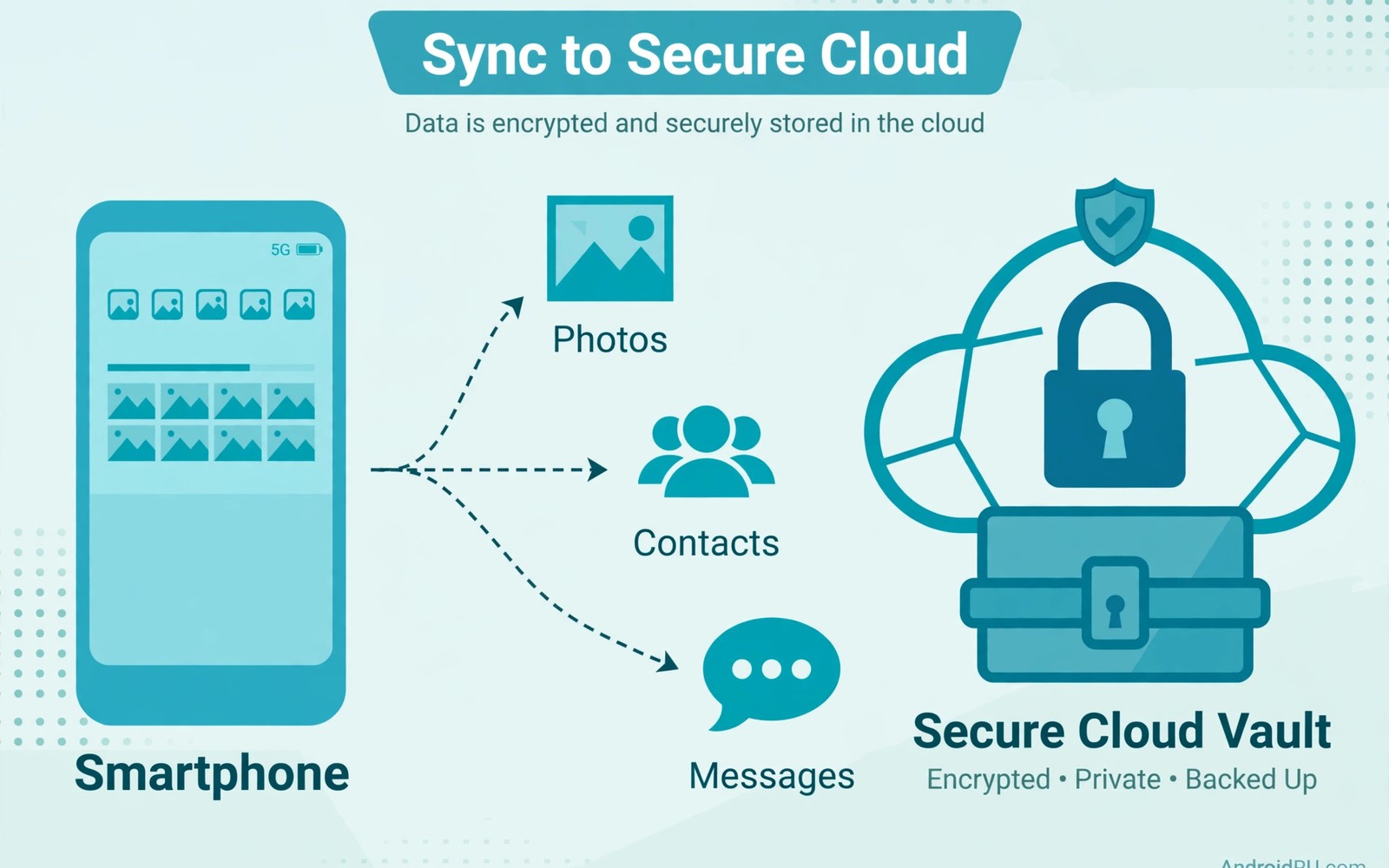
Losing a phone hurts less when a good backup exists. Android can copy settings and apps and messages to your account. A new phone can then restore much of that data. The restore saves hours of manual setup. It also rescues photos and contacts you forgot to copy.
This guide explains what account backups include and how they stay safe. It covers encryption and restore steps and backup checks. It also covers the account security that protects the backup itself. Readers should pair backup habits with critical security settings for full protection.
What Account Backup Includes
Backups typically include app data and settings and call history. They include SMS messages and device settings and Wi-Fi passwords. Photos may back up through a separate photos service. Some apps exclude sensitive data from backups by design. Banking apps often skip backup for security reasons.
Check your backup screen to see the real list for your phone. Different brands include slightly different items. The list on screen beats any generic claim. Note gaps early so you can cover them manually. A gap found after loss is too late to fix.
How Backup Encryption Works
Backup data travels over encrypted connections to storage. Storage encryption protects data at rest from casual access. Some backup types add end-to-end encryption with a device lock. That stronger mode ties decryption to your screen lock. Losing that lock credential can block restore access.
Read the encryption note on your backup screen. It states what protection applies to your data. A backup without strong encryption still beats no backup. It simply needs stronger account protection beside it. Guard the account as carefully as the phone itself.
Setting Up Backup Correctly
Open Settings and find the backup section. Turn backup on and confirm the account shown. Check that the last backup date is recent. Force a manual backup before travel or a reset. A fresh backup removes doubt about restore content.
Connect to Wi-Fi for the first full backup. Large photo libraries take time on slow networks. Plug the phone in so the backup finishes. Repeat the manual backup after major changes. New apps and new messages deserve a fresh copy.
- Confirm the correct account is selected.
- Check the last backup date and time.
- Force a manual backup before a reset.
- Confirm photos use their own backup switch.
- Test restore steps on a spare device if possible.
Backup check commands
# On-device check path
Settings > System > Backup
# Confirm these items
Backup on: yes
Account: your main account
Last backup: today
# Force a backup before a reset
Restoring On A New Phone
Sign in with the same account during new phone setup. The setup flow offers a restore from backup. Choose the most recent backup from your old phone. Apps reinstall in the background after the main restore. Give the phone time on Wi-Fi to finish.
Some items need separate sign-ins after restore. Email apps and banking apps ask for fresh login. That extra step protects sensitive accounts from silent restore. Check messages and contacts after the restore ends. Fill any gaps from manual copies you kept.
Account Security Protects Backups
A backup is only as safe as the account holding it. A weak account password exposes every backup copy. Turn on a second sign-in step for the account. Review signed-in devices and remove old ones. Act fast on any sign-in alert you do not recognise.
Recovery options matter as much as the password. Keep a recovery email and phone number current. Test recovery while you still have access. Readers who want stronger sign-in methods can study stronger sign-in checks before changing settings. Strong account habits protect backups and mail and photos together.
Managing Old Backups
Old device backups linger after you switch phones. Delete backups for devices you no longer own. That step shrinks your exposure if the account is breached. Keep only the backup you might actually restore. Storage limits also reward regular cleanup.
Check backup size when storage runs low. Large app data can crowd out other backups. Exclude bulky apps you can set up again manually. Keep contacts and messages backed up above all. Those items are hardest to rebuild from memory.
A good backup turns a lost phone into an inconvenience. A missing backup turns it into a disaster. Set backup on once and verify it monthly. Guard the account that holds the copies. That pair of habits protects years of personal data.
Backup Gaps Users Often Miss
Standard backups skip several data types by design. Some apps mark their data as excluded from backup. Banking apps often exclude data for safety reasons. Health apps may exclude sensitive records too. Work apps may block backup under company policy. Check each important app for its backup behaviour. Note gaps in a simple list for reference. Cover gaps with manual exports where allowed. A gap list prevents false confidence in restore. Readers planning a device move should also review lost device steps for the wider recovery order. False confidence hurts more than a known gap.
Media backups need separate attention from app backups. Photos may back up only over Wi-Fi by default. Videos may wait for charging before uploading. A phone lost before upload loses recent media. Force a manual media backup before travel. Check the last media backup date weekly. Large libraries need time and stable networks. Plug the phone in during the first full upload. Confirm a sample of recent photos appears online. A verified sample beats an assumed backup.
Call history and messages have their own backup rules. Some messaging apps use their own backup systems. Those systems may need separate switches turned on. Encrypted chat backups may need a separate password. Losing that password blocks restore of chat history. Store chat backup passwords with other recovery secrets. Test chat restore on a spare device if possible. A test reveals missing steps before a real loss. Treat each messaging app as its own backup project. That care preserves conversations that matter.
Device settings restore unevenly across brands. Wi-Fi passwords usually restore smoothly. Home screen layouts may restore only partly. Accessibility settings may need manual rebuilding. Widget setups often need manual recreation. Note your layout with screenshots before a reset. Screenshots give a fast rebuilding reference. Keep a short list of essential settings too. Rebuilding from notes takes minutes rather than hours. Preparation turns restore day into a routine task.
Account Recovery And Backup Access
Backup access depends on account recovery working. A locked account blocks restore at the worst moment. Keep recovery email and phone details current. Test recovery yearly while access remains easy. Add a trusted contact method if the service offers it. Recovery tests reveal stale details before emergencies. Update details after every phone number change. Update details after every email provider switch. Stale recovery data is a common restore failure. A yearly test prevents that failure cheaply.
Two-factor settings affect restore on a new phone. A new phone cannot receive app codes from the old phone. Backup codes bridge that gap during setup. Keep backup codes accessible during a device move. Store them separately from both phones. A printed copy in a bag works during travel. Sign into the account before wiping the old device. Confirm backup access on the new device first. Only then erase the old phone fully. Order matters more than speed during moves.
Family accounts add sharing complexity to backups. Shared storage plans mix family backup data. Each member should know their own backup state. A parent should verify children’s backup settings too. Children’s devices may hold school and photo data. Backups protect that data against loss and damage. Review family storage use every few months. Remove backups for devices no longer owned. Shared plans reward regular cleanup with free space. Cleanup also reduces exposure from old copies.
Backup retention rules deserve a yearly review. Old backups may linger long after device retirement. Delete retired device backups promptly. Keep only backups you might restore soon. Long retention increases breach exposure over time. Short retention risks losing an older restore point. Balance those risks based on your data value. Most users need only the latest backup. Keep an older copy only for special cases. A yearly retention review keeps the balance sane.
Testing Restores Before Emergencies
Untested backups create false confidence dangerously. A backup may look complete yet fail restore. Testing reveals failures while time remains. Test restores on a spare device yearly. Spare devices need not be new models. Old phones work well as test targets. Restore a backup and check key items. Check contacts and messages first. Check photos and settings next. A tested backup is a trusted backup.
Partial restores reveal gaps worth fixing. A test may show missing app data. Missing data may need manual export. Manual exports fill gaps before loss. Test results guide gap-filling priorities. Fix largest gaps first for safety. Re-test after fixing major gaps. Re-testing confirms the fix worked. Testing cycles improve backup quality steadily. Quality improves through cycles not wishes.
Backup timing affects restore freshness greatly. Daily backups capture recent changes well. Weekly backups lose up to a week. Monthly backups lose far more. Choose frequency by data change rate. Active messaging needs daily backups. Static archives need weekly backups. Frequency settings live in backup screens. Check frequency after system updates. Updates may reset frequency silently.
Multiple backup layers protect against single failures. Cloud backups offer convenient restores. Local backups offer offline redundancy. Use both layers for important data. Local copies need encryption and care. Encrypt local archives with strong passwords. Store local copies away from phones. A home safe suits local archives. Two layers beat one layer always. Redundancy is the core backup principle.
Backup audits should include permission reviews. Backup apps hold broad data access. Review backup app permissions quarterly. Revoke access for unused backup tools. Unused tools with broad access are risks. Keep only actively used backup tools. Active tools receive updates and attention. Attention keeps tools trustworthy over time. Quarterly audits take minutes total. Minutes quarterly prevent silent exposure.
Teaching backup testing helps whole families. Show family members a test restore. Demonstrate checking contacts after restore. Demonstrate checking photos after restore. Family members learn backup limits quickly. Limits understood prevent false confidence. Encourage yearly family backup tests. Yearly tests become household routines. Routines protect families better than lectures. Practice is the best backup teacher.
Backup Habits For New Phone Owners
New phone owners should set backups before installing many apps. Early setup captures a clean baseline state. A baseline restore returns a fresh phone quickly. Install apps gradually after backup is on. Gradual installs reveal which apps break backups. Some apps block backup until configured fully. Configuration first ensures complete backup coverage. Coverage checks after setup prevent silent gaps. Gaps found early are easy to fix. Early habits protect years of phone use.
The steps above follow the approach described in the official developer documentation for Android security and privacy. That documentation explains the same controls in general terms for phone owners who want a safer device.

