

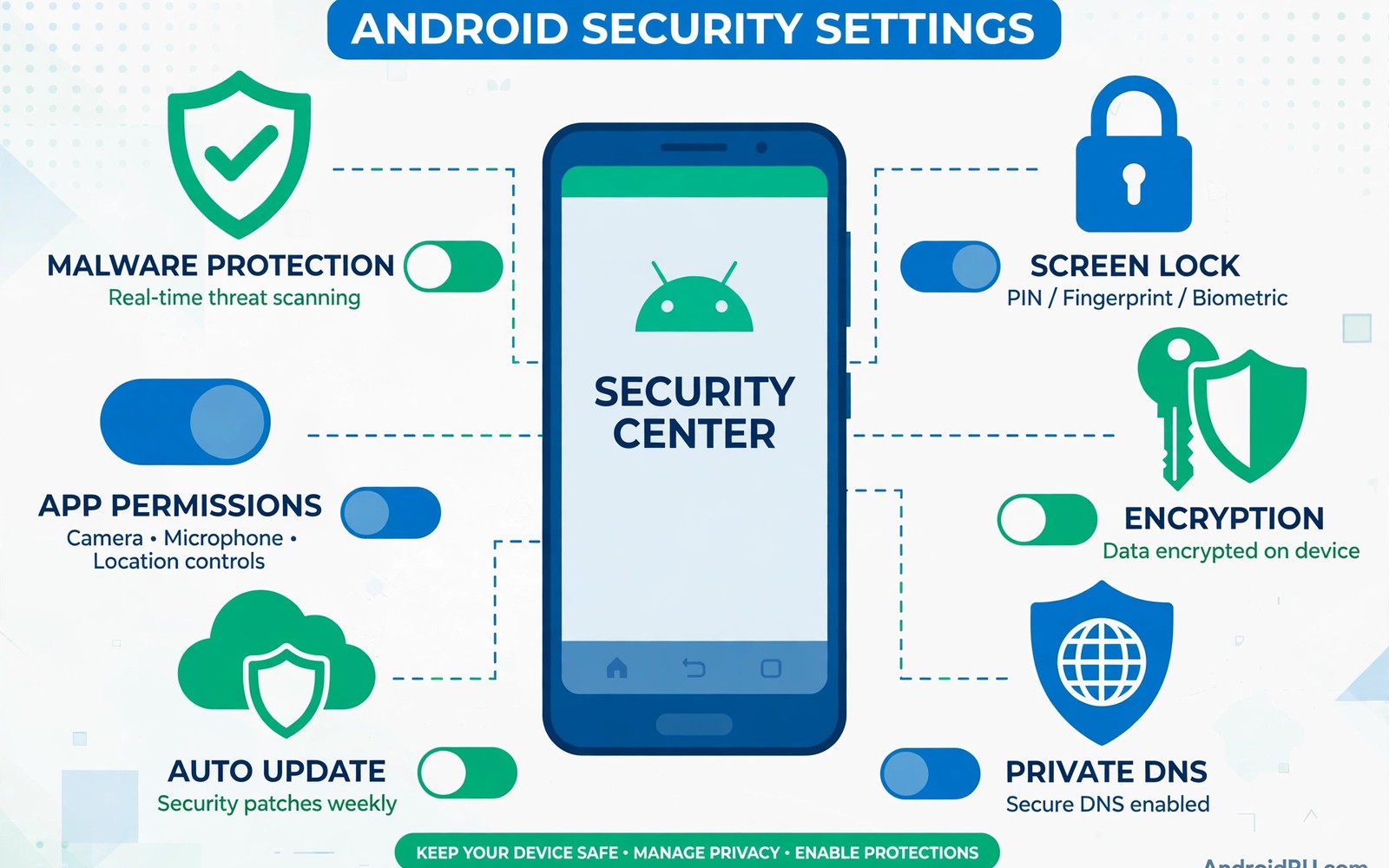
Your phone holds photos and messages and bank details and work files. A few settings decide how hard that data is to reach. Most of them take less than a minute to turn on. This guide walks through the ten settings that matter most. It also explains why each one helps in daily use. Readers who want a deeper look at automated protection can read about daily phone scanning as a companion habit.
Start with the settings that block strangers and stop silent data leaks. Then move to account protection and network safety. You do not need special tools for any step here. Every control sits inside the normal Settings app. Work through the list once and then repeat the check every few months.
Lock Your Screen With A Strong Method
A short PIN is easy to guess when someone watches you type. A longer password or a strong PIN raises that effort a lot. Biometrics add speed but they should support a strong backup method. Choose a method you can type fast without errors. A method you hate will tempt you to turn the lock off.
Set the screen to lock after a short idle time. Thirty seconds is a sensible default for most people. Hide sensitive content from lock screen notifications too. That step stops strangers from reading messages at a glance. It also keeps codes and private details off the visible screen.
Turn On Automatic System Updates
Security patches close holes that attackers already know about. Delaying an update leaves those holes open on your phone. Automatic updates remove the need to remember the task. Check the update screen once a month even with automation on. Some phones need a restart to finish an update.
App updates matter just as much as system updates. Old apps can carry known flaws that newer versions fix. Turn on automatic app updates over any network or over Wi-Fi only. Wi-Fi only is the safer choice if your data plan is small. Either choice beats leaving updates off for months.
Review App Permissions Every Month
Many apps ask for more access than they truly need. A torch app does not need your contacts or your location. A photo editor does not need your microphone. Open the permission manager and sort by the most sensitive access. Remove anything that looks out of place for that app.
Use one-time permissions for apps you rarely open. The system then asks again at the next use. That habit keeps background access under control. It also reminds you which apps still want sensitive data. A monthly review takes about five minutes.
- Camera access for apps that never take photos.
- Microphone access for apps without voice features.
- Location access set to always for shopping apps.
- Contacts access for games and simple tools.
- Files access for apps that only show news.
Protect Your Main Account
Your main account can reset passwords for many services. Guard it with a strong unique password and a second sign-in step. An authenticator app gives stronger codes than text messages. Store backup codes in a safe place away from the phone. That step saves you if the phone is lost.
Review devices signed in to your account each month. Remove old phones and browsers you no longer use. Check recent security activity for sign-ins you do not recognise. Act fast if you see an unknown device or location. Changing the password first limits further damage.
Harden Your Network Habits
Public networks can expose traffic to strangers on the same network. Turn off automatic joining for open networks you do not trust. Use a VPN on networks you cannot verify. Keep Bluetooth and NFC off when you do not need them. Short radio range still gives attackers a window.
Disable file sharing and casting features on public networks. Those features are handy at home but risky elsewhere. Forget old public networks after you leave them. A phone that auto-joins old networks can connect without asking. That silent connection is easy to abuse.
Control What Leaves Your Phone
Backups protect you from loss but they also copy data elsewhere. Check what your backup includes before you rely on it. Turn off backup for apps with highly sensitive data if you prefer. Use a backup password where the system offers one. That extra step protects the backup file itself.
Read the privacy dashboard to see recent data access. It shows which apps used the camera and microphone and location. Patterns there reveal apps that overreach in the background. Readers who install files from outside stores should also study checking files before you install them. Pair that habit with stronger sign-in checks for your key accounts. Small habits like these compound into real protection.
Settings checklist
Screen lock: strong PIN or password
Auto-lock: 30 seconds
System updates: automatic
App updates: automatic
Permissions: reviewed monthly
Account: second sign-in step on
Lock screen: sensitive content hidden
Security is a routine rather than a single switch. Set a reminder to repeat this review each month. New apps and updates can change permissions without fanfare. A quick monthly pass catches those changes early. Keep the habit small so you actually keep it.
Build A Monthly Security Routine
A one-time setup decays as apps update and habits drift. A monthly routine restores the protection that drift removes. Pick a fixed day each month for the review. Put a reminder in your calendar so the day is not forgotten. Open the permission manager first and scan the sensitive grants. Remove access that no longer matches an app purpose. Check the update screen next for pending system patches. Install anything waiting before you finish the session. That single habit closes most slow security decay. Readers who store copies of their data elsewhere should also review account backup safety during the same monthly pass. A backup check and a permission check belong together.
Account review deserves its own slot in the routine. Open the security page for your main account each month. Look at signed-in devices and recent activity with care. Remove devices you sold or stopped using long ago. Change the password if any entry looks unfamiliar to you. Review recovery options while you still control the account. Add a recovery email that you actually monitor daily. Test the second sign-in step on a spare device. A tested recovery path prevents lockouts later. Write the routine steps on paper until they feel automatic. A short written list beats memory under stress.
Children and older relatives often need the same routine. Their phones may run old apps with broad permissions. Sit with them once and walk through the same checks. Turn on automatic updates on their devices too. Show them how to spot a fake warning page. Explain that real updates never arrive inside browser pop-ups. Set their lock screens to hide sensitive notification content. A family routine protects people who rarely read security news. It also gives you a chance to update their backup state. Helping others builds a safer household overall.
Travel changes the risk picture for a phone. Public networks and busy places raise exposure sharply. Review settings before a trip rather than during it. Turn off auto-join for networks you will not trust. Turn on the VPN app and test it at home first. Disable file sharing and casting before you leave. After the trip run the full monthly routine early. Remove saved travel networks from the known list. Check account activity for sign-ins from trip locations. A pre-trip and post-trip check pair covers most travel risk.
Respond To Warnings Without Panic
Warnings feel alarming by design and that alarm can cause mistakes. A calm response protects you better than a fast tap. Read the full warning text before touching any button. Note which app or site triggered the warning. A warning from the system deserves more weight than a web page claim. Web pages cannot scan your phone for viruses. System warnings appear in Settings or in security apps. That distinction alone filters most fake alerts. When unsure close the app or tab and investigate calmly. Panic taps install the very threats warnings describe.
Verify a warning through a second independent route. Open Settings and check the security section directly. Open the store app and check the protection section there. A real threat usually appears in both places. A fake threat appears only on the offending page. Search the exact warning wording on the web if needed. Other users often report the same fake page. A quick search can confirm a scam within minutes. Never call a number shown inside a warning page. Contact support only through an official app or site.
Isolate a suspected app before you decide its fate. Stop using it for sensitive tasks at once. Deny its risky permissions in the permission manager. Turn off its background data and battery access too. Those steps limit harm while you investigate. Back up important data from other apps first. Then uninstall the suspect app through Settings. Restart the phone after removal for a clean state. Watch battery and data use for a few days after. A quiet phone after removal confirms the choice.
Document what happened for future reference. Note the app name and install date and warning text. Note which accounts the app could reach. Change passwords for those accounts in order of importance. Start with email since it resets many other services. Then change banking and work account passwords. Keep a short log of the incident and the fix. That log speeds help from support teams later. It also helps you spot repeat patterns early. A documented incident becomes a lesson rather than a repeat.
Keeping Security Habits Through Device Changes
New phones reset habits unless you transfer them deliberately. Old settings do not migrate automatically in full. Review the full security list on a new device. Check lock method and update settings first. Check permissions for transferred apps next. Transferred apps may regain broad permissions silently. A fresh review on a new phone takes twenty minutes. Those minutes restore years of careful habits. Treat every new device as a fresh security start. Fresh starts prevent inherited weaknesses.
Software updates sometimes reset toggles without notice. A major update may change privacy defaults. Check settings after every major version upgrade. Look at permissions and network toggles first. Look at notification privacy settings next. A post-update check catches silent resets early. Make it part of update day routine. Update day plus check day belong together. That pairing keeps updates from weakening safety. Small checks preserve large protections.
Work phones need separation from personal habits. Work profiles isolate company apps from personal apps. Personal apps cannot read work profile data easily. That boundary protects both sides of life. Ask IT teams about profile setup options. Follow company rules for work profile use. Personal habits inside work profiles still matter. Keep work apps updated and locked always. Separation plus habits gives the strongest result. Two layers beat either layer alone.
Security fatigue causes users to ignore warnings. Too many alerts train users to dismiss them. Reduce alert noise by removing risky apps. Fewer risky apps mean fewer warnings. Keep only warnings that demand action. Act on security alerts the same day. Delayed action turns warnings into breaches. A calm daily check beats alert overload. Routine checks replace reactive panic well. Sustainable habits protect longer than intense bursts.
Teach security habits through stories rather than rules. Stories about real losses stick better. Share a story about a lost phone recovery. Share a story about a phishing message avoided. Stories make abstract risks feel concrete. Concrete risks motivate careful behaviour. Ask listeners what they would do differently. Discussion builds ownership of habits. Ownership sustains habits without reminders. Stories are the oldest teaching tool for a reason.
Review your security posture at year end. A yearly review catches slow drift comprehensively. List devices and accounts and backups together. Retire devices and accounts you no longer use. Update recovery details for remaining accounts. Refresh backup copies for important data. A yearly reset aligns habits with current life. Life changes create new risks silently. Yearly reviews surface those risks clearly. End each year safer than you started it.
The steps above follow the approach described in the official developer documentation for Android security and privacy. That documentation explains the same controls in general terms for phone owners who want a safer device.

