

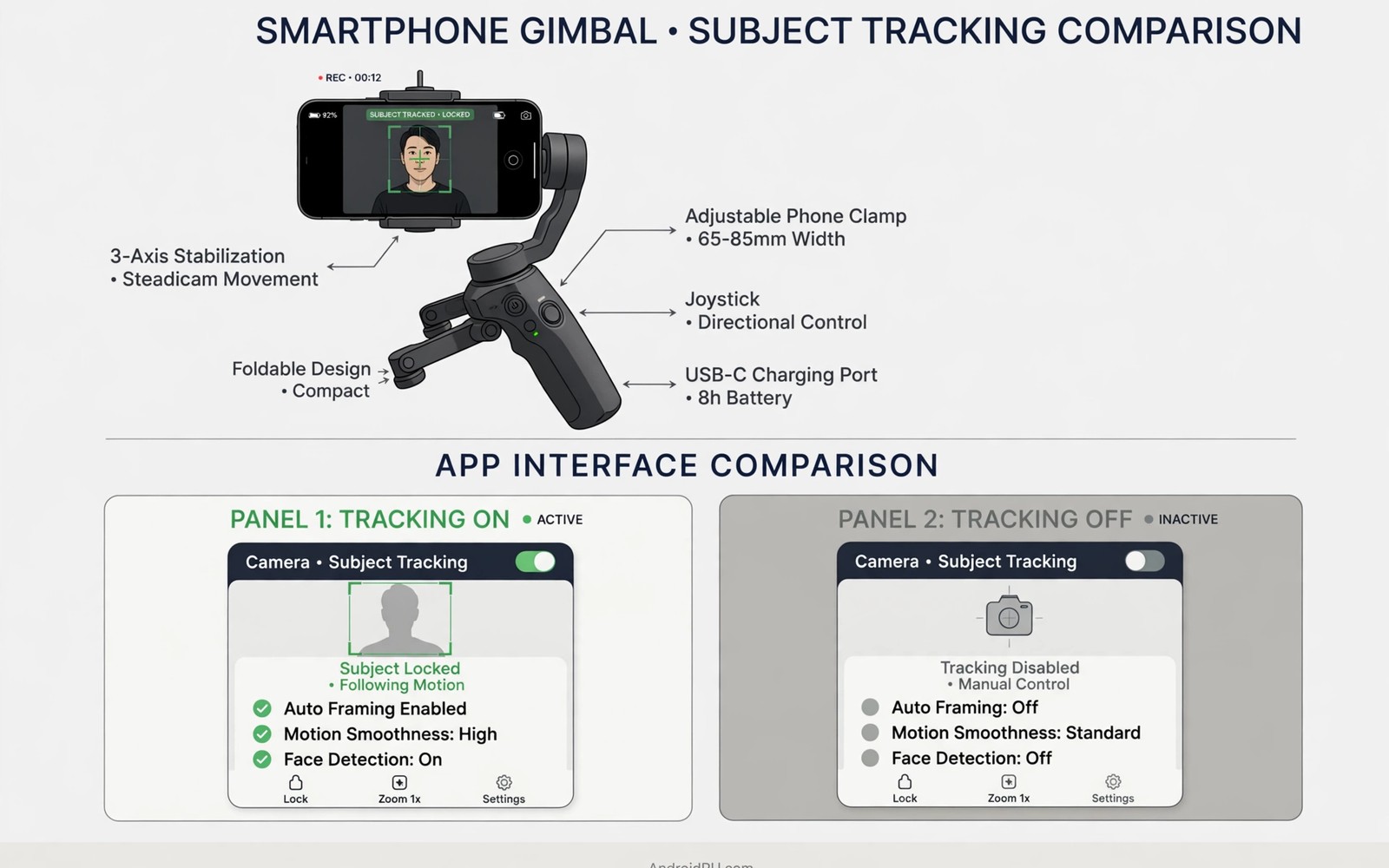
A gimbal can steady a phone in two software worlds. The native camera app uses the phone built-in tracking and stabilisation. The companion app from the gimbal maker adds tracking modes and gestures and creative moves. Both worlds produce smooth video but they differ in control and quality.
Native apps offer the best image processing a phone can deliver. Computational photography and video features work fully because the maker tunes them for the hardware. Companion apps may lack the newest phone features or process video differently. Quality and control pull in opposite directions.
This guide compares the two workflows across tracking modes and gestures and output quality. It covers switching habits and the situations where each workflow wins. The goal is a tracking setup that matches how you actually shoot.
Native App Tracking Strengths
Native camera apps benefit from deep hardware integration. Focus tracking and exposure and colour processing work together seamlessly. Night video and high dynamic range video look their best in the native app. No third party app matches this integration fully.
Native apps also receive phone system updates that improve camera quality over time. New video modes appear through system updates without waiting for a gimbal maker. A gimbal used with the native app ages better in image quality terms. The phone maker keeps improving the core camera.
Some gimbals support basic tracking with native apps through hardware controls. A trigger button can start face tracking that the gimbal handles mechanically. This hardware tracking works across apps because the mount moves itself. Check whether your gimbal offers hardware tracking before assuming an app is required.
Native workflow suits shooters who prioritise picture quality above creative modes. Documentary work and family video and low light scenes benefit most. The footage needs less grading because colours already look natural. Quality-first shooters should start native.
Companion Software Tracking Strengths
Companion apps unlock the full gimbal feature set. Object tracking and gesture control and panorama modes live here. Creative moves like dolly zoom and motion timelapse need companion software. No native app offers this breadth of gimbal-specific tools.
Gesture control is a standout companion feature. A raised hand can start tracking and a specific pose can trigger a photo. Solo creators operate the gimbal from in front of the camera without touching it. Gestures turn a gimbal into a remote camera operator.
Companion apps often include editing tools and templates for quick sharing. Clips can be trimmed and captioned and exported without leaving the app. Social creators value this speed when posting daily. The all-in-one flow suits high volume creators.
Companion tracking modes go beyond faces. Some apps track objects and pets and vehicles with dedicated modes. Sports and product videos benefit from object tracking. Native face tracking alone cannot follow a moving product well.
Video Quality Differences
Companion apps sometimes record video with different processing than native apps. Bitrate and stabilisation and colour may all differ. Compare the same scene in both apps at full size before choosing. Small screens hide differences that large screens reveal.
Resolution and frame rate options may differ between apps. A companion app might cap resolution below the phone maximum. A native app always offers the full range the hardware supports. Check maximum settings in both apps when quality matters.
Audio handling can differ too. Companion apps may process audio differently or limit external microphone options. Test your microphone in both apps before an interview. Audio differences surprise creators who only compare picture.
File management differs as well. Companion apps may store clips in their own library rather than the main gallery. Exporting clips adds steps to the workflow. Confirm where files land and how easily they move to an editor.
Gesture and Control Comparison
Native apps rely on the gimbal hardware buttons for control. A joystick pans and tilts and a trigger recentres or locks. Button control is fast and tactile during a take. It lacks the remote gestures that companion apps provide.
Companion gestures allow hands-free control from in front of the lens. Start tracking with a wave and stop with another gesture. The presenter never touches the gimbal during a performance. This freedom suits dance and fitness and presentations.
Gesture reliability varies with light and distance and background clutter. Bright even light improves gesture recognition. Dim rooms and busy backgrounds cause misreads. Test gestures in your real shooting space before relying on them live.
Some creators combine both worlds in one shoot. They use companion tracking for performance segments and native capture for quality segments. Switching apps mid-shoot costs time but yields the best of both. Plan switches at natural breaks in the shoot.
- Test video quality from both apps on the same scene at full size before choosing.
- Check maximum resolution and frame rate in the companion app against native limits.
- Test microphone behaviour in both apps before any interview or dialogue shoot.
- Learn companion gestures at home and confirm they work in your shooting space.
- Plan app switches at natural breaks when combining both workflows in one shoot.
Choosing Your Tracking Workflow
Choose native capture when picture quality leads your priorities. Low light work and high dynamic range scenes and colour-critical projects suit native best. Accept simpler tracking in exchange for the best image the phone can make.
Choose companion software when creative tracking modes lead your priorities. Solo performance and object tracking and gesture control justify the quality trade. Accept possible processing differences in exchange for operator-free shooting.
Choose hardware tracking when your gimbal offers it and you want both worlds. Hardware tracking moves the mount regardless of app. Pair it with native capture for quality plus tracking. Verify hardware tracking support before buying for this purpose.
Revisit the choice when phones or gimbals update. A new phone may improve native tracking enough to change the balance. A companion app update may close the quality gap. Test both workflows again after major updates.
GIMBAL TRACKING WORKFLOW CHECK
1 Native app tested for maximum quality
2 Companion app tested for tracking modes
3 Same scene compared at full size in both apps
4 Microphone tested in the chosen app
5 Gestures tested in real shooting space
6 File location confirmed for easy editing
Tracking in Low Light
Low light weakens tracking because vision systems need visible features. Faces in dim rooms lose the contrast that tracking relies on. Add a key light near the camera before starting tracking. Light helps tracking reliability as much as picture quality.
Native apps often track better in low light because their processing is tuned for the sensor. Companion apps may lose tracking sooner as light falls. Test both workflows in your actual low light space. Real room tests beat spec claims.
Noise in low light video can confuse tracking algorithms. Grainy frames make features flicker between frames. The tracker may drift or jump as noise shifts apparent features. Brighter light reduces noise and stabilises tracking together.
Switching Between Apps Mid-Shoot
Switching apps mid-shoot costs time and risks missed moments. The gimbal may need reconnection when the app changes. Plan switches at scene breaks rather than during action. A planned switch feels professional while a rushed switch feels chaotic.
Keep both apps open in the background to speed switching. Background apps reconnect faster than cold starts. Check that background apps do not drain the battery excessively. Close unused apps at the end of the shoot day.
Record a short test clip after every app switch. The test confirms tracking and audio and resolution in the new app. A ten second test prevents a full scene recorded with wrong settings. Tests are cheap insurance.
Firmware Updates and Feature Changes
Gimbal firmware updates can add tracking modes or change existing behaviour. Read update notes before installing to learn what changes. A mode you rely on may move or behave differently after an update. Notes prevent surprises on shoot day.
Update firmware well before important shoots and test afterwards. A shoot morning is the worst time to discover changed controls. Practice with new modes at home first. Familiarity matters more than novelty for paid work.
Companion app updates can change video processing or file locations. Check export settings after major app updates. Files landing in a new library confuse editing workflows. Confirm file locations before the next shoot.
Tracking for Presentations
Presentation tracking follows a speaker across a stage or front of a room. The speaker moves between slides and audience sections naturally. A tracking gimbal keeps the speaker framed without an operator. Solo presenters record professional talks without crew help. Tracking turns a phone into a presentation camera crew.
Presentation tracking needs moderate speed because speakers move deliberately. Fast tracking overshoots when speakers pause suddenly. Gentle tracking follows pauses and turns smoothly. Set speed for presentation pace rather than sports pace. Wrong speed makes calm talks look jittery.
Slide screens behind presenters can confuse tracking with bright changing content. The system may lock onto screen movement instead of the speaker. Position the gimbal so slides stay out of the central tracking zone. A side angle that keeps slides at the frame edge tracks more reliably. Test with actual slides before the talk.
Battery Management During Tracking Shoots
Tracking shoots drain both gimbal and phone batteries faster than static shoots. Motors work continuously while tracking movement. Phone processors work harder running tracking software. Carry power banks for both devices on tracking days. A dead battery mid-presentation loses the whole talk.
Reduce phone battery drain by closing unused apps during tracking. Background apps compete for processor and battery. Airplane mode saves battery when no connectivity is needed. Brightness also drains battery so dim the screen when possible. Small savings add up across long sessions.
Plan battery swaps at natural breaks between talks or segments. Swapping mid-talk interrupts recording and loses content. A schedule of breaks protects both batteries and presenters. Communicate break timing to presenters in advance. Planned breaks feel professional while emergency swaps feel chaotic.
For stabilisation basics, see how three axis gimbals compare with electronic stabilization which explain why gimbals beat software alone.
For operator-free framing, see AI-powered tracking tripods for content creators which follow presenters without a gimbal.
For steady handheld work, see handheld video grips that improve ergonomics for mobile cameras and reduce fatigue on long takes.
The steps above follow the approach described in the official developer documentation and standard manufacturer guidance for gimbal control and mobile video capture. The workflow comparison reflects common practice for tracking with native and companion software. Use them as a baseline and test both workflows on your own phone and gimbal before a shoot that matters.

