

Your phone knows when an app opens your camera and when it reads your location and when it listens through your microphone. That knowledge used to stay hidden inside system logs that only specialists could read. Android Privacy Dashboard turns those hidden records into a simple timeline that any phone owner can open and understand. You can see which app used a sensitive permission and when that use happened and how often it happened during the day. That visibility changes how you judge an app because a single access at the moment you take a photo tells a very different story from repeated access while the screen is off and the phone sits idle in your pocket.
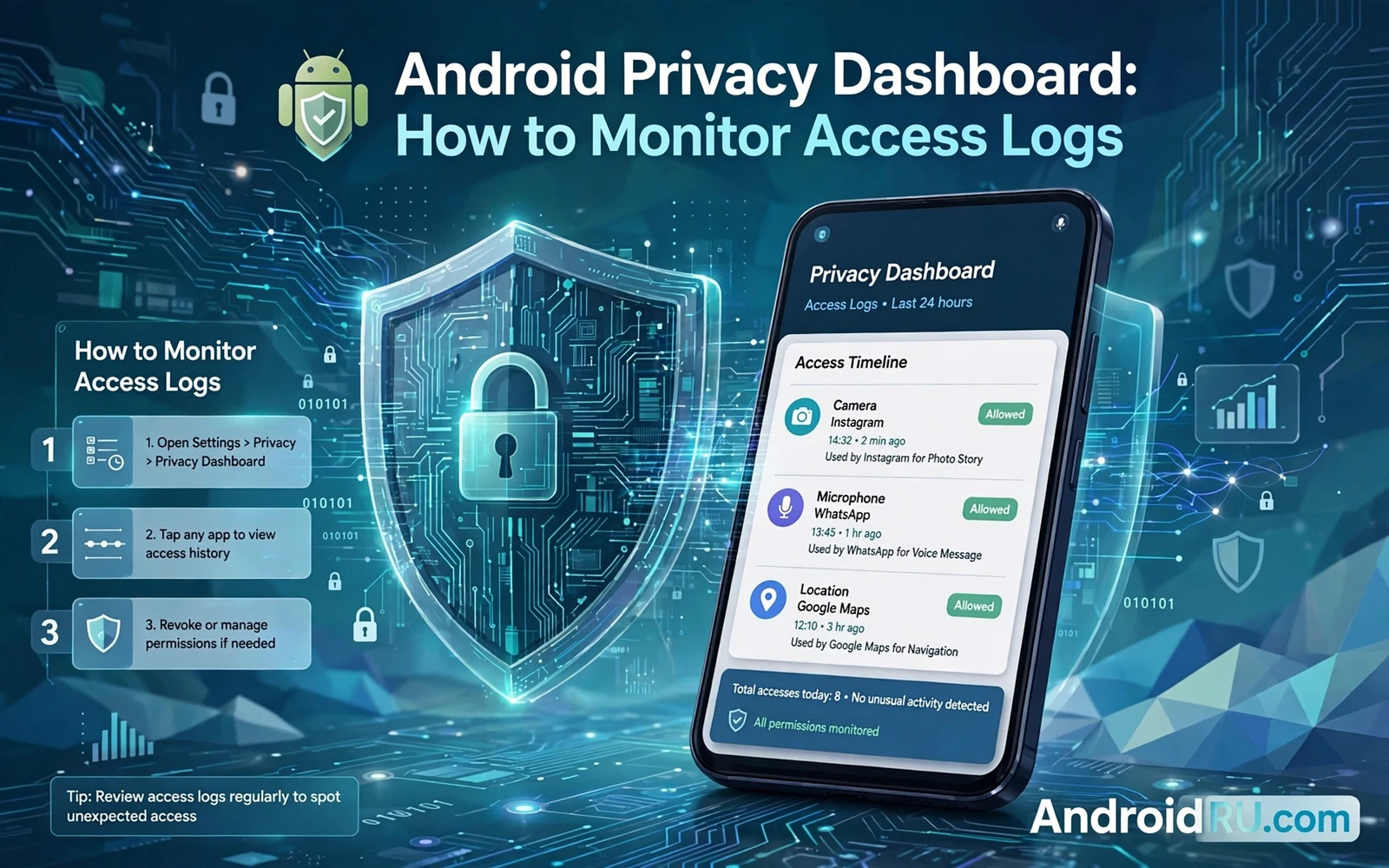
Open Privacy Dashboard from the privacy section of your phone settings and start with the timeline for the current day. The screen groups access by permission type so camera use and microphone use and location use each get a clear view. Tap one permission type to see the apps that used it and tap an app name to see the times when it asked for that permission. Look for patterns rather than single events because a pattern reveals intent far better than one isolated entry. An app that checks location once when you open a map is behaving in a normal way. An app that checks location through the night while you sleep deserves a hard question about why it needs that data at all.
Read The Timeline Like A Diary Of Your Phone
Think of the timeline as a diary that records only sensitive moments and nothing else. Each entry answers three simple questions about an app and its behaviour. The first question asks which permission was used and the second asks when the use happened and the third asks whether you were actively using the app at that time. When all three answers line up with an action you remember then the access was almost certainly legitimate. When the timing does not match anything you did then you have found a reason to investigate further. That simple test keeps you from panicking over normal access while still catching access that has no good explanation.
Pay close attention to access that happens in the background because background access is where careless design and hostile design look most alike. A messaging app may need the microphone while you record a voice note and that use is visible and expected. The same app does not need the microphone at three in the morning when no message is being recorded and no call is in progress. A fitness app may need location while you track a run and that use makes sense in context. The same app does not need precise location while you sit at home watching a film. Background entries are not proof of wrongdoing on their own but they are the entries that deserve your attention first.
Frequency matters as much as timing because a permission used once in a week is a different risk from a permission used dozens of times in a single day. Privacy Dashboard shows that frequency in a visual way so you can spot an app that polls a sensor again and again. Repeated polling can drain a battery and it can also build a detailed picture of your movements and your surroundings over time. If an app polls location constantly then consider whether approximate location would serve the same purpose with far less detail. If an app polls the microphone repeatedly then consider whether it needs microphone access at all outside the moments when you deliberately use a voice feature.
Turn An Entry Into A Decision About Permissions
Every suspicious entry should lead to one clear decision about the future of that permission. You can keep the permission exactly as it is when the access matches a feature you value and use often. You can change the permission to allow access only while you use the app when background access is the problem and foreground access is still useful. You can switch location to approximate when a feature needs a general area rather than an exact street address. You can remove the permission entirely when the app offers no feature that justifies that kind of access. Each choice is reversible so you can restore a permission later if a feature stops working and you decide that the trade is worth making.
Start your review with apps that you installed recently because new apps are the most likely source of a surprise. Then review apps that you rarely open because an app you never use should never need sensitive access in the background. Then review apps from developers you do not recognise because a familiar name is not a guarantee of safety but an unknown name deserves extra care. Work through one permission type at a time rather than trying to fix everything in one sitting. A short review once a week keeps the task small and it also helps you notice changes quickly when an update changes how an app behaves.
When an access log looks strange then learning how hidden spyware signs appear on a phone can help you judge whether the pattern points to a careless app or to something deliberately concealed. A dashboard entry on its own never proves that spyware is present but a pattern of secret background access plus other warning signs should push you toward a deeper check. Keep the dashboard open while you review other symptoms so that timing and behaviour stay connected in your mind. That connection between a log entry and a real symptom is what turns a vague worry into a concrete next step.
Build A Weekly Routine That Keeps Logs Honest
Privacy Dashboard works best when you treat it as a weekly habit rather than a one time rescue tool. Set a regular moment each week to open the dashboard and scan the timeline for each sensitive permission. Note any app that appears in the background section and ask whether you used that app recently and whether its features explain the access. Revoke or narrow any permission that fails that simple test and then watch the next week timeline to confirm that the change held. If an app asks for the permission again then decide in the moment whether the request matches a feature you actually want.
Location entries deserve a separate pass during your weekly review because location data reveals home and work and travel patterns with unusual precision. For each app that used location ask whether it needed your exact position or only your general area. A weather app and a news app and a shopping app usually work well with approximate location. A navigation app and a ride app genuinely need precise location while a trip is active. Turning off precise location for apps that only need a general area reduces the detail that any single app can collect about your life without breaking the features you enjoy.
Maps and rides still need precise location at the moment of use so a strict approach to location should stay flexible for apps you trust for travel. The habit that ties location control together is learning how disabling location tracking for specific apps works in practice so that each decision in the dashboard can be followed by a precise change in settings. That pairing of observation and action is the core skill of this guide. You observe first and you act second and you verify third and the dashboard gives you the evidence for all three stages.
Handle Sensitive Apps With Extra Care
Banking apps and health apps and work apps deserve stricter attention because the data behind their permissions is more sensitive than a casual game or a news reader. Check whether a banking app accesses location only during a transaction or whether it also records location in the background. Check whether a health app uses the microphone only for a voice note or whether it also listens at other times. Check whether a work app uses the camera only when you scan a document or whether it also opens the camera at unexpected moments. Stricter rules for sensitive apps cost little effort and they protect the accounts and records that matter most.
Children and shared devices add another reason to review access logs carefully because a phone used by more than one person collects permissions for more than one set of habits. Review the dashboard together with other users of the device when that is appropriate and explain why a permission was narrowed or removed. A shared understanding prevents a removed permission from being restored without thought and it also teaches younger users to ask why an app wants access before they grant it. Privacy becomes a shared habit rather than a secret setting that one person guards alone.
Private documents and private apps need their own layer of protection beyond a permission decision. Once you understand which apps touch sensitive sensors then you can also think about where sensitive files live on the device. A useful next step is exploring how Android Private Space keeps sensitive documents apart from everyday apps so that a permission granted to a casual app cannot reach files that belong in a separate locked area. That separation complements the dashboard because the dashboard controls sensors while Private Space controls storage and visibility.
End each review by checking that your changes survived and that no app quietly regained a permission after an update. Open the dashboard again after a day or two and look for the apps you restricted. If an app still appears in the background section then revisit its settings and consider removing it entirely when its behaviour does not improve. If the timeline looks calm then you have evidence that your choices are working. That calm timeline is the reward for a routine that takes only a few minutes and that keeps your phone honest about what it shares and when it shares it.
Compare Access Across Similar Apps
Comparing similar apps side by side reveals which developer respects privacy and which developer collects far more than its peers. Open the dashboard for a messaging app and then open it for a second messaging app and compare their camera and microphone entries over the same week. An app that accesses a sensor rarely while offering the same features as a rival that accesses it constantly is making a more respectful choice. That comparison is fair because both apps serve the same purpose and only their data habits differ. Use the comparison when you choose between two apps that otherwise seem equal in features and design.
Keep a simple note of apps that you restricted and the date when you restricted them. A short note helps you remember why a feature changed and it also helps you spot an app that quietly requests the same permission again after an update. When an update restores a permission then decide fresh whether the new version deserves it. Updates sometimes add a genuine feature that needs access and sometimes they simply reset choices to collect more data. A note turns that decision from guesswork into a review of your own earlier reasoning. Over months those notes build a personal privacy history that is far more useful than a single dashboard snapshot.

