

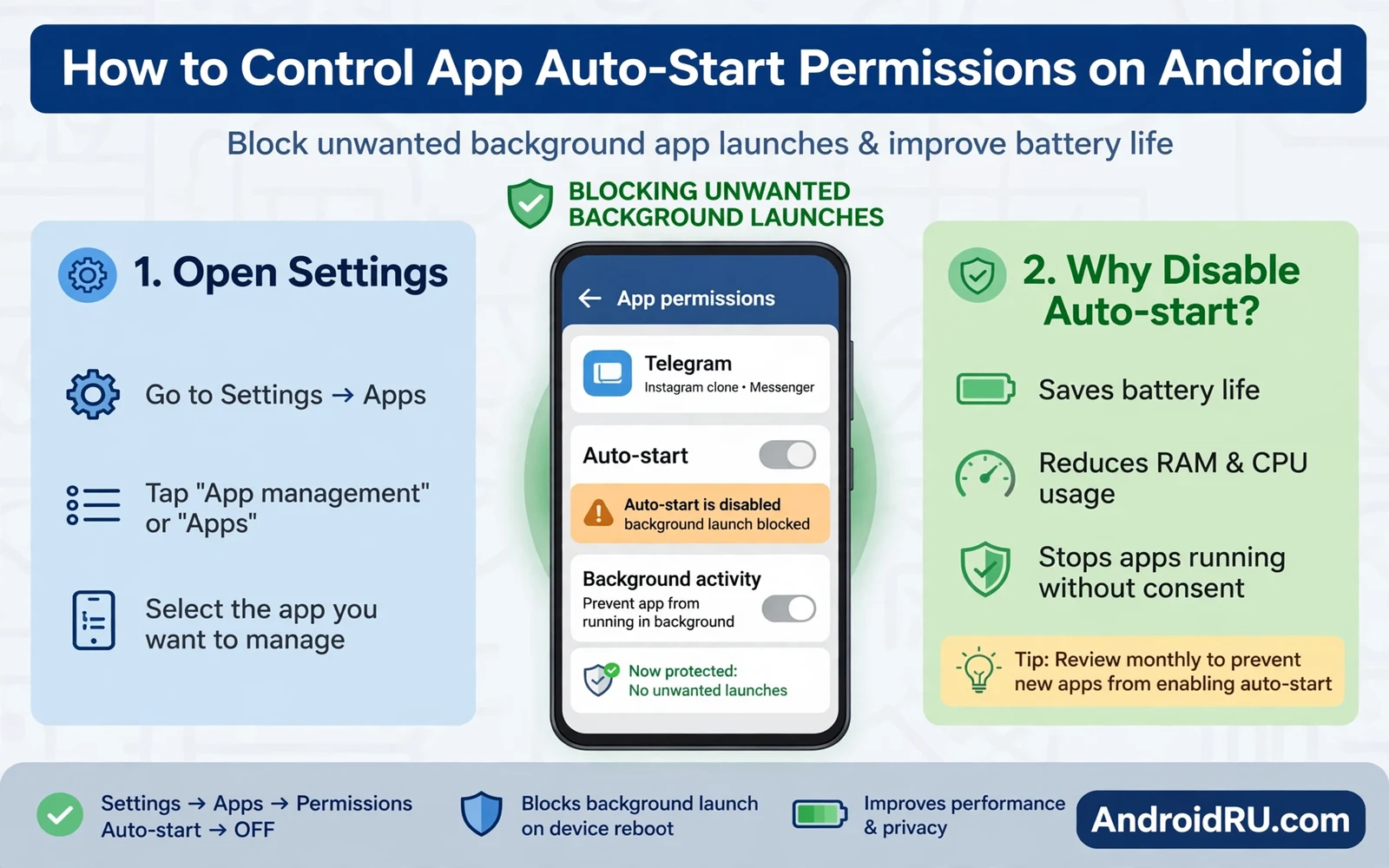
Auto start permissions control whether an app can launch itself after a phone restart or after another app triggers it. Many apps request auto start to deliver messages or to refresh content in the background. Some apps abuse auto start to run constantly and to drain battery and memory. This guide explains how to control app auto start permissions on Android. It covers system controls and maker differences and safe choices for messaging apps. Readers will learn how to cut waste without breaking important alerts.
Auto start differs from background data and from battery optimization even though all three affect background behavior. Auto start governs launch triggers after boot and after system events. Background data governs network access while the app runs in the background. Battery optimization governs how aggressively the system restricts background work. An app can hold one permission while lacking another. Owners who tune only one layer may miss the layer that actually causes drain. A full review covers all three layers for problem apps.
Background app management explains why some apps restart even after owners close them. Readers who want that system view can study how Android handles background apps and memory management before changing auto start rules. Android may restart apps for notifications and for scheduled tasks and for system events. Auto start controls limit those restarts for chosen apps. System level restarts for core services still occur when the system needs them. That distinction prevents surprise when a restricted app still wakes for a critical task.
Where Auto Start Controls Live
Stock Android does not expose a single auto start toggle for every app in one place. Owners control related behavior through battery settings and notification settings and app info screens. Some phone makers add a dedicated auto start manager inside security or battery settings. Xiaomi and Oppo and Vivo phones often include such a manager with per app toggles. Samsung phones offer related controls through battery and background usage limits. Owners should search settings for auto start or background activity when a dedicated screen stays hidden.
- Open app info for the app in question
- Review battery settings for background limits
- Search settings for auto start manager on maker skins
- Turn off auto start for shopping and game apps first
- Keep auto start on for messaging and alarm apps
Maker differences frustrate owners who follow a guide written for another brand. A toggle name on one phone may appear under a different name on another phone. A menu path that works on stock Android may fail on a heavily skinned phone. Owners should use settings search with terms such as auto start and background and battery. Settings search usually finds the right screen faster than browsing menus. Screenshots from the exact phone model help when a guide path differs.
Which Apps Should Keep Auto Start
Messaging apps often need auto start to deliver calls and messages promptly after a restart. Alarm apps need auto start to ring reliably after a restart. Calendar apps may need auto start for timely reminders. Security apps may need auto start for protection after boot. Owners should keep auto start on for apps where a missed alert carries real cost. A missed work message or a missed alarm outweighs small battery savings. Owners should test messaging delivery after any restriction change.
Notification history review helps owners catch delayed messages after auto start changes. Readers who tune alerts can learn how to view dismissed alerts in Android notification history and check whether important alerts arrived late. A delayed alert pattern points to an over restricted app. Owners can restore auto start for that app while keeping restrictions elsewhere. That targeted fix beats blanket changes that break communication.
Which Apps Can Lose Auto Start Safely
Shopping apps rarely need instant launch after boot because owners open them deliberately. Games rarely need auto start because gameplay starts with a tap. News apps can wait for an explicit open rather than pushing constant refresh work. Social apps can survive delayed refresh when owners check them manually. Utility apps that run only on demand can lose auto start without harm. Owners should restrict these categories first and observe battery and speed gains.
Essential setup tuning supports auto start decisions with broader battery and notification rules. The guide on essential system settings to change on new Android phones covers notification and battery controls that complement auto start limits. A phone with calm notifications needs fewer background launches. A phone with sensible battery rules wastes less power on idle apps. Auto start control works best inside that wider calm setup.
Testing Changes Without Breaking Alerts
Owners should change auto start for a small group of apps at a time. A small batch makes it easy to spot which change caused a missed alert. Owners should wait a full day after each batch before judging battery gains. A single day gives messaging and scheduling behavior enough time to reveal problems. Owners should restart the phone after changes to test boot behavior directly. A restart test reveals whether important apps still launch as needed.
A missed alert after restriction deserves a quick diagnostic pass before panic. Owners should check notification permission and battery optimization and auto start for that app together. One of those three layers usually explains the delay. Owners should restore the most permissive setting for that app first and then tighten other layers gradually. Communication apps deserve a conservative approach because reliability matters more than marginal battery savings.
Auto Start And Security
Auto start abuse can serve adware and tracking because a persistent app can monitor activity continuously. An app that restarts after every close and that requests broad permissions deserves scrutiny. Owners should uninstall apps that demand auto start without a clear purpose. Security best practice favors least privilege for every app. An app should hold only the launch rights that its stated job requires. Owners who audit auto start regularly catch abusive apps early.
Controlling auto start turns a phone from a noisy crowd of self launching apps into a calm tool that waits for owner intent. Messaging and alarm apps keep their launch rights because reliability matters. Shopping and game and news apps lose launch rights because deliberate opens serve them well. Maker menus vary yet settings search finds the right controls on most phones. A careful batch by batch approach protects alerts while cutting waste. That balance gives owners better battery and better memory and a quieter phone.
Auto Start And Phone Performance
Auto start restrictions improve perceived performance by reducing background competition for memory. A phone with fewer self launching apps keeps more memory free for the foreground app. That free memory reduces reloads when switching apps. Owners notice smoother switching after restricting shopping and game apps. Performance gains feel larger on phones with limited memory. Owners of high memory phones may notice smaller gains yet still enjoy calmer background behavior.
Boot time also improves when fewer apps launch at startup. A phone that launches many apps at boot takes longer to settle. Owners may notice heat and sluggishness during the first minutes after restart. Restricting unnecessary auto start shortens that settling period. A calm boot lets owners use the phone immediately after restart. That immediate usability matters during urgent moments after a restart.
Storage and auto start interact indirectly because apps that launch often also write caches and logs. A restricted app writes less background data over time. That reduction keeps storage cleaner on phones with tight space. Owners should still manage storage directly through app settings and file cleanup. Auto start control complements storage hygiene rather than replacing it. Together they keep older phones usable longer.
Auto Start Myths And Facts
A common myth claims that restricting auto start always breaks notifications. That claim overstates the effect because notification delivery uses several channels. An app with auto start off can still receive push messages through system services in many cases. Messaging apps deserve caution yet shopping apps rarely suffer notification harm from restriction. Owners should test each app rather than trusting blanket myths. Testing reveals real effects for the exact phone model.
Another myth claims that task killer apps manage auto start better than system settings. Task killers often fight the system and cause repeated restarts that drain battery. System settings and maker managers work with Android scheduling rather than against it. Owners should avoid third party task killers for auto start control. Native controls provide safer and more predictable results. Third party killers add risk without adding control.
A third myth claims that auto start settings never matter on modern Android because the system manages everything. System management helps yet maker skins and app behavior still vary widely. Some apps request aggressive restart behavior that system defaults permit. Owner intervention through auto start controls still matters on such phones. Modern Android reduces the need for constant tuning yet it does not remove owner judgment. Informed owners still outperform default settings for their own habits.
Auto Start And Digital Wellbeing
Auto start control supports digital wellbeing because fewer self launching apps means fewer unexpected notifications. An app that cannot launch itself cannot interrupt as often. Owners gain quieter days without silencing important channels. That quiet supports attention and reduces stress from constant pings. Digital wellbeing tools and auto start controls work toward the same calm goal. Owners who use both enjoy a phone that respects attention more fully.
Notification batching complements auto start control by grouping remaining alerts into digest windows. An owner can receive social updates twice daily rather than constantly. Batching reduces interruption while preserving information access. Owners should configure batching for low priority apps after restricting auto start. That combination delivers calm without ignorance. Calm phones serve wellbeing better than silent phones that hide urgent news.

