

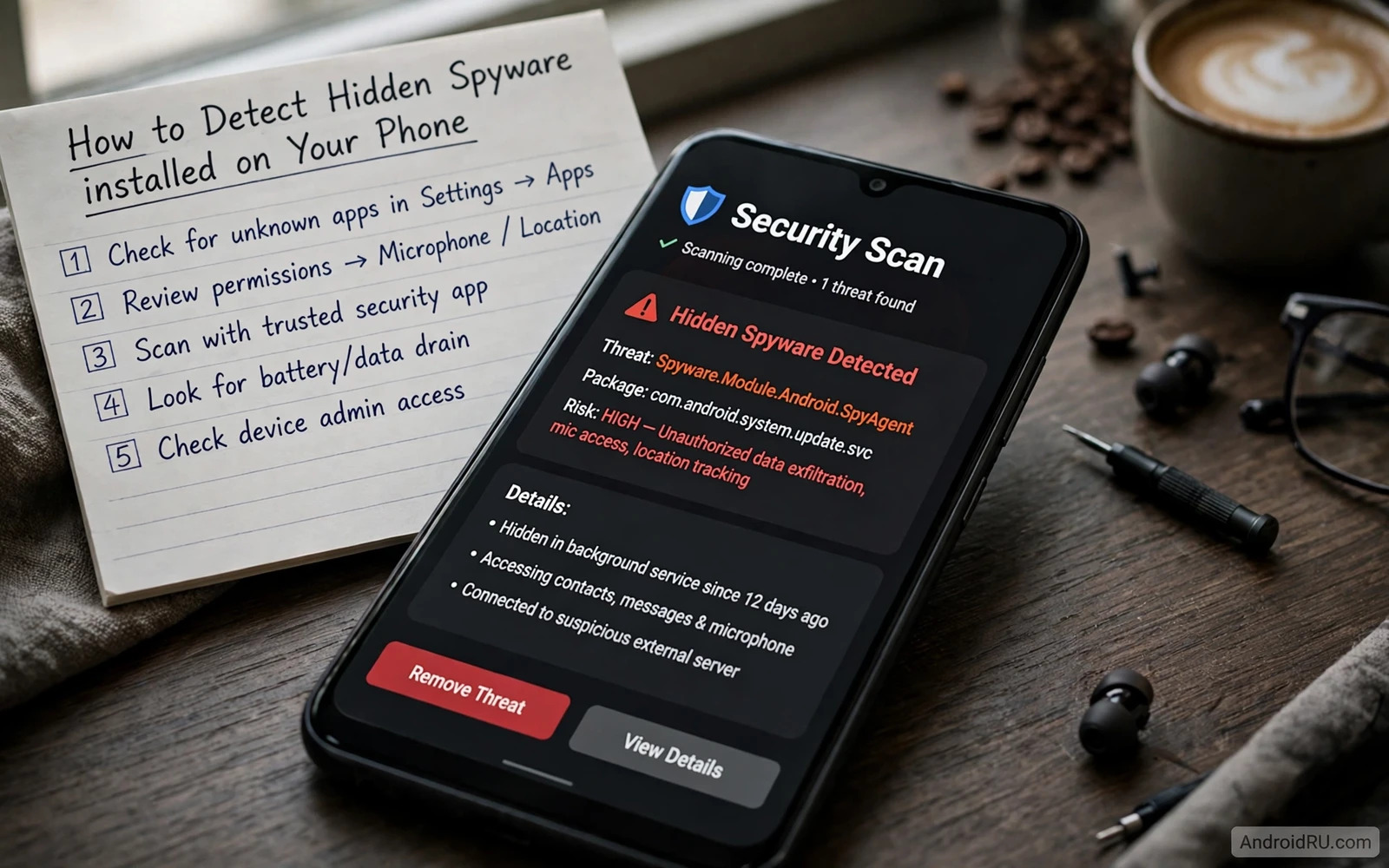
Hidden spyware is software that watches your phone while trying hard not to be seen. It may record calls and read messages and track location and copy photos while showing no icon and no obvious window. The danger is not only the watching itself but also the silence around it because a victim may carry the problem for weeks without knowing that private life is being copied. Detection therefore starts with behaviour rather than with a single scan. You look for changes in battery life and data use and performance and permissions and then you connect those changes into a picture that points toward a hidden watcher or toward a simpler explanation.
Start with battery behaviour because constant recording and constant uploading consume power in a steady way. A phone that suddenly loses charge much faster than before deserves attention even when no new app explains the change. Open battery usage in settings and look for an app or a system entry that uses a large share of power without a matching amount of screen time. A navigation app used for hours will naturally use power. A quiet utility that you never open should not sit near the top of the battery list. Battery evidence alone never proves spyware but a strange entry at the top of that list is a strong reason to keep investigating.
Watch Data And Performance For Quiet Uploads
Spyware must send what it collects somewhere and that sending leaves a trail in mobile data use. Open data usage in settings and look for an app that uploads far more data than it downloads or that uses data heavily in the background. A video app will download heavily and that pattern is normal. A small tool that uploads steadily day after day is not normal. Check data use over a full month rather than a single day so that a one time update does not mislead you. Also watch for data use that continues when you are on Wi-Fi at home and when you expect background traffic to fall quiet.
Performance changes can also signal a hidden process that runs beside everything else. A phone that feels warm while idle and that lags when opening simple apps may be carrying an extra workload. Heat and lag have many innocent causes and a failing battery or a heavy update can produce the same symptoms. The useful test is whether the symptoms persist after a restart and after closing all visible apps. Persistent warmth and persistent lag with no visible app running should raise suspicion. Combine that observation with battery and data evidence before you jump to a conclusion about any single cause.
Strange behaviour in calls and messages deserves the same careful attention. Echoes and clicks and sudden drops during calls can come from a poor network and they should not be treated as proof on their own. Messages that appear as read when you have not opened them and settings that change without your action are more specific warning signs. A screen that lights up for no reason and a phone that restarts on its own can also matter when they happen repeatedly. One odd event is usually noise. A cluster of odd events across battery and data and messages is a pattern worth acting on.
Inspect Permissions And Installed Apps With Care
Open the full app list in settings and include system apps in your review because spyware often hides behind a bland name that sounds like a system tool. Look for apps that you do not remember installing and for apps with generic names and no clear purpose. Tap each suspicious entry and read its permissions. An app that holds accessibility access and device admin rights and permission to read messages and permission to track location at all times has the toolkit of a watcher. No single permission proves guilt because accessibility helps genuine tools as well. A combination of powerful permissions in an app you do not recognise is the danger signal.
Check device admin apps in security settings because a watcher may use admin rights to resist removal. An unknown admin app should be investigated before you try to uninstall it. First revoke its admin rights from the same security screen and then attempt removal through the normal app settings. If removal fails then restart in safe mode where third party apps cannot run and try again from that cleaner state. Safe mode is also useful for observation because spyware symptoms that vanish in safe mode point toward a third party app rather than a system fault. That distinction saves you from resetting a phone that only needed one app removed.
Permission history adds a second layer to this inspection. When you find a suspicious app then open its permission timeline and see when it used the camera and the microphone and location. A timeline that shows background use at night or during idle periods strengthens the case for removal. That habit of checking logs before acting also connects naturally with learning how Android Privacy Dashboard access logs reveal background sensor use across all apps on the device. Dashboard evidence plus a strange app entry gives you two independent reasons to act rather than a single hunch.
Scan And Remove Without Making Things Worse
Run a security scan with a trusted scanner that is already built into the phone before you install any new security app from an unknown source. A built in scan checks installed apps against known harmful patterns and it does so without asking for new permissions. Treat any result as a starting point rather than a final verdict because a scanner can miss a new watcher and it can also flag a harmless tool. When a scan flags an app that matches your other evidence then removal becomes the clear next step. When a scan finds nothing but your evidence still points to a watcher then keep investigating rather than declaring the phone clean.
Removal should follow a calm order that protects your accounts first. Change passwords for email and banking and messaging accounts from a different trusted device before you remove the suspected app when you believe that credentials may have been copied. Revoke admin rights and accessibility access for the suspicious app and then uninstall it. After removal restart the phone and watch battery and data use for several days to confirm that the strange pattern has gone. If symptoms return quickly then a second hidden app may remain or the same app may have been restored through a linked account or a backup that carried it back onto the device.
A scan result also makes sense alongside a wider protection routine. One useful habit is understanding how Google Play Protect manual scans work so that you can run a check on demand whenever a new symptom appears. Play Protect is not a replacement for behaviour checks but it adds a fast automated layer to your own inspection. Use both layers together because human observation catches new behaviour while automated scanning catches known harmful code. That combination gives you a stronger defence than either layer alone.
Decide When A Factory Reset Is The Right Answer
A factory reset is the strongest removal step and it should stay a last resort rather than a first reaction. Consider a reset when symptoms persist after removal attempts and when a suspicious admin app cannot be revoked and when a scan keeps flagging the same problem. Before a reset back up photos and contacts and documents through a trusted method and make sure that you know your account passwords. After a reset reinstall apps one by one from trusted sources and avoid restoring a full backup that might carry the same watcher back onto a clean phone. A slow reinstall is tedious but it prevents an instant reinfection.
After any removal or reset keep a simple watch routine for at least two weeks. Check battery usage and data usage and permission history every few days and note any return of the old pattern. Tell a trusted person about the incident when the spyware may have exposed messages or photos that involve others. Change passwords again if you discover that an account was accessed during the infection period. Prevention after an incident matters as much as removal because the same habits that let spyware in will let the next watcher in unless they change. Install apps only from trusted sources and review permissions at install time and keep the system updated so that known holes close quickly.
Long term prevention also means learning from the wider security habits that surround this problem. A good companion habit is reviewing how essential Android security settings protect a phone day to day through lock screen strength and update habits and permission discipline. Those habits do not replace spyware detection but they reduce the chances that a watcher gains a foothold in the first place. Detection plus prevention plus a calm removal plan gives you a complete response. You notice the problem early and you remove it safely and you make the next attempt much harder to succeed.
Use Safe Mode As A Diagnostic Tool
Safe mode restarts Android with third party apps disabled so that you can observe whether strange behaviour continues without them. Enter safe mode through the power menu option for restart in safe mode when your phone offers it and then use the phone normally for a short period. Watch battery drain and warmth and data use while third party apps stay inactive. If symptoms vanish in safe mode then a third party app is the likely cause and your next task is to identify it by reinstalling or re enabling apps in small groups. If symptoms continue in safe mode then a system issue or a hardware issue becomes more likely and a different diagnostic path is needed.
After removal keep monitoring for at least two weeks because spyware sometimes returns through a linked account or a restored backup or a second hidden helper. Check battery usage and data usage and permission history every few days and note any return of the old pattern in a simple log. A log that shows a clean fortnight after removal is strong evidence that the problem is gone. A log that shows a sudden return points to a specific date and a specific install or restore event that can be investigated. Monitoring after removal is not paranoia. It is the verification step that turns a hopeful removal into a confirmed cleanup.
Keep a written record of every suspicious app you remove including its name and its permissions and the date of removal. That record helps you recognise a return under a new name and it also helps support teams when you seek help. A removal record is a small habit with a large payoff because memory fades quickly while a written note remains precise. Review that record monthly and look for patterns in the kinds of apps that caused trouble. Those patterns will sharpen your install judgement over time and reduce future incidents.

