

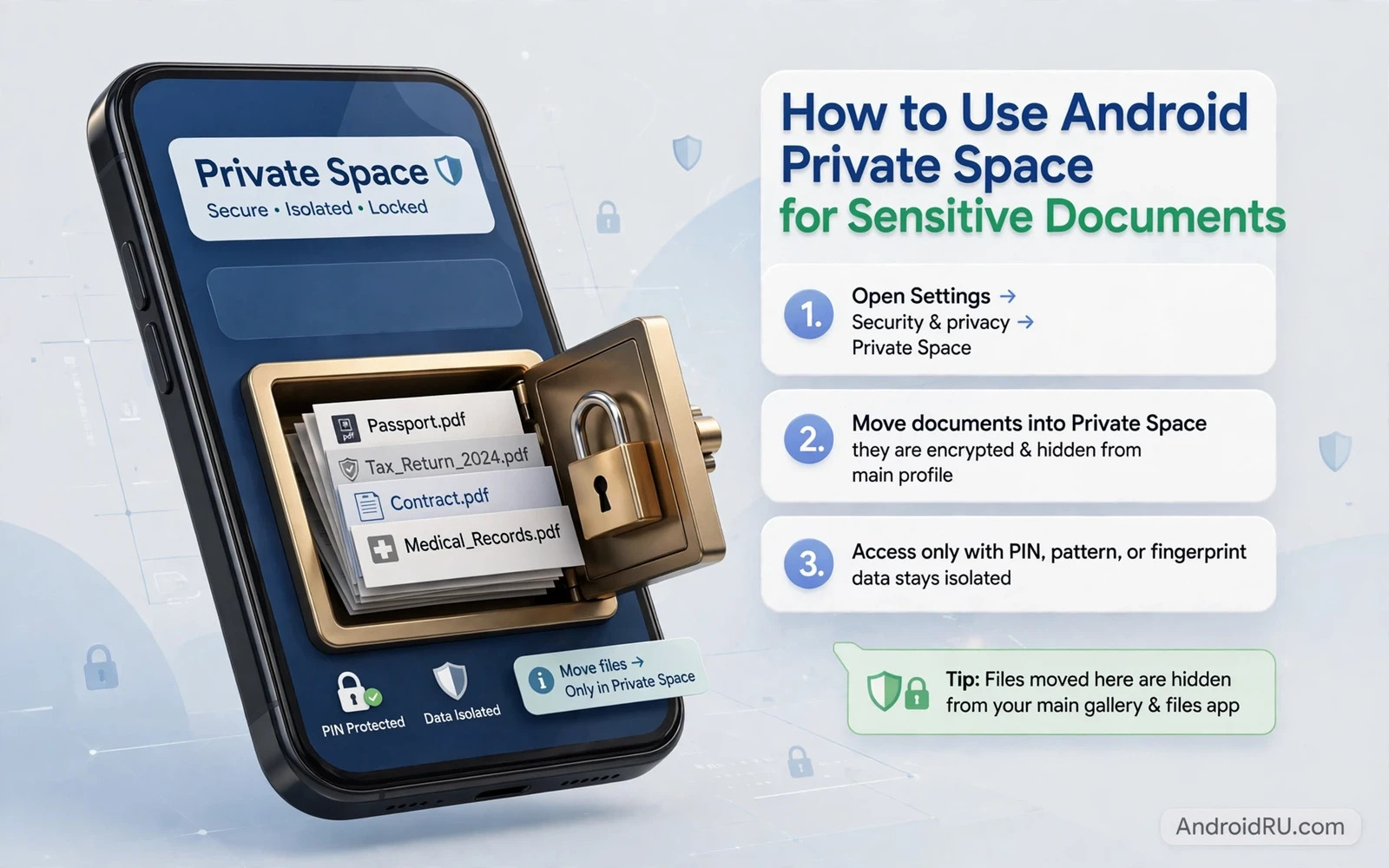
Private Space is a separate locked area on an Android phone where sensitive apps and documents can live apart from everyday use. It behaves like a second drawer inside the same phone with its own lock and its own app list and its own storage view. Apps inside Private Space do not appear on the main home screen and their notifications stay hidden until the space is unlocked. Documents moved into Private Space stay out of the main gallery and out of the main file list. That separation protects work contracts and medical records and identity scans from casual browsing and from apps that can read shared storage.
Set up Private Space from the privacy section of settings by following the on screen setup flow for a new private area. Choose a lock that differs from your main lock screen method when that option is available because a separate lock prevents someone who knows your main PIN from opening the private area automatically. Decide whether the private area should hide completely when locked or whether a subtle entry should remain visible. Hiding the area gives stronger privacy but it also makes the area easier to forget. A visible entry with a locked state balances discretion with everyday usability for most owners.
Move Documents And Apps Into The Private Area
Moving an app into Private Space creates a separate installation of that app inside the locked area. The private copy keeps its own login and its own data apart from any copy on the main side of the phone. That separation is useful for a second work email account or a banking app that should never appear in recent apps on the main screen. Install sensitive apps directly inside Private Space when possible rather than moving a main copy and then wondering which copy holds the latest data. A clean private installation avoids confusion and it also avoids leaving a stray copy with the same data on the main side.
Documents need a deliberate move as well because Private Space does not automatically sweep your existing files into hiding. Open the file manager inside the private area and use its import or move option for contracts and scans and certificates that deserve protection. Check the main gallery and the main downloads folder after the move to confirm that no copy remains in plain view. A document that exists in two places is only as private as its least protected copy. That simple check prevents the common mistake of hiding an original while leaving a duplicate behind for anyone to find.
Photos deserve the same treatment when they contain identity documents or work whiteboards or personal records. Move those images into the private area and then verify that the main gallery no longer shows them. Remember that cloud backup settings may treat private files differently from main files so review backup options inside Private Space before assuming that a private document is also backed up. A private file that is never backed up can be lost with the phone. A private file that is backed up to a shared account may lose its separation. Choose a backup approach that matches the sensitivity of the file rather than accepting a default without thought.
Control Notifications And Visibility While Locked
Notifications are the most common leak from a hidden area because a preview on the lock screen can reveal a sender and a subject even when the app itself stays hidden. Private Space normally suppresses those previews while locked and that suppression is a feature worth keeping. Do not enable detailed previews for private apps on the lock screen even when convenience tempts you. A short generic alert that a private app needs attention is enough. The content can wait until you unlock the space deliberately and read it inside the protected area.
Recent apps and share sheets can also leak private activity when they are not managed carefully. Private apps should not appear in the main recent apps list while the space is locked. Share menus inside private apps should offer only private destinations when the file itself is private. Test this behaviour after setup by locking Private Space and then opening the main recent apps view and the main share menu. If a private item appears where it should not then revisit the visibility settings before storing truly sensitive material. A quick test now prevents an embarrassing leak later when the phone is handed to someone else.
Locking behaviour matters as much as hiding behaviour. Set Private Space to lock automatically when the screen turns off or after a short idle period so that a phone left on a table does not stay open in its private area. Unlock the space only when you need a private file and lock it again as soon as the task ends. That rhythm of unlock and use and relock turns Private Space from a one time setup into a daily habit. A space that stays unlocked for hours offers little more protection than a normal folder.
A companion protection habit is learning how locking apps behind biometrics or PIN codes works for apps that must stay on the main side of the phone. Private Space and app locks complement each other because one hides a whole area while the other guards individual apps that cannot move. Use Private Space for the most sensitive material and use app locks for everyday apps that still deserve a barrier. That layered approach keeps the strongest protection for the strongest secrets.
Keep Private Work Separate From Everyday Life
Separation also helps with focus because private work stops intruding on personal time when its notifications stay silent. A work document that lives only in Private Space cannot demand attention during an evening with family unless you deliberately unlock the space. That boundary is a privacy benefit and a wellbeing benefit at the same time. Work stays at work even when work and personal life share one physical device. The phone becomes two contexts with one body and the lock between them is a real boundary rather than a polite intention.
Backups and transfers need planning because a private area can complicate a move to a new phone. Before a transfer check which private files are backed up and which files must be moved manually. Export sensitive documents through a secure method and verify them on the new device before wiping the old device. Wiping an old phone without checking private backups can destroy the only copy of a contract or a certificate. A transfer checklist that includes Private Space explicitly prevents that loss. Treat the private area as a separate device during any migration.
Sharing a phone with family or colleagues becomes safer when private material lives behind its own lock. You can hand over the main phone for a call or a photo without exposing work files or personal records. Explain the boundary to regular users of the device so that they understand why some apps are missing from the main screen. A shared phone still requires trust but Private Space reduces the amount of trust that everyday sharing demands. That reduction is valuable because accidents happen even among trusted people.
Private Space works best when it sits inside a wider privacy routine. Regular permission reviews keep private apps from gaining access they do not need. A habit of checking which apps used sensitive sensors keeps the private area honest. A useful companion habit is learning how Android Privacy Dashboard access logs show sensor use so that private apps can be audited just like main apps. Privacy is not a single switch. It is a set of small checks that together keep sensitive documents separate and safe and under your control.
End your setup with a test that mimics real life. Lock Private Space and hand the phone to yourself as a stranger would see it. Look for private apps on the home screen and in search results and in notifications. Open the main gallery and the main file list and confirm that sensitive documents are absent. Then unlock the space and confirm that everything you stored is still there and still usable. That two sided test proves both halves of the promise. Private material stays hidden when locked and stays available when you need it.
Back Up Private Documents Without Breaking Separation
Private documents still need backup because a locked area that is never copied can be lost with the phone itself. Choose a backup method that preserves separation such as an encrypted cloud service that scrambles files before upload and keeps the key under your control. A helpful comparison for that choice is learning how encrypted cloud backup services for Android devices differ in key handling and restore options. That comparison matters because a backup that is readable by anyone who breaches the provider account defeats the purpose of hiding the file in the first place. Encrypted backup keeps separation alive even after the file leaves the phone.
Deleting a private document also deserves a deliberate step because a file moved to trash may remain recoverable for a period. Empty the trash inside Private Space after deleting a sensitive file and check that no copy remains in a shared folder or a recent files list. A document that was shared from Private Space to another app may have left a copy in that app storage even after the original is gone. Trace the sharing history of truly sensitive files before assuming that deletion is complete. Complete deletion is harder than hiding but it is the correct standard for identity scans and contracts that are no longer needed.
Work documents and personal documents can share Private Space but they still benefit from separate folders inside it. Create one folder for work contracts and one folder for personal identity records and one folder for medical or financial material when those categories apply. Separate folders make it easier to back up one category without exposing another and they also make it easier to delete one category when its retention period ends. Organisation inside a locked area is not mere tidiness. It is the structure that lets you apply different backup and retention rules to different kinds of sensitive material.
Test Private Space after every major system update because updates can change visibility and notification behaviour in subtle ways. Lock the space and check the home screen and search results and notifications for any private item that should stay hidden. Then unlock the space and confirm that stored documents and apps still open correctly. A post update test takes only a few minutes and it catches changes before they cause a leak in daily use. Treat that test as part of every update routine alongside checking battery and performance after an update.

