

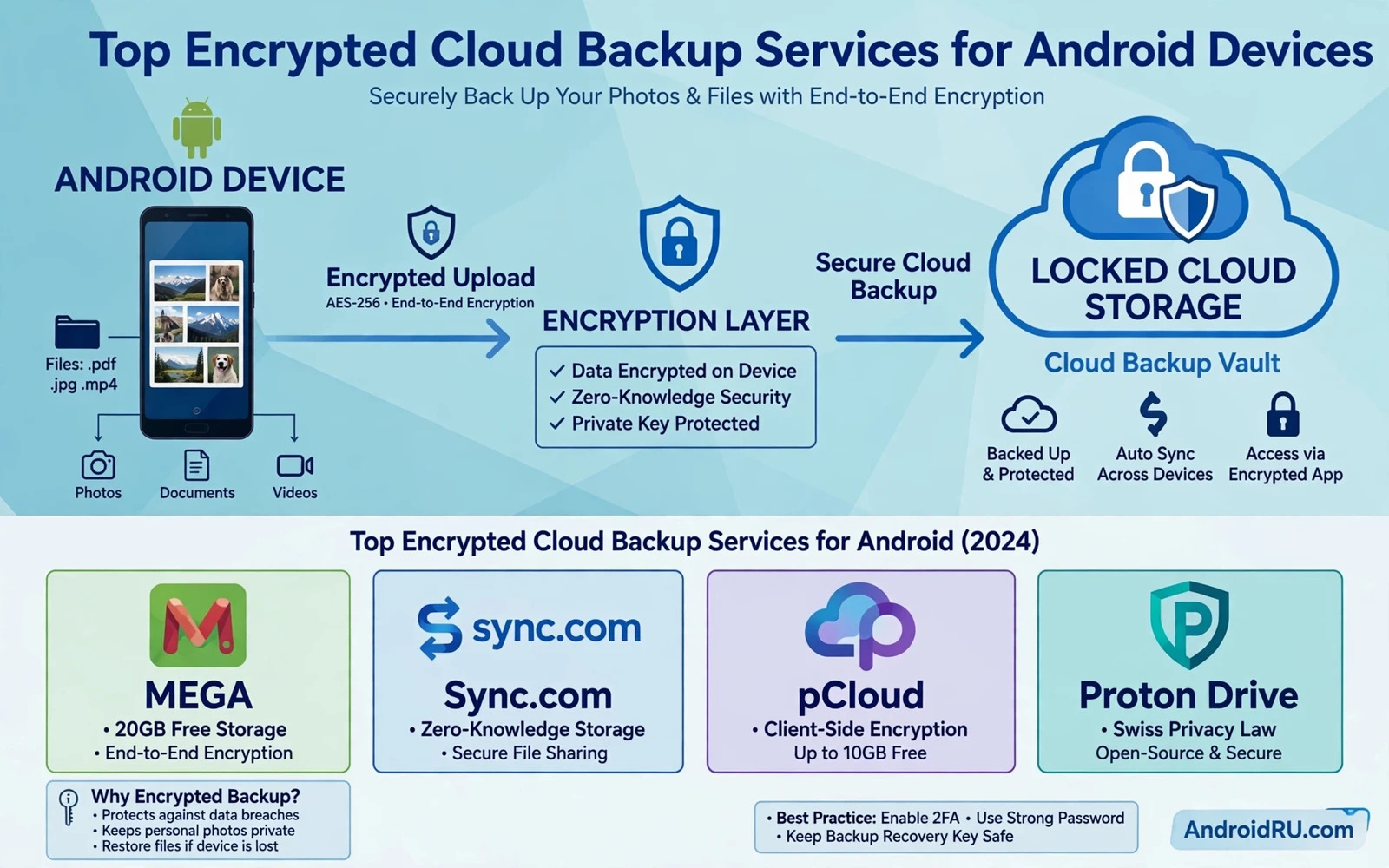
Cloud backup protects your photos and documents and messages when a phone is lost or broken or stolen. Encryption protects that backup from anyone who should not read it including intruders who breach a cloud provider. The combination of backup plus encryption is what makes a cloud service trustworthy for sensitive material. Without backup a lost phone means lost memories. Without encryption a cloud account breach means exposed memories. Choosing a service therefore means judging both halves together rather than choosing on storage size alone.
End to end encryption means that files are scrambled on your device before upload and only you hold the key that can unscramble them. A provider that offers end to end encryption cannot read your files even when it stores them. A provider that offers encryption only during transfer and at rest still holds a key that could be used to read files under certain circumstances. That distinction matters for sensitive documents and private photos. Read the encryption description carefully and look for clear language about who holds the key. Vague claims about secure storage are not the same as end to end protection.
What To Compare Before You Choose A Service
Start with what the service actually backs up on Android. Some services back up photos and videos beautifully but ignore app data and messages and call history. Some services back up documents and folders but require manual selection for each folder. Some services integrate with the Android backup system while others run as a separate app with its own schedule. List the data types that matter most to you before comparing prices. A cheap service that skips your most important data type is not a bargain at all.
Restore options matter as much as backup options because a backup that cannot be restored quickly is only a theoretical comfort. Test restore on a small scale by recovering a single photo and a single document to a different folder. Check whether restore works to a new phone and whether it preserves folder structure and file names. Check whether version history lets you recover an earlier version of a document that was overwritten by mistake. A service with strong version history protects against accidental deletion and ransomware style corruption as well as against device loss.
Key management is the most important technical detail for encrypted backup. Some services let you hold the only key which gives maximum privacy and maximum responsibility. Lose that key and the backup becomes unreadable forever. Some services offer a recovery key or a trusted recovery contact to reduce that risk. Some services hold a key on your behalf which is more convenient and less private. Choose the model that matches your ability to store a key safely. Write a recovery key on paper and store it apart from your phone when you hold the only key.
Balance Privacy Price And Convenience
Price comparisons should include storage size and device limits and family sharing rules. A service that charges per device becomes expensive for a household with several Android phones and tablets. A service with a generous free tier may still be enough for documents and contacts even when it cannot hold a full photo library. A service with a higher tier may be justified when it includes version history and priority restore and larger file support. Compare the total cost for your real data volume rather than comparing headline prices for different storage amounts.
Convenience determines whether backup actually happens. Automatic backup that runs on Wi-Fi and while charging will protect far more data than a manual backup that requires remembering. Background upload that pauses gracefully on mobile data prevents surprise data charges. Clear status indicators show whether the last backup succeeded or failed. A service that silently fails for weeks gives false comfort. Check backup status monthly and investigate any failure promptly rather than assuming that automation always works.
Integration with Android features can simplify daily use. A service that appears in the system share sheet makes saving a document to backup a one tap action. A service that supports automatic camera upload protects photos the moment they are taken. A service that works with the Android backup framework can restore app settings on a new device. Those integrations are not essential for security but they increase the chance that backup stays current. The best encrypted service is the one that you actually keep running.
A backup routine also needs a companion routine for the device itself. Learning how backing up and restoring Android data safely and fully works helps you combine cloud backup with local copies and system settings. Cloud backup alone protects against device loss but a combined approach also protects against cloud account problems. Keep a local copy of the most critical documents on an encrypted drive as well when their loss would be serious. Redundancy across two independent locations is the classic defence against both device failure and service failure.
Protect The Account That Guards Your Backup
The cloud account that holds your backup deserves stronger protection than any other account because it guards everything else. Enable strong authentication for that account and use a unique password that exists nowhere else. Review active sessions regularly and revoke devices you no longer own. A backup encrypted end to end still depends on account access for restore so an attacker who takes over the account may delete backups even when they cannot read them. Account protection and file encryption work together and neither replaces the other.
Sharing features need care because a shared folder can expose private files to the wrong person through a single mistaken tap. Review shared folders and shared links periodically and remove sharing that is no longer needed. Use password protected links and expiry dates for sensitive shares when the service offers those options. A backup service is also a sharing service in many designs and sharing defaults deserve the same attention as backup defaults. Private by default is the safest starting point for any new folder.
Legal and location details may matter for work documents and for users with specific compliance needs. Some services store data in specific regions and some publish transparency reports about government requests. End to end encryption reduces the impact of those requests because the provider cannot decrypt files it does not hold keys for. Still read the privacy policy for data retention and for metadata handling because filenames and timestamps may remain visible even when file contents are encrypted. Metadata awareness prevents surprise when a service protects content but still logs activity.
Private documents deserve an extra layer beyond cloud encryption. A file that is already protected inside a locked area on the phone gains defence in depth when its backup is also encrypted. A useful companion habit is learning how Android Private Space keeps sensitive documents separate on the device itself. Device separation plus cloud encryption means that a breach of one layer does not automatically expose the other. That layered thinking is the heart of good backup security.
Test Restore Before You Need It
Schedule a restore test every few months by recovering a small set of files to a test folder and verifying that they open correctly. A restore test reveals problems with keys and passwords and app compatibility while recovery is still optional. It also familiarises you with the restore flow so that a real emergency does not become a learning exercise under stress. Keep a short note of restore steps and key locations apart from the phone. That note should be detailed enough for you to follow under pressure and private enough that a stranger cannot use it to take over your backup.
When switching services export your data cleanly and verify the export before deleting the old backup. Overlapping backups during a switch prevents a gap where no service holds a complete copy. Delete old backups only after the new service has completed at least one full backup and one successful restore test. A rushed switch can leave you with neither service holding a complete set. Patience during migration is a form of backup discipline.
Choosing an encrypted cloud backup service is ultimately a choice about trust and responsibility. Trust the provider to store files reliably and to describe encryption honestly. Take responsibility for keys and account protection and restore testing. A service that earns trust on both counts will protect photos and documents through device loss and account trouble and everyday accidents. Start with a small backup today and expand it as confidence grows. A complete backup built gradually is far better than a perfect plan that never starts.
Guard The Recovery Key Like A Passport
An encrypted backup is only as recoverable as its key and a key stored only on the phone that was lost is no key at all. Write the recovery key on paper and store that paper in a secure place away from the phone such as a locked drawer at home. Tell a trusted person where the key lives only when that trust is well established and when the arrangement is clearly understood. Test the key by restoring a single file on a different device before you rely on the backup for anything critical. A key that has never been tested is a hope rather than a plan.
Account protection for a backup service deserves the same strength as the encryption itself because an attacker who deletes backups causes harm even without reading them. A strong second factor on the backup account prevents an attacker with a stolen password from wiping your safety net. Learning how enabling two-factor authentication across apps works will help you add that protection to the backup account first before other accounts. Encryption protects file contents and authentication protects file existence. Both protections must be present for a backup to be trustworthy in a real emergency.
Review backup storage usage every quarter and delete obsolete backups that no longer serve a purpose. Old backups of phones you no longer own can hold sensitive files under an account that you rarely check. Deleting obsolete backups reduces exposure and it also frees storage for current data. Keep at least one complete backup for each active device and at least one older version for critical documents. That balance between retention and cleanup keeps backup both useful and tidy over years of use.

