

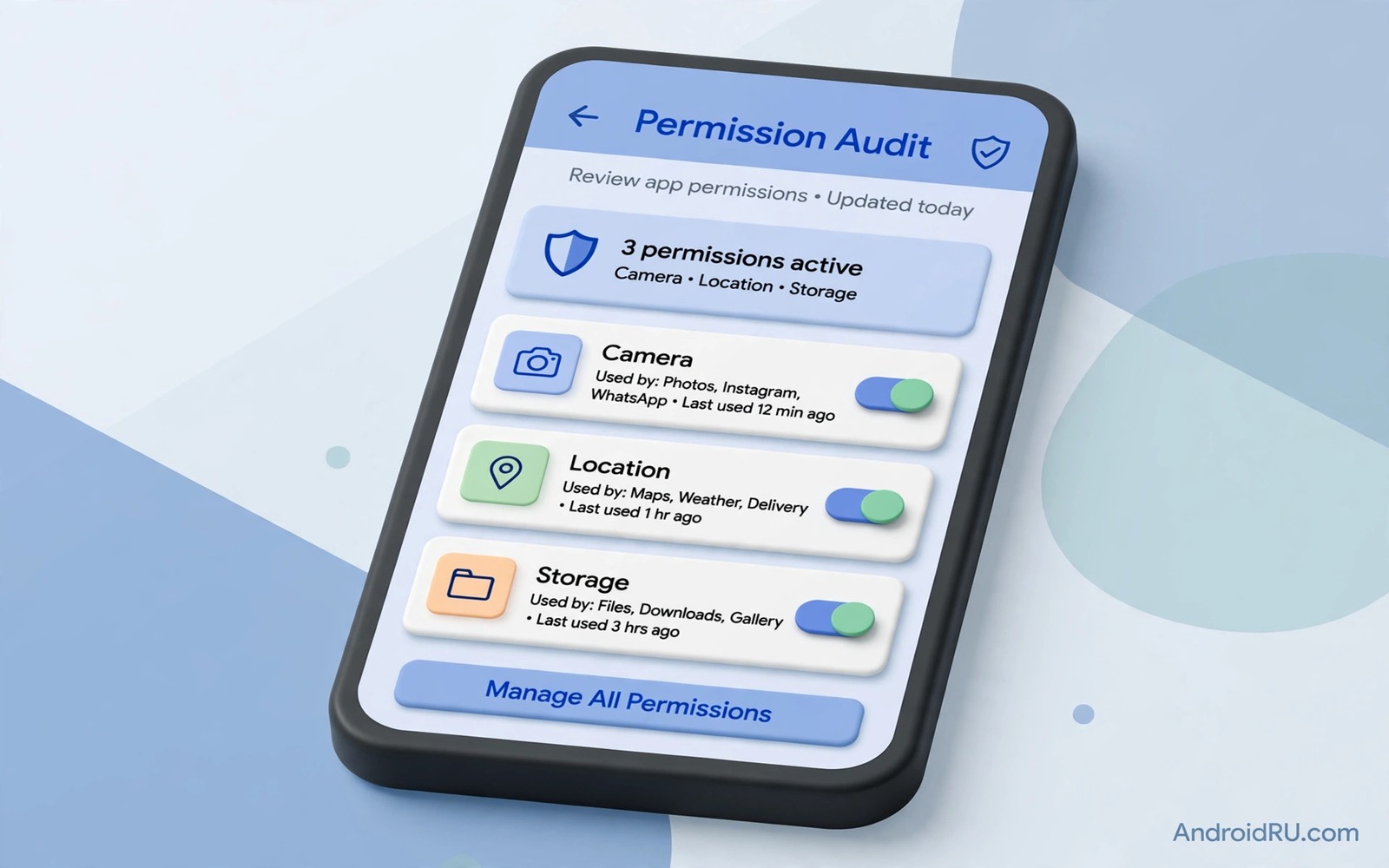
Stop Ignoring App Permissions: Audit Third-Party Store Installs
Permissions are the real price of a free app. An app that costs nothing can still collect your location, your contacts, and your files. Most people grant those permissions during setup without reading them, because the setup screen rushes you toward the main feature and a permission prompt feels like a barrier to tap away as fast as possible. That habit turns a powerful privacy control into a tap-through exercise, and the app keeps whatever access you handed it for months or years.
A permission audit reverses that habit. It gives you a clear view of what each app can reach and why, and it puts you back in charge of the trade. Third-party installs deserve a stricter audit than apps from the main store, because the main store reviews apps before listing them while an outside source may review less, or not at all. That difference does not make every outside app dangerous. It means your own audit carries more weight, because for those installs you are the reviewer. If you are new to outside installs, first learn how to sideload apps safely so your audit starts from a file you already trust.
Why Third-Party Store Installs Need a Stricter Permission Audit
When you install from the main store, at least two layers have already looked at the app: the store review process and the millions of users who installed it before you. An app from a smaller outside source often has neither. A small source may host a file uploaded by anyone, with a description copied from somewhere else and no review history to check. That is not a reason to avoid outside installs entirely. Plenty of honest developers distribute outside the main store, from open-source projects to beta builds. It is a reason to check the permission list yourself instead of assuming someone else already did.
An audit also catches something store reviews cannot catch: permission creep over time. An app that asked for two permissions at install can ask for four more after an update, and Android will show you a prompt only for the new request. If you tap Allow while you are busy, the app quietly gains access to a whole new slice of your life. A regular audit catches that expansion within weeks instead of years. The habit costs about ten minutes a month once you know the routine, and it is the single highest-value privacy habit on a phone full of outside installs.
- Review coverage varies by source. A well-known outside repository may scan uploads for malware, while a random download link does none of that. Your audit is the safety net that works the same everywhere.
- Outside apps skew toward broad access. Apps distributed outside the main store often bundle extra features, analytics, or altered behaviour, and each extra feature tends to come with an extra permission request.
- Updates can expand access silently. A new version can add a permission for a feature you never asked for, and the only reliable way to notice is to look at the permission list on a schedule.
- Removal is cheap and reversible. Turning off a permission takes seconds, and turning it back on takes seconds too. There is no reason to leave a risky grant in place while you think about it.
Android Permission Groups Explained in Plain Language
Android groups permissions by the type of data they protect, and each group carries a different level of risk. Location tells an app where you are, and precise location can reveal your home, your workplace, and your daily routine. Camera and microphone tell an app what it can see and hear, which matters most when an app uses them without a clear reason. Contacts reveal who you know, storage reveals your files and photos, and call and message permissions reveal who you talk to and what you say. You do not need to memorise the full list. You need to know which groups hurt most if misused, and those are location, contacts, files, and microphone.
Some permissions are also split by timing. A location permission can work all the time, only while you use the app, or only once. An always-on location grant is far riskier than a while-using grant, because it lets the app build a record of everywhere you go, even at 3 a.m. when the phone is sitting on your nightstand. The same logic applies to other sensors: background access is where most quiet data collection happens. Check the timing for each sensitive permission, and change an always-on grant to while-using wherever the app allows it. That one change cuts tracking sharply without breaking most features, and you can test the app right after to confirm its main job still works.
Location, Camera and Microphone Permissions
Location is the permission I check first in every audit, because it is both the most abused and the easiest to trim. A map or ride-hailing app has an honest reason to ask for it, and a weather app has a reasonable one too, though approximate location is usually enough for weather. A flashlight app, a wallpaper app, or a simple game has no honest reason to know where you are. When I find location granted to that kind of app, I switch it to denied or to approximate location and watch for a week. If nothing breaks, the permission was never needed, and the app just lost its cheapest source of data about you.
Camera and microphone follow the same test, with one extra wrinkle: both can be triggered in the background on older Android versions without an obvious indicator. On Android 12 and newer, a green dot appears in the status bar whenever the camera or microphone is active, which makes background use visible. If you see that dot while you are not using the camera or recording anything, open the Privacy Dashboard, find which app triggered it, and revoke the permission on the spot. A messaging app needs the camera for photos and the microphone for voice notes, and that is fine, but it does not need either sensor while it sits idle in the background.
Contacts, Files, Calls and Messages Permissions
Contacts permission hands an app your whole address book: names, phone numbers, email addresses, and sometimes notes about who each person is to you. That data belongs to your friends and family as much as to you, so I treat contacts as the permission with the highest social cost. A dialler, a messaging app, or a contacts backup tool has a clear reason to ask. A game, a reader, or a photo editor does not. When an app with no social feature asks for contacts, that is one of the strongest signals in this whole guide that something is off, and it deserves a removal decision, not a shrug.
Files and media permission is subtler, because many apps need it for a real reason: a photo editor needs your photos, a document reader needs your documents. The question is scope. On Android 13 and newer you can grant access to selected photos and videos instead of the whole library, and that partial grant is almost always the right call for a new install. Call and message permissions are the most sensitive of all, because call logs and SMS can contain verification codes, bank alerts, and private conversations. Almost no outside app needs to read your SMS. If one asks, deny it first and let the app prove it cannot work without it.
Always Allow Versus Only While Using the App
The timing option is the most underused privacy control on Android, and it lives one tap away from the permission itself. Open an app, go to App info, then Permissions, then tap Location, and you will usually see three or four choices: Allow all the time, Allow only while using the app, Ask every time, and Do not allow. For almost every app, Allow only while using the app is the correct answer. The app gets location when you are actively looking at it and loses it the moment you switch away. Only a navigation app, a fitness tracker, or a family safety app has a genuine case for all-the-time access, and even those deserve a second look at whether they really need it or just prefer it.
One-Time Permission Grants on Android 11 and Newer
One-time grants are the sharpest tool for permissions you need rarely. Grant the camera once for a single photo upload, and Android takes the permission back automatically when you leave the app. That pattern suits apps you open twice a year, or permissions tied to a single action. I use one-time grants for microphone access in apps where I record a voice note once in a while, and for location in delivery apps I use only on travel days. The friction is intentional: each new access becomes visible, and you decide again with fresh eyes instead of living with a grant you made six months ago and forgot.
How to Audit App Permissions Step by Step
An audit works best as a short routine you can repeat, not as a one-off spring clean. The routine below takes about two minutes per app once you know the taps, and it works the same on every Android phone running Android 11 or newer, with only small differences in menu names between brands. Samsung calls the screen App info just like stock Android does, Xiaomi buries it under Apps then Manage apps, and Pixel keeps it closest to the stock layout. The taps are the same underneath: long-press the app icon, tap App info, tap Permissions, and read the list.
- Open App info and list every granted permission. Long-press the app icon, tap App info, then tap Permissions. Read the full list, including the permissions under Not allowed, so you see the whole picture rather than only what is already granted.
- Match each permission to a specific feature you actually use. A map app needs location, a camera app needs camera access, a notes app does not need contacts. Write the feature next to the permission in your head, or on paper for the first few audits, and be strict about the match.
- Turn off every permission with no clear feature link. Tap the permission, choose Do not allow, and move on. Do not debate it. If a feature later asks for it, Android will prompt you again, and you can decide then with a real reason in front of you.
- Change always-on access to while-using access where possible. Location is the usual case. Tap Location, switch Allow all the time to Allow only while using the app, and do the same for any other permission that offers a timing choice.
- Test the main feature after each change. Open the app, use the one thing you installed it for, and confirm it still works. If a feature breaks, you have just learned exactly what that permission enables, and you can grant it again deliberately instead of blindly.
- Note the final permission set for future audits. A short note in your notes app, one line per app, is enough: the app name, the permissions you kept, and the reason for each. That note turns the next audit from a fresh investigation into a quick comparison.
- Repeat for your most sensitive apps first. Start with social, shopping, and utility apps installed from outside the store, because those request the broadest access. Then move to apps you rarely open. Five apps per week covers a whole phone in a month without turning the audit into a chore.
Start With Your Five Most Sensitive Apps
Not every app deserves the same urgency, and ranking them keeps the audit from feeling endless. My order is simple: social apps first, because they combine contacts, camera, microphone, and location in one place; shopping apps second, because they track location and purchase behaviour; utility apps from outside sources third, because a cleaner, a booster, or a file manager often asks for far more than its job requires; games fourth, because they are the worst offenders for location and contacts requests with no gameplay reason; and everything else last. That order gives you the biggest privacy win in the first session, which is what keeps the habit alive.
What to Check After Each Permission Change
After you revoke a permission, use the app normally for a day before you judge the result. Some apps show a warning the first time they notice a missing permission and then carry on fine, which tells you the permission was optional. Others refuse to open a specific screen, which tells you the permission was tied to that feature. A third group crashes or freezes, which usually means the app was written badly rather than that the permission was essential, and that crash is itself useful information about the developer. If the main feature works, leave the permission off. If a feature you care about breaks, grant the permission again and write down which feature needed it, so the next audit does not repeat the same experiment.
Red Flags in App Permissions That Deserve Immediate Action
Some permission patterns are strong warning signs on their own, and they deserve action the same day you spot them rather than a place on a someday list. A torch app that wants contacts is a red flag. A wallpaper app that wants call logs is a red flag. A game that wants device admin access is a red flag. A simple reader that wants location all the time is a red flag. Those mismatches suggest the app collects data beyond its purpose, and the right response is to remove the app unless you have a strong reason to trust it and a clear explanation for the permission. The table below collects the patterns I treat as immediate-action red flags.
| App type | Permission it asks for | Why it is a red flag |
|---|---|---|
| Flashlight or torch app | Contacts or call logs | A light needs no address book. The request exists to harvest personal data. |
| Wallpaper or theme app | Location all the time | A picture needs no live tracking. Always-on location means background surveillance. |
| Simple game | Device admin or SMS access | Games need no admin rights and no text messages. Both can lock or abuse a phone. |
| Calculator or reader app | Microphone or camera | Neither tool needs a sensor. The request suggests background recording. |
| Photo editor | Full contacts access | Editing a photo needs media access, not your address book. The scope is wrong. |
| Any app after an update | A brand-new sensitive permission | An update that adds contacts to a calculator deserves a question, not a blind Allow. |
Another red flag is a permission that appears after an update without a new feature to explain it. An update that adds a contacts permission to a calculator app deserves a question. Read the update notes and look for a developer explanation. If no explanation exists, revert the permission or remove the app. Updates should not quietly expand data access, and your audit is the tripwire that catches that expansion. I check the permission list of any app the week it updates, at least for apps I installed from outside the store, because that is where unexplained new permissions show up most often.
How to Use the Privacy Dashboard to Spot Background Permission Use
Modern Android shows a Privacy Dashboard with recent permission use, and it is the fastest way to audit without opening every app one by one. Open Settings, tap Privacy, then tap Privacy Dashboard, and you will see a timeline of which apps used location, camera, or microphone in the last 24 hours, with a longer history available per app. Look for uses you do not recognise. Did you open that app yesterday? Did you use its camera feature? If not, the app may have reached for the sensor in the background, and that deserves a check before anything else.
Permission history also reveals patterns over time, and patterns matter more than single events. An app that reaches for location every hour is different from an app that reaches for it once a week. Frequent access suggests background tracking, while occasional access suggests a feature you actually triggered. Use history to prioritise your audits: start with the most frequent accessors and work down the list. That order gives you the biggest privacy win first, and it often surfaces one or two apps that were quietly busy every hour of the day. On Samsung phones the same screen is called Permission usage history under Privacy, and on Xiaomi it sits under Privacy protection, but the timeline works the same way.
Reading Permission History Like a Log
Treat the dashboard like a log file, not a scoreboard. A single camera access at the moment you took a photo is normal. Five camera accesses at 2 a.m. is not. Tap any app in the dashboard to see a per-app timeline with exact times, then match those times against what you were doing. If the times line up with your own use, the app is behaving. If they line up with nothing you did, revoke the permission and watch whether the app asks for it again. An app that asks again immediately after a revoke is telling you the permission matters to it, and an app that never asks again is telling you it never needed it. Both answers are useful.
Check Permissions With Simple Commands
The settings screens cover most audits, but a computer with ADB gives you a second opinion that is harder for a sloppy app to hide from. The commands below list installed packages and show details for one app. They help you confirm which version is installed before an audit, and they list the exact permission state the system holds for that package. They do not change permissions by themselves. They are checks for your own device, and you should only run them on a phone you own.
adb shell pm list packages -fadb shell dumpsys package com.example.appadb shell pm path com.example.appadb shell cmd package list packages
The commands above are original examples written for this guide. Replace com.example.app with the real package name of the app you are auditing, which you can find in the app’s page on its source or in the output of the list command. The dumpsys output includes a granted permissions section that shows the system view of what the app holds, which is worth comparing against what the settings screen shows. If the two disagree after a system update, trust the dumpsys output and re-check the settings screen after a reboot.
Audit New Installs Before Daily Use
Make the permission audit part of every new install routine, not an afterthought you schedule for later. Install the app and open its permission list before you sign in, because an app can collect data during setup before you have a chance to limit it. Turn off the permissions that do not match the core feature, then sign in and test the main job. That order prevents the app from harvesting contacts or location during the account creation flow, and it teaches you the app’s permission profile from day one. For file checks before you even install, learn how to verify APK checksum hashes so you know the file you are auditing is the file the developer published.
For a new outside app, test it in a separate profile first if your phone supports it. A work profile or a second user profile limits the data available to the app even if you grant a permission by mistake, because the profile has its own contacts, its own files, and often no location history. After a week of use inside that profile, move the app to your main profile only if it passes the audit. That two-stage process is the safest way to adopt a new outside app. It costs a little time and it saves a lot of regret, especially for apps whose developer you have never heard of.
Test a New Outside App in a Separate Profile First
Setting up a second profile takes about five minutes. On stock Android, go to Settings, tap System, then Multiple users, and add a user or a work profile. Install the new app inside that profile only, grant it nothing it does not ask for with a visible reason, and use it for a few days. Check the Privacy Dashboard inside that profile as well, because it shows the same timeline for that profile’s apps. If the app behaves, with a minimal permission set and no background sensor use, it earns a place in your main profile. If it demands contacts for a job that needs no contacts, it stays in the profile or gets removed entirely.
Move It to Your Main Profile Only After a Week
A week is long enough for most background behaviour to show itself. Check the dashboard on day two and day seven, and look for location or microphone use at times you were not using the app. If the week is clean, install the app in your main profile, apply the same minimal permission set you settled on during the test, and keep the note you wrote about which permissions it genuinely needs. If the week is not clean, you have spent seven days learning the truth about an app before it ever touched your real contacts or your real location history, which is exactly the point of the sandbox.
Teach Children to Read Permission Prompts
Children tap permission prompts quickly because they want to reach a game, and that speed is exactly what a data-hungry app counts on. Teach them to pause and read the permission name aloud, then ask what the app needs that permission for. A game that wants contacts should prompt a question. A game that wants camera access for a photo feature is easier to understand. That pause-and-question habit is a lifelong privacy skill, and it starts with a simple conversation rather than a lecture.
Set up a rule that children ask before granting a new permission for a new app. That rule does not need to be strict forever. It needs to last until the child can judge permissions alone, so review the rule together every few months and relax it for trusted apps as the child grows. The goal is judgement, not permanent control. A child who learns to judge will be safer on any device. Model good permission behaviour yourself, too: children copy what they see. If you grant every permission without reading, they will do the same. If you pause, read, and explain your choice out loud, they will learn that the pause is normal. One more check worth building into the family routine is to look at permission use after a system update, because an update can reset a permission or add a new permission group. Open the Privacy Dashboard after each major update and scan for changes, since an app that suddenly uses a sensor more often after an update deserves a fresh audit.
Common Permission Audit Mistakes to Avoid
The most common mistake is granting all permissions during setup just to reach the app faster. Speed is not worth broad data access, and the thirty seconds you save cost you months of background collection. The second mistake is auditing once and never again. Permissions change with updates and new installs, so a quarterly audit keeps your phone honest where a single audit goes stale within months. The third mistake is trusting an app only because it came from a known store, because store origin is not a permission guarantee, and a store app with broad access can be worse than an outside app with a minimal set.
- Granting every permission during setup to save time. Slow down for one minute at install. Deny first, then grant only when a feature asks with a reason you recognise.
- Auditing permissions once and never repeating the audit. Put a quarterly reminder in your calendar. Add an extra audit after a major system update or a suspicious app update.
- Trusting an app only because it came from a known store. Judge the permission list, not the logo. A known store does not read the list for you.
- Ignoring always-on location access for apps that need it rarely. Switch those grants to while-using or one-time, and let the app ask again when it genuinely needs a fix.
- Keeping a red flag app installed because removing it feels like effort. Removal takes ten seconds. Keeping it costs you data every day it stays on the phone.
People also forget that a denied permission can be granted later when a feature needs it. Denying a permission is not permanent damage. You can grant it again in seconds when a real feature asks for it, and that reversibility should make you bolder about denying permissions that lack a clear purpose. If a denied permission ever breaks something you care about, the fix is one tap in App info, not a reinstall, not a factory reset, and not a support ticket.
Frequently Asked Questions About App Permission Audits
Will turning off a permission break the app?
Sometimes a specific feature will stop working, and that is useful information rather than a problem. The main app usually still opens, and you can grant the permission again only if the broken feature matters to you. That test tells you exactly what the permission enables. If the whole app refuses to open after a revoke, try a one-time grant or check whether the app offers a limited mode, and treat a total refusal as a warning sign about the developer rather than a reason to hand over the permission.
How often should I audit app permissions?
Quarterly is a good rhythm for most users. Audit new installs at once, audit all apps every three months, and add an extra audit after a major system update or a suspicious app update. A phone with many outside installs deserves a monthly look at the Privacy Dashboard, because the dashboard check takes two minutes and surfaces the worst offenders without a full audit. Put the quarterly audit on your calendar like a bill payment, because a habit with a date survives and a habit without one fades.
Are third-party store apps always riskier for permissions?
Not always, but they deserve a stricter audit because review levels vary from source to source. A third-party app with a minimal permission set can be safer than a store app with broad access, so judge the permission list and not only the store. The risk is not the origin by itself. The risk is a broad permission list combined with no review history, no update notes, and no developer reputation to check, and that combination shows up more often outside the main store.
What should I do if an app keeps asking for a permission I denied?
First, check whether a feature you use actually needs it, because repeated prompts usually mean the app hits that permission every time it opens a certain screen. If the feature matters, grant the permission narrowly, for example only while using the app, and note the reason. If no feature you use explains the repeated asking, revoke the permission again, check the Privacy Dashboard for background use, and consider removing the app. An app that nags for contacts it does not need is telling you its business model depends on that data.
Your Next Step: Audit Five Apps Today
Permissions are not technical trivia. They are the boundaries between your life and an app, and a regular audit keeps those boundaries strong. List the permissions, match them to features, turn off the rest, and repeat that routine quarterly and for every new install. The whole system fits in your pocket and takes minutes, and it works on any phone without special tools or paid apps.
Your concrete next step is to audit five apps today, starting with the most recently installed outside app. Open App info, read the list, and revoke anything without a feature to justify it. For a wider safety routine, read how to check if sideloading is safe before your next outside install, and keep the quarterly reminder on your calendar so the audit you do today is not the last one you ever do.

