

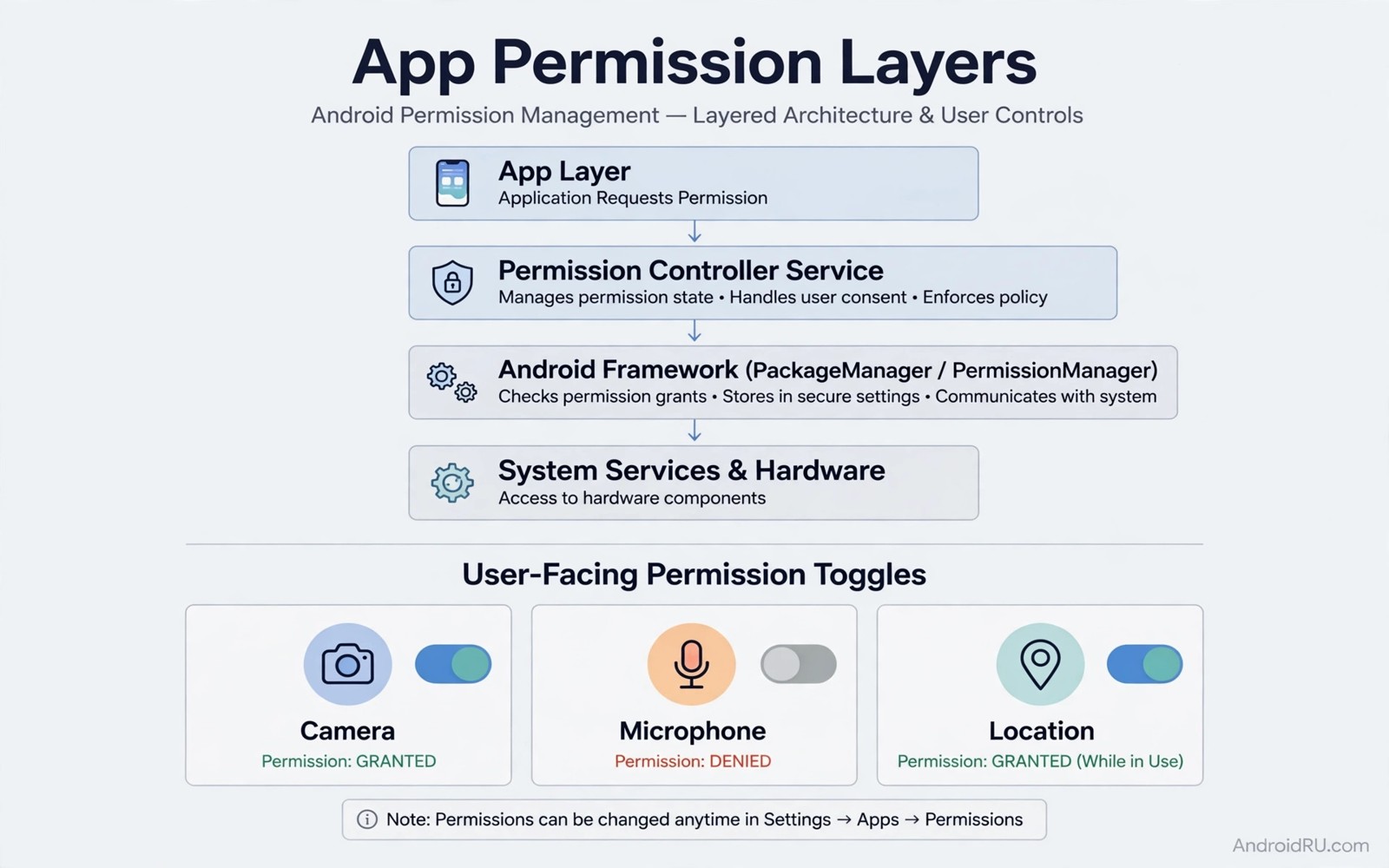
System permission settings offer a blunt choice. An app gets a permission or it does not. A camera app gets full camera access or none. A social app gets full location access or none. Real privacy needs finer control. You may want an app to use the camera but not the microphone. You may want location only while the app is open. You may want contacts read-only for one feature.
Root tools can enforce that finer control. A permission manager with root access can hook permission checks. It can return fake data instead of real data. It can grant a permission for one call and deny it for the next. It can limit a permission to a time window. That granularity protects privacy without breaking the app completely.
This guide explains granular permission ideas in practical terms. It covers fake data and per-feature rules and time limits. It explains the trade-offs for each idea. It gives a testing method that catches broken features early. A permission rule that breaks a core feature is not a privacy win. It is a usability loss.
Start with one app and one permission. A single rule gives a clear result. A dozen rules at once hide the faulty one. Pick an app that overreaches. A flashlight app that wants contacts is a good test. A game that wants location is another good test. Overreach makes the benefit obvious.
Fake data versus outright denial
Outright denial tells the app that permission is missing. Many apps handle denial gracefully. They show a limited mode. They disable one feature. Some apps refuse to run at all after a denial. Those apps check permission at startup and stop if it is missing. Fake data solves that refusal pattern.
Fake data returns a plausible but empty result. A contacts request returns an empty list. A location request returns a fixed coordinate. A camera request returns a black frame. The app continues as if permission worked. The private data stays protected. That approach suits apps that refuse to run without permission.
Fake data has limits. A fake location that never changes looks suspicious over time. A fake contact list may break a sharing feature you actually want. A black camera frame breaks a video call. Choose fake data for permissions the app does not truly need. Choose denial for permissions where a fake result would mislead you.
Test fake data with the feature that uses the permission. Open the sharing screen after a fake contacts rule. Open the map after a fake location rule. Check whether the app behaves sensibly. A sensible fallback confirms the rule works. A crash or a freeze means the rule needs adjustment.
Per-feature and per-sensor rules
Per-feature rules split a permission by use. A messaging app may need the camera for photos. It may not need the camera for background scanning. A rule can allow camera only when you tap the photo button. That rule needs a hook that knows the calling context. Advanced managers support that context awareness.
Per-sensor rules split location into sources. GPS location is precise. Network location is rough. A rule can allow rough location while blocking precise GPS. That split suits apps that need a city but not a street address. Weather apps and news apps often fit that pattern. Navigation apps do not. They need precise GPS.
Audio permissions split similarly. A voice recorder needs microphone access. A music app does not need microphone access for playback. A rule that blocks microphone for a music app is safe. A rule that blocks microphone for a recorder breaks its core feature. Match the rule to the feature.
Sensor rules also cover motion and health sensors. A fitness app needs step data. A game does not need step data. A rule that blocks step sensors for a game is harmless. A rule that blocks them for a fitness app breaks tracking. Feature mapping decides each rule.
Time-based and foreground-only rules
Foreground-only rules grant permission only while the app is visible. Background location tracking stops under that rule. Background microphone access stops too. The app works normally while you use it. It cannot collect data while you do other things. That balance suits most social and shopping apps.
Time-based rules grant permission during a window. A delivery app may need location during a delivery window. It does not need location all day. A rule can allow location for two hours after you open the app. After that window the permission closes. That window approach needs a manager with scheduling support.
One-time rules grant permission for a single action. A photo upload needs camera access once. A one-time grant covers that upload. The next upload asks again. That friction is intentional. It makes each access visible. One-time rules suit sensitive permissions on apps you rarely use.
Combine time rules with fake data carefully. A fake location during a time window still looks fake. A denied location after the window is clearer. Use denial after the window ends. Use fake data only when denial breaks the app. That combination keeps behaviour predictable.
Location mocking and permission interplay
Location permission rules interact with location mocking. A mock location needs location permission to deliver data. Blocking location permission stops both real and mocked data. A mock module cannot fix a blocked permission. Check permission state before you debug a mock failure.
The guide on mocking location systemwide at framework levels explains mock layers. Use it alongside permission rules to separate the two problems. A permission problem shows as no location at all. A mock problem shows as the wrong location.
Attestation checks also interact with permission managers. A strict app may detect a permission hook as tampering. That detection looks like an attestation failure. The guide on passing hardware attestation checks covers that failure class. Test permission rules with non-critical apps first to avoid confusion.
Audio hooks share a similar interaction. An audio processing hook needs audio permission paths to function. A permission rule that blocks audio can silence the hook. The guide on intercepting audio output streams with deep hooks explains audio paths. Keep audio permission rules separate from audio hook scope during testing.
Building a permission profile for a new app
Build a permission profile when you install a new app. Start with all optional permissions denied. Use the app for a day. Note which features ask for permission. Grant only the permissions tied to features you use. That deny-first profile protects privacy by default.
Review the profile after a week. Some permissions seemed necessary on day one but prove unused. Revoke those permissions. Some features seemed unimportant but prove useful. Grant those permissions deliberately. A weekly review keeps the profile honest.
Document why each permission is granted. A short note per permission helps future reviews. A note like camera for photo upload explains the grant clearly. A note like location for nearby search explains it too. Notes prevent permission creep over months.
Test app updates against the profile. An update may request a new permission. A new request deserves scrutiny. Check what feature uses the new permission. Deny it first. Grant it only after a feature test shows a real need. Updates should not silently expand access.
Share profiles only as ideas not as rules. Another user may need a permission you denied. Their feature needs differ. A profile is personal. Use shared profiles as a starting point. Adapt them to your own feature use.
Location rules deserve a separate note in the profile. Note whether location is foreground-only or fake or denied. Note the reason for that choice. A location note prevents accidental expansion later. It also helps when troubleshooting a map feature.
Audio permissions deserve similar care. Note whether microphone access is one-time or foreground-only. Note which feature needs it. A microphone note makes privacy reviews concrete. It also helps when a voice feature stops working after a change.
Review permission profiles after a device restore. A restore can reset permission grants to defaults. A reset profile may grant more than your careful profile allowed. Check each important app after a restore. Reapply granular rules where needed.
Common mistakes
- Blocking a permission outright for an app that refuses to run without it instead of using fake data.
- Applying a dozen granular rules at once and then guessing which rule broke a feature.
- Granting precise GPS to an app that only needs a city-level location.
- Using a fake location that never changes for an app that tracks movement.
- Forgetting that a background rule can break a delivery or tracking feature you actually want.
Frequently asked questions
Will granular rules break app updates?
An update can change how an app requests permission. A rule tied to an old request pattern may miss the new pattern. Re-test key rules after a major app update. Adjust the rule to the new pattern.
Is fake data safer than denial?
Fake data keeps apps running while protecting real data. Denial is clearer for apps that handle it well. Choose fake data when denial breaks the app. Choose denial when you want the app to know access is closed.
Can I set a permission rule for system apps?
System apps need caution. Blocking a system permission can break core functions. Limit granular rules to user apps first. Test system app rules only with a full backup ready.
adb shell dumpsys package com.example.app | grep -i "permission" | head -20
# List permission info for one app package on your own device.
# Replace com.example.app with the real package name you test.
The commands above are generic inspection examples written for this guide. They show permission info for a single package. They do not change any permission. They do not share data anywhere.
Conclusion
Granular permissions give you control beyond a simple allow or deny. Use fake data when denial breaks an app. Use per-feature rules for camera and location splits. Use foreground-only rules for background tracking. Test one app and one permission at a time.
Your concrete next step is to pick one overreaching app today. Apply a single foreground-only location rule to it. Use the app for a day. Check whether its core features still work before you add another rule.

