

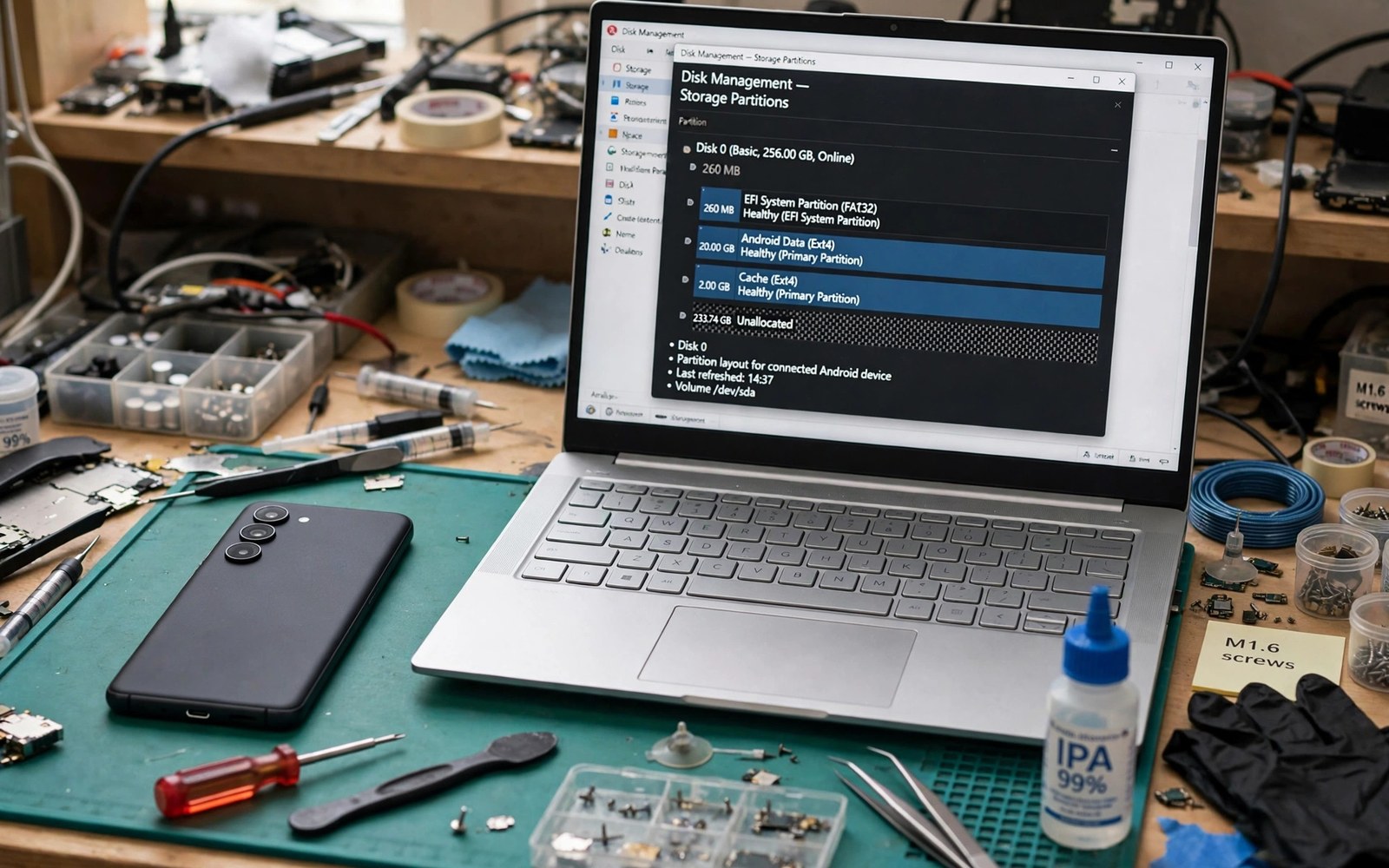
Modern Android phones hide a clever trick inside their storage. They keep two copies of the system called slot A and slot B. Only one slot boots at a time. The other slot waits as a spare. When an update arrives the phone writes it to the spare slot while you keep using the active slot. A reboot then switches to the updated slot. That design makes updates safer and faster. It also confuses owners who flash files the old way and damage a layout they do not understand.
Partition storage breaks when flashing ignores the slot system. Flashing a system image to the wrong slot can leave both slots inconsistent. Wiping a partition that the update system expects to find can stall the next update. Formatting data without understanding the shared data partition can erase files that both slots need. The damage is rarely instant. It appears weeks later when an update fails or a rollback misbehaves and the owner cannot trace it back to the original flash.
Learn the slot model before you flash anything on a modern device. The model is simple once you see it clearly. Two system slots share one data partition and one set of shared partitions for radios and bootloaders. Updates alternate between slots so a failed update can fall back to the previous slot. The rescue value of that design is enormous. The same slot knowledge powers the emergency recovery command that calms boot loop panic where switching slots rescues a failed update in seconds.
See the two slots as one working system
Slot A and slot B each contain a boot image and a system image and a vendor image. The bootloader tracks which slot is active and how many times each slot has tried to boot. A slot that fails to boot several times gets marked unbootable and the bootloader falls back to the other slot. That fallback is automatic and it is the reason seamless updates feel safe. A bad update does not brick the phone. It simply returns to the previous system.
Data lives outside the slots on a shared partition. Both slots read the same apps and files and settings. That sharing is efficient and it creates a rule you must respect. A data wipe affects both slots at once because there is only one data partition. A system flash affects only the slot you target. Keep those two facts separate in your mind and most slot mistakes disappear before they happen.
Flash to the correct slot every time
Always check the current slot before you flash. The bootloader and the system both report it. Flash a system image to the inactive slot when you want to test a new build while keeping the working system safe. Flash to the active slot only when you intend to replace the running system at once. After a flash verify the slot state before you reboot. A flash that reports success to the wrong slot is not a success. It is a surprise waiting for the next reboot.
Use the slot aware flashing tool for your device rather than a generic raw writer. The correct tool understands slot metadata and updates the bootable flags properly. A raw writer that copies bytes without updating metadata can leave a freshly flashed slot marked unbootable. The bootloader then skips your new system and boots the old one. That confusing result looks like a failed flash when the real fault is missing metadata.
Let seamless updates do their job
Seamless updates write to the inactive slot in the background. Do not interrupt that process by rebooting at random or by flashing files during an update. An interrupted update can leave the inactive slot half written. The phone will still boot from the active slot but the next update may struggle with the damaged spare. Let the update finish and let the phone reboot on its own schedule. Patience protects the spare slot for the day you truly need it.
fastboot getvar current-slot
fastboot getvar slot-successful:a
fastboot getvar slot-successful:b
fastboot --set-active=a
adb shell getprop ro.boot.slot_suffix
Attribution: the commands above use the standard shell syntax of the platform toolset and the bootloader slot queries and they are shown here so you can read every step before you run it on your own device.
Read the slot queries before you change anything. The current slot query tells you which system runs now. The success flags tell you which slots the bootloader trusts. Change the active slot only when you have a reason and a fallback plan. A slot switch is reversible by switching back so it is a safe rescue step. A slot wipe is not reversible in the same way so treat wipe commands with far more caution.
Keep shared partitions untouched unless required
Shared partitions hold radio firmware and bootloader code and calibration data that both slots use. Flashing those partitions with the wrong file damages both slots at once. Update shared partitions only with files made for your exact model and region and only when the device notes require it. A system update rarely needs a manual shared partition flash because the update package handles shared parts itself. Manual flashes of shared partitions should be rare and deliberate.
Back up the calibration partitions before any shared flash. The persist partition and the modem identity area are small and their loss causes lasting damage. A backup copied to a computer costs minutes and it can save a phone that no update can repair. Treat shared partitions as the foundation of the house. You can repaint the rooms often but you should rarely touch the foundation.
Common mistakes
The most common mistake is flashing an old style single system image onto a slot device without slot awareness. The image lands in one slot while metadata still points elsewhere and the phone boots an unexpected system. The second mistake is wiping data to fix a slot problem. Data wipes do not repair slot metadata and they destroy files that a simple slot switch would have saved.
The third mistake is disabling the fallback by marking both slots unbootable through repeated bad flashes. Once both slots distrust the bootloader the phone needs a full factory image restore. Avoid that state by verifying each flash before the next one. Owners who respect slots will also value fixing a boot loop without wiping personal files because slot switching is often the fastest repair in that guide.
Frequently asked questions
How do I know if my phone uses A and B slots?
Check the slot property on the device or look up the device specifications for seamless updates. Phones from recent years usually use slots while older phones use a single system partition with a recovery partition. The flashing method differs completely between the two designs so confirm the design first.
Does the spare slot waste storage?
It uses extra storage for a second system image but that cost buys update safety and instant rollback. The spare slot does not duplicate your photos or apps because data stays shared. The storage cost is a fair price for a phone that survives a failed update.
Can I delete the spare slot to free space?
No. The slot system expects both slots to exist and deleting one breaks updates and rollback. Free space by removing media and unused apps instead. The spare slot is infrastructure and not clutter.
Test updates on the spare slot deliberately
A spare slot is a test laboratory that most owners never use deliberately. When a system update arrives let it install to the spare slot and boot into it for a full day of normal use. Test calls and messages and your most used apps before you accept the update as permanent. If anything breaks then switch back to the previous slot and wait for a fixed update. That deliberate test turns seamless updates from a passive process into an active safety practice. The ROM warning in the critical warning before flashing custom ROMs makes the same point for custom systems because a tested fallback beats a hopeful upgrade.
Keep both slots healthy by alternating them across updates rather than forcing every update onto one slot. A slot that never boots can hide a problem that appears only when you need it most. Regular alternation proves both slots boot and both slots hold a working system. A fallback you never tested is a rumour and not a rescue plan. Boot each slot at least once after a major update cycle.
Record the slot state after every update in your maintenance note. Note the active slot and the success flags and any update error that appeared. That note makes the next troubleshooting session short because the slot history is visible at a glance. The automatic snapshot habit in the module that automates a system backup on every reboot complements slot notes because a snapshot plus a slot record together describe the whole system state at a point in time.
Explain the slot system to any friend who borrows your flashing knowledge so they do not repeat old style mistakes. A newcomer who learned flashing on an old single partition phone will naturally flash a slot phone the wrong way. A five minute explanation of active and spare slots prevents that error completely. Show them how to query the current slot and how to switch back after a failed update. Shared understanding protects the whole circle of owners who learn from each other. Good knowledge spreads best when it includes the why behind the steps.
Verify the spare slot boots successfully after every major update even when the active slot works perfectly. A spare slot that never boots is not a fallback at all. Boot into it once and run your core apps for ten minutes. That short test proves the fallback exists when you truly need it. Record the test date in your maintenance note so the habit stays visible. A fallback tested regularly is a safety net you can trust. A fallback never tested is a story you tell yourself about safety.
Conclusion
A and B partitions turn updates from a risky overwrite into a safe switch between two complete systems. Owners who check the current slot and flash to the right target and leave shared partitions alone keep that safety intact. Owners who flash blindly trade a clever safety net for a confusing storage mess.
Your concrete next step is to query your current slot and success flags today and write them down. That single note makes every future flash safer. If you ever face a failed update then try the slot switch before any wipe. For the full rescue order continue with the emergency recovery command that calms boot loop panic as your next guide.

