

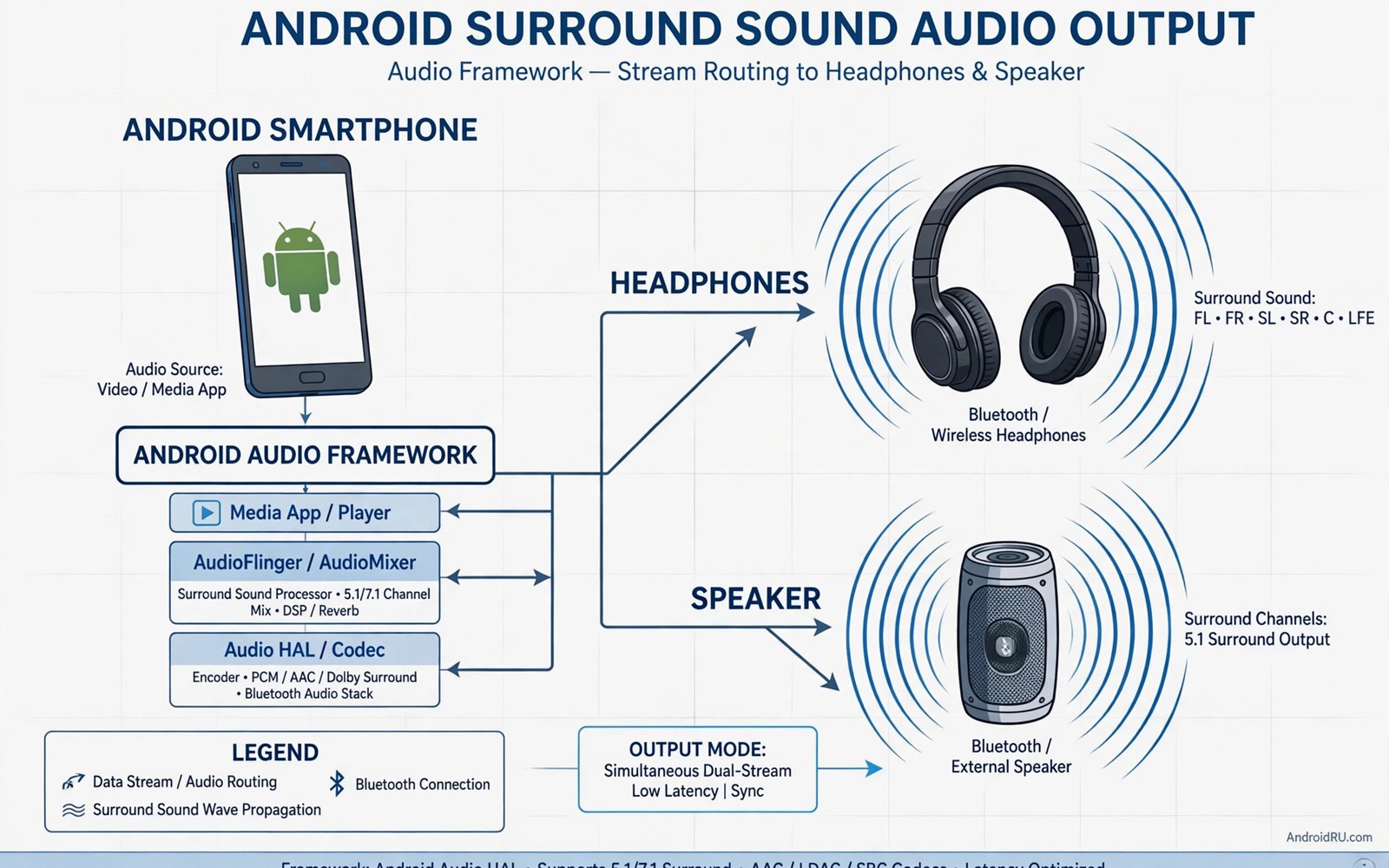
Dolby Atmos promises sound that surrounds you instead of sound that merely plays at you. On a phone that promise means wider music and clearer dialogue in video and a greater sense of space in games. Many phones ship without the full framework even when their hardware could support it. Root access lets you install the framework as a system module and bring that spatial sound to a phone that never had it.
The framework works by processing audio with spatial cues before it reaches your ears. It places sounds in a virtual space around the listener rather than only left and right. Movies gain a sense of height and depth. Music gains separation between instruments. Games gain positional cues that help you locate action. The effect varies with headphones and content. Well mixed content shines and poorly mixed content gains little. Honest expectations make the install satisfying instead of disappointing.
Compatibility decides success more than enthusiasm does. The framework needs an Android version and an audio policy that the module supports. It also conflicts with other audio processors that fight for the same stream. Check compatibility before you install and disable competing enhancers first. The audio chain knowledge from the sound driver module that turns a phone into a studio DAC helps here because both projects live in the same audio path.
Check compatibility before you install
Read the module notes for supported Android versions and supported audio architectures. A module built for an older Android version may install cleanly and then fail silently on a newer version. Check whether your phone uses a 64 bit only audio path or a mixed path. Check whether the stock system already includes a partial spatial framework that the module would duplicate. Duplication causes volume jumps and missing audio in some apps.
Test your headphones and your speaker separately after install because the framework treats them differently. Headphones receive the full spatial processing while the speaker receives a tuned version for a small driver. A profile that sounds superb on headphones may sound thin on the speaker. Save separate profiles for each output and switch between them rather than forcing one profile to serve both.
Install through the root manager step by step
Install the framework module through your root manager and reboot once. Open the companion app and confirm that the framework reports an active state. A companion app that reports inactive means the framework did not attach to the audio path. Do not judge sound quality until the active state appears. An inactive framework changes nothing no matter how many toggles you flip.
Disable the stock sound enhancer before you judge the new framework. Two enhancers on one stream create doubled bass and harsh treble and volume swings. Test with a familiar movie scene and a familiar track after disabling the stock tool. The difference should be clear within a minute. If the sound seems worse then check the profile and the output selection before you blame the framework itself.
Choose profiles for content not for show
Profiles tune the spatial effect for movies and music and games and voice. A movie profile widens dialogue and effects. A music profile preserves instrument separation without exaggerating space. A game profile sharpens positional cues. A voice profile keeps speech forward and clear. Switching profiles by content gives better results than leaving one dramatic profile on for everything. Drama fatigue is real and a subtle profile you enjoy for hours beats an impressive profile you mute after ten minutes.
su
dumpsys media.audio_flinger
dumpsys audio
ls /data/adb/modules
getprop ro.audio.spatializer_enabled
Attribution: the commands above use the standard shell syntax of the platform toolset and the audio service inspection tools and they are shown here so you can read every step before you run it on your own device.
Use the inspection commands to confirm the audio service sees the framework. The dump output should mention the spatial processing path when the framework is active. Silence in the dump means the install did not attach even when the companion app looks confident. Trust the service dump over the app badge because the service controls the actual sound.
Test calls and video separately
Spatial processing can change call audio in unwelcome ways. A voice that sounds spacious in a movie can sound distant in a call. Test a real phone call and a video call after install. If calls sound thin then disable the framework for call audio or choose a voice profile for calls. A music upgrade that harms calls is a downgrade for a daily phone.
Video apps also vary in how they route audio. Some apps send audio through the framework path and some use a direct path that bypasses it. Test your most used video app specifically rather than assuming all video benefits equally. A framework that improves one app and ignores another is still valuable when you know which app it helps.
Common mistakes
The most common mistake is running two audio frameworks at once. The result is not double quality. It is doubled processing that distorts dynamics and confuses volume control. Disable every other enhancer before you judge the new framework. The second mistake is copying a stranger profile tuned for different headphones. Headphone frequency response varies widely and a profile is personal by nature.
The third mistake is judging the framework on a low quality source. A compressed stream with crushed dynamics cannot gain detail from spatial processing. Test with a high quality track and a well mixed movie scene. Readers who want the deeper driver level view should also study the sound driver module that turns a phone into a studio DAC because it explains the processing chain the framework sits inside.
Frequently asked questions
Does the framework work on the phone speaker?
Yes but the effect is subtler because a single small speaker cannot create true surround separation. The speaker profile tunes clarity and virtual width within physical limits. Headphones remain the best way to hear the full spatial effect.
Will the framework drain the battery?
Spatial processing uses extra processor cycles so it adds a small battery cost during playback. The cost is modest on a modern chip and it grows with heavy profiles. A light profile for daily listening keeps the cost low.
Can I remove the framework cleanly?
Yes when you installed it as a systemless module. Disable the module in the root manager and reboot and the stock audio path returns. Keep the module disabled for a day after removal to confirm no app still expects the framework.
Tune spatial sound for each room you use
Spatial sound behaves differently in a quiet room and on a busy street and in a car. A profile tuned for quiet listening can sound washed out in noise because the spatial cues compete with real world sound. Build one profile for quiet rooms and one profile for noisy travel and switch between them deliberately. Test each profile in its intended place rather than judging both in one room. A profile judged outside its context will always disappoint. The internal capture guide in recording internal audio across the whole system shows the same context lesson because a capture that sounds clean in silence can fail in a noisy room.
Test spatial sound with content made for spatial playback before you judge it on ordinary stereo tracks. A stereo track upmixed by the framework gains width but it cannot gain true height information that was never recorded. A natively spatial movie scene demonstrates the real capability while a stereo song demonstrates only the upmix. Judge the framework by its best content and set expectations for ordinary content accordingly. That distinction prevents disappointment when a favourite old album sounds only slightly wider.
Keep a stock audio baseline recording in your notes so you can compare after every framework update. Updates can change the spatial tuning silently and a baseline note catches the change before you adapt to it unconsciously. Write down one movie scene and one track and your impression of each on stock audio. Revisit those same scenes after an update. The specialist set in systemless modules every root specialist requires values the same baseline habit because a documented starting point makes every later comparison honest.
Revisit your spatial profiles after changing headphones because a new headphone model changes everything about the sound. A profile tuned for one driver cannot transfer cleanly to a different driver with a different frequency response. Retune from a flat starting point with the new headphones and save the result under the new model name. Keep the old profile labelled for the old headphones in case you return to them. Profile libraries organised by headphone model prevent the confusion of applying the wrong tuning to the wrong hardware. Organisation here is as important as tuning skill.
Compare spatial sound on the same movie scene before and after each framework update. Updates can retune the spatial processing in ways that change dialogue clarity or bass balance. A fixed reference scene makes those changes obvious within a minute. Without a reference scene you adapt unconsciously to a worse tuning and blame your headphones instead. Reference scenes are the audio equivalent of a baseline benchmark. They turn subjective impressions into repeatable comparisons that survive updates and mood changes.
Conclusion
A Dolby Atmos framework can bring genuine spatial sound to a rooted phone that never shipped with it. Success depends on compatibility checks and a clean install without competing enhancers and profiles chosen for content. The reward is music and movies that feel larger without new hardware.
Your concrete next step is to check your Android version against the module notes today and disable your stock enhancer. Install the framework tomorrow and test one movie scene on headphones. If the scene gains space and clarity then build your profiles around that result. For the driver level audio picture continue with the sound driver module that turns a phone into a studio DAC as your next read.

