

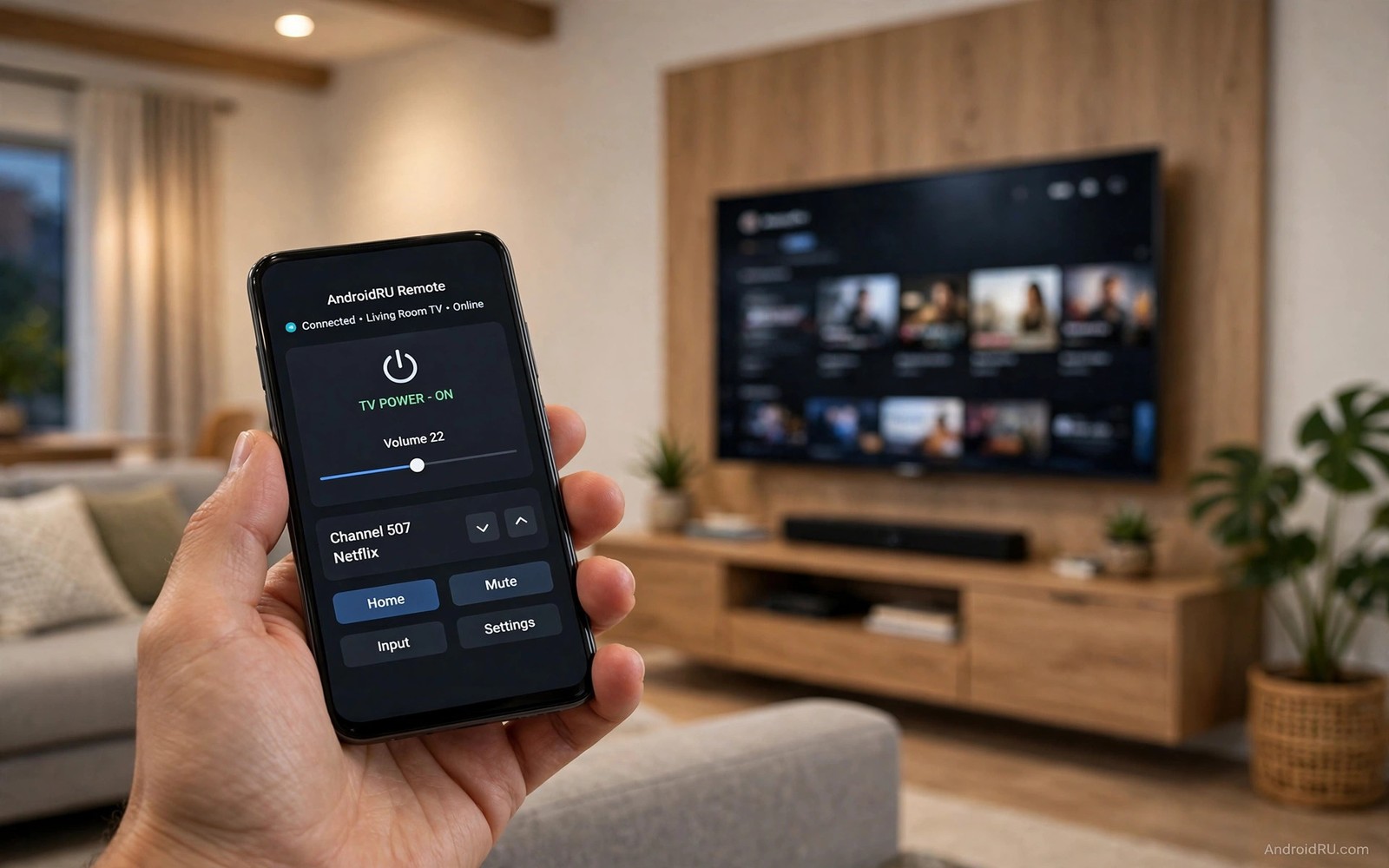
A smart television at home can still be useful when you are away. You may want to start a download before you arrive home. You may want to check that a child profile is active. You may want to help a parent fix a setting without driving over. Remote control from anywhere makes those tasks possible from a phone. It needs a secure setup because an open television is a privacy risk.
Remote control works through a cloud link or a secure home network link. A cloud method uses an account that both phone and television share. A network method uses a secure tunnel into the home network. Cloud methods are easier to set up. Network methods give more control but they need careful firewall settings. This guide covers the safer version of each method.
Start by deciding which tasks truly need remote access. Starting a download and checking a profile are reasonable remote tasks. Full screen control for daily viewing is rarely needed away from home. Limit remote access to the tasks you listed. For a related remote idea see using a phone as a wireless TV remote for the local version of this control. A narrow remote scope is a safer remote scope.
Remote television control also helps a teacher who prepares a classroom display before students arrive. A teacher can start a lesson video from a phone in the corridor. The display then shows the correct content when students enter. That preparation saves class time and it avoids fumbling with a remote in front of students. Remote preparation suits any shared display setting.
Choose Cloud Or Secure Network Access
A cloud remote app links the television to your account and lets the phone send commands through that account. Sign into the same account on both devices and enable remote control only for that television. Check that the app uses encryption and two factor authentication for the account. Enable two factor authentication before you enable remote television control. That account lock is the main defence for a cloud method.
A secure network tunnel lets your phone join the home network from outside without opening the television to the internet. Set up the tunnel on your router or on a trusted home device. Connect through the tunnel and then use the local remote app as if you were home. That method avoids exposing television ports directly. It needs more setup but it keeps control inside your own network.
Set Up Remote Control Step By Step
Update the television system and the remote app on the phone before you start. An outdated system may lack security fixes for remote access. Sign into the same account on both devices and confirm the television appears in the phone app. Test remote control while on home Wi-Fi first. If local control works then test remote control on mobile data from outside the home network.
# Remote TV access checklist
account = same_on_both_devices
two_factor = enabled
remote_scope = downloads_and_profiles_only
local_test = passed_before_remote_test
remote_off_when_not_needed = yes
The snippet above is an original example written for this guide. It shows generic settings that you can adapt to your own device. It does not copy code from any outside source.
Grant only the permissions the remote app needs for your chosen tasks. A download starter does not need camera or microphone access on the television. Review the permission list during setup and deny anything unrelated. Set a strong television PIN that remote control must also respect for settings changes. A PIN that blocks local settings changes should block remote settings changes too.
Use Remote Control For Helpful Tasks
Remote control shines for preparation tasks before you arrive home. Start a large download so it finishes by the time you sit down. Switch the television to a child profile before a babysitter arrives. Pause a stream that a family member left running. Those tasks save time and they reduce arguments without needing full screen viewing from afar.
Remote help for family members also works well when guided carefully. Ask the person at home to describe what they see on screen. Send one command at a time and wait for confirmation before the next command. That slow pace avoids confusion and it prevents accidental changes. End the session by confirming the television shows the correct home screen. A calm guided session builds trust in remote help.
Lock Down Remote Access After Use
Turn remote access off when you no longer need it for a trip or a help session. An always on remote link is a standing invitation for account attacks. Review active remote sessions in the account settings once a month. Remove devices you no longer recognise at once. Change the account password if you suspect any unauthorised access and recheck two factor settings.
Check the television for unexpected setting changes after any remote session. Confirm the profile and the audio and the network settings match your normal setup. If something changed without your action then disable remote access and investigate the account activity log. A quick check after each remote use catches problems early. Remote convenience should never outrank home privacy.
Use Remote Control For Elderly Relatives
Remote help for an elderly relative needs patience and clear communication above all. Call the relative first and explain each step before you send a command. Send one command and wait for them to describe the screen. That slow pace prevents confusion and it builds confidence. A relative who understands the fix feels less dependent next time.
Set up a simple favourite list on the relative television before remote help becomes routine. A favourite list with three large tiles covers most daily viewing. Remote help then focuses on choosing a favourite rather than navigating menus. That simplicity reduces the number of remote sessions needed. A simple home screen is the best remote help of all.
Agree on a remote help schedule with the relative so help feels planned rather than intrusive. A weekly check call can catch small problems before they become frustrations. During that call check the home screen and the profile and the volume. A regular check prevents a buildup of small issues. Respect the relative routine while you help.
Combine Remote TV With A Smart Home Panel
A smart home panel in the relative home can show television status at a glance. A tablet panel can show which profile is active and whether the television is on. That visibility helps a remote helper diagnose problems without guessing. A panel plus remote control gives both information and action. Together they make remote help far more effective.
Television settings for a clean start also help remote sessions by reducing stray prompts. The guidance in hidden Android TV settings worth enabling keeps the home screen predictable for a remote helper. A predictable home screen means a helper can guide a relative by memory. Predictability is a kindness in remote help.
Document the relative television setup in a simple note with model and account and PIN location. Store that note securely where only trusted helpers can reach it. A documented setup lets a second helper step in when the main helper is away. Continuity of help matters for elderly relatives. A good note is part of good care.
Common Mistakes
The most common mistake is enabling remote access with a weak account password and no two factor authentication. That combination invites account takeover. Another mistake is opening television ports directly on the router instead of using a cloud link or a secure tunnel. Open ports expose the television to internet scanning. A third mistake is leaving remote access on permanently after a single trip. Remote control from afar pairs with triggering a remote beep locator alarm when the physical remote goes missing.
People also grant a remote app every permission it requests without checking the list. A remote control app does not need unrelated access to files or cameras. Do not share remote access with a broad household group when only one person needs it. Limit access to the person who will actually use it. A narrow access list is easier to audit and easier to revoke.
Owners also use remote control to change settings on a relative television without telling them. A sudden change confuses the relative and it erodes trust in help. Always explain a change before you make it remotely. Ask permission for settings changes that affect daily viewing. Respect and communication keep remote help welcome.
Frequently Asked Questions
Can I watch my home TV screen live from anywhere?
Some remote tools show the television screen while others only send commands. Live screen viewing needs more bandwidth and it raises privacy concerns. Command only control suits most remote tasks such as starting downloads. Choose live viewing only when you truly need to see the screen for troubleshooting.
Is remote TV control safe on public Wi-Fi?
Remote control over public Wi-Fi is safer when the app uses encryption and your account has two factor authentication. Avoid setting up remote access for the first time on public Wi-Fi. Use mobile data or a trusted network for initial setup. Disconnect remote sessions when you finish on a shared network.
Why does remote control fail on mobile data?
Failure on mobile data often comes from an account mismatch or a television that is fully off rather than in standby. Check that the television stays in network standby mode. Confirm both devices use the same account. Test on home Wi-Fi first to separate a local fault from a remote fault.
Conclusion
Enable remote control today only after you turn on two factor authentication for your account. Test local control first and then test one remote task on mobile data such as starting a download. If that task works then use remote control for preparation tasks only. Turn remote access off when the trip ends so convenience never becomes a standing risk.
After a trip that used remote control turn remote access off and review the account activity log. A clean log confirms that only your sessions occurred. If anything looks unfamiliar then change the account password and recheck two factor settings at once. Remote convenience should end with a security check every time. That closing habit keeps a helpful tool from becoming a standing risk.

