

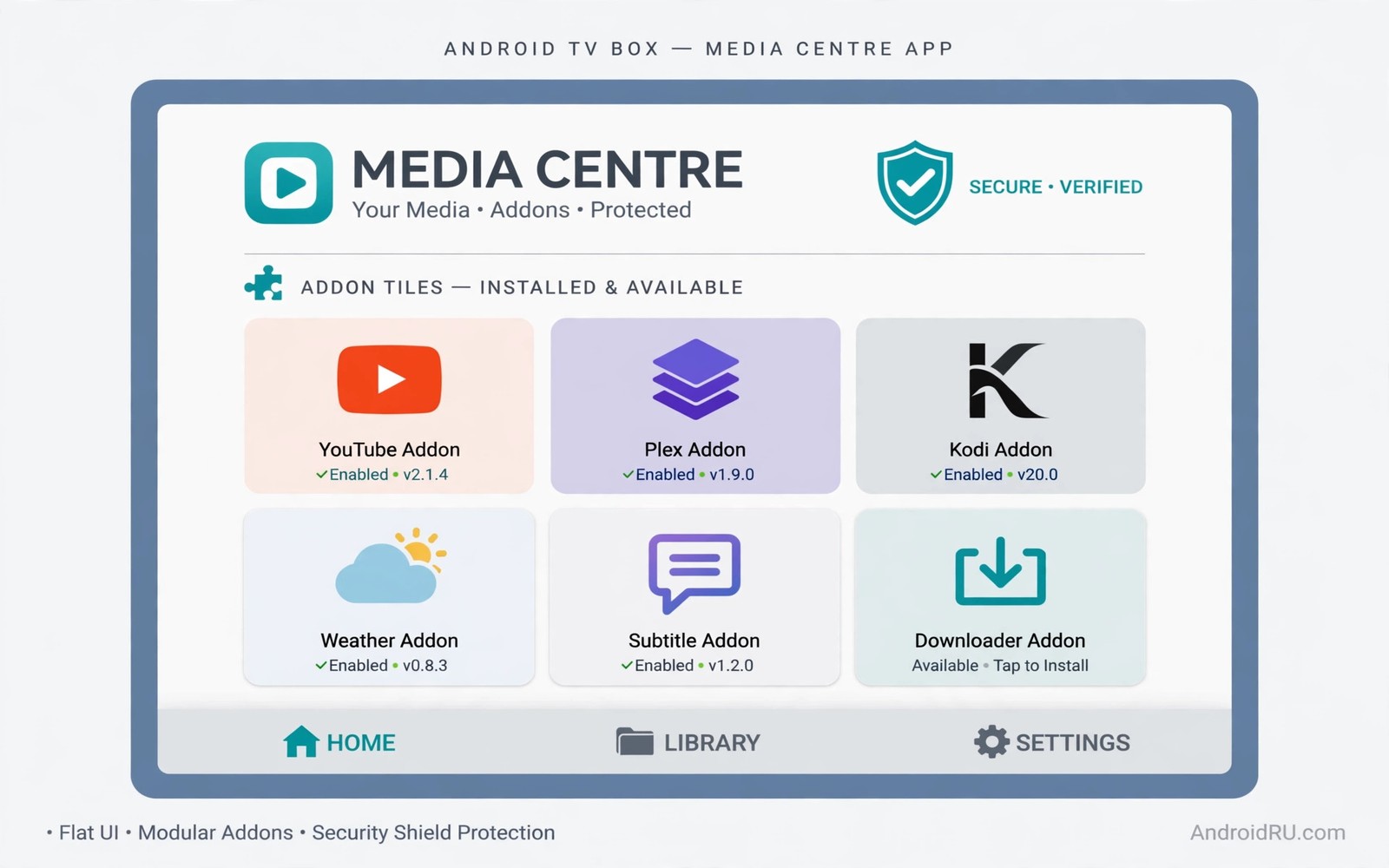
Kodi turns an Android TV box into a flexible media centre for local films and music and photos. Addons extend Kodi with new sources and new features. Custom addons can add great value but they can also carry risk when they come from unknown makers. A safe install method protects your box and your network while still letting you enjoy useful extras. This guide shows that method step by step.
Safety starts with source choice rather than with a security app after install. An official repository with reviewed addons is the safest starting point. A third party repository needs careful checking of its maker and its update history. An addon that asks for broad system access deserves extra scrutiny. A few minutes of checking before install prevents hours of cleanup later.
This guide covers trusted sources and permission checks and update habits. You will learn how to test an addon in isolation before you rely on it. You will also learn how to remove an addon cleanly if it misbehaves. For a related TV setup topic see essential apps for Android TV box owners to build a solid base before you add custom extras. A clean base makes addon problems easier to spot.
Kodi safety also matters for a household where several people add addons over time. A teenager may add a repository that a parent would not approve. A shared Kodi profile with open install rights invites that risk. Limit install rights to one household administrator. That single administrator rule keeps the addon list intentional and safe.
Start With Official Repositories First
Open Kodi and browse the official addon repository before you add any outside source. Official addons pass review and they update through a known channel. They cover many common needs such as subtitles and artwork and library tools. Try an official addon for your task first because it may already solve the problem. Only move to a custom source when no official addon meets the need.
Check the addon description and version and last update date inside Kodi. A recently updated addon with a clear description signals active care. An addon untouched for years may break on a current Kodi version. Read the permission list during install and stop if the addon wants access unrelated to its job. A subtitle addon does not need network control beyond fetching subtitles.
Vet A Custom Source Before You Add It
Research a custom repository maker before you add its address to Kodi. Look for a public project page with a history of updates and user reports. Avoid a repository that appears only in a short video with no project page. Check whether the repository signs its addons and whether it explains what each addon does. A transparent maker with a clear history is far safer than an anonymous link.
# Safe Kodi addon checklist
source = official_first_then_vetted
unknown_sources = on_only_during_install
install_order = one_addon_at_a_time
permission_check = before_accept
note = name_source_date
The snippet above is an original example written for this guide. It shows generic settings that you can adapt to your own device. It does not copy code from any outside source.
Add the repository address by typing it carefully in Kodi settings. A single wrong character can point Kodi to a different server entirely. Enable unknown sources only for the short time needed to install the chosen addon. Turn that setting back off after install so a stray click cannot add another source later. That habit limits exposure to one deliberate decision at a time.
Install And Test One Addon At A Time
Install a single addon and test it before you install the next one. Open its settings and confirm it behaves as described. Play a local file through it and check for crashes or strange network activity. If Kodi slows down or shows unexpected prompts after install then disable the addon at once. Testing one addon at a time makes the culprit obvious when something goes wrong.
Keep a simple note of each addon name and source and install date. That note helps you remove a problem addon months later when you forget its origin. Update addons only through their repository rather than through random files. A repository update carries a version check that a stray file lacks. If an update changes permissions then review them before you accept it.
Remove And Recover From A Bad Addon
Disable a suspicious addon first rather than deleting it at once. Disabling stops its code while keeping its settings for investigation. Check Kodi logs for errors linked to the addon name. If the problem clears after disabling then uninstall the addon and remove its repository if you no longer trust it. Clear Kodi cache after removal to drop leftover data.
If Kodi still misbehaves after removal then reset the addon database from settings or reinstall Kodi as a last step. Back up your library database before a reset so local media settings survive. Rebuild addons slowly after a reset and skip the problem source entirely. A clean rebuild with trusted addons beats a rushed restore that brings the problem back. Readers who manage TV storage can also check expanding storage on Android TV boxes because a full box can mimic addon faults.
Manage Kodi Libraries After Addon Changes
Addon changes can affect how Kodi scans and displays a local library. Rescan the library after installing a new artwork or metadata addon. Check that film titles and posters still match after the rescan. If titles mismatch then disable the new addon and rescan again. That test reveals whether the addon or the library caused the change.
Back up the Kodi library database before a major addon update. A backup lets you restore titles and watched status if an update corrupts data. Store the backup on external storage rather than only on the box. A box failure should not erase the backup with it. A simple backup habit protects years of library curation.
Clean the library periodically by removing entries for files you deleted. Stale entries slow browsing and they confuse search results. Use the built in clean library tool rather than deleting database files manually. That tool preserves watched status for files that still exist. A clean library feels fast and accurate.
Keep Kodi And The Box Updated Together
Kodi updates and box system updates interact because Kodi relies on system codecs and drivers. Update the box system first and test Kodi playback before updating Kodi itself. That order reveals whether a system change broke playback. Update Kodi only after the system proves stable. A staged update order makes faults easy to trace.
Sideloading can expand Kodi options but it needs the same caution as any custom source. The steps for sideloading apps onto a smart TV apply to Kodi helpers as well as to other apps. Check the maker and the version before you sideload any helper. Remove helpers that you do not use weekly.
Test playback after every update with a local file you know well. A familiar film reveals audio or subtitle problems faster than a new title. Check subtitles and audio tracks and chapter skipping during that test. If all three work then the update succeeded. A familiar test file is a reliable update check.
Common Mistakes
The most common mistake is enabling unknown sources permanently and forgetting to turn the setting off. That open setting lets any stray click add a risky source later. Another mistake is installing many addons at once which hides the culprit when Kodi breaks. A third mistake is trusting a repository because a video recommended it without checking the maker or the project history. Popularity in a video is not a security review. A stable Kodi setup benefits from hidden Android TV settings worth enabling across the whole box.
People also accept permission prompts without reading them during a rushed install. A media addon that wants full file system control deserves a pause and a second check. Do not download addon files from file sharing links when a repository exists. A repository provides version checks and a removal path that a loose file lacks. Slow deliberate installs keep Kodi safe and enjoyable.
Owners also enable automatic addon updates without checking what changed. An automatic update can change permissions or add a new feature that alters behaviour. Review update notes when the repository provides them. Disable automatic updates for addons you consider sensitive. Manual updates take longer but they keep you in control of changes.
Frequently Asked Questions
Are custom Kodi addons legal to install?
Custom addons themselves are tools and their legality depends on what they access and on local law. Addons that play your own local media are normally fine. Addons that stream unlicensed content raise legal risk. Choose addons for your own library and check local rules for streaming sources.
Can a Kodi addon harm my Android TV box?
A malicious addon can access files and network resources that Kodi itself can reach. That is why source vetting and permission checks matter so much. Stick to reviewed repositories and limit permissions. Remove any addon that behaves unexpectedly and clear its data after removal.
Why does Kodi ask to enable unknown sources?
Kodi blocks outside repositories by default to protect users from accidental installs. Enabling the setting lets you add a custom repository address manually. Turn the setting back off after the install finishes. That way a future stray click cannot add a new source without your deliberate action.
Conclusion
Open Kodi today and install one official addon for a task you need. Test it for a day and note its source and permissions. If it works cleanly then research one custom repository carefully before you add it. That patient order builds a media centre you can trust instead of a box full of unknown code.
After a month with Kodi check the addon list against the note you kept at install time. Remove addons you never opened and update the rest through their repositories. A lean addon list loads faster and it breaks less often. If Kodi slows down then disable the most recent addon first and test again. That simple order finds most faults without a rebuild.
Keep a backup of the Kodi library database after this month of testing so a future update cannot erase watched status. A backup on external storage survives a box failure that would otherwise erase the library with it. Restore that backup only after a clean Kodi install if a serious fault appears. A clean restore with trusted addons beats a rushed restore that brings a problem back. That backup habit completes a safe Kodi setup.

