

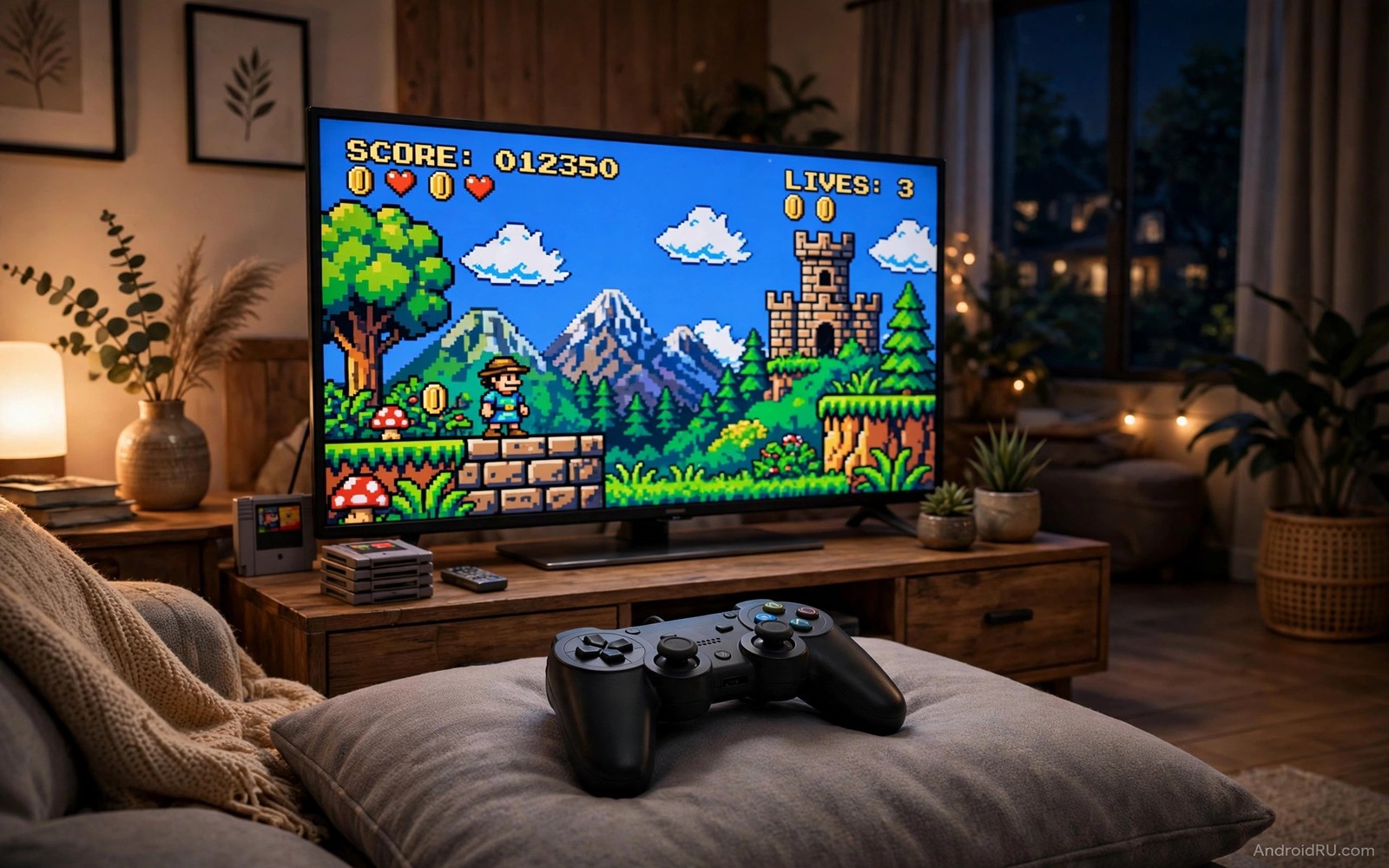
Retro games were designed for television screens and they feel right at home on Android TV. Big pixels look bold on a large display and simple controls suit a living room controller. Android TV boxes can run many classic systems well because those systems need far less power than modern games. The setup takes some care because emulators need game files and controller mapping and display settings that match old hardware. Done well the result is a couch friendly arcade that costs almost nothing beyond a controller.
Start with realistic expectations about which systems your box can handle. Most boxes run 8 bit and 16 bit systems smoothly. Many boxes also run early 3D systems with care. Very demanding later systems may stutter on a basic box. Testing one system at a time keeps frustration low. If a system stutters then lower the resolution or turn off extra filters before you blame the box. The performance ideas in how to stream PC games to a smart TV at 60 frames per second show how display settings shape smooth play on a television.
Choose an emulator that fits Android TV
Pick an emulator with a television friendly interface first. A phone style emulator with tiny touch buttons frustrates television users. A television friendly emulator uses large menus and full controller navigation. You should be able to browse games and change settings without touching a mouse. That test alone eliminates many otherwise good emulators.
Multi system frontends suit Android TV well because they gather many systems under one menu. One frontend can list games from several systems in a single library view. That view feels like a real console menu. Single system emulators suit players who focus on one classic system and want the deepest settings for it. Choose the approach that matches how you actually play.
Check controller support before you commit to an emulator. The emulator should recognise your controller at once and it should let you remap buttons from the television menu. Remapping matters because classic controllers used different layouts. A clear remap screen turns a confusing controller into a natural one.
Set up controllers for couch play
Bluetooth controllers work well for Android TV retro gaming when they stay charged and paired. Pair the controller in Android TV settings before you open the emulator. A controller paired inside the emulator alone may not work in menus. System level pairing gives the most reliable result across apps.
Keep a second controller ready for two player games. Retro gaming shines with a friend on the sofa. Two identical controllers avoid confusion about button layouts. Label each controller when they look alike so players know which one is player one.
Test button mapping with a simple game before a long session. A platform game reveals mapping errors fast because jump and run must feel instant. A slow puzzle game can hide a bad mapping for an hour. Fix mapping issues early and save the profile so the fix survives a restart.
Tune display settings for old games
Old games used a 4 by 3 screen shape while modern televisions use a wide screen. Stretching an old game to fill the screen distorts characters and makes circles look like ovals. Keep the original aspect ratio and accept black bars on the sides. The picture looks correct and the game plays as its designers intended.
Integer scaling keeps pixels sharp when the emulator supports it. It scales the picture by whole numbers so each original pixel becomes the same size on screen. Non integer scaling blurs pixels unevenly and makes text look messy. Turn on integer scaling when you see shimmering or uneven pixels during scrolling.
Scanline and CRT filters can add nostalgia but they also cost performance. A light filter adds charm without hurting speed. A heavy filter can slow a basic box and darken the picture too much. Test filters on a bright game first because dark games hide filter problems.
Organise your game library legally
Only use game files you legally own or games that creators have released freely. Many classic games now appear in legal collections and many homebrew games are free to download. A legal library avoids malware hidden in shady downloads and it keeps your box safe. It also avoids broken files that crash emulators at random moments.
Store game files in a clear folder structure on USB storage. Create one folder per system and name files clearly. A tidy structure helps the frontend scan games quickly and it helps you find a game without browsing dozens of files. Keep save files in the same structure so backups stay simple.
Back up save files regularly because retro progress can vanish after an emulator update. Copy the save folder to a USB drive once a month. That habit protects long role playing campaigns that took weeks to build. A lost save hurts more than a lost game file because game files can be replaced.
adb shell pm grant com.example.emulator android.permission.READ_EXTERNAL_STORAGE
adb shell ls /sdcard/RetroGames/
The snippet above was written for this article to show how advanced users check emulator storage access and game folders through a computer connection. It grants a storage permission on older builds and it lists a game folder to confirm files are present. Use it only for diagnosis on a device you own. The normal setup path stays inside the emulator settings on the television.
Handle save files and controller profiles
Save files deserve the same care as game files because they hold your progress. Emulator save states live in folders that vary by emulator. Find the save folder for your emulator and back it up monthly to a USB drive. A backup protects long campaigns from emulator updates and box resets. A lost save file hurts far more than a lost game file because progress cannot be downloaded again.
Controller profiles save mapping work across sessions. Create one profile per controller type and name it clearly. A profile for a standard Bluetooth controller and a profile for a retro style controller cover most setups. Switch profiles when you switch controllers instead of remapping buttons every time. Profiles turn controller swaps into a one tap change.
Test save states before a difficult boss or a long level. A save state that fails to load teaches a painful lesson at the worst moment. Create a test save in a safe area and reload it immediately. A successful reload proves the save system works. That proof gives confidence for the rest of the session.
Keep game artwork and metadata tidy for a pleasant library view. A frontend that shows box art and game descriptions feels like a real console. Missing artwork makes the library feel unfinished. Spend an evening scraping artwork for your favourite games only. A curated library of favourites beats a messy library of hundreds of unlabelled files.
Optimise emulator performance per system
Each classic system needs different emulator settings for best performance. A 16 bit system runs well with high resolution filters. An early 3D system needs lower resolution to stay smooth. Create a separate configuration per system rather than one global configuration. Per system settings let each game run at its best. Global settings force compromises that hurt demanding systems.
Test performance with the most demanding game for each system. A light game can hide performance problems that a demanding game reveals. A demanding test gives honest results for the whole system library. If the hardest game runs smoothly then easier games will too. That test saves time compared with testing every game individually.
Save per system configurations with clear names. A name that includes the system and the resolution helps future tweaking. Clear names prevent confusion when you return to settings months later. Good naming turns a complex setup into a manageable one.
Explore homebrew games legally
Homebrew games are new games made by independent creators for classic systems. Many homebrew games are free and legal to download. They bring fresh challenges to old hardware styles. A homebrew collection keeps retro gaming exciting after you finish classic titles. It also supports creators who keep classic gaming alive.
Check homebrew game compatibility with your emulator before downloading a large collection. Some homebrew games use advanced features that older emulators handle poorly. Test one homebrew game first and confirm it runs smoothly. A successful test predicts success for similar games. A failed test saves downloading a whole collection that will not run.
Common mistakes
The biggest mistake is enabling every visual filter at once. Filters stack their costs and a basic box cannot handle them all. Enable one filter and test it and only then consider another. A clean picture beats a heavily filtered picture that stutters.
Another mistake is using a phone controller app instead of a real controller. Touch controls on a phone feel laggy for fast retro games and they hide the television behind your hands. A real Bluetooth controller costs little and transforms the experience.
A third mistake is ignoring save states and relying only on in game saves. Old games had limited save options and some had none at all. Use emulator save states before a hard level. That habit prevents losing an evening of progress to one mistake.
Frequently asked questions
Can any Android TV box run retro games?
Most boxes run 8 bit and 16 bit systems well. Stronger boxes handle early 3D systems better. Test your box with one light system first and expand from there based on real performance.
Do I need a special controller for retro games?
No. A standard Bluetooth controller works well when the emulator supports remapping. A retro style controller feels nicer but it is not required for good play.
Why do old games look stretched on my TV?
The emulator stretches the old 4 by 3 picture to fill a wide screen. Turn on the original aspect ratio in display settings. Black side bars are correct and they restore the true picture shape.
Conclusion
Retro gaming on Android TV works best with a television friendly emulator and a real controller and honest display settings. Keep the original aspect ratio and organise games legally and back up saves. Your concrete next step is to install one multi system frontend tonight and pair one Bluetooth controller and load one legally owned game. Play that game for thirty minutes and tune only the aspect ratio and button mapping. Once that single game feels right then expand the library slowly. The controller ideas in voice commands to control Android TV and essential apps for Android TV box owners can round out the living room setup after gaming feels smooth.

