

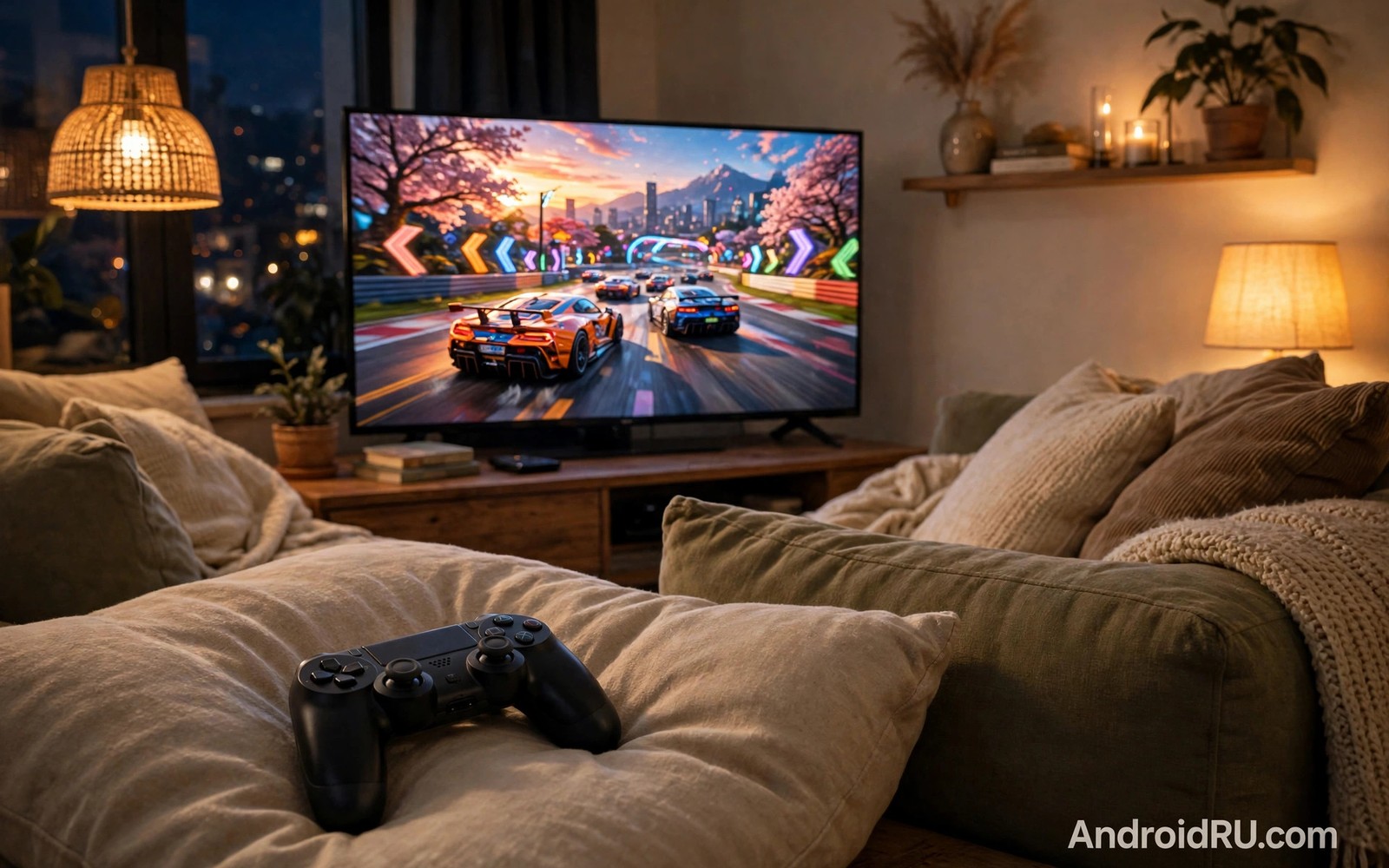
Playing a PC game on a large television feels different from playing on a monitor. The screen is bigger and the sofa is more comfortable. A long HDMI cable is one way to connect a PC to a TV. Streaming over a home network is a more flexible way. It lets the PC stay in another room while the game appears on the TV. This guide explains the secret way to stream PC desktop games to a smart TV at 60 frames per second with low latency.
Game streaming works by capturing the PC screen and sending it as video to the TV. The TV decodes that video and shows it in near real time. Controller input travels back from the TV to the PC. The whole loop must be fast enough that the player does not notice delay. A delay of more than a few tens of milliseconds makes fast games feel sluggish. A delay under twenty milliseconds feels responsive for most genres. Network quality and encoder settings determine that delay more than raw internet speed.
A wired network connection is the single most important factor for smooth streaming. Wi-Fi can work when the signal is strong and the network is quiet. Ethernet gives a stable low latency path that Wi-Fi cannot match consistently. Connect both the PC and the TV or streaming box with ethernet when possible. If only one device can use ethernet then prioritise the PC connection. A stable host connection reduces encoding jitter that a TV side Wi-Fi link cannot fix alone.
Choose A Streaming Method For Your Setup
Several streaming methods exist for PC to TV gaming. Some are built into graphics card software. Others are open source tools that run on a PC and a TV app. Built in methods often offer hardware encoding with low latency. Open source methods often offer more control over resolution and bitrate. Choose a method that supports your graphics card and your TV platform. Test two methods if you are unsure. A short test with a fast game reveals latency differences quickly.
Check that your PC graphics card supports hardware video encoding. Hardware encoding offloads video compression from the processor to a dedicated encoder. That offload keeps game performance high while streaming. Software encoding can work on a powerful processor but it may reduce frame rate in demanding games. Enable hardware encoding in the streaming tool settings. Confirm that the encoder is actually active during a session by checking the tool status overlay if available.
Controller support varies by method. A controller connected to the TV may be forwarded to the PC as a virtual controller. Some games recognise that virtual controller without extra setup. Others may need a driver or a mapping tool. Test controller input with the specific games that you play most. A method that streams video perfectly but breaks controller input is not useful for gameplay. Keep a spare controller connected directly to the PC for testing when a TV controller fails.
Tune Resolution Bitrate And Latency
Resolution and bitrate trade off against latency and network load. A higher resolution needs a higher bitrate to look sharp. A higher bitrate needs more network capacity and more decoding work on the TV. For most living room setups a full high definition stream at sixty frames per second looks excellent. A four thousand pixel stream looks sharper but it demands much more from the network and the decoder. Start at full high definition and increase resolution only if the network and TV handle it without stutter.
Bitrate controls video quality within a resolution. Too low a bitrate causes blocky artefacts during fast motion. Too high a bitrate can cause network congestion and dropped frames. A bitrate between twenty and forty megabits per second works well for full high definition at sixty frames per second on a wired network. Adjust bitrate in small steps and watch fast motion scenes. A racing game or a first person shooter reveals bitrate problems faster than a slow strategy game. Use those fast games for tuning.
Latency settings in streaming tools often include a low latency mode and a buffering option. Low latency mode reduces the buffer between capture and display. That reduction improves responsiveness but it makes the stream more sensitive to network jitter. A small buffer can smooth over brief network hiccups. Test both settings with your network. A wired network usually allows the lowest latency setting. A busy Wi-Fi network may need a small buffer to avoid stutter during peak use.
Optimise The PC And The TV For Streaming
Close unnecessary programs on the PC before streaming. A browser with many tabs or a download in progress can compete for processor and network resources. Set the PC power plan to high performance during a gaming session. That plan prevents the processor from throttling down between frames. Check that the PC is not running a large update in the background. An update download can saturate the network and cause streaming stutter that looks like a streaming tool problem.
Set the TV to game mode if it offers one. Game mode disables extra picture processing that adds display latency. Motion smoothing and noise reduction can add tens of milliseconds of delay. Turning them off makes the TV respond faster to streamed frames. Game mode may slightly change picture quality. That trade off is worth it for interactive gaming. For a slow puzzle game the difference matters less. For a fast action game it matters a great deal.
Disable high dynamic range processing on the TV if it causes extra latency or colour problems during streaming. Some streaming tools do not support HDR passthrough well. A stream that tries to carry HDR data may look washed out on a TV that expects standard dynamic range. Test HDR and standard modes separately. Choose the mode that gives stable colour and low latency for your games. A consistent standard mode often beats an unstable HDR mode.
Code That Tests Network Latency To The TV
The code below shows command patterns for testing latency and bandwidth to a TV on a local network. Use them on a network that you own. Adapt the address to your own TV or streaming box.
ping -c 20 192.168.1.50
iperf3 -c 192.168.1.50 -t 10
traceroute 192.168.1.50
The snippet above is an original example written for this guide. It shows a generic network test pattern that you can adapt to your own home network. It does not copy code from any outside source.
Adapt the snippet by replacing the example address with the address of your TV or streaming device. A low ping with little variation indicates a good streaming network. A high variation indicates jitter that will cause stutter. Fix jitter by switching to ethernet or by reducing other network traffic during gaming. That network fix helps more than raising bitrate on an unstable link.
Troubleshoot Stutter Input Lag And Audio Sync
Stutter often comes from decoder overload on the TV. A TV with a weak decoder may struggle with a high bitrate stream. Lower the bitrate or lower the resolution to reduce decoder load. Check the TV processor temperature as well. A TV in a hot cabinet may throttle during a long session. Improve airflow around the TV or streaming box. A cool decoder maintains a stable frame rate over a long gaming session.
Input lag can come from several stages. Capture and encoding add a few milliseconds. Network transmission adds a few more. TV display processing adds the largest share in many setups. Reduce display processing with game mode first. Then reduce streaming buffer. Then check controller connection type. A wireless controller connected to the TV may add more lag than a controller connected directly to the PC through a long range adapter. Test each stage separately to find the largest contributor.
Audio sync problems appear when video and audio take different paths. Audio that travels through the TV speakers should stay in sync with streamed video if both use the same stream. Audio that travels through a separate soundbar may lag or lead. Check audio delay settings on the soundbar or receiver. A small delay adjustment often fixes lip sync for streamed games. Test sync with a game that has clear sound effects tied to visible actions such as a gunshot or a jump.
Common Mistakes
One common mistake is to stream over Wi-Fi while also downloading large files on the same network. That combination saturates the Wi-Fi channel and causes stutter. Pause downloads during a gaming session. If downloads must continue then schedule them for after the session. A clean network during gaming is more valuable than a slightly faster download in the background. Readers who study free streaming apps for Android TV will see a similar need for a stable network during video playback.
Another mistake is to set the highest resolution and bitrate without testing. A maximum setting looks impressive on a settings screen but it can cause dropped frames in practice. Start at a moderate setting and increase it only while the stream remains stable. A stable full high definition stream beats an unstable four thousand pixel stream every time. That principle applies to many performance settings beyond game streaming.
A third mistake is to ignore TV game mode. Many users tune the streaming tool for hours while the TV adds fifty milliseconds of processing delay. Game mode removes much of that delay in one switch. Enable game mode before tuning any streaming setting. That order saves time and it gives a realistic baseline for further tuning. The same baseline thinking helps when casting a smartphone screen to a TV without a router because display settings affect the perceived quality of any cast stream.
A further mistake is to use a controller with low battery during a test. A low battery controller can drop inputs and feel like network lag. Charge the controller before a tuning session. Test with a wired controller if wireless input feels inconsistent. That simple check separates controller problems from network problems quickly.
Frequently Asked Questions
Can I stream PC games to a TV without a cable?
Yes you can stream over Wi-Fi when the signal is strong and the network is quiet. Ethernet gives a more stable result for fast games. If Wi-Fi is the only option then use the five gigahertz band and keep the TV close to the router. Test a fast game before committing to Wi-Fi only streaming.
What internet speed do I need for PC game streaming?
Local network speed matters more than internet speed for in home streaming. The stream travels inside your home network and not over the internet in most setups. A gigabit ethernet network or a strong Wi-Fi link gives ample capacity. Internet speed matters only when streaming to a remote location outside the home.
Will game streaming damage my PC graphics card?
No streaming uses the normal hardware encoder on the graphics card. That encoder is designed for video capture and streaming. It does not wear out the card faster than normal gaming. Keep the PC cool and clean for long term reliability. Streaming itself is a normal workload for a modern graphics card.
Conclusion
Start today by connecting your PC and your TV with ethernet if possible and by setting the TV to game mode. Then choose a streaming method that supports hardware encoding on your graphics card. Test a fast game at full high definition and sixty frames per second and tune bitrate in small steps until motion looks clean. That single tuning session will give you a large screen gaming setup without moving the PC. It will also prepare you to revive an old screen by studying how Android TV boxes revive old screens because both projects make a television more useful with the hardware you already own.

