

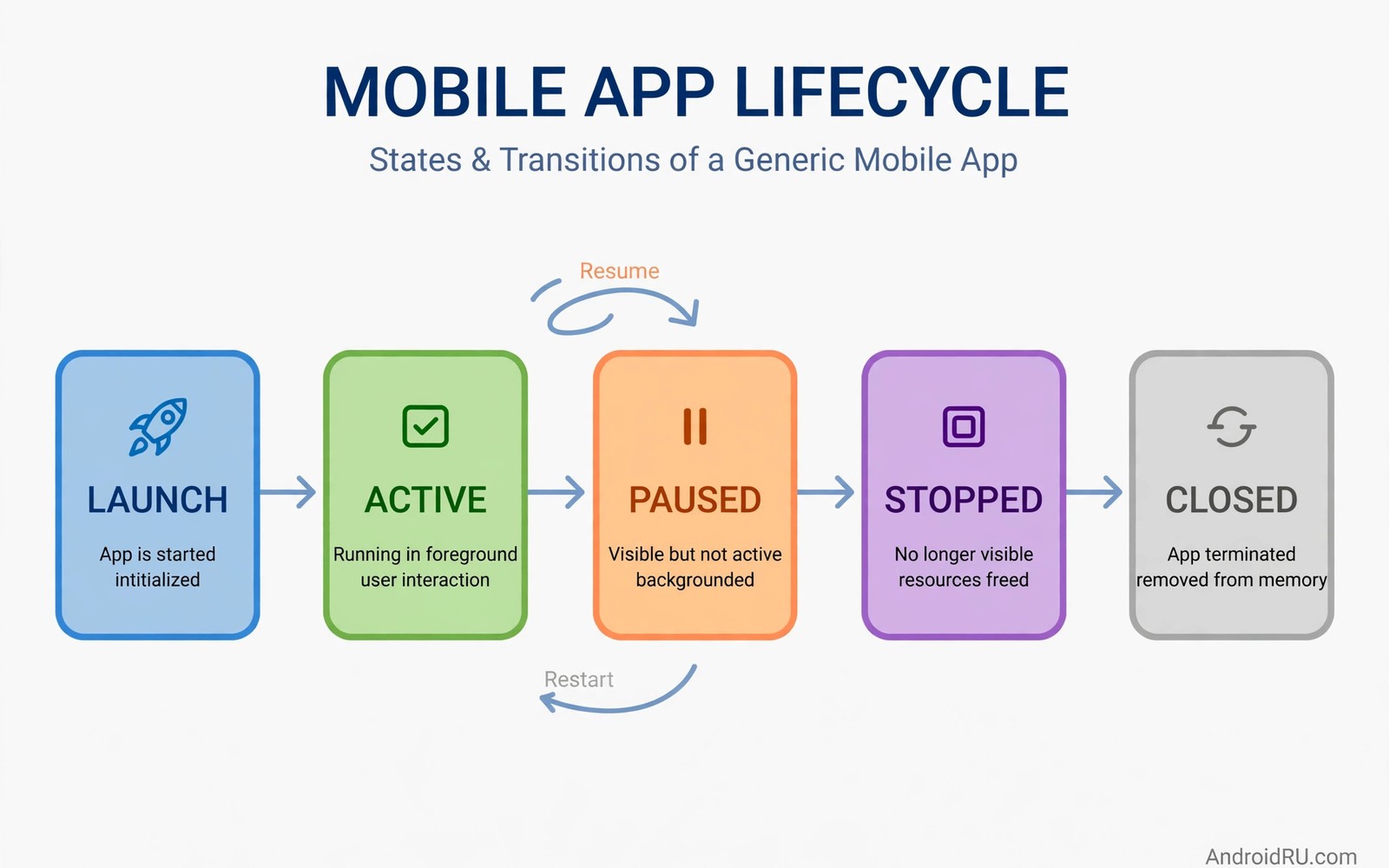
An Android app does not run in a straight line from launch to exit. The system can pause it and stop it and destroy it at any time. A phone call can interrupt a screen. A rotation can recreate an activity. Low memory can kill a background app. An app that assumes a stable lifetime will crash in those moments. This guide explains how to handle Android app lifecycle state changes without crashes by using the right tools for each state.
The lifecycle is a set of callbacks that the system calls as an app moves between states. An activity moves from created to started to resumed when it becomes visible and interactive. It moves back through paused and stopped when it loses focus. It can be destroyed and recreated with a new instance. A fragment has a similar but more detailed lifecycle tied to its host activity. Understanding that order is the foundation for correct handling. Guessing the order leads to bugs that appear only on certain devices.
State falls into two categories. User interface state includes text in a field and scroll position and a selected tab. That state should survive a rotation and a process death if possible. Long lived data such as a user profile belongs in a persistent store rather than in a temporary state bundle. Mixing those categories causes problems. A large object saved in a bundle can exceed size limits. A temporary value saved only in a database can be slow to restore for a simple rotation.
Save UI State The Right Way
View models survive configuration changes such as rotation. They do not survive process death by default. Use a view model for data that should survive rotation and for ongoing work such as a network request. Use a saved state handle inside the view model for values that must also survive process death. That combination covers both common cases without duplicating logic. Test both cases separately because they exercise different code paths.
The saved instance state bundle is for small UI values. Save a text field value and a selected item identifier and a scroll offset in the bundle. Do not save large lists or bitmaps or database connections in the bundle. Large values can cause a transaction failure when the system tries to save the state. That failure crashes the app at the worst moment when the user is rotating the phone. Keep bundle values small and simple and reconstruct larger data from a repository after restore.
Restore state in a predictable place. Restore UI values when the view is created and after the layout is ready. Restoring too early can overwrite a value when the view initialises later. Restoring too late can cause a visible flicker as the screen jumps to the saved position. Test restore by rotating the device during a task and by enabling the developer option that destroys activities when they leave the screen. That option simulates process death behaviour in a repeatable way.
Manage Resources Across Pause And Stop
Resources such as camera access and location updates and sensors should be released when the app is paused or stopped. Holding a camera while the app is in the background blocks other apps and drains battery. It can also cause a crash when the system reclaims the resource. Acquire resources in the resumed state and release them in the paused state for exclusive resources. For less exclusive resources release them in the stopped state. That distinction follows platform guidance and it prevents many lifecycle bugs.
Background work must not assume that an activity is alive. A network callback that updates a destroyed activity view will crash or leak memory. Use a lifecycle aware observer that stops delivering updates when the activity is destroyed. Alternatively deliver results to a view model that survives the activity. The view can then read the latest result when it recreates. That indirection protects the app from timing races between network completion and lifecycle changes.
Coroutines and other asynchronous work need lifecycle aware scopes. A coroutine launched in an activity scope is cancelled when the activity is destroyed. A coroutine launched in a global scope runs forever and can leak. Choose the scope that matches the work lifetime. User interface work belongs in a lifecycle scope. Repository work that should survive a rotation belongs in a view model scope. Long running work that should survive app exit belongs in a proper background work system rather than in a coroutine.
Handle Process Death Gracefully
Process death is the hardest lifecycle case to test because it is invisible to the user in a well built app. The system kills the process to free memory. When the user returns the system recreates the activity stack from saved state. The app must rebuild its data from persistent storage and from saved UI state. An app that keeps critical data only in memory will show an empty screen after process death. That empty screen feels like a crash even when no exception occurs.
Navigation state must also survive process death. A user who was deep in a flow should return to the same screen after process death. The navigation component can restore the back stack if it is configured correctly. Test that flow by killing the process from the developer options and then returning to the app. If the app returns to the home screen instead of the deep screen then navigation state was not saved correctly. Fix the navigation setup before release.
Singletons that hold state are a common source of process death bugs. A singleton may hold a user object that was loaded at login. After process death that singleton is empty because the process restarted. Code that assumes the singleton is populated will crash with a null error. Load critical data lazily from storage when it is needed rather than assuming it is already in memory. That lazy loading pattern makes the app robust against process restarts.
Code That Saves And Restores A Simple Value
The code below shows a view model that saves a counter value using a saved state handle. The value survives rotation through the view model and it survives process death through the saved state handle. Adapt the key and the initial value to your own screen. Keep the saved value simple and reconstruct complex objects from a repository.
class CounterViewModel(private val savedState: SavedStateHandle) : ViewModel() {
    val count: StateFlow<Int> = savedState.getStateFlow("count", 0)
    fun increment() {
        val current = savedState.get<Int>("count") ?: 0
        savedState["count"] = current + 1
    }
}
The snippet above is an original example written for this guide. It shows a generic state saving pattern that you can adapt to your own app. It does not copy code from any outside source.
Adapt the snippet by adding your own UI state keys for the screen that you are building. Test the pattern by rotating the device and by simulating process death with the developer option. Confirm that the counter value returns correctly in both cases. If it fails in one case then check whether the value is stored in the saved state handle or only in a plain view model field. That distinction is the most common cause of a restore failure.
Testing Lifecycle Changes Systematically
Test lifecycle changes as a checklist rather than as an afterthought. Rotate the device on every major screen. Switch to another app and return. Receive a phone call simulation if possible. Enable the destroy activities option and navigate through the app. Kill the process and return to a deep screen. Each test reveals a different bug class. A screen that passes rotation may still fail process death. A screen that passes process death may still leak a resource on pause.
Automated tests can cover lifecycle changes too. Instrumentation tests can recreate an activity and assert that UI state is restored. Those tests run in continuous integration and catch regressions early. Write a recreation test for each screen that holds important UI state. Keep the test focused on one value at a time so a failure points to a specific restore bug. A broad test that checks everything at once is harder to debug when it fails.
Log lifecycle callbacks during development to understand the order on a real device. Different makers and different Android versions can call callbacks in slightly different orders in edge cases. A log trace helps a developer see the actual order rather than the ideal order from documentation. Remove verbose lifecycle logs from release builds to keep logs clean for users and for crash reports.
Common Mistakes
One common mistake is to save state in the wrong callback. Saving in a callback that runs after the system has already saved state will not persist the value. Saving in a callback that runs too often can cause performance problems. Use the documented save callback for bundle values and use the view model for in memory values. That separation keeps the code clear and it avoids timing bugs.
Another mistake is to hold a reference to an activity inside a long lived object. That reference prevents garbage collection and leaks memory. It can also cause a crash when the long lived object tries to update a destroyed activity. Use weak references only when necessary and prefer lifecycle aware observers. A leak that grows over hours will eventually cause an out of memory crash that is hard to reproduce. Readers who study managing WorkManager tasks under background limits will see a similar need to avoid holding references beyond the intended lifetime.
A third mistake is to ignore the fragment lifecycle when using fragments. A fragment can be detached and reattached while its host activity remains alive. Code that assumes a fragment view is always present will crash after detachment. Check view availability before updating a fragment view. Use view lifecycle owners for observers that update fragment views. That owner stops updates when the view is destroyed even when the fragment itself remains. The same careful ownership applies when implementing push notifications with Firebase because a message can arrive when a screen is not visible.
A further mistake is to test only on an emulator with abundant memory. Low memory devices kill background processes more aggressively. A bug that never appears on a high end emulator may appear daily on a budget phone. Test lifecycle behaviour on a low memory device or with memory pressure simulation. That test reveals process death bugs before users encounter them.
Frequently Asked Questions
What is the difference between a view model and saved instance state?
A view model survives configuration changes such as rotation but not process death. Saved instance state survives both rotation and process death for small values. A saved state handle combines both behaviours for view model data. Use a view model for ongoing work and use saved state for UI values that must return after process death.
Why does my app lose data when I rotate the phone?
Rotation destroys and recreates the activity by default. Data held only in activity fields is lost during recreation. Move that data to a view model or save it in the instance state bundle. Test rotation on every screen that holds user input. A field that loses text on rotation will frustrate users quickly.
How do I test process death reliably?
Enable the developer option that destroys activities immediately when they leave the screen. Also use the process kill command from a terminal while the app is in the background and then return to the app. Both methods simulate the conditions that cause process death. Test a deep navigation flow with both methods and confirm that the app returns to the correct screen with its data intact.
Conclusion
Start today by enabling the destroy activities developer option and by walking through your main user flow. Note every screen that loses state or crashes and fix those screens with a view model and saved state handle where needed. Then test rotation and process death on a real device before your next release. That systematic pass will remove a whole class of crashes. It will also give you confidence to tackle how Camera2 API manages multi-lens hardware switching because both topics require careful handling of state that can change at any moment.

