

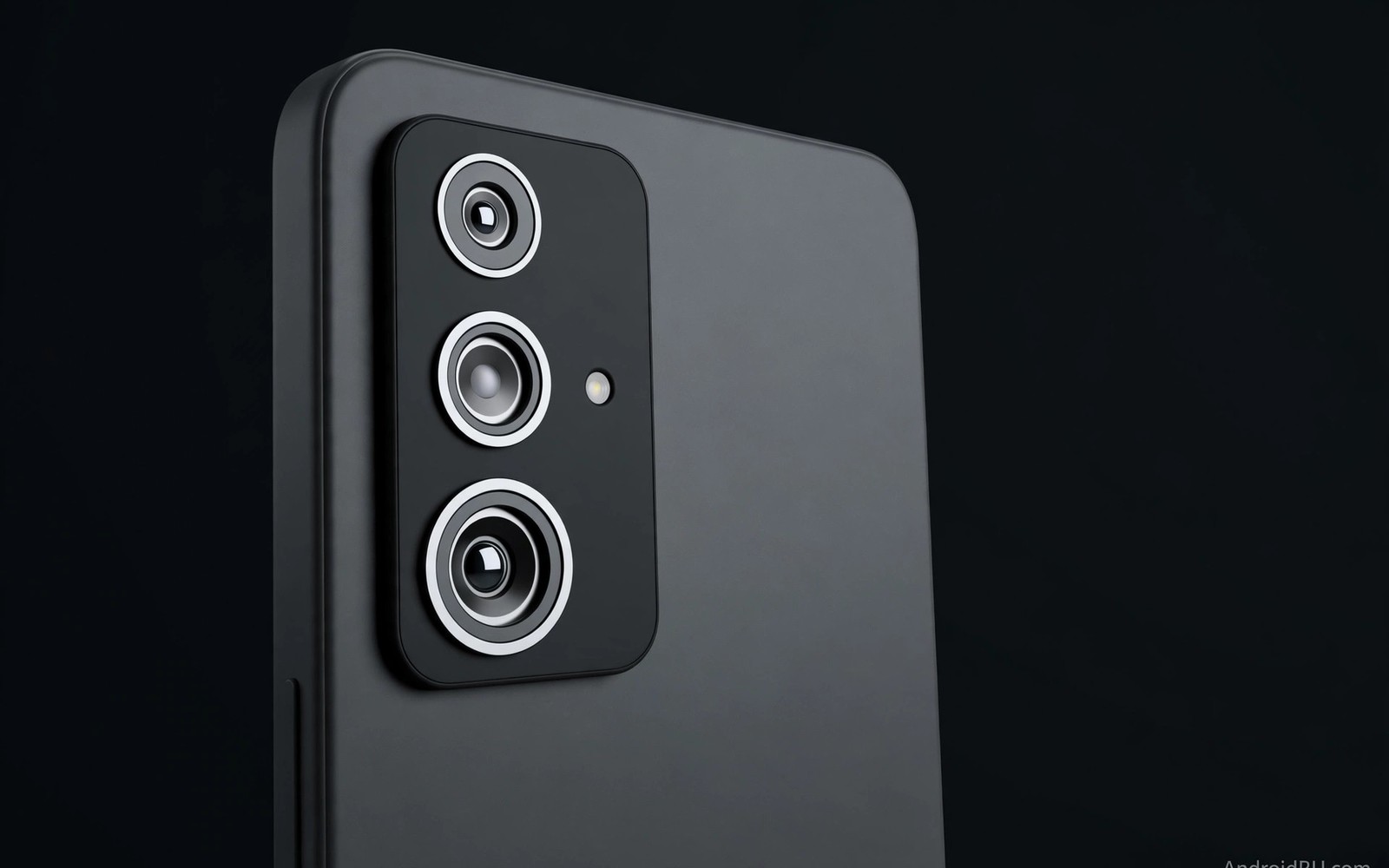
Modern Android phones carry more than one rear camera. A single phone can hold a wide lens and an ultrawide lens and a telephoto lens at the same time. The user sees one camera viewfinder and one zoom slider. The system behind that simple view is far more complex. The Camera2 API framework manages multi-lens hardware switching so the change feels instant and stable. This guide explains how that framework works and how a developer can use it well.
A phone camera is not a single sensor in the modern sense. Each lens sits on its own sensor and each sensor has its own field of view and its own focal length. The Camera2 framework groups these physical cameras into one logical camera when the hardware allows it. An app opens the logical camera and asks for a frame. The framework then decides which physical camera should supply that frame. That decision can change as the user zooms in or out. The app does not need to close one camera and open another camera in most cases.
The logical camera idea matters because it hides hardware detail from app code. A developer writes code against one camera identifier. The framework maps that identifier to the best physical device for the current zoom level. When the user moves from wide to telephoto the framework can switch the active sensor without tearing down the whole session. Exposure and focus and white balance must follow the switch. If those values jump then the user will notice a flash or a colour shift in the preview.
How Logical Cameras Group Physical Lenses
Android exposes camera identifiers through the camera manager. A logical camera lists its physical cameras as a set. Each physical camera has its own characteristics such as sensor size and lens aperture and available output sizes. A developer can query those characteristics before opening a session. That query step is essential on phones where lenses differ widely in quality. An ultrawide lens may lack autofocus. A telephoto lens may have a smaller aperture. A wide lens may offer the best low light result.
The framework does not promise that every lens can run at the same time. Some hardware can stream from two lenses at once for depth or for a smooth zoom blend. Other hardware can use only one lens at a time and must switch quickly. The developer should check the capability list for the device in use. A capability list tells the app which output streams are supported and which combinations are valid. Building a session that the hardware cannot support will fail at creation time. That failure is better than a crash during recording.
Zoom is the main trigger for a lens switch. At a low zoom value the wide lens gives the best image. At a medium zoom value the framework may crop the wide sensor instead of switching at once. Cropping avoids a visible jump when the telephoto lens has a different colour profile. At a higher zoom value the telephoto lens becomes the better choice. The switch point depends on the sensor sizes and on the focal lengths. A good app lets the framework handle that point rather than forcing a switch at a fixed number.
What Happens During A Lens Switch
A lens switch is not only a sensor change. The camera pipeline must retune exposure for the new sensor. It must refocus for the new lens. It must adjust white balance for the new optics. It must also keep the preview frame rate steady. If any step lags then the preview will stutter or freeze for a moment. Users notice that stutter at once and they blame the app even when the hardware caused the delay.
The Camera2 framework helps by allowing a single capture session to span physical cameras. The app can request a physical camera identifier for a specific output stream. That request gives fine control when the app needs a depth stream from one lens and a colour stream from another lens. Most simple camera apps do not need that level of control. They can rely on the logical camera and let the framework choose. Advanced apps that need depth data should test that mode on real phones because support varies by maker.
Focus behaviour deserves special attention during a switch. A telephoto lens has a narrower depth of field than a wide lens. A subject that was sharp on the wide lens may need a new focus search on the telephoto lens. The framework can trigger autofocus again after a switch. An app should not lock focus across a switch unless the subject distance is known to be stable. Locking focus too early can leave the new lens soft for several seconds. That soft period ruins a photo that the user thought was ready.
Building A Smooth Zoom Experience
Smooth zoom starts with a continuous zoom control in the user interface. A slider or a pinch gesture should map to a zoom ratio rather than to a lens name. The app sends the ratio to the capture request. The framework then picks the lens that fits the ratio best. This approach keeps the interface simple and it keeps the code portable across phones with different lens layouts. A phone with two lenses and a phone with four lenses can share the same interface code.
Frame rate stability is the next test for a zoom feature. Record a short video while zooming from wide to telephoto and back again. Watch the result frame by frame if needed. A clean result shows no black frame and no sudden exposure jump. A poor result shows a flash or a focus hunt at the switch point. If the result is poor then try a slower zoom speed in the interface. A slower zoom gives the pipeline more time to retune. Many users prefer a slightly slower zoom that looks clean over a fast zoom that flashes.
Testing on more than one phone is not optional for this feature. One maker may blend lenses during zoom. Another maker may switch hard at a fixed ratio. A third maker may expose a logical camera that covers only two lenses while a fourth lens sits apart as a separate camera. An app that assumes one layout will fail on the other layouts. Keep a small test matrix with at least one phone from each major maker that you support. Record the switch point and the focus behaviour for each phone in that matrix.
Code That Queries Logical And Physical Cameras
The code below shows the basic query pattern for a logical camera. It lists the physical camera identifiers and it reads a key characteristic for each one. Use this pattern at startup before you build a capture session. It helps you decide which zoom range is safe and which lens needs special handling. The pattern is short and it avoids hard coded camera identifiers that break on other phones.
val manager = getSystemService(Context.CAMERA_SERVICE) as CameraManager
val logicalId = manager.cameraIdList.first()
val chars = manager.getCameraCharacteristics(logicalId)
val physicalIds = chars.get(CameraCharacteristics.PHYSICAL_CAMERA_IDS)
for (id in physicalIds) {
    val physicalChars = manager.getCameraCharacteristics(id)
    val focal = physicalChars.get(CameraCharacteristics.LENS_INFO_AVAILABLE_FOCAL_LENGTHS)
    Log.d("Camera2", "Physical camera " + id + " focal " + focal.contentToString())
}
The snippet above is an original example written for this guide. It shows a generic query pattern that you can adapt to your own app. It does not copy code from any outside source.
Adapt the snippet by adding your own session setup after the query step. Do not open a physical camera directly unless you need a separate stream from that lens. Opening a physical camera in the wrong way can block the logical camera on some hardware. Keep the logical camera as the main entry point. Use physical identifiers only for output streams that truly need them. That discipline keeps your app compatible with a wider range of phones.
Common Mistakes
One common mistake is to assume that every phone has a logical camera. Some older phones expose each lens as a separate camera with no grouping. An app that opens only the first camera identifier may miss the telephoto lens entirely. Always list all camera identifiers and check for a logical grouping. Fall back to manual lens selection when no logical camera exists. That fallback keeps the feature working on older hardware.
Another mistake is to force a lens switch at an exact zoom value in app code. A forced switch ignores sensor cropping and it ignores the maker tuning for that phone. The result can be a worse image than the framework would have produced on its own. Let the framework choose the switch point in the normal case. Use manual control only when you have measured a clear benefit on a specific phone model. Document that exception so a later developer does not copy it to every phone.
A third mistake is to ignore exposure and white balance after a switch. Some developers test only in bright daylight where differences are small. The same switch in low light can show a strong colour shift. Test zoom switching in daylight and in indoor light and at night. If a shift appears then add a short settling period before you capture a still photo after a switch. That settling period can be less than a second and it can save many user complaints. Readers who work on implementing push notifications with Firebase will recognise the same lesson about testing on real devices rather than trusting a single test case.
A further mistake is to block the user interface during a switch. A switch should never freeze the preview controls. Keep zoom and capture controls responsive while the pipeline retunes. If the pipeline needs time then show a subtle indicator rather than a blocking spinner. Users will tolerate a brief soft frame far more than a frozen screen. The same care for responsive controls applies when handling lifecycle state changes without crashes because a frozen interface during a state change feels like a crash to the user.
Frequently Asked Questions
Does every Android phone support logical multi lens cameras?
No it does not. Support depends on the hardware and on the maker implementation. Newer flagship and midrange phones often support a logical camera. Older phones and some budget phones may expose lenses separately. Your app should query the device at runtime and adapt. Never assume a logical camera exists on every phone.
Why does zoom look jumpy on some phones?
Jumpy zoom often comes from a hard sensor switch with different exposure or focus values. It can also come from a fast zoom gesture that leaves no time for retuning. Try a slower zoom speed and test in varied light. If the jump remains then the hardware tuning for that phone may be the cause. In that case a small zoom smoothing step in the interface can help.
Can an app use two lenses at the same time?
Some hardware allows parallel streams from two physical cameras. Support for that mode is not universal. Check the stream configuration map for the logical camera before you request parallel outputs. If parallel mode is unsupported then request a single stream and let the framework switch lenses as needed. Forcing parallel mode on unsupported hardware will fail session creation.
Conclusion
Start today by listing the logical and physical cameras on your test phone. Run the query code from this guide and record the focal lengths for each lens. Then build a zoom test that moves slowly from wide to telephoto in daylight and in low light. Fix any flash or focus hunt before you ship the feature. That single test pass will give you a camera feature that feels professional across more phones and it will also help when you later study managing WorkManager tasks under background limits because both topics reward careful testing on real hardware over assumptions from one device.

