

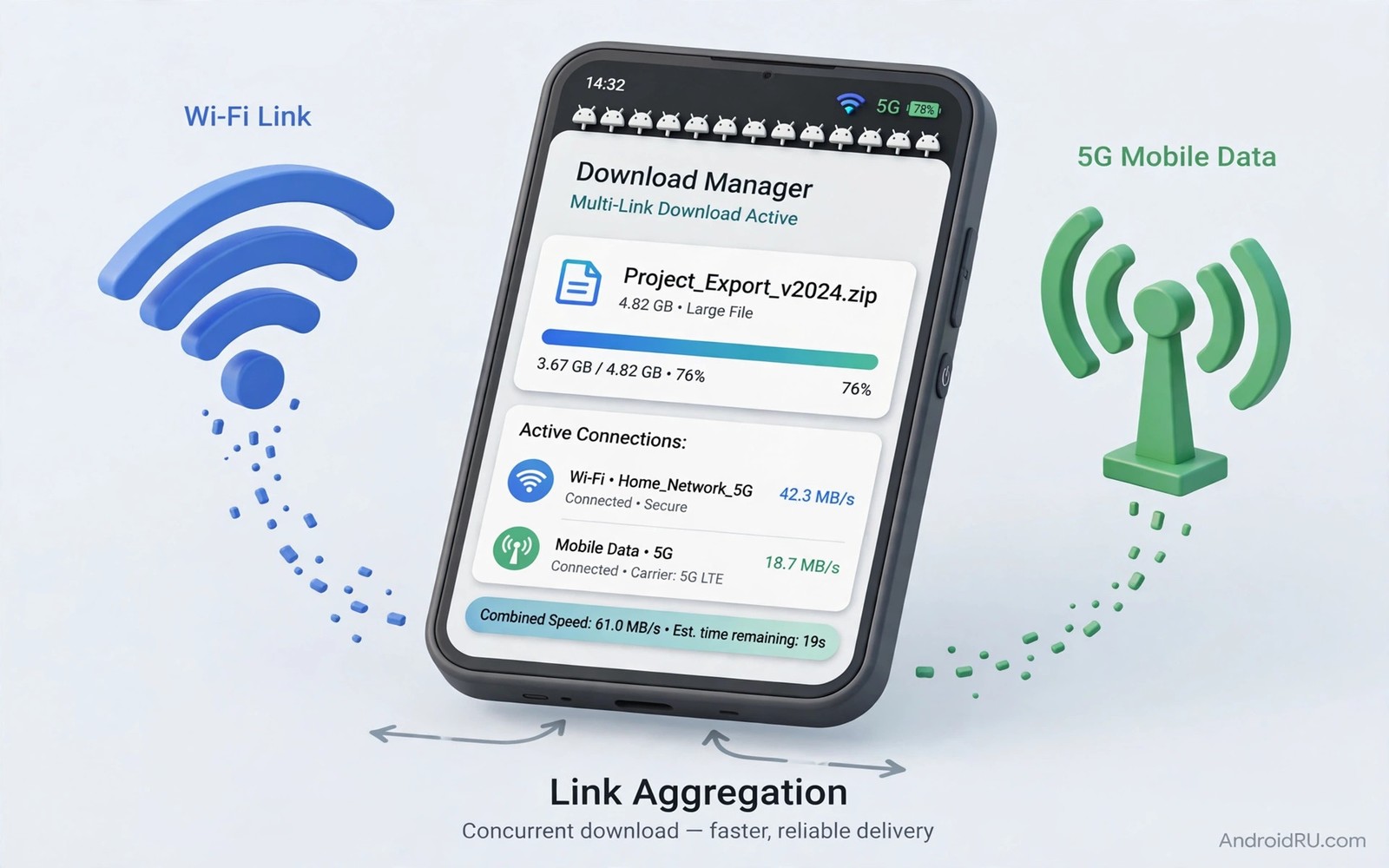
A download can crawl on Wi-Fi while mobile data sits idle beside it. A download can also crawl on mobile data while Wi-Fi sits idle. Parallel downloading lets the phone use both links at once for a single task. The two links share the work and the download finishes faster. That idea sounds simple but the setup needs care.
Android does not always combine links by default. The phone usually picks one link and keeps the other as a backup. A download booster or a dual connection setting can change that behaviour on supported phones. Some download managers split a file into parts and fetch parts over different links. Other tools bond the links at a lower level with help from a server.
This guide explains the safe paths that work on normal Android phones. It covers built in booster settings and download manager options. It also covers data limits and battery costs. Use parallel downloading for large files that you truly need fast. Use a single link for small tasks where the setup cost is not worth it.
Check For A Built In Download Booster
Open Settings and search for download booster or dual Wi-Fi or Wi-Fi plus mobile. Samsung phones have offered a download booster on some models. Other brands offer a similar setting under Wi-Fi or connection settings. Turn the booster on only when you need a large download. Turn it off after the download finishes to save mobile data.
Test the booster with a large file from a trusted source. Note the download time with the booster on and with the booster off. Use the same file and the same location for a fair test. If the booster shows no gain then one link may already be near its limit. A booster cannot beat a slow server or a capped plan.
Use A Download Manager That Splits Files
A download manager can split a large file into several parts. Each part downloads in parallel over the active connection. That method speeds a download even on a single link. It works best for large files from servers that support resume. Install a trusted download manager from your usual app store.
Open the download manager settings and set the number of parts to a modest value. Four parts is a good starting point for most files. More parts can overload a weak server and slow the result. Enable mobile data in the manager only when you accept the data cost. Set a data warning inside the manager if it offers one. The speed watch method in monitoring live network speeds in the status bar helps you see whether both links actually contribute.
Combine Wi-Fi And Mobile Data Safely
Some phones offer a setting to keep mobile data active while Wi-Fi is on. Open Developer options or Wi-Fi advanced settings depending on your phone. Look for a mobile data always active option. Turn it on for a test download and turn it off after the test. Leaving it on can drain battery and use mobile data in the background.
Watch the data use during a parallel download. Mobile data can burn fast when Wi-Fi is slow. Set a mobile data warning before the download starts. Pause the download if mobile data use passes your budget. A faster download is not worth a surprise bill. Use parallel mode only for files that justify the cost.
Fix A Parallel Download That Stalls
A parallel download can stall if one link drops mid file. Pause the download and resume it. A good manager will retry the failed part. Switch to a single stable link if stalls repeat. A stable single link beats a fast link that keeps breaking.
Check the server for resume support if stalls happen often. A server that rejects resume will restart the whole file after a drop. That restart wastes more data than parallel mode saves. Test resume with a small file before a large download. Choose a mirror server if the main server fails resume tests.
Protect Battery And Heat During Large Downloads
Parallel downloading uses two radios at once and that uses more power. Plug the phone into a charger for a large parallel download. Remove a thick case if the phone warms up. Pause the download if the phone gets hot to the touch. Heat can throttle both radios and erase the speed gain.
Download large files in a cool room with good signal. A weak signal forces both radios to work harder. A strong signal lets both radios finish fast and rest. Schedule large downloads for times with strong signal and low network load. That planning saves battery as well as time.
download_booster = on_for_large_files_only
file_parts = 4
mobile_data_always_active = test_only
data_warning = set_before_download
The snippet above is an original example written for this guide. It shows generic settings that you can adapt to your own device. It does not copy code from any outside source.
Use the example above as a checklist for parallel downloads. It is not code to install on your phone. Match each line to the matching setting in your phone or download manager. Turn booster settings off after the download ends.
Split Large Files For Reliable Downloads
A single huge download can fail near the end and waste all progress. Splitting a file into parts protects against that failure. A failed part can resume while completed parts stay done. That resilience matters on mobile networks that drop often. A split download is a robust download.
Choose a download manager that supports resume for the file type you need. Test resume with a small file before a large one. Pause a test download mid way and resume it. A manager that resumes cleanly earns trust for large files. A manager that restarts from zero wastes data on every drop.
Store partial downloads on fast storage with free space. A full storage device can corrupt a download near the end. Check free space before a large download starts. A free space check takes seconds and it prevents a frustrating failure. Keep at least twice the file size free for safety on large files.
Verify a large download after it finishes when the source provides a checksum. A checksum confirms that the file arrived intact. A corrupted large file can fail installation in confusing ways. Verification takes minutes and it saves hours of troubleshooting. A verified download is a finished download.
Manage Download Queues On Slow Networks
A queue of many downloads can choke a slow network. Each download competes for the same limited bandwidth. A long queue makes every download feel slow. Limit active downloads to one or two at a time on a slow link. A short active queue finishes each file faster.
Prioritise the file you need first in the queue. Pause lower priority files until the top file finishes. That priority habit gives you a usable file sooner. A queue without priority gives you many half finished files and no usable file. Priority is a simple management skill with a large payoff.
Schedule large downloads for off peak hours when the network is quieter. Night downloads often run faster on shared networks. A scheduled download also avoids competing with video calls during work hours. Use the scheduler in your download manager if it offers one. Scheduling turns a slow network into a patient network. Speed monitoring during a download also helps and monitoring live network speeds in the status bar shows live speed while parts download.
Review the queue at the end of each day. Remove failed downloads that will never resume. Clear completed files from the queue list. A clean queue makes the next download session faster to start. Queue hygiene is a small habit with a daily benefit.
Download Large Files Overnight When Possible
Overnight downloads avoid competing with daytime work. A night download can use a quiet network at full speed. A daytime download competes with calls and streams. Scheduling a large file for night saves frustration. Night scheduling is a simple speed trick.
Set a download to start after midnight if your manager supports scheduling. Check that the phone stays charged overnight. A phone that dies mid download wastes the night window. Plug the phone in before a scheduled download. Charging plus scheduling gives a reliable night download.
Verify the file in the morning before you need it. A morning verification catches a failed download early. An early catch leaves time for a retry before work. A late discovery creates a deadline crisis. Morning checks turn night downloads into reliable tools.
Use Wi-Fi for overnight large downloads when possible. Wi-Fi avoids mobile data costs for huge files. Mobile data overnight can still burn a plan quietly. A Wi-Fi only setting for night downloads protects the data budget. Budget protection matters for very large files. Direct transfer can also help and using Wi-Fi Direct to send large files faster than Bluetooth covers device to device transfers.
Keep a night download log for files that matter. Note file size and start time and finish time. A log reveals whether night speed truly beats day speed. A log also reveals files that repeatedly fail. Repeated failures point to a server problem. Server problems need a mirror source.
If a download booster is unavailable on your phone then turning Android into a powerful dual band hotspot can still improve the link that downloads use.
Common Mistakes
The first mistake is leaving parallel mode on all day. That habit burns mobile data on small tasks that do not need it. The second mistake is using too many file parts on a weak server. More parts can slow a download instead of speeding it. The third mistake is ignoring heat during a large download. Heat throttles radios and can cancel the gain.
Another mistake is testing parallel speed with a small file. Small files finish before parallel mode can help. A further mistake is forgetting a data warning before a large download. A fast download can become an expensive download fast.
Frequently Asked Questions
Does parallel downloading double my speed?
No it rarely doubles speed in real life. The gain depends on both links and the server. A slow server caps the total speed no matter how many links you use. Test with a large file to see your real gain.
Will parallel downloading use mobile data even on Wi-Fi?
Yes it can use mobile data by design when the booster is on. That is the point of parallel mode. Set a data warning and turn the booster off after the download. Check data use after each large download.
Is parallel downloading safe for my battery?
It uses more power than a single link because two radios work at once. Plug in the charger for large downloads. Pause if the phone gets hot. Short parallel downloads pose little risk when the phone stays cool.
Conclusion
Turn on your download booster today only for one large file that you need fast. Set four file parts in a trusted download manager and set a mobile data warning first. Test the download time with and without parallel mode. If the gain is clear then keep parallel mode as a tool for large files only. That single test is your concrete next step toward faster downloads.

