

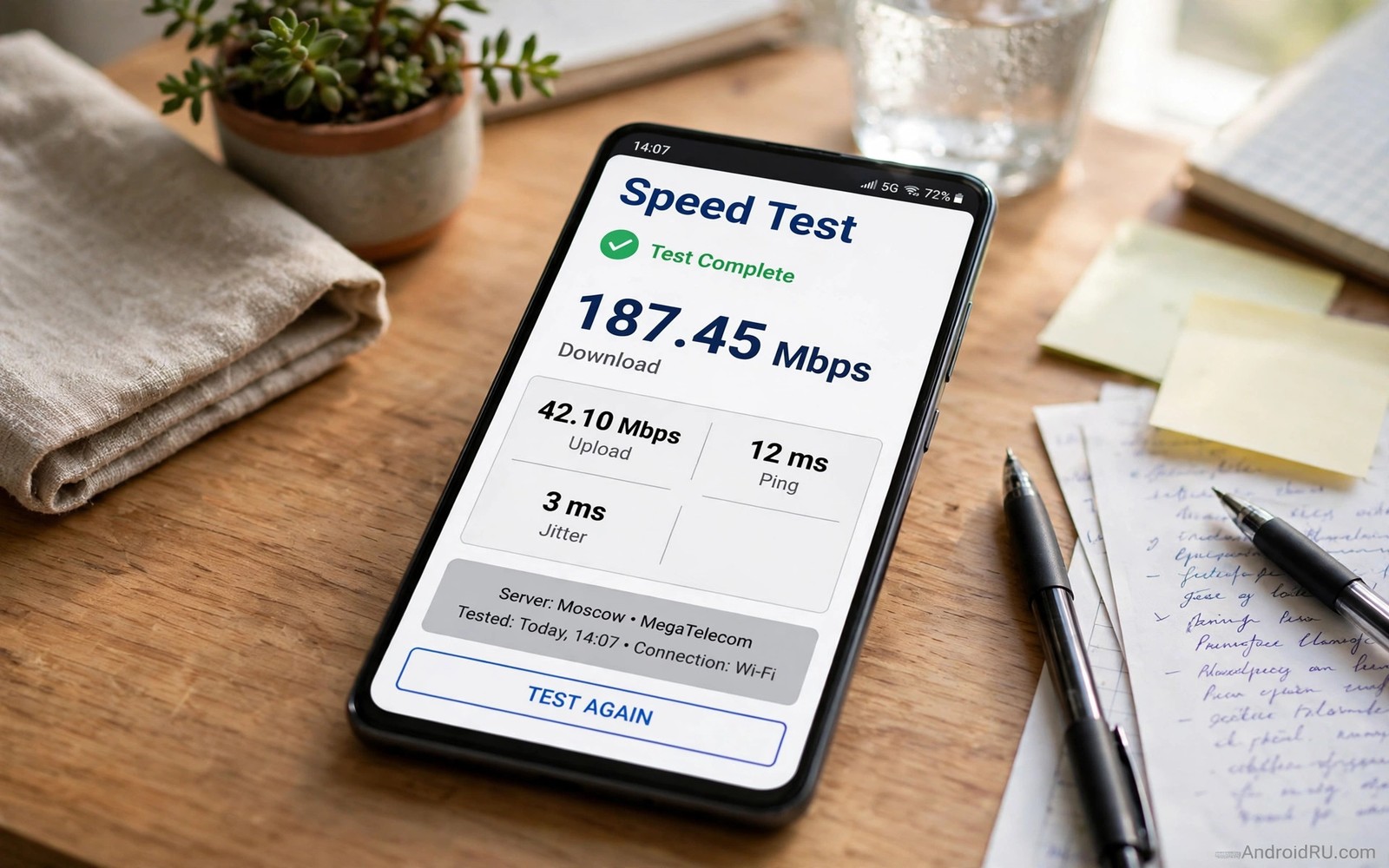
A speed test can lie without meaning to lie. A test that picks a close server can show a high number while real browsing feels slow. A test app full of ads can also steal bandwidth during the test. The result then reflects the ads and not your connection. A clean test method gives you numbers that match real use.
Real speed has three parts that matter for daily use. Download speed matters for video and files. Upload speed matters for calls and photo backups. Latency matters for games and video calls because it sets the delay. A single download number cannot describe all three parts. A good test reports all three and repeats the test for a fair picture.
This guide shows a clean method that needs no paid app and no download from an ad heavy store page. You will prepare the phone and pick a server with care. You will run repeat tests and record the results. That record helps you talk to your carrier with facts instead of feelings.
Prepare The Phone For A Clean Test
Close all apps that use data in the background. Pause cloud backups and app updates before the test. Turn off VPN for the first test because a VPN adds its own server and delay. Keep the phone at a normal temperature and a normal battery level. A hot phone can throttle and lower the result.
Stand in the place where you actually use the phone. A test beside a window can differ from a test deep inside a flat. Note the location and the signal bars for each test. Note whether you use Wi-Fi or mobile data. A test that mixes Wi-Fi and mobile results will confuse the record. Test one connection type at a time.
Pick A Trusted Test Without Ads
Use a test tool from your carrier or a well known speed test service that you already trust. Open the test in a browser if the app version shows heavy ads. A browser test with a simple page often runs cleaner than an ad heavy app. Avoid a test page that asks you to download a large file to start. A real speed test uses its own data stream and it does not need a separate download.
Check the server choice before you press start. A server in your own city gives a best case number. A server in another country gives a realistic number for global services. Run both tests and record both numbers. The city server shows what your carrier can do. The distant server shows what global browsing may feel like. The guide to monitoring live network speeds in the status bar helps you watch speed during real use after the test.
Run Repeat Tests And Record The Pattern
Run three tests in a row with a short pause between each test. Write down download and upload and latency for each run. A single fast run can be a lucky spike. A single slow run can be a brief network dip. Three runs reveal the normal range for that location and time. Keep the median run as your headline result.
Repeat the three run test at a different time of day. Morning and evening results often differ because more people share the network at night. A test that is fast at dawn and slow at night points to congestion. A test that is slow at all times points to coverage or a plan limit. Time patterns help you choose the right fix.
Test Real Tasks After The Numbers
Numbers alone cannot tell you if a video call will work. Open a video call after the speed test and watch for freezes. Stream a video at your normal quality and watch for buffering. Load a large web page and note the time to full load. Real tasks confirm whether the numbers match your experience.
If numbers look high but video still buffers then check for app limits. A video app may cap quality on mobile data by default. Raise the video quality setting on Wi-Fi first for a fair test. If calls still freeze with low latency then check the app server region. A distant app server can add delay that a local speed test cannot show.
Compare Mobile Data And Wi-Fi Fairly
Test mobile data with Wi-Fi turned off. Test Wi-Fi with mobile data turned off. That separation stops the phone from switching mid test. Note the signal strength for each test. A Wi-Fi test near the router will beat a mobile test in a basement. That difference is location and not a carrier fault.
Test mobile data outdoors if indoor results look poor. Walls and metal can weaken mobile signal a lot. An outdoor test shows the best case for your carrier in your area. If outdoor speed is also poor then the carrier or plan may be the limit. If outdoor speed is strong then indoor coverage is the problem to fix.
test_runs = 3
record = download_upload_latency
test_times = morning_and_evening
background_data = paused
The snippet above is an original example written for this guide. It shows generic settings that you can adapt to your own device. It does not copy code from any outside source.
Use the example above as a test plan and not as code to run. Follow each line in order for every location you test. Save the plan with your results so a later test uses the same method.
Understand Latency And Jitter Beyond Speed
Download speed gets all the attention in speed tests. Latency often matters more for calls and games. Latency is the delay before data starts moving. Jitter is the variation in that delay over time. High jitter makes a call stutter even when download speed looks high.
Test latency with a simple ping style test if your tool offers it. Note latency to a nearby server and to a distant server. A nearby server should show low latency. A distant server will show higher latency by physics alone. Compare latency over time rather than chasing a single low number.
Watch jitter during a video call. A call with stable latency feels smooth. A call with jumping latency feels choppy. If jitter is high then try a different network or a different time. Congestion often raises jitter before it lowers download speed. Jitter awareness helps you diagnose calls that speed tests call healthy.
Record latency and jitter beside download numbers in your test notes. A complete record shows whether a network suits calls or only downloads. A network for work calls needs low jitter first. A network for file downloads needs high download speed first. Different tasks need different network strengths.
Test Speed On The Device You Actually Use
A phone speed test does not predict a laptop speed test on the same network. Laptop Wi-Fi hardware and antenna design differ from phone hardware. A laptop far from a router may test slower than a phone near the router. Test each device in its real work position. Position matters as much as the network itself.
Test a tablet in the room where you watch video. Test a laptop at the desk where you work. Test a phone in the pocket position where you take calls. Each position gives a different result. A network plan based on one device test will mislead the other devices. Device specific tests keep expectations honest.
Compare results across devices on the same network and time. A device that lags far behind others may have a hardware or driver fault. Update that device software and retest. A device that matches others after an update had a software fault. A device that still lags may need a Wi-Fi adapter check. Live monitoring during real use also helps and monitoring live network speeds in the status bar shows speed while you work.
Keep a short device test log for your main devices. A log reveals slow decline on one device before it becomes a daily problem. A single slow device is a device problem. All devices slow together is a network problem. That distinction points to the right fix fast.
Read Speed Test Results Like A Technician
A speed test result has more than a headline download number. Upload speed matters for sending files and video calls. Latency matters for gaming and calls. Jitter matters for call stability. A technician reads all four numbers together. A headline reader misses the full story.
Compare upload speed with your plan upload promise. Many plans offer far less upload than download. A slow upload can bottleneck a video call even with fast download. Upload awareness helps you choose the right task for the link. Large uploads suit Wi-Fi more than mobile data often.
Check latency to servers that you actually use. A test server in your city gives a best case latency. A game server abroad gives a realistic latency for that game. Both numbers matter for different tasks. Local latency flatters global tasks. Global latency predicts real game delay.
Note the test time beside every result. A result without a time cannot be compared fairly. Morning and evening results differ on shared networks. Time stamped results reveal congestion patterns. Patterns guide the right fix. APN settings can also affect mobile results and changing mobile APN settings for slow web loads covers that tweak.
Keep a speed log with download and upload and latency and jitter. A log over weeks shows trends that single tests hide. A downward trend points to a growing problem. An upward trend confirms a fix. Trend reading is a technician skill worth learning.
If mobile signal itself looks weak during a test then measuring exact mobile signal strength in real dBm units gives a precise number to compare.
Common Mistakes
The first mistake is trusting a single test run. One run can spike or dip for many reasons. The second mistake is testing with a VPN on and blaming the carrier for VPN delay. Test without VPN first. The third mistake is testing with backups running in the background. Background traffic steals speed during the test.
Another mistake is picking a distant server and calling the carrier slow. Server distance adds delay by design. A further mistake is downloading a test app from an ad page and letting ads run during the test. A clean browser test avoids that trap.
Frequently Asked Questions
How fast should mobile data be for video calls?
A stable video call needs modest speed but low latency and low jitter. A few megabits per second can carry a clear call if latency stays low. Test latency and stability as well as download speed. A fast but unstable link will still freeze calls.
Why do speed tests differ between apps?
Different apps pick different servers and use different test methods. Server distance and test duration change the result. Use the same tool and the same server for comparisons. Compare your own repeat tests rather than random app numbers.
Does a speed test use a lot of data?
Yes a full speed test can use tens of megabytes. Run tests on Wi-Fi when you test method rather than mobile speed. On mobile data run fewer tests and note the data use. A short test still gives a useful picture if you repeat it.
Conclusion
Prepare your phone today by pausing backups and turning off VPN. Run three clean tests and record download and upload and latency. Repeat the test in the evening and test a real video call after the numbers. If the pattern shows congestion then test at a different time before you complain to the carrier. That record is your concrete next step toward honest speed facts.

