

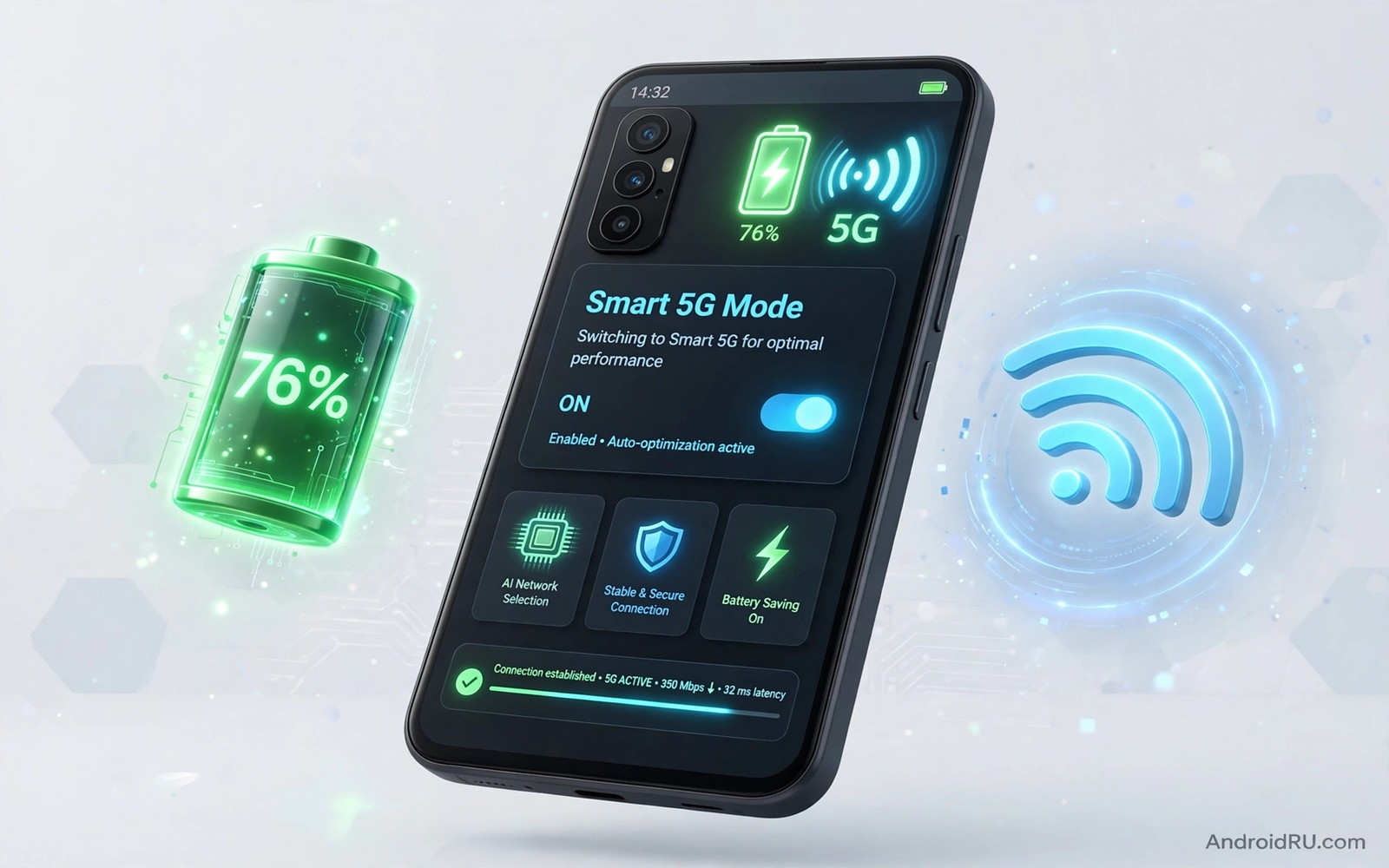
Your phone can lose battery even when the screen is off and no app is open. The cause is often the radio searching for a stronger 5G signal again and again. A weak 5G signal forces the modem to work harder and to switch towers more often. That work uses power all day even if you never make a call. Smart 5G mode breaks that cycle by letting the phone use a stable slower network when speed is not needed.
Think of smart mode as a calm manager for your connection. It keeps 5G ready for downloads and video and games. It drops back to a steadier network for messages and background sync. You still get fast speed when you open a demanding app. You stop paying a battery price for speed that you are not using at that moment.
The gain is easy to notice on a normal day of travel and work. A phone that hunts for 5G in a lift or a basement can warm up and drop several percent in an hour. The same phone on smart mode stays cooler and holds its charge longer. That difference matters most when you cannot charge until the evening. Start with the setting below and watch one full day before you judge the result.
Find The Smart 5G Setting On Your Phone
Open Settings on your Android phone. Tap Connections or Network and internet depending on your phone brand. Tap Mobile networks and look for Network mode or Preferred network type. Choose the option that mentions 5G auto or smart 5G if your phone offers it. Save the choice and restart the mobile connection by toggling airplane mode once.
Some phones hide the option under a battery or performance menu. Search Settings for the words smart 5G or auto 5G if you cannot find it in the network menu. If your phone has no smart mode then choose 5G and LTE auto as a close second choice. That mode still lets the phone fall back when 5G is weak. Avoid a 5G only mode unless you need it for a specific test. A forced mode removes the fallback that saves battery.
Test Battery Use Before And After The Change
Check battery use for one day before you change anything. Open Settings and tap Battery and note the top apps and the screen on time. Note the time when you unplug the phone in the morning. Note the percentage left when you plug in at night. A simple note in your phone is enough for a fair test.
Change to smart mode the next morning and repeat the same routine. Keep brightness and app use close to the first day if you can. Compare the evening percentage and the modem warmth during travel. Many users see a clear gain on days with weak signal and a smaller gain on days with strong signal. That pattern is normal because searching hurts most where coverage is poor. If you want a deeper check then read about measuring signal strength in real dBm units before you run the second test.
Use Smart Mode With Wi-Fi And Roaming
Smart 5G mode works best when Wi-Fi takes over at home and at work. Turn on Wi-Fi at places where you stay for a long time. The phone then rests the mobile radio and the battery gain grows. Turn off mobile data when you use a trusted Wi-Fi network for a long video call or a large download. That choice is simple and it removes a second radio from the work.
Roaming needs extra care because a roaming phone can search even harder. Set the phone to smart mode before you cross a border. Turn on data roaming only when you need it. Turn it off again when you return to Wi-Fi. A roaming search loop can drain a battery faster than any app on the phone. Smart mode plus careful roaming gives you control without constant manual toggling.
Keep Speed For Downloads And Games
Smart mode should not feel slow in daily use. Open a large file or a video app and watch the connection jump to full speed. The switch happens in the background and it takes only a short moment. If a download starts slowly then pause it for a few seconds and resume it. That pause often lets the phone settle on the faster network.
Gamers should test one match on smart mode before a ranked session. Most matches start with a short loading phase and the phone has time to switch. If you see lag at the start of a match then switch to a fixed fast mode for that session only. Return to smart mode after the match ends. That habit gives you speed for play and savings for the rest of the day. A related fix for weak signal is covered in seven ways to fix a weak 5G signal and it pairs well with smart mode.
Fix A Phone That Still Drains After Smart Mode
A phone can still drain if one app keeps waking the radio. Open Battery settings and look for an app with high background use. Restrict background data for that app or set it to use Wi-Fi only. A chat app with constant sync can cause more drain than the network mode itself. Fix the app first and then judge the network setting.
Check for a stuck network search after a software update. Toggle airplane mode for ten seconds and then turn it off. That reset clears a stale tower search. Restart the phone if the drain continues after the reset. A restart also clears a modem process that failed to sleep after an update. If drain stays high then test the same SIM in a second phone to rule out a SIM or account fault.
network_mode = smart_5g
fallback = LTE_auto
search_interval = normal
roaming_search = off
The snippet above is an original example written for this guide. It shows generic settings that you can adapt to your own device. It does not copy code from any outside source.
Use the example above as a checklist and not as a command to paste into your phone. Most Android phones expose these choices in Settings menus rather than in a text file. Match each line to the closest menu option on your own device. Write down the original setting before you change it so you can return to it fast.
Build A Daily Smart Mode Routine
Start the day by checking signal strength in the places where you spend the most time. A train station and a basement office often show very different signal patterns. Note which place drains fastest and set a reminder to check battery at lunch. That lunch check tells you whether smart mode is holding or whether a single app is waking the radio. A routine built on real places beats a generic setting that you never review.
Keep smart mode on during travel and switch to a fixed mode only for a clear task. A large download or a live stream is a clear task that justifies peak speed. A messaging session is not a clear task for peak speed. Return to smart mode as soon as the demanding task ends. That return habit is what turns a one time tweak into a daily saving.
Pair smart mode with a simple battery review each Sunday. Open battery settings and look for the biggest background users of the week. Restrict any app that used power without giving you value. Update the phone software when an update promises modem improvements. A modem update can change how smart mode behaves and a fresh test after an update keeps the routine honest.
Travel days need a second check because roaming and weak towers change the picture. Turn on smart mode before you leave home and keep Wi-Fi on at hotels and offices. Turn off mobile data during long Wi-Fi stays to rest the radio completely. That rest gives the biggest gain on a travel day. A traveller who plans radio use like a budget will rarely run out of power before evening.
Check Signal Quality Not Just Signal Bars
Signal bars hide the real quality of a connection. Two phones can show the same bars and behave very differently on a call. One phone may hold a clean tower link while the other fights interference. Check signal quality in dBm when battery drain puzzles you. A dBm reading gives a number that bars cannot give.
Compare dBm readings in the same room on two different days. A reading that drops sharply at a certain hour points to congestion or a tower change. A reading that stays poor all day points to coverage limits in that place. Use that distinction to decide between a settings fix and a location fix. A settings fix cannot create coverage where none exists.
Use the dBm habit together with measuring signal strength in real dBm units when you test a new network mode. Run the dBm check before and after a mode change. Write both numbers beside the battery result for that day. That pair of numbers tells a clearer story than a feeling about battery life. A clear story also helps support staff when you report a real fault.
Remember that a strong signal does not always mean a fast network. A tower can show strong signal and still serve many users at once. Speed tests at different hours reveal congestion that signal strength hides. Combine dBm and speed and battery notes for a complete picture. That complete picture is the basis of a smart mode routine that actually works.
Test Smart Mode On A Real Commute
A commute test reveals smart mode behaviour better than a home test. A home test uses stable Wi-Fi and a strong tower. A commute test uses moving towers and weak spots. Ride your normal route with smart mode on and note battery at arrival. Compare that result with a previous commute on a fixed mode. The comparison is the honest test.
Note the places where the phone warms up during the commute. Warmth often marks a tower search zone. A tunnel or a basement car park can trigger a search loop. Smart mode should reduce warmth in those zones. If warmth stays high then check for a hungry app as well as the network mode.
Keep mobile data use normal during the commute test. Do not avoid streaming just to make the test look good. A test with normal use reflects real life. A test with avoided use flatters the setting. Honesty in testing leads to settings you can trust daily.
Share the commute result with yourself in a note for future phone upgrades. A future phone may handle smart mode differently. A note from this phone helps you test the next phone faster. Good notes turn one test into a reusable method. Forced mode comparison also helps and forcing 5G only mode on Android shows why a forced mode drains faster.
Repeat the commute test after a major software update. An update can change modem behaviour and smart mode logic. A repeat test catches a regression early. Early detection lets you adjust settings before battery frustration returns. A twice yearly commute test is a small habit with lasting value.
Common Mistakes
The first mistake is forcing 5G only mode and then blaming the battery. A forced mode removes the fallback that smart mode uses to rest. The second mistake is testing for one hour and declaring the mode a failure. Battery tests need a full day with similar use to mean anything. The third mistake is ignoring a single hungry app and changing network settings again and again. Fix the app and the network together for a real result.
Another mistake is leaving mobile data on during a long Wi-Fi session. The phone may still check the mobile network in the background. A further mistake is using a thick metal case that blocks signal and forces harder searching. Remove the case for a test day if drain is worst indoors. Small physical factors can matter as much as software settings.
Frequently Asked Questions
Does smart 5G mode slow down my downloads?
No it does not slow normal downloads in most cases. The phone switches to full speed when a download or a video needs it. The switch may add a brief delay at the very start. A long download will still finish at the speed that your plan and signal allow.
Will smart mode hurt call quality?
No call quality depends on voice coverage and not on the data mode alone. A stable LTE connection often gives a clearer call than a weak 5G connection. Smart mode picks the steadier path when 5G is weak. Test one call in a weak area and compare it with your old setting.
Should I use smart mode every day?
Yes smart mode suits most daily routines. Keep it on for travel and work and messages. Switch to a fixed fast mode only for a demanding task that needs peak speed. Return to smart mode after that task ends. That routine gives the best mix of speed and battery life.
Conclusion
Turn on smart 5G mode today and run a one day battery test. Note your morning and evening percentages and note any warmth during travel. If the evening percentage improves then keep the setting as your daily default. If one app still drains the battery then restrict its background use next. That single change plus one app fix will give most phones a calmer radio and a longer day.

