

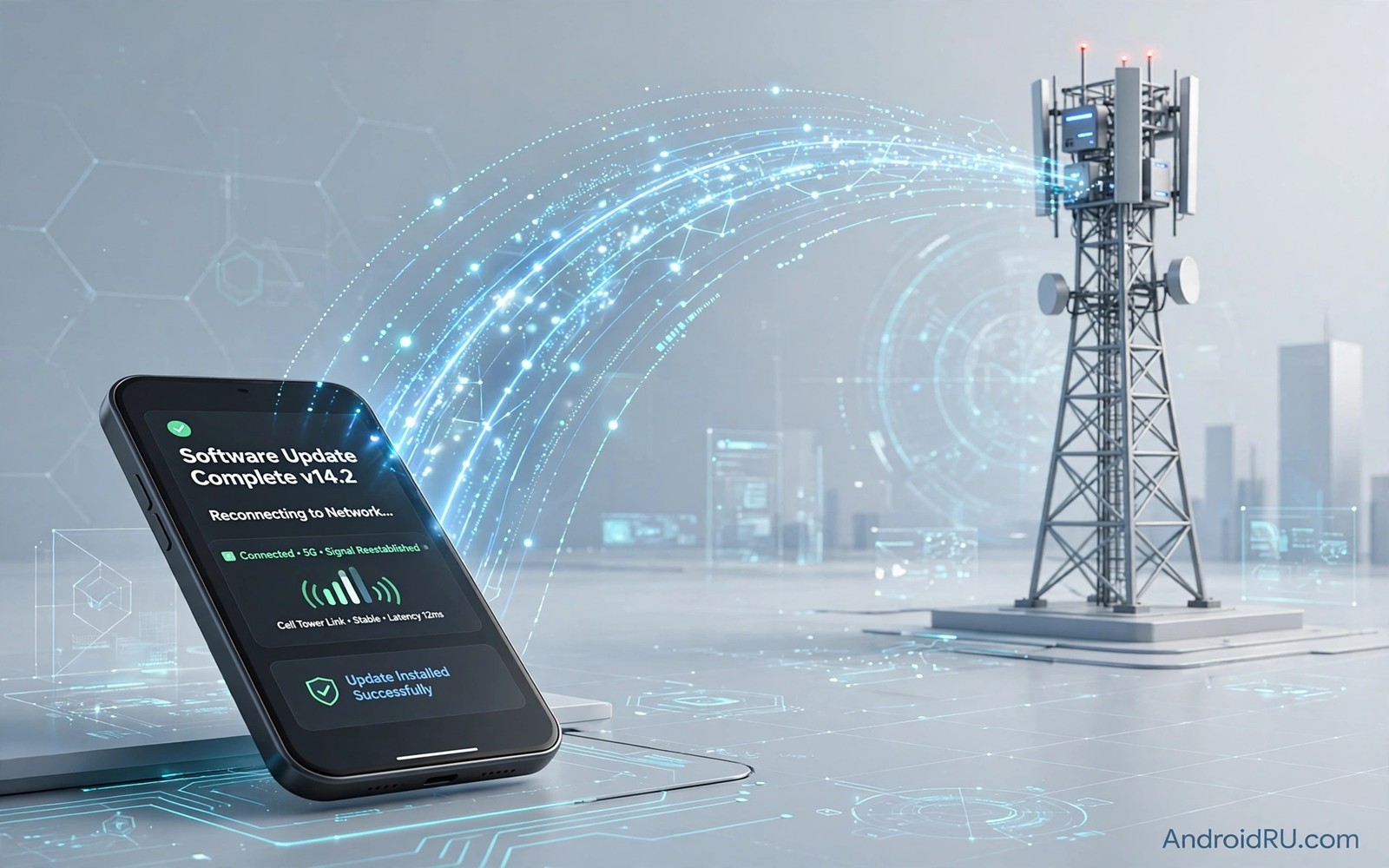
A major OS upgrade should improve your phone yet it can break the mobile connection instead. Calls drop more often and data stalls at random moments. The phone may show signal bars and still fail to hold a connection. That pattern frustrates people because the upgrade was supposed to help. The cause usually sits in a reset network profile or a changed carrier setting rather than in broken hardware.
An OS upgrade can replace radio firmware and carrier profiles. A new profile can change how the phone talks to towers. A new power setting can also put the radio to sleep more aggressively. A new network mode default can prefer a different band. Each change is small on its own. Together they can turn a stable connection into a dropping one.
This guide walks through the fixes in the order that restores most phones first. You will check the simple toggles before any reset. You will learn how to reset network settings safely. You will learn how to check carrier updates and SIM seating. Each step includes a test so that you know when the connection is truly stable again.
Start with airplane mode and a restart
Turn airplane mode on for thirty seconds and then turn it off. That toggle forces a fresh registration with the nearest tower. A stale registration after an upgrade can cling to a weak cell. A fresh registration often picks a stronger cell at once. Test a call and a web page after the toggle. A successful test after a toggle points to a registration fault rather than a deeper profile fault.
Restart the phone if the toggle does not help. A restart after an upgrade clears temporary radio state that the upgrade left behind. A phone that has not restarted since the upgrade may still run old radio processes. A clean restart gives the new system a clean start. Test a call and data again after the restart. A restart is simple but it solves a surprising number of post upgrade drops.
Test in a strong signal spot after the restart. A weak spot test can hide a real improvement. A strong spot test gives a fair result. If drops continue in a strong spot then the fault sits in a setting or profile rather than in coverage. If drops stop in a strong spot then coverage plus a new power setting may share the blame. That distinction guides the next steps.
Check network mode and carrier settings
Open Settings and tap Network and internet and then tap SIMs and choose your active SIM. Check the preferred network type. An upgrade can change the default from auto to a narrower mode. A narrower mode can drop in areas where the preferred network fades. Set the mode back to the auto option that includes all available networks. Test calls and data after the change.
Check for a carrier settings update in the same menu or in system update settings. A carrier update can restore a profile that the OS upgrade replaced. A missing carrier update can leave the phone with generic settings that drop on a specific network. Install any carrier update that appears and restart the phone. Test again after the restart. A carrier update is a small download with a large effect on stability.
Check the SIM seating if drops started right after the upgrade and a restart. An upgrade does not move the SIM but a phone handled during an upgrade can loosen a tray. Remove the SIM tray and reseat the card firmly. A loose SIM can cause intermittent drops that look like software faults. A firm reseat is a quick physical check that costs nothing. Weak signal help is also relevant and the steps for fixing a weak 5G signal will help you judge coverage after an upgrade.
Reset network settings safely
Open Settings and search for Reset network settings. Read the warning before you confirm. A network reset wipes saved Wi-Fi networks and Bluetooth pairings. It does not delete files or contacts. It restores mobile and Wi-Fi and Bluetooth settings to defaults. A reset can fix a corrupted profile that survives restarts and toggles.
Back up Wi-Fi passwords before you reset if you can. A password manager or a written note can save a long rejoin process. A reset without a backup means rejoining every Wi-Fi network by hand. A short preparation step makes the reset far less painful. Note any Bluetooth pairings that you will need to redo as well.
Confirm the reset and restart the phone when it finishes. Test mobile data first before you rejoin Wi-Fi networks. A mobile data test isolates the cellular fix from Wi-Fi variables. If mobile data holds steady then rejoin Wi-Fi networks one by one. If mobile data still drops then the fault needs a carrier or SIM check rather than another reset. A second reset rarely helps after a first clean reset.
Use this post upgrade recovery routine
Work through the recovery steps in order and test after each step. A toggle test comes before a reset test. A carrier update test comes before a SIM test. A disciplined order prevents a needless reset when a simple toggle would work. Note the step that restores stability for future upgrades.
Step one: toggle airplane mode for thirty seconds
Step two: restart phone and test in strong spot
Step three: check network mode and carrier update
Step four: reseat SIM tray firmly and test again
Step five: reset network settings only if needed
This routine is an original example written for this guide. It uses only standard network screens and it needs no extra app. The routine works because it orders cheap and reversible steps before a destructive reset. A reset is a powerful tool but it should not be the first tool. A toggle and a restart deserve a chance first.
Check battery and power settings after upgrade
Open battery settings and check whether a new power saving mode is active. An aggressive power mode can sleep the radio between data bursts. That sleep can look like a drop during a call or a download. Turn off aggressive power saving for a test day. A stable connection during that test points to a power setting rather than to a radio fault.
Check app level battery optimisation for the phone app and messaging apps. An optimised phone app can lose a call in the background. A messaging app under strict optimisation can delay data. Set those core apps to unrestricted for a test. A stable result with unrestricted core apps points to an optimisation fault. You can then tune optimisation app by app rather than disabling it entirely.
Watch heat during a post upgrade test. A new system can run background optimisation for days after an upgrade. That background work can heat the phone and throttle the radio. A hot phone can drop connections that a cool phone holds. Let the phone cool and finish optimisation before you judge stability. A judgement made during heavy post upgrade work can mislead you. New phone network setup shares some steps and the guide to network settings for a new phone covers defaults that an upgrade can change.
Test with a second SIM or a second phone
Test with a second SIM from a different carrier if one is available. A second SIM can reveal whether the fault follows the carrier or the phone. A fault that follows the carrier points to a profile or network issue. A fault that follows the phone points to a device setting or firmware issue. That comparison can save a long search on the wrong side.
Test the original SIM in a second phone if you can borrow one. A SIM that drops in two phones points to a SIM or account fault. A SIM that works in a second phone points to the upgraded phone. That swap test is the cleanest way to separate SIM faults from phone faults. A carrier can replace a faulty SIM quickly once you prove the pattern.
Note the results of both swap tests in a short log. A log entry such as drops on phone A with SIM one and stable on phone B with SIM one is clear evidence for support. A support agent can act on that evidence faster than on a vague complaint. A clear log turns a frustrating upgrade fault into a solvable case. Crossing borders can also trigger drops and the steps for fixing mobile data after crossing borders will help if drops started during travel after an upgrade.
Keep a log of stable settings after recovery
Write down the network mode and carrier update version that restored stability. A log entry such as auto mode plus carrier update after restart gives you a reference for the next upgrade. A reference saves a repeat search through every setting. A short log is especially useful when an upgrade happens overnight and you forget which step helped.
Share the log with support if drops return later. A support agent can use the log to skip steps that already failed. A log also helps a second household member with the same phone model. Shared knowledge can turn a private fix into a household fix. A clear log is a small effort with a lasting benefit.
Review the log before the next major upgrade. A pre upgrade review reminds you to check carrier updates promptly after the upgrade. A prompt carrier check can prevent a repeat of the same drops. A habit of checking after every major upgrade keeps the phone stable across versions.
Common mistakes
A common mistake is to factory reset the phone at the first post upgrade drop. A factory reset wipes data and it rarely beats a network reset. Another mistake is to change network mode and APN and power settings all at once. A batch hides the winning fix. Change one setting and test stability for a day.
Do not ignore a carrier update after an upgrade. A carrier update can restore the exact profile that the upgrade replaced. Do not judge stability during heavy post upgrade optimisation either. A phone that is still optimising apps can drop connections for reasons that vanish in a few days. Give the phone a calm test day before a drastic step.
Frequently Asked Questions
Will a network reset delete my photos?
No because a network reset only wipes network settings and pairings. It does not delete photos or files or apps. A factory reset is a different action that does delete personal data. Read the warning screen carefully before you confirm any reset.
How long should I test after a fix?
Test for a full day of normal use rather than a single call. A single call can succeed by luck on a faulty connection. A full day with calls and data in several places gives a fair stability picture. A day without drops is a strong sign of a fix.
Can an OS upgrade permanently damage the radio?
An upgrade rarely damages radio hardware permanently. Most post upgrade drops come from profiles and settings. A carrier update or a network reset usually restores stability. A persistent drop across SIMs and phones deserves a hardware check at a service centre.
Conclusion
Today toggle airplane mode and restart your phone and test in a strong signal spot. If drops continue then check network mode and install any carrier update. Reseat the SIM and test again before you consider a network reset. Back up Wi-Fi passwords before any reset. That concrete sequence will restore most post upgrade connections without a factory reset.
Keep a note of the step that fixed your connection. A note will speed up the next major upgrade because you will know which setting to check first. A short note turns a stressful upgrade into a routine recovery.

